A checkout form asks a customer to choose a delivery method. On a phone, the options need to be easy to scan and tap; with a screen reader, the question and selected answer need to make sense together; and the styling needs to fit the rest of the product. Radio buttons look simple, but the implementation choices behind them affect all three.
These radio button examples show eight ways teams approach the same problem, from native HTML to Vue-friendly primitives and established design systems. The useful question isn’t which library has the most features. It’s which pattern gives your form the behaviour, accessibility and styling control it needs, without adding complexity that developers then have to maintain.
Table of Contents
- 1. Native HTML Radio Input Group
- 2. Headless UI RadioGroup
- 3. Radix UI RadioGroup
- 4. Shoelace / Web Awesome sl-radio-group
- 5. Vuetify v-radio-group
- 6. GOV.UK Design System Radios
- 7. Material Design 3 Radio Buttons
- 8. Carbon Design System RadioButtonGroup
- How the eight radio button approaches compare on framework, styling and trade-offs
- Choosing the Right Radio Pattern for Your Next Form
1. Native HTML Radio Input Group
Native radio inputs are the baseline worth measuring every custom component against. Give options in the same question a shared name, and the browser enforces single selection, handles keyboard interaction and includes the selected value in form submission. Tab enters the group, and arrow keys move among its options.

A shipping-method question is a good fit: Standard delivery, Express delivery and Collection are mutually exclusive choices with direct consequences for the order. Use a <fieldset> and a <legend> to connect the question to the options, then provide a visible <label> for each input. The HTML radio group example is a useful starting point for this semantic structure.
Start with the browser: Keep native inputs unless a real design or interaction requirement calls for more. A custom appearance shouldn’t mean rebuilding selection and keyboard behaviour from scratch.
Styling without replacing behaviour
For a brand-coloured control, CSS accent-color can be enough. If the design calls for a fully custom appearance, appearance: none lets you draw the control yourself, but preserve a clearly visible focus indicator and checked state. Avoid hiding the input with display: none, which removes it from the normal interaction path.
Preselection is a product decision, not a default rule. A default can make sense when the option is genuinely the most common or safest choice, but it can bias a user who’s being asked to make a personal or consequential decision. In an eligibility form, for example, leaving the group unanswered may be more appropriate than implying an answer.
2. Headless UI RadioGroup
A pricing-card selector can look like a set of selectable panels rather than a row of small circles. Headless UI’s RadioGroup is a useful reference for that approach: it provides interaction behaviour while leaving the markup and visual design to the application. Its Vue version suits teams that want component-level behaviour but need to style the choice cards to match an existing product.
The trade-off is responsibility. When a component is unstyled, the application team owns the focus ring, selected treatment, spacing and readable text. A card may look selected in a screenshot while remaining difficult to identify when focused by keyboard or viewed in a less favourable colour scheme.
Make the whole choice work
Keep the text inside the clickable option so a user can select the card by clicking its description, not only the small radio indicator. In Vue, use the component’s available state through slots to distinguish a selected option from the one currently receiving focus. Those states aren’t interchangeable: focus says where keyboard interaction is, while selection says what the form will submit.
A practical implementation sequence is to choose the option structure, add a visible focus-visible treatment, then test moving between choices with the keyboard. Don’t rely on the hover effect as the only signal. Touch users don’t hover, and keyboard users need to see focus without mistaking it for a changed answer.
A headless component saves you from implementing interaction behaviour, not from designing the interaction.
This pattern works well for SaaS plan cards or a settings panel with visually rich options. It’s less attractive when the team can’t commit to testing the custom presentation across keyboard, screen-reader and pointer use.
3. Radix UI RadioGroup
In a React settings screen, a density selector might offer Compact, Comfortable and Spacious. Radix UI’s RadioGroup is a useful reference for building that interaction into a product-specific interface instead of adopting a complete visual system. It provides a primitive for the group and its items, while the design system controls how each state looks.
The replicable pattern is roving focus. Rather than placing every option separately in the page’s Tab sequence, focus moves within the group using arrow keys. That keeps keyboard navigation aligned with how a single-answer control is meant to work. When recreating the pattern, test the actual arrow-key and focus behaviour instead of assuming that correct-looking radio circles prove it works.
Use state to drive the presentation
Radix exposes state that can be used in styling, including data attributes for the checked state. In a Tailwind-based project, that lets a class respond to selection without adding a second JavaScript state mechanism purely to colour a border or reveal a check mark.
Controlled state can be useful when the choice must stay in sync with a form library or server-loaded preferences. But it brings another integration point: make sure a reset, validation error or changed server value also updates the visible selected state. For option names, pair each control with clear text and verify that assistive technology announces both the group question and the current option.
This pattern suits React design systems and interfaces that need bespoke styling without bespoke keyboard logic. It’s not a direct Vue component choice; the useful lesson for a Vue-first primitive is to separate selection state and focus management from the styling layer.
4. Shoelace / Web Awesome sl-radio-group
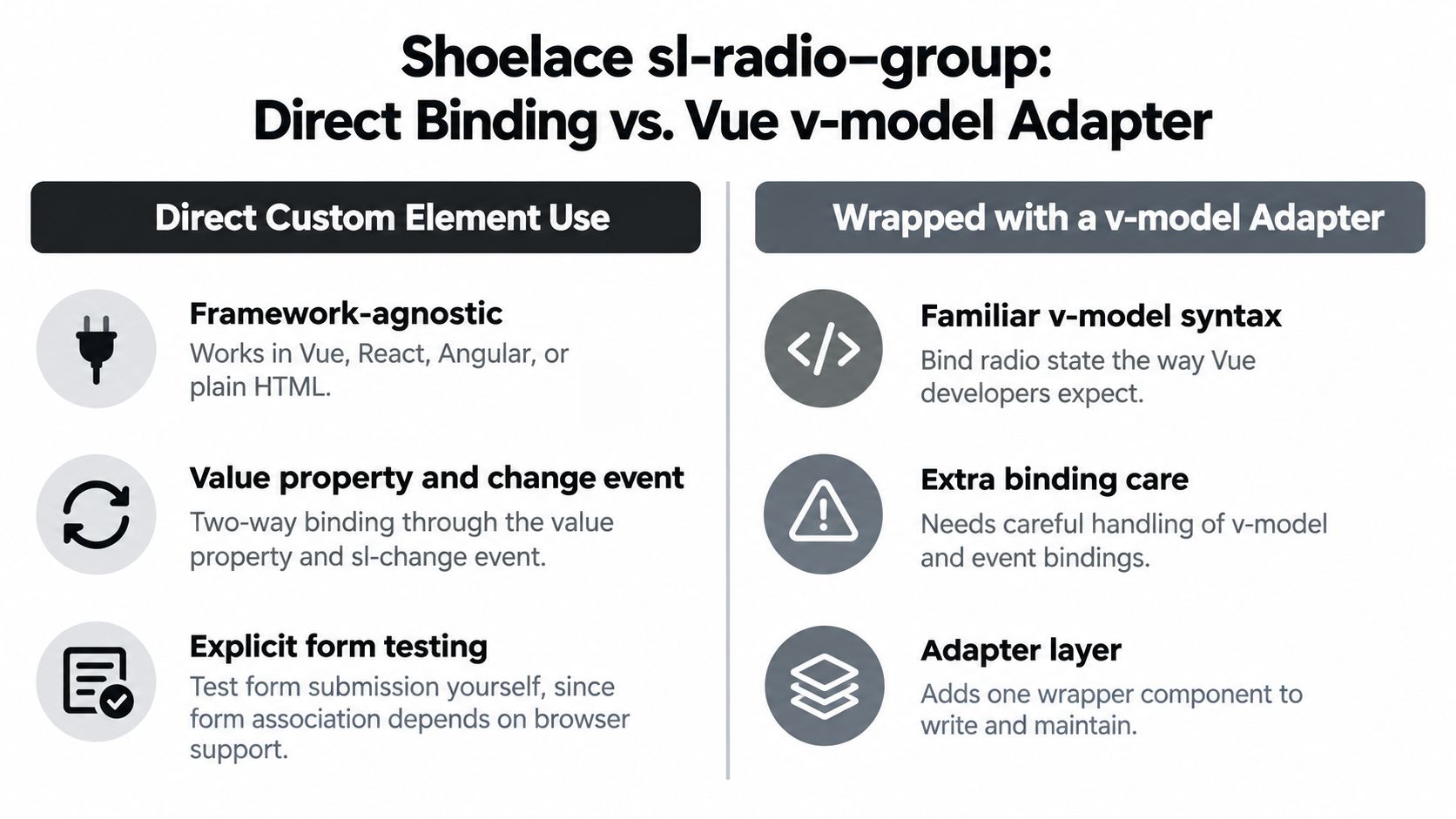
A team maintaining an internal tool in Vue while sharing form controls with a plain HTML application may prefer a web component over framework-specific markup. Shoelace’s radio group illustrates that approach: custom elements can be used across frameworks, while the group presents a component API for managing choices. The project has continued as Web Awesome, so teams should check which package and documentation they intend to adopt.
The Vue integration needs attention at the boundary. Bind the group’s value property and listen for its change event, or build a small adapter if the application expects v-model. Don’t assume a custom element behaves exactly like a native input in every form scenario. Test submission and reset in the browsers your product supports.
Style through the component boundary
Shadow DOM can protect a component’s internal structure, but it also means ordinary selectors from the page may not reach inside. Use the component’s documented CSS custom properties or styling hooks rather than targeting private internals. That keeps a theme from depending on markup the component author may change.
This is a strong example for teams that need framework-agnostic behaviour and want to share one component layer. The cost is an integration seam: property updates, emitted events, form participation and styling hooks all need explicit testing. A headless web-component primitive such as DOM Studio can use the same architectural idea, with Vue wrappers providing an application-friendly binding layer.
5. Vuetify v-radio-group
A settings form in a Vue admin dashboard may need users to choose a notification channel before saving. Vuetify’s v-radio-group fits teams already using its Material styling: bind the selected value with v-model, and the group updates as the selection changes. That keeps the choice connected to the form state without managing each radio separately.
Bind the value and validate the group
Supply validation rules on the group, not on each v-radio. For example, a required rule can report an error when someone submits the settings form without choosing a contact preference. Vuetify then displays the group’s error state and message alongside the question and options. Check that the message remains visible and understandable in the form’s actual layout, especially when errors appear after submission.
Use Vuetify’s theme and component props for routine styling before adding CSS overrides. This keeps the implementation aligned with the rest of the application and avoids selectors tied to internal markup. If the design calls for option cards with distinct structures or complex conditional content, assess whether a headless primitive would give the team more control.
The reusable pattern is group-owned state and validation, with options kept focused on their labels and values. A Vue-first, headless primitive such as DOM Studio can adopt that separation while leaving visual styling to the application. For broader implementation considerations, see radio button patterns for forms. Vuetify is a practical choice when its conventions match the product; custom designs may justify taking on more of the interaction and styling work directly.
6. GOV.UK Design System Radios
For a public-service form asking whether someone needs to provide more information, the question should make the decision clear, and each answer should have a concise label. GOV.UK’s radio pattern also supports explanatory text and conditional reveals. For example, selecting “Yes” can reveal a field for the relevant details.
Keep the revealed field visibly connected to the answer that triggered it. If the user changes their selection, ensure the follow-up interaction still makes sense and doesn’t disrupt the form’s flow. This pattern is useful when a team needs to collect extra information only from some respondents, while keeping the initial choice simple.
Make the question part of the control
Placing a question visually above a group of radios doesn’t automatically associate it with those options in the page’s structure. A screen reader may announce “Yes” or “No” without the question. UK government guidance recommends using a <fieldset> with a <legend> to group the options and name the decision. The GOV.UK explanation of fieldsets and legends describes this relationship. For further guidance on connecting option text with its control, see how to label radio buttons.
A label names an option. A legend names the decision. Both jobs matter.
GOV.UK’s work on redesigned controls also shows why a custom appearance should preserve an operable native input. The GOV.UK account of radio and checkbox improvements reports inconsistent browser support for enlarged native controls and speech-input problems when inputs were made extremely small or moved off-screen. The design retained an interactable native input beneath the visual treatment.
For UK public-service forms, apply the relevant design guidance and test keyboard, screen-reader and speech-input operation when those modes are in scope. A Vue-first headless primitive such as DOM Studio can copy the fieldset, legend and conditional-reveal pattern, while letting teams control presentation. Keep the native input usable rather than hiding it to simplify custom styling. Styling alone cannot supply a missing group label.
7. Material Design 3 Radio Buttons
An Android settings screen can show a choice with a circular control, supporting text and a clear selected state. Material Design 3 treats radios as single-choice controls and pairs their appearance with interaction feedback for hover, focus and press. Its value as a reference is the whole state system, not just the circle.
A selected option should remain recognisable without relying on colour alone. Combine a visible control change with an appropriate focus indicator and, where useful, a text or shape difference. If the selected and unselected states differ only by a subtle colour shift, users with reduced colour perception may struggle to tell which value will be submitted.

Treat touch and theme as part of the pattern
The visible circle doesn’t have to be the entire tap target. Give the option’s label enough room to be comfortably selectable on a touch screen, especially when choices sit close together. Test the actual target in the finished layout rather than judging only the icon size.
Teams translating Material colours into Tailwind theme variables should define a consistent mapping instead of scattering literal colours through component classes. Then check selected, unselected, disabled and focused states against the surrounding surface. A theme that works on a light settings screen may become ambiguous in a dark or high-contrast presentation.
This pattern is a good fit for Android interfaces and web products already using Material Web components. For a Vue team with a different design language, copying its state clarity and touch-target thinking is more useful than reproducing the entire visual system.
8. Carbon Design System RadioButtonGroup
An enterprise configuration wizard may ask administrators to choose one deployment mode before continuing. IBM Carbon’s RadioButtonGroup offers a design-system reference for that kind of dense form, with a group label, supporting text and states for validation or warnings. It makes the important unit the group, not a collection of disconnected controls.
That distinction matters when the selection is required. If the group is invalid, present the feedback where users encounter the question and its options. A message attached to only one radio can make it look as if that option is wrong, rather than explaining that the user needs to choose an answer.
Use alignment to aid comparison
Vertical options are generally easier to scan when labels are long or descriptions vary. A horizontal arrangement may suit a small set of short labels when users can compare them quickly and the layout has enough room. Don’t force a horizontal row into a narrow form just to save height; wrapped labels can make the relationship between option and control harder to follow.
Carbon’s group-level treatment is also a useful implementation cue for custom systems: validation, helper text and the legend should share a clear association with the same question. Use the legend to ask what the user needs to decide, and helper text to explain constraints or clarify terminology. Keep warnings distinct from errors so the message communicates whether the choice is prohibited or merely needs consideration.
This is a sensible reference for enterprise applications with complex forms and an established Carbon visual language. For other systems, copy the group-level validation model and spacing discipline, not necessarily the framework or styling.
How the eight radio button approaches compare on framework, styling and trade-offs
| Item | Framework | Styling Approach | Best For | Main Trade-off |
|---|---|---|---|---|
| Native HTML Radio Input Group | HTML | Browser defaults or custom CSS | Accessible, lightweight forms | Limited default styling |
| Headless UI RadioGroup (Tailwind Labs) | Vue and React | Unstyled; developer-applied styles, often Tailwind | Custom-styled accessible interfaces | Requires more markup and styling |
| Radix UI RadioGroup | React | Unstyled; CSS or Tailwind using data attributes | Design systems and React applications | React-only and compositional |
| Shoelace / Web Awesome sl-radio-group (Web Components) | Web Components | CSS custom properties and parts | Cross-framework component sharing | Shadow DOM limits direct styling |
| Vuetify v-radio-group | Vue 3 | Built-in Material Design themes | Vue apps needing ready-made components and validation | Opinionated styling and larger footprint |
| GOV.UK Design System Radios | GOV.UK Design System | Plain, government-style presentation | Clear, accessible public-service forms | Less suited to visually rich designs |
| Material Design 3 Radio Buttons | Material Design | Themed tokens, color roles, and state layers | Mobile-friendly Material interfaces | Requires careful theming and implementation |
| Carbon Design System RadioButtonGroup (IBM) | React and Web Components | Carbon tokens and component styles | Enterprise and data-heavy applications | Larger system with opinionated visuals |
Choosing the Right Radio Pattern for Your Next Form
Start with the native group. A shared name, a visible label for every option and a <fieldset> with a <legend> give the browser and assistive technology the relationships they need. Add a library when it solves a specific problem, such as integrating with a framework, sharing components across applications or meeting an established design-system standard.
The implementation choice should follow the form’s actual constraints:
- Choose native inputs when standard behaviour and simple styling meet the requirement. They keep form submission and keyboard interaction close to the browser’s built-in model.
- Choose a headless primitive when the interface needs custom visuals but the team still wants reusable interaction behaviour. The team remains responsible for focus styling, labels and testing.
- Choose a styled framework component when the application already uses its design system and the provided layout and validation fit the form.
- Choose a web component when different frameworks need to share a component layer, but test binding, form submission and styling boundaries in the target browsers.
- Use conditional reveals carefully when an answer calls for a directly related follow-up. Don’t make a radio choice trigger an unexpected navigation change.
Don’t select an answer in advance just because it seems likely. In a low-risk preference setting, a reasonable default may reduce friction. For consent, eligibility or identity questions, an empty group can be more neutral because it asks users to make the decision themselves. If users can’t return a group to its unanswered state after choosing, include a legitimate option such as “None of these” or “I don’t know” when the question calls for one.
Before shipping, test three things: each group has a question-style legend, keyboard focus moves as expected, and the selected state remains visible without relying on colour alone. Then test the form’s real error and conditional-field states, not just the untouched default view. A radio group that works only in the happy path isn’t ready for production.
For a Vue-first team, the right primitive should make the accessible structure and interaction reusable without dictating every visual detail. DOM Studio’s headless web-component primitives and Vue integration layer are one option to evaluate if that balance fits your application. Whichever pattern you choose, keep the native group model as your reference and make every added layer earn its place.
DOM Studio offers headless web-component primitives with a Vue integration layer for building reusable radio groups, including accessible interaction patterns and styling flexibility. If you’re comparing approaches for your next form, explore DOM Studio and see whether its primitives fit your Vue workflow.