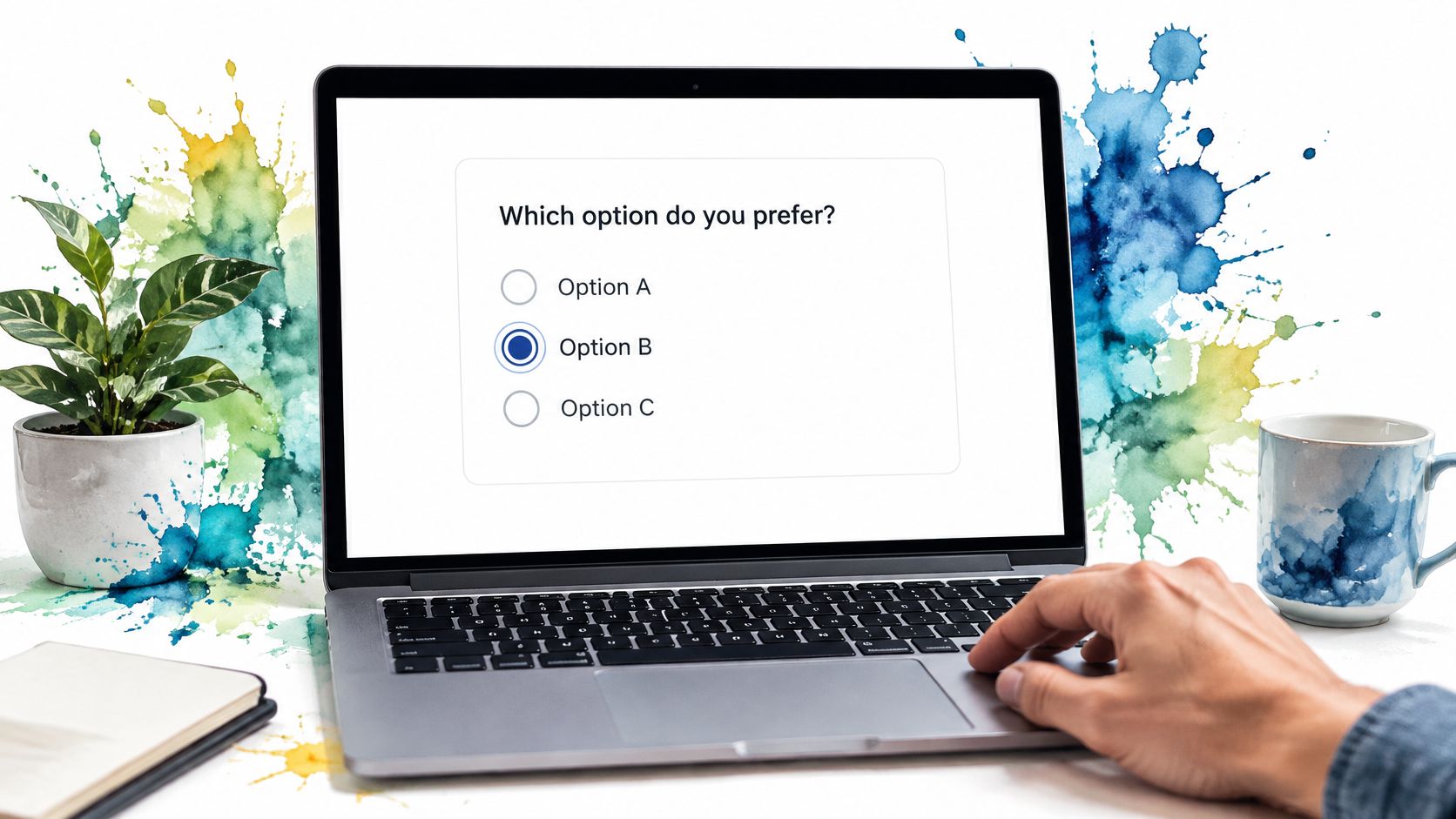
The most common advice about an HTML radio button group is also the easiest way to underestimate it: give every option the same name and move on. That creates one-choice behaviour, but it doesn’t tell a screen-reader user what question the options answer, make an error understandable, or preserve a usable keyboard experience after custom styling.
In production forms, treat the group as one widget with a question, related options and a clear selection state. The native inputs do much of the work, but only when the surrounding markup and validation support them. The difference between a group that merely submits and one that holds up in real use is usually in those details.
Table of Contents
- Why a Radio Group Is More Than Inputs That Share a Name
- The Semantic Skeleton Every Group Needs
- Keyboard Behaviour and Focus Management
- Native Inputs, ARIA Divs, and Headless Primitives Compared
- Styling the Group with Tailwind Without Breaking It
- Three Implementations Side by Side
- Validation, Errors, and the Required State
Why a Radio Group Is More Than Inputs That Share a Name
A shared name makes radio buttons mutually exclusive within their form. It doesn’t give the group a meaningful question. If someone encounters options such as “Yes” and “No” without hearing the question they belong to, the labels alone may not explain what they’re answering.
That’s why the group’s accessible name matters as much as each option’s label. UK Government guidance describes a <fieldset> and <legend> as the semantic pattern for grouping related radio buttons: the legend supplies the question, and assistive technology can announce that group context before the options (UK guidance on fieldsets and legends).
Think of the group as having a lifecycle. The user needs to understand the question, move through its options, make one selection, recover from an error if necessary, and review or change their answer. A missing legend breaks the first step. An unexpected preselection can distort the decision. An error attached to one option rather than the question can make recovery confusing.
The practical test: Can a user understand the question, choose an option, and correct a missing answer without having to infer how the controls relate?
This framing also helps teams make the right control choice. Use radios when the user must choose exactly one option. If they may choose several, use checkboxes instead. The group isn’t just a visual arrangement of circles. It’s a single decision presented through controls with shared behaviour and context.
The Semantic Skeleton Every Group Needs
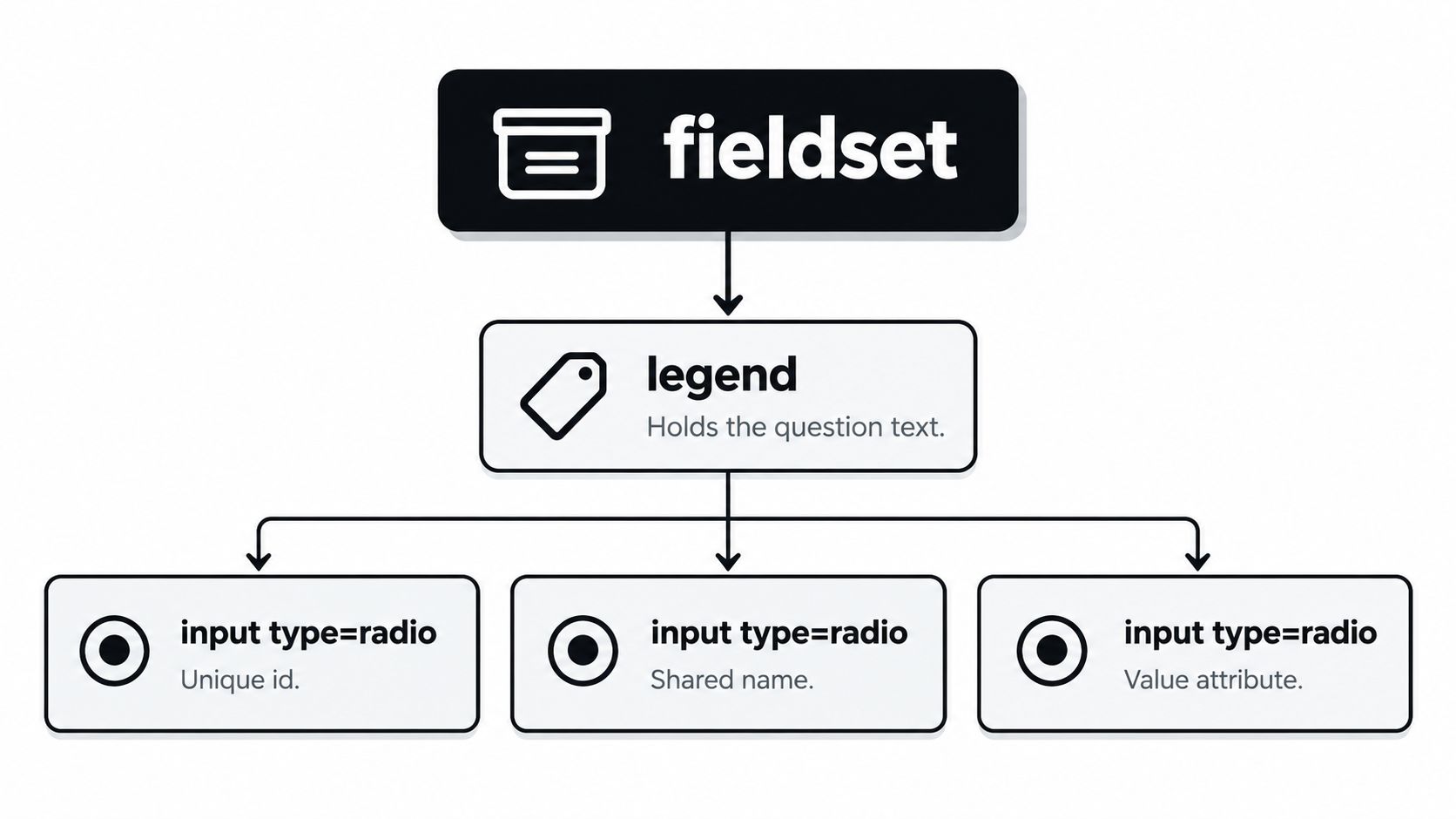
The markup is small, but each part has a job. Put related options inside one <fieldset>, use its <legend> for the question, give each radio a distinct id, and give every option in the group the same name. Connect each visible <label> to its radio using matching for and id values. This structure aligns with the five-part pattern in UK accessibility guidance for form controls.
<fieldset>
  <legend>How would you like us to contact you?</legend>

  <div>
    <input
      id="contact-email"
      type="radio"
      name="contact-method"
      value="email"
    >
    <label for="contact-email">Email</label>
  </div>

  <div>
    <input
      id="contact-phone"
      type="radio"
      name="contact-method"
      value="phone"
    >
    <label for="contact-phone">Phone</label>
  </div>

  <div>
    <input
      id="contact-post"
      type="radio"
      name="contact-method"
      value="post"
    >
    <label for="contact-post">Post</label>
  </div>
</fieldset>
The <legend> is the question, not a substitute heading for the page. Keep it concise and specific, and don’t rely on an icon or image to communicate its text. The shared name is what gives these options one-choice behaviour; unique IDs let each label target the right control. Because the label is explicitly associated, clicking its text activates the radio, which also gives touch users a more forgiving target.
When a project already has an established form pattern, check that the pattern handles both group semantics and individual option labels. A broader form input types guide for developers can help teams compare controls before settling on a component. For more detail on writing group questions, see this guide to radio-group legend text.
Keyboard Behaviour and Focus Management
Native radios provide a keyboard contract without a custom event system. Tab moves focus into the group, typically landing on its selected option, or on the first option if none is selected. Arrow keys move through the options and change the selection. Space selects the focused option. Once focus leaves the group, Tab continues to the next control.

Test that contract directly in the rendered form. Tab into the group, use the arrow keys to move between options, and press Tab to leave it. Then return and check that focus and selection make sense. Don’t assume a component still behaves natively just because it looks like a radio button.
Focus visibility is part of that experience. If you remove the browser’s outline, replace it with a clear focus indicator that remains visible against the surrounding design. A selected state and a focused state aren’t interchangeable: one tells the user which answer is chosen, the other shows where keyboard interaction is happening.
In a reactive interface, watch for changes that replace or reorder the focused input during an update. A framework can re-render the component without preserving the user’s place in the group. Keep the input elements stable where possible, then test the actual keyboard flow after changes to selection, conditional content or validation.
For a visual walkthrough of radio selection behaviour, use the video below as a supplement to keyboard testing.
Native Inputs, ARIA Divs, and Headless Primitives Compared
Native inputs are the dependable starting point. They provide browser-managed selection and keyboard behaviour, and their semantics are familiar to assistive technology. Their trade-off is visual control. Enlarging or restyling them can behave inconsistently across browsers: in 2016, the UK Government Digital Service reported that nearly half of the browsers tested didn’t reliably support enlarged native radio buttons and checkboxes. The team adopted custom visual styling while retaining keyboard accessibility and visible focus states (GOV.UK’s account of its radio and checkbox redesign).
An ARIA-styled div gives a team broad styling freedom, but the team must also implement the interaction. That means managing the group’s accessible name, selected state, focus, arrow-key movement and activation. Missing one of those details can leave a control that looks correct but doesn’t behave like a radio group. It isn’t a shortcut just because the markup appears simpler.
A headless primitive can sit between those approaches. It supplies interaction and accessibility wiring while leaving teams room to control the presentation. That still requires a careful review of the rendered markup and a browser and assistive-technology test, particularly when the component is wrapped in a framework.
| Approach | Accessibility by default | Styling control | Bundle cost | Best for |
|---|---|---|---|---|
| Native radio inputs | Strong, with correct grouping and labels | Moderate | No component-library dependency | Forms that can use native presentation or careful CSS |
| ARIA-styled elements | Depends on the implementation | High | Depends on the custom code | Teams prepared to own and test the interaction model |
| Headless primitive | Depends on the primitive and its integration | High | Depends on the library | Shared design systems that need reusable behaviour |
Choose based on the behaviour your team can reliably maintain, not only how closely a control matches a mock-up. When deciding which native controls belong in a form, this comparison of radio buttons and checkbox inputs can help clarify whether the user is making a single or multiple selection.
Styling the Group with Tailwind Without Breaking It
Start by styling the fieldset and labels around the native input, rather than replacing the radio with a clickable div. A vertical layout is a reliable choice when options need room to scan. Keep the label text visible and make the label itself clickable; don’t use a background image as the only representation of an option.
If you visually conceal an input, don’t use display: none. That removes it from the normal accessibility and keyboard experience. Use a visually hidden technique that keeps the control available, or style the native radio directly. Either way, preserve a visible :focus-visible treatment and make the selected state distinguishable without colour alone.
A Tailwind-style label can use a flex layout, spacing utilities and a focus-visible ring on the input. For example, flex items-start gap-3 gives the label a straightforward layout, while focus-visible:ring-2 and focus-visible:ring-offset-2 can make keyboard focus visible. Use a checked-state treatment that changes more than hue, such as a filled centre or a distinct border, and confirm the result remains legible in the project’s colour schemes.
Keep both states visible: The user should be able to tell which option is selected and which control currently has keyboard focus.
Don’t over-customise before checking what native styling already provides. If the design only needs a different accent colour, try the least invasive treatment first. If the control needs a custom appearance, test its focus ring, selected state, label click target and contrast at the sizes and layouts the form uses.
Three Implementations Side by Side
The accessible structure should remain consistent whether the form uses plain HTML, JavaScript or a Vue component. The details of state management change, but the question, options, labels and keyboard interaction still need to make sense as one group.
In plain HTML, use a fieldset, legend and associated native labels as shown above. For a JavaScript form, listen for the group’s change event and read its value from the form; reset the containing form when the user needs to clear the selection. Avoid manually changing focus or selection unless the interface requires a defined interaction that native controls don’t provide.
In Vue, bind the selected value through the component’s intended interface and verify the generated output. A wrapper doesn’t remove the need to test labels, group context, focus or errors. Teams comparing patterns can also refer to this guide to labels for radio buttons.
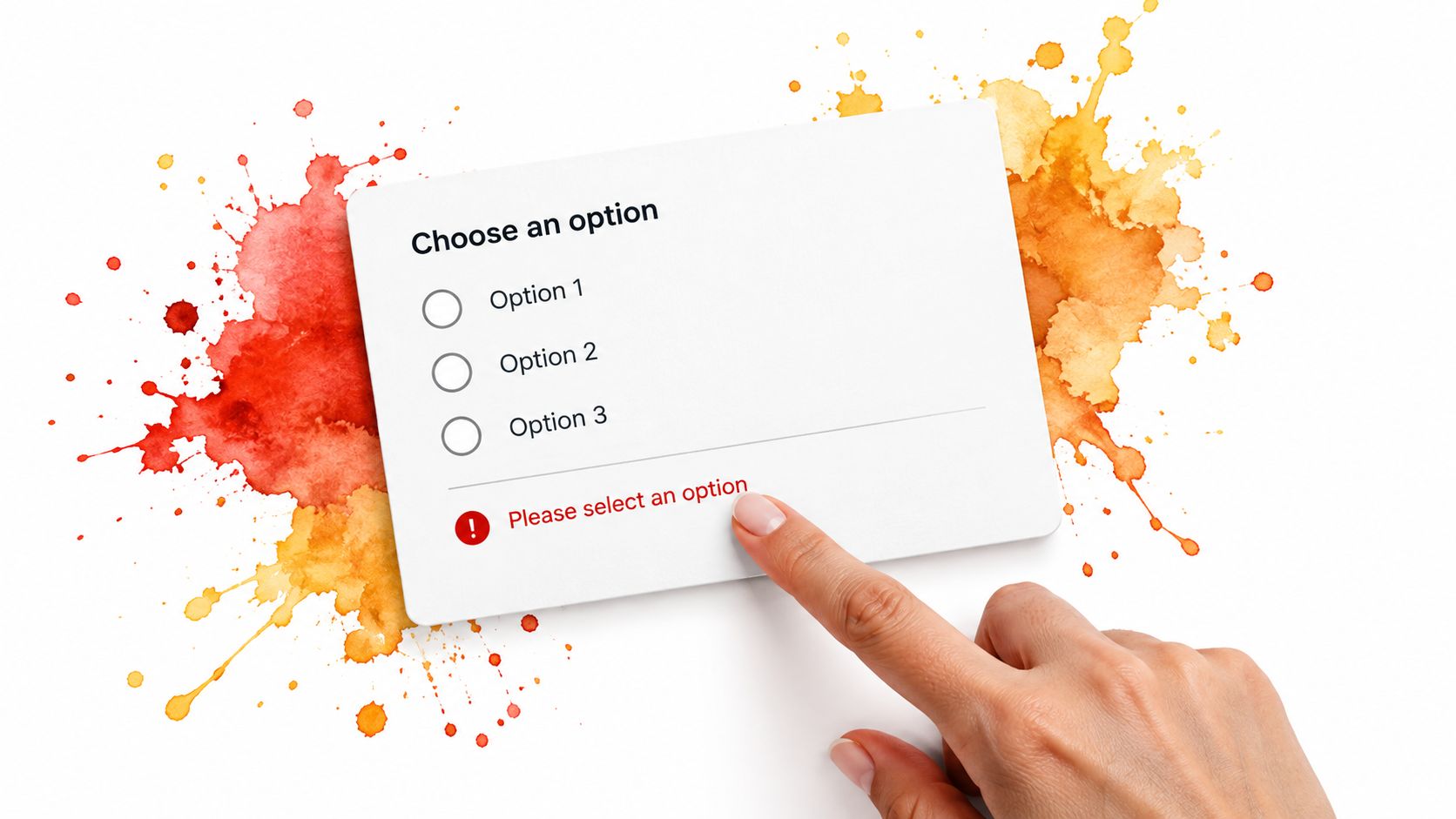
Validation belongs to the group, not an arbitrary option. Keep the question in the legend, place the error next to the question and options, and associate the message with the relevant group or controls using an error reference. Test the rendered announcement so the user receives the question and error without repeated or confusing messages.
Validation, Errors, and the Required State
A radio group is either required as a question or it isn’t. The browser can enforce that requirement when the group uses native inputs and a radio in the group carries required. Don’t set a required state on the fieldset and expect that alone to validate its children.
The legend should still state the question clearly when an error appears. Put the message where the user can connect it to that question, usually between the legend and the first option. Associate the error programmatically, for example with aria-describedby, and ensure that the target is present when the error is shown. Avoid attaching the only error reference to one option when the issue is that the entire group has no answer.
UK public-service guidance identifies radio-group errors that weren’t visually and programmatically associated with the group as an accessibility failure. That’s a useful reminder that a message displayed on screen isn’t necessarily available in the right context to someone using assistive technology. Test the announcement and the recovery path, not just the presence of red text.
Make the empty state intentional
Don’t preselect an answer unless there’s a clear user-centred reason. A default can be submitted without the user making an active choice. Also decide whether the user needs a valid way to say they can’t choose: after selecting a native radio, they generally can’t return the group to an empty state without resetting the form. Where it fits the question, provide an option such as “None of these” or “I don’t know”. UK public-sector guidance also advises using radios for a single choice, checkboxes for multiple choices, and a vertical list when there are several options, with inline placement reserved for two short alternatives (HSE guidance on form elements).
Run the pre-ship checks
Before merging, verify the complete group in the browser and with assistive technology:
- Question context: Confirm a screen reader announces the legend before the options.
- Keyboard flow: Tab into and out of the group, then use arrow keys and Space to select.
- Label activation: Click or tap the option text and confirm the associated radio changes.
- Empty submission: Submit without a selection and confirm one clear group-level error appears in the right place.
- Recovery: Select an option after the error and confirm the message clears or updates correctly.
- Layout and focus: Check zoom and reflow, and confirm the focus indicator remains visible.
Look for the recurring regressions in code review: hidden inputs removed from interaction, missing label associations, focus rings that were deleted, unjustified defaults and errors placed far from the question. A passing visual review can miss every one of them.
DOM Studio provides headless UI primitives and Vue integrations for teams building reusable form controls, including radio-group patterns that need managed selection and keyboard interaction. If you’re evaluating a component approach for your own accessible forms, visit DOM Studio to explore its component library and integration options.