
You’ve shipped a simple yes-or-no question, and someone on the team is watching users miss it. They click the tiny circle, not the answer beside it. A screen reader announces “Yes” and “No” without explaining what the choices mean. The form looks finished, but the choice isn’t clear to everyone.
That’s how radio buttons forms lose trust: the team treats each circle as a visual detail instead of part of one shared decision. A dependable form starts by checking whether a single-choice control fits the question, then gives the group and each option a clear name, supports expected keyboard behaviour, and handles follow-up questions without leaving stale answers behind. The component library should make those patterns reusable, not leave every Vue app to wire them from scratch.
Table of Contents
- Why Radio Buttons in Forms Break Trust
- Choosing Radio Buttons Over Other Controls
- Labels, Legends and Clickable Targets
- Keyboard Behaviour and Validation Rules
- Conditional Questions After a Radio Choice
- Wiring Radio Groups with DOM Studio and Vue
- A Practical Next Step for Your Forms
Why Radio Buttons in Forms Break Trust
A label sits beside a radio button, but clicking the words does nothing. The user tries again, aims for the small circle, and eventually selects an answer. Someone using a screen reader reaches the same group and hears an option label without the question it belongs to. These are different failures with one root cause: the implementation hasn’t connected the visual control, its label, and the decision it represents.
The UK Government Digital Service documented this kind of problem in its 2015 user research. Users struggled to click small radio-button targets, and inconsistent label wiring across websites taught them to click directly on the control rather than trust the text beside it. The GDS response was to place form elements within a clickable grey box and encourage correct label association, so the text as well as the button could activate the option. The GDS account of improving radio buttons and checkboxes connects the control’s implementation to what people do, not just how it looks.
Practical rule: If the answer text doesn’t activate its radio, the hit target is broken, even if the circle looks polished.
That click-target issue is only part of the diagnosis. An individual label tells users what an option says, but it doesn’t necessarily explain the question being answered. Without a group label, “Yes” can be technically legible and still make no sense. A Vue application can add reactive state and attractive styling, but neither fixes missing context or inconsistent label associations.
The symptoms are easy to spot: people have to aim carefully, assistive technology announces answers without their question, or two options can appear selected because the component’s state isn’t behaving like a single choice. The remedy starts before styling: decide whether the question calls for one answer, then ensure the whole group and each option have reliable names. After that, check keyboard movement, validation, and any follow-up fields. Those are interaction rules, not decoration.
Choosing Radio Buttons Over Other Controls
A radio group asks for one answer from a set, and choosing an option normally replaces the previous selection. Once someone has selected an answer, they can’t usually return the group to an empty state. That makes radios a poor fit when your form genuinely permits several answers or when the available options would force someone to guess.
Choose the control based on the decision you need to record, not on which input is easiest to style. Checkboxes fit questions where people may select more than one answer. A select or autocomplete may suit a long list, depending on how users need to find an option. If a yes-or-no question leaves out valid uncertainty, consider adding an option such as “Not sure” or “Prefer not to say” rather than recording a guess as a definite answer.
| Situation | Prefer | Why it protects the answer |
|---|---|---|
| The user must choose exactly one option from a short, clear set | Radio buttons | The available answers stay visible, making the choice easier to review |
| The user may choose several answers | Checkboxes | The control reflects that more than one selection is valid |
| The answer list is long and scanning every choice would be awkward | Select | The compact presentation may suit a long list, provided users can navigate it effectively |
| The list is long and people need to find an option by typing | Autocomplete | Search can help users locate a choice without scanning the full set |
| A yes-or-no pair doesn’t cover uncertainty or an appropriate refusal | Radio buttons with a suitable alternative | The form can capture uncertainty instead of forcing an inaccurate answer |
Layout affects whether the options are easy to scan. The HSE recommends inline radios for exactly two options, such as yes and no, and stacked radios for three or more; the UK Government Design System likewise limits inline radios to two short options and advises checkboxes when multiple answers are allowed. HSE guidance on form elements supports a practical starting point, not a rule to squeeze long labels side by side.
A layout that works on a wide screen can become cramped on a phone.
Check the length of the option text and the space around each target. Stacked choices are easier to scan when labels vary in length or need explanation. Before writing markup, ask whether the question truly demands one answer, whether every valid answer appears, and whether the layout makes each option easy to compare. If the answer set forces certainty or makes scanning difficult, reject radios before you spend time styling them.
Labels, Legends and Clickable Targets
Once radios fit the decision, give the group and each choice their own names. Consider the question, “How do you want to be contacted?” The question names the group; “Email”, “Phone”, and “Post” name its options. A screen-reader user needs both levels of context to understand each choice.
The native HTML structure is straightforward. Put the related inputs inside a <fieldset>, and use a <legend> for the question. Give every input a unique id, then set the visible label’s for attribute to exactly the same value. This makes each option’s text activate its radio and gives assistive technology a dependable name for the control.
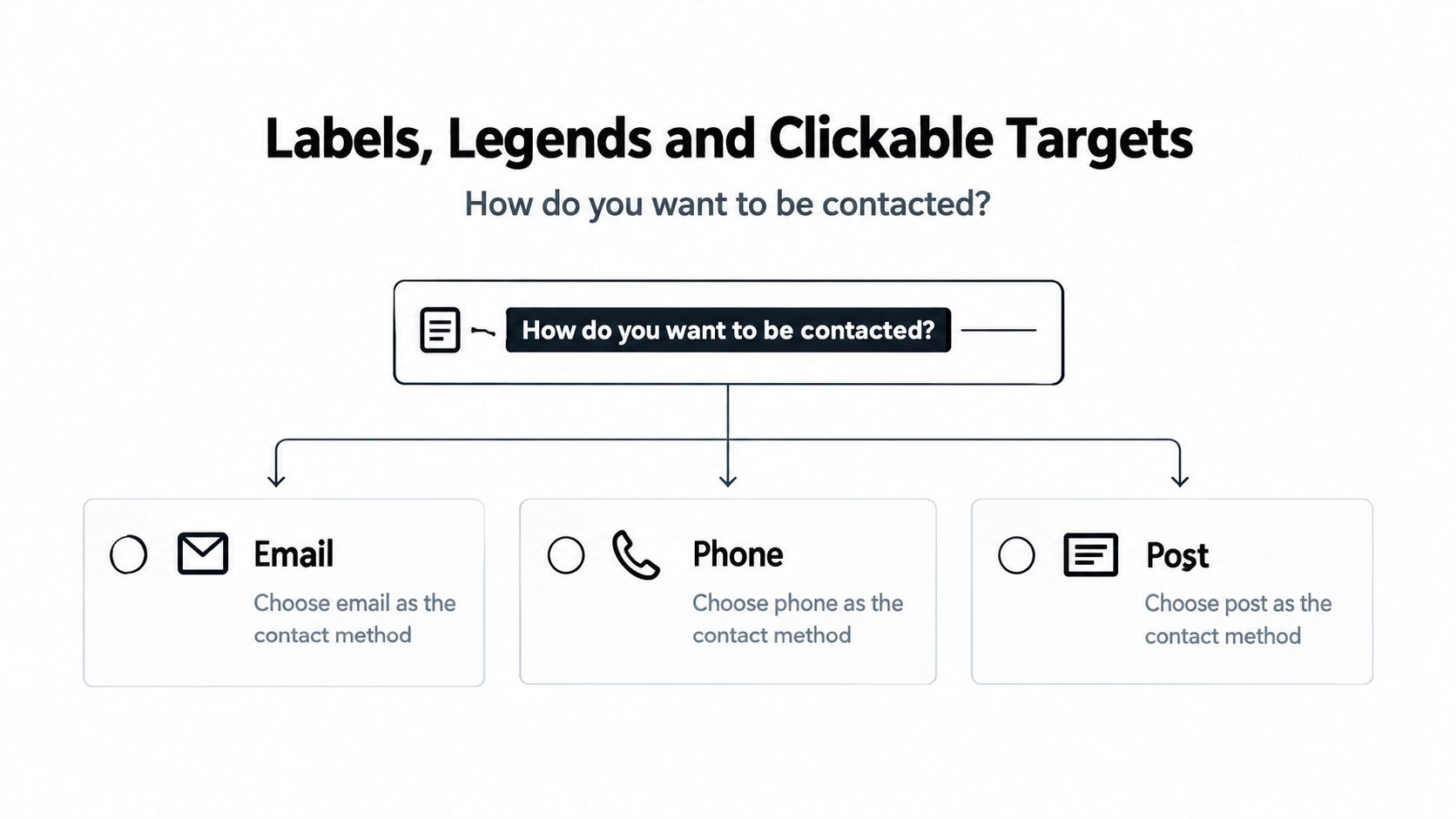
<fieldset>
  <legend>How do you want to be contacted?</legend>
  <p id="contact-help">Choose one contact method.</p>

  <input
    id="contact-email"
    name="contact-method"
    type="radio"
    value="email"
    aria-describedby="contact-help"
  >
  <label for="contact-email">Email</label>

  <input
    id="contact-phone"
    name="contact-method"
    type="radio"
    value="phone"
    aria-describedby="contact-help"
  >
  <label for="contact-phone">Phone</label>

  <input
    id="contact-post"
    name="contact-method"
    type="radio"
    value="post"
    aria-describedby="contact-help"
  >
  <label for="contact-post">Post</label>
</fieldset>
The UK Home Office recommends this fieldset-and-legend structure because it lets screen readers announce the question with each option. Without group context, a user might hear “Email” or “Phone” without knowing what they’re choosing. Keep instructions or format details in visible text and associate them with the relevant controls through aria-describedby. The Home Office guidance also favours native HTML semantics, with an ARIA radiogroup as a fallback when a fieldset and legend can’t be used. Its guidance on accessible form structure makes the group label and the option labels distinct responsibilities.
A reusable component should expose a group label and description, produce stable IDs, connect every label to its input, and preserve native form submission. The label should activate the same radio across the entire text target, not only a few pixels around the circle. If you’re also reviewing how interaction states communicate a selection, PinDrop’s guide to getting started with visual feedback offers useful context for thinking beyond a static control. For more on the label relationship, see labels for radio buttons.
Keyboard Behaviour and Validation Rules
A radio group shouldn’t create a separate Tab stop for every choice. The expected pattern is to Tab to the group’s selected radio, or its first radio if none is selected, then use the arrow keys to move between options. The active choice changes as the user moves through the group. Making every radio independently tabbable adds unnecessary stops and disrupts this grouped-control model.
The component needs a visible focus indicator, and the selected value must stay in sync with keyboard movement. In Vue, check that reactive changes don’t send focus somewhere unexpected when options update. Disabled choices need deliberate handling too: users shouldn’t be able to select them, and movement through the available choices must remain usable.
Test the interaction, not just the appearance: a highlighted circle isn’t proof that the keyboard path works.
Validation belongs to the question as a group, not to each circle as though each were a separate required field. When an answer is required but nothing has been selected, connect the error to the group’s visible question and make it clear what the user needs to do. Don’t attach a vague error to an invisible or unlabeled control.
There’s another validation trap: users can’t normally undo a radio choice by selecting it again. If leaving the answer uncertain is a legitimate state, include a valid option such as “I don’t know” or “None of the above”. Otherwise the interface can coerce a confident-looking answer where none exists.
UK government form guidance describes the grouped keyboard pattern as Tab to the first radio, then arrow keys to move among options. Home Office guidance on keyboard interaction in forms provides the behaviour to check against. Automate tests for Tab entry, arrow-key movement, the group’s accessible name, disabled-option handling, and form serialization. A useful audit of accessibility best practices can help your team keep those checks alongside its wider component review.
Conditional Questions After a Radio Choice
A common instinct is to reveal a follow-up field as soon as someone selects a radio. That pattern isn’t automatically inaccessible, but it can become confusing when the form changes without telling the user what appeared or where to go next. The choice should have a clear relationship to its follow-up, and the interaction needs to work for both screen-reader users and people navigating by keyboard.
There’s a real design tension. UK Government guidance says selecting a radio shouldn’t automatically change context and recommends an explicit submit or proceed action instead. At the same time, government design guidance permits related questions to appear only when a relevant option is selected. The practical distinction is between a controlled disclosure, where users can understand and reach the newly relevant field, and a silent change that leaves them unsure what happened.
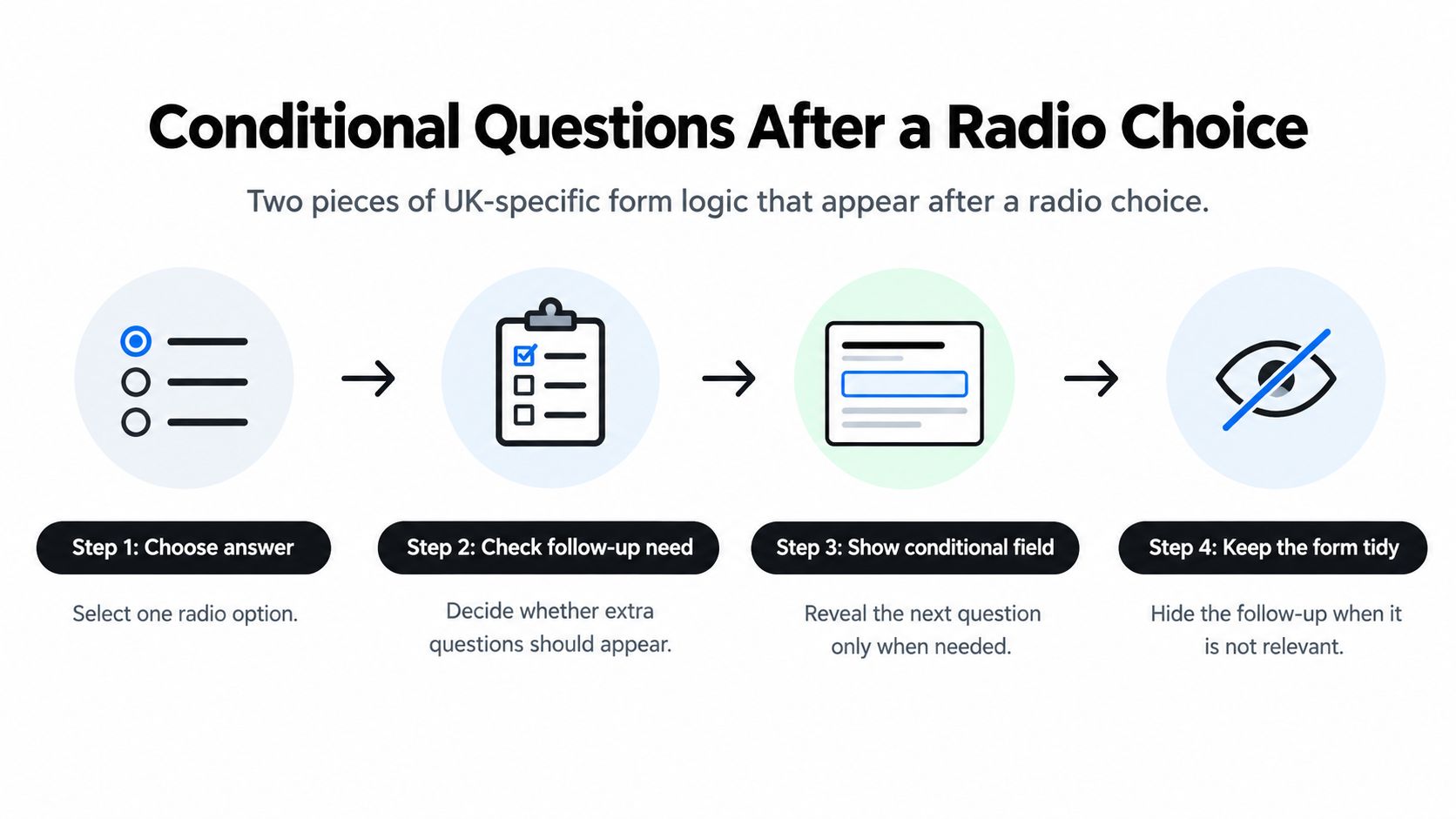
Choose the arrangement based on what the user needs to do next:
- Keep fields visible. The user encounters the follow-up as part of the form without needing to trigger disclosure. This can work when the field is relevant to everyone, but it adds unnecessary content when it only applies to one answer.
- Reveal a related field on selection. The field appears in context under the selected option. Make its relationship clear, expose its required status, and ensure the user can reach it naturally when continuing with the keyboard.
- Use an explicit proceed action. Selecting a radio doesn’t immediately shift the form. The user activates a continue or submit control before moving to the next step, making the context change deliberate.
The UK Intelligence Community pattern gives a practical way to make conditional disclosure understandable: treat the newly shown field as a child of the selected option, announce it as required when appropriate, and make it the next destination when the user tabs onward. The Home Office guidance on understandable interactions provides the UK-specific guidance on both avoiding unexpected context changes and managing related questions. In a Vue form, test the actual sequence: select the triggering answer, hear or otherwise identify the new question, then move to it without losing your place.
Changing an answer must also change the form data and validation state. If someone switches from “Yes” to “No”, clear values that belonged only to the now-hidden branch, and remove errors for questions that are no longer visible. Otherwise a hidden answer can still affect submission, or an old error can point to a field the user can’t find. For more implementation context, dynamic Vue forms is a useful companion when deciding how reactive state should follow the visible questions.
Wiring Radio Groups with DOM Studio and Vue
Choosing between custom ARIA, native inputs, and a component layer is really choosing who owns the interaction details. Hand-rolled ARIA can look flexible, but your team then owns the group name, option names, keyboard movement, focus, disabled states, and form behaviour. Native inputs inside a fieldset give the browser much of that standard behaviour, provided the markup and state remain correctly connected. A headless library can provide reusable behaviour while leaving the visual design to your application.
For a Vue team, the useful distinction is between owning presentation and rebuilding accessibility behaviour. DOM Studio provides framework-agnostic custom-element primitives with a Vue integration that supports reactive props, v-model, and slots. Its stated capabilities include WAI-ARIA, focus management, screen-reader behaviour, Tailwind CSS 4 styling, Visual Blocks for theming, and embedded documentation. The catalogue includes controls such as toggles, listboxes, dropdowns, comboboxes, and autocompletes, rather than a claim here that every project can drop in a dedicated radio product without checking its needs.
Whatever primitives you use, a radio group you assemble still needs a group label, one associated label per option, arrow-key movement, sensible disabled-option handling, and values that serialize with the form. Don’t assume that a reactive model alone supplies those guarantees. Check the rendered DOM, keyboard path, and submitted values, then make sure your tests catch regressions when the options change.
The library’s modular components are described as tree-shakeable, with individual modules averaging under 2 kb gzipped. Keep that figure in its stated scope: it’s an average for individual modules, not a performance claim about your whole application. Visual Blocks can support theming, and embedded docs give developers a way to inspect component information while working. This can reduce repeated implementation work, but your application still needs to verify that the chosen primitive fits the form’s semantics and submission model.
A short walkthrough can help your team inspect how the Vue layer fits into a real implementation:
A Practical Next Step for Your Forms
Before restyling an existing form, check whether its radio group records a real single-choice decision. Then follow the interaction in order: can someone understand the question, activate an option, move through the group, and submit the intended value? That verification catches problems that visual polish can hide.
Use this checklist against a form your team already owns:
- Confirm one required answer. Make sure the question requires one choice.
- Add an uncertainty option. If users may reasonably lack an answer, include an appropriate alternative rather than forcing a guess.
- Review the group and option labels. Put the question in a legend and make sure every visible option label matches its input.
- Test keyboard movement. Confirm that the group follows the Tab-and-arrow pattern and keeps focus visible.
- Choose a follow-up pattern. Decide whether the related fields remain visible or are disclosed with clear context and a usable focus path.
- Clear hidden answers. When someone changes their choice, remove values and errors that no longer apply.
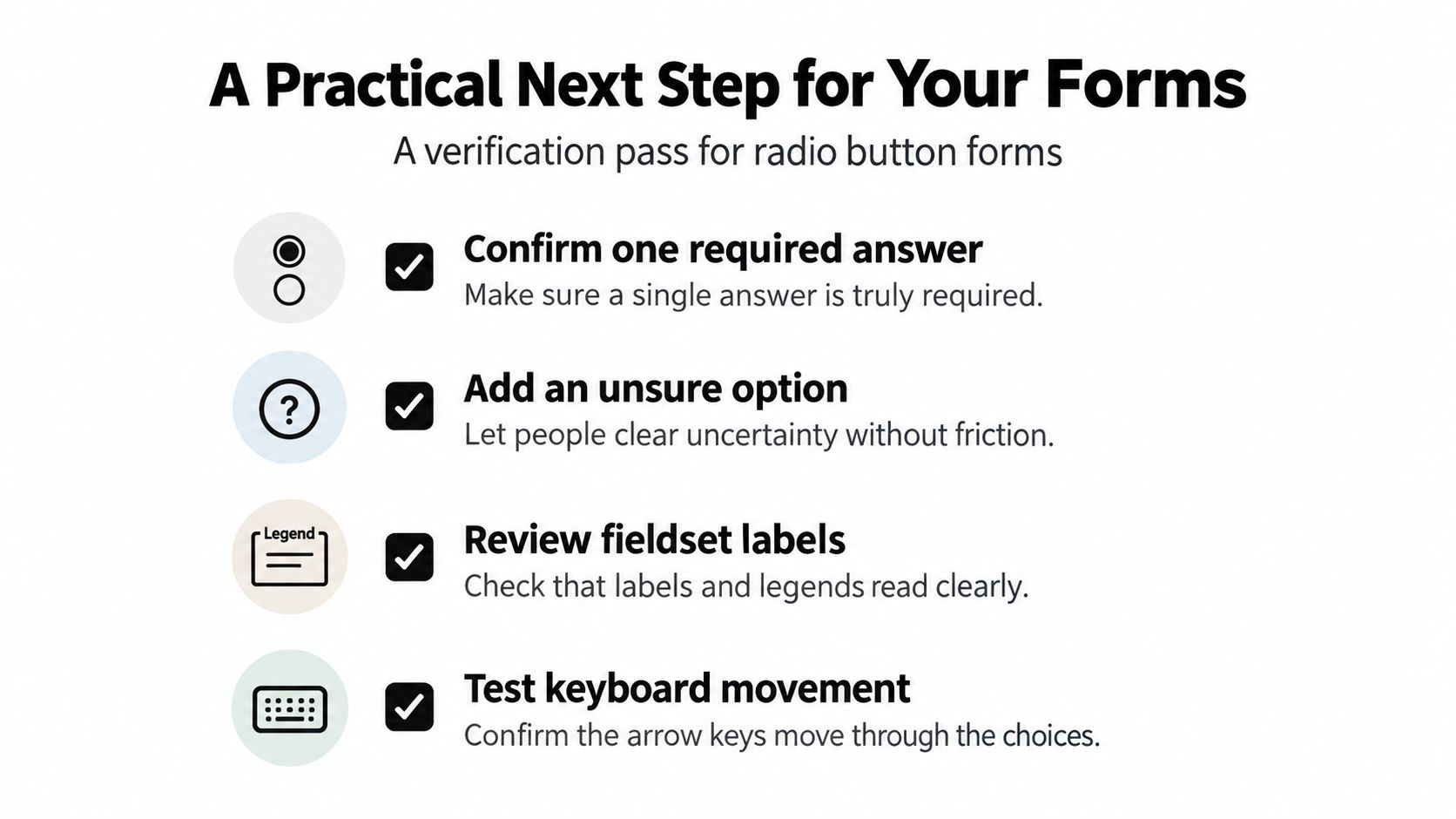
The order matters. Start with the decision and its valid answers, then check the naming and interaction, and finally verify how reactive state behaves when someone changes their choice. That gives your team a concrete audit rather than a styling task that leaves the underlying behaviour untouched.
For your next implementation, inspect how DOM Studio’s Vue wrappers handle reactive props, v-model, focus management, and WAI-ARIA on its headless primitives. Map those patterns onto your radio group and test the result in your form, instead of copying a one-off script that another application team will have to maintain.
Review your current radio groups against this checklist, then open DOM Studio to inspect its headless primitives, Vue integration, and embedded component guidance. Use what fits your form to build a radio group that communicates one clear decision and behaves consistently for every user.