
TL;DR
For a plain-text editable textarea, start with a native <textarea> and bind its value with Vue’s v-model. Measure scrollHeight after changes, reset the height before measuring so the field can shrink, and cap its height so long drafts remain usable. Keep Enter for new lines in ordinary forms, connect visible labels and errors to the control, and test paste, mobile layouts, and keyboard-only submission.
An editable textarea seems simple until a dashboard note grows beyond its first two lines, a pasted paragraph jumps the layout, or an error appears without reaching a screen reader. We can keep the native editing behavior and add growth deliberately rather than replacing the field with an editable <div>.
This guide builds a small Vue 3 note field from native HTML. If you already use DOM Studio, its Textarea Input playground offers a component with autosize, a starting rows value, and optional maxRows. Here we will focus on how to implement and verify the underlying interaction rather than repeat that component’s API reference.
Table of contents
- Before you start
- 1. Choose a native plain-text field
- 2. Define the growth and overflow contract
- 3. Build and measure the Vue field
- 4. Keep keyboard and form behavior predictable
- 5. Connect labels, states, and errors
- 6. Verify growth in real layouts
- FAQ
- Ship the interaction, then reuse it
- Sources
- Recommended Reads
Before you start
You need a Vue 3 application that supports single-file components, a place to render one component, and a browser in which to test the finished form. The example saves notes in memory, not to a server: replace that part with your application’s save request, server validation, and error handling before using it for persisted data. No DOM Studio package is required for the native implementation.
Choose the product rule first: this example treats Enter as a line break and uses a visible Save note button to submit. It starts at two text rows and grows to eight before the field scrolls internally. Those limits are product choices, not accessibility requirements. Give a settings page a higher ceiling if a long description deserves more room; keep a compact dashboard widget shorter if it must coexist with other controls.
1. Choose a native plain-text field
Use a <textarea> for notes, descriptions, feedback, or other multiline plain text. Unlike an editable <div>, it is already a form control with a value, name, native required state, and established keyboard editing behavior. MDN describes it as a multiline plain-text control and notes that a read-only value can still be submitted while a disabled field is not interactive. A placeholder is an example, not a replacement for a label. See the HTML textarea reference.
Choose contenteditable only when the experience genuinely needs in-place editing or document-like content that a plain textarea cannot express. contenteditable="true" retains formatting when pasting, while plaintext-only removes pasted formatting; neither gives us the same form-field contract automatically. A full rich-text editor is appropriate when formatting, structured blocks, or embedded media are actual requirements. MDN explains the contenteditable modes.
For an existing DOM Studio form, open the live Textarea Input example and compare bounded versus unlimited autosize before writing custom measurement logic. Its current reference documents rows as the minimum while autosizing, autosize for growth and shrinkage, and maxRows for the point at which internal scrolling starts.
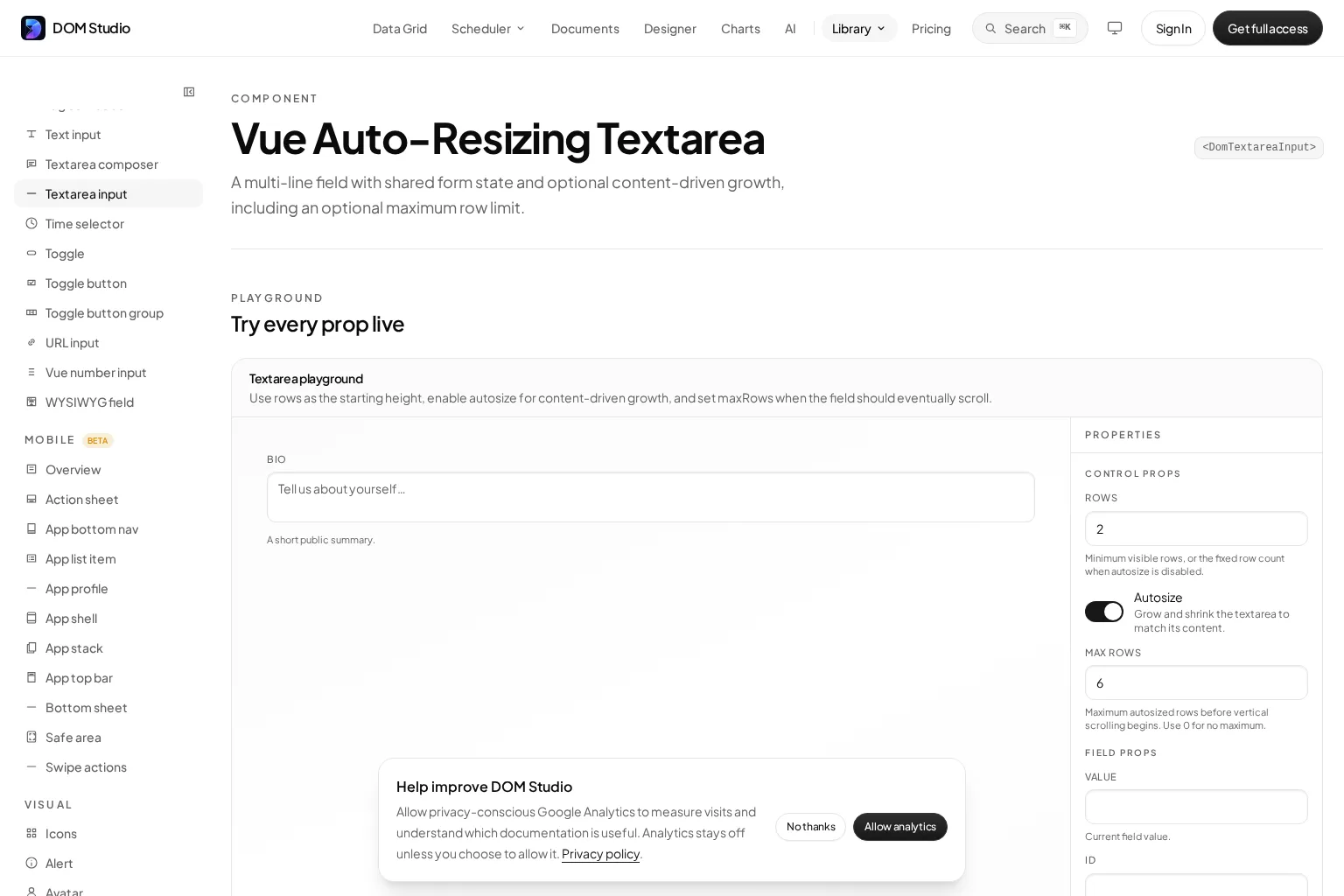
Check: type and paste a few paragraphs into the live playground. If your use case needs only plain text and form states, we should not adopt an editable <div> just to make the border disappear.
2. Define the growth and overflow contract
A field that grows forever can push Save and nearby form controls far below the viewport. A field that never grows forces users to scroll after the first few lines. Our contract is a two-row minimum, growth to eight rows, then internal scrolling. The field must shrink again when text is deleted, and existing drafts must size correctly when loaded into the component.
For JavaScript sizing, read scrollHeight, which includes content that is not currently visible. Set the element’s height to auto before reading it. Otherwise its previous tall inline height can keep the measurement from reflecting shorter text. With box-sizing: border-box, account for the top and bottom borders because scrollHeight includes padding but not borders. MDN documents what scrollHeight measures.

Width changes can add or remove wrapped lines without changing the text: a collapsed sidebar, a responsive panel, or a font change can alter the required height. The implementation below watches element width with ResizeObserver and resizes only when that width changes, avoiding an observer loop caused by our own height changes. If your application changes font metrics independently, call the same sizing routine after that change. See the ResizeObserver API.
Check: write eight short lines, then a ninth. The field should grow through the first eight and scroll for additional content. Delete back to one line: it should return to its two-row minimum.
3. Build and measure the Vue field
Save the following as EditableNote.vue and render it from any Vue 3 view. Vue’s v-model uses the textarea’s value and input event; keeping a single draft ref makes programmatic updates predictable. The template ref becomes available after mount, and nextTick waits for Vue’s DOM update before measurement. Vue’s form-binding guide and template-ref guide explain those contracts.
<script setup>
import { nextTick, onBeforeUnmount, onMounted, ref, watch } from 'vue'

const draft = ref('')
const savedNotes = ref([])
const error = ref('')
const status = ref('')
const textarea = ref(null)
let sizeObserver
let lastWidth = 0

function resize() {
  const el = textarea.value
  if (!el) return

  const style = getComputedStyle(el)
  const line = parseFloat(style.lineHeight)
  const extras =
    parseFloat(style.paddingTop) + parseFloat(style.paddingBottom) +
    parseFloat(style.borderTopWidth) + parseFloat(style.borderBottomWidth)
  const borders =
    parseFloat(style.borderTopWidth) + parseFloat(style.borderBottomWidth)
  const minHeight = 2 * line + extras
  const maxHeight = 8 * line + extras

  el.style.height = 'auto'
  const naturalHeight = el.scrollHeight + borders
  el.style.height = `${Math.min(Math.max(naturalHeight, minHeight), maxHeight)}px`
  el.style.overflowY = naturalHeight > maxHeight ? 'auto' : 'hidden'
}

watch(draft, () => nextTick(resize))

onMounted(() => {
  resize()
  lastWidth = textarea.value.clientWidth
  sizeObserver = new ResizeObserver(() => {
    const width = textarea.value?.clientWidth ?? 0
    if (width !== lastWidth) {
      lastWidth = width
      resize()
    }
  })
  sizeObserver.observe(textarea.value)
})

onBeforeUnmount(() => sizeObserver?.disconnect())

function saveNote() {
  if (!draft.value.trim()) {
    error.value = 'Write a note before saving.'
    status.value = ''
    textarea.value?.focus()
    return
  }
  savedNotes.value.push(draft.value)
  draft.value = ''
  error.value = ''
  status.value = 'Note saved in this browser session.'
}

function loadExample() {
  draft.value = 'First line of a draft.\nSecond line of the same draft.'
  error.value = ''
  status.value = ''
}
</script>

<template>
  <form class="note-form" @submit.prevent="saveNote">
    <label for="note">Team note</label>
    <p id="note-hint">Write plain text. Enter adds a new line.</p>
    <textarea
      id="note"
      ref="textarea"
      v-model="draft"
      name="note"
      rows="2"
      :aria-describedby="error ? 'note-hint note-error' : 'note-hint'"
      :aria-invalid="error ? 'true' : undefined"
      @input="error = ''"
    ></textarea>
    <p v-if="error" id="note-error" role="alert">{{ error }}</p>
    <button type="submit">Save note</button>
    <button type="button" @click="loadExample">Load example draft</button>
    <p role="status">{{ status }}</p>
    <ul aria-label="Saved notes">
      <li v-for="(note, index) in savedNotes" :key="index">{{ note }}</li>
    </ul>
  </form>
</template>

<style scoped>
.note-form { max-width: 38rem; display: grid; gap: 0.75rem; }
textarea {
  box-sizing: border-box;
  display: block;
  width: 100%;
  min-width: 0;
  padding: 0.75rem;
  border: 1px solid #64748b;
  border-radius: 0.5rem;
  font: inherit;
  line-height: 1.5rem;
  resize: none;
}
textarea:focus-visible { outline: 3px solid #2563eb; outline-offset: 2px; }
textarea[aria-invalid="true"] { border-color: #b91c1c; }
</style>
The explicit pixel-resolving line-height is important because the calculation parses its computed value. Keep it numeric and test again if your design tokens change font metrics. The example disables the manual resize handle because code owns the height; keep a reachable scrollbar after the cap. ResizeObserver is disconnected when the component unmounts. Vue’s nextTick reference documents why we wait after draft changes.
Expected result: typing and deleting resize the field, loading the sample draft sizes it without an input event, and saving clears it back to two rows. savedNotes is temporary page state, not storage. Troubleshooting: if you see a tiny or NaN height, check the computed line-height and CSS box-sizing. If it stops matching wrapped text, inspect whether another stylesheet fixes the element height or the parent width changed unexpectedly.
There is also a CSS-first option for browsers where your supported environment implements field-sizing: content. MDN documents that it grows a textarea to fit content until a size constraint is reached and notes that rows stops controlling its preferred size under this rule. Set explicit width, minimum height, maximum height, and overflow, then verify your actual browser targets before replacing the JavaScript approach. Read MDN’s field-sizing reference. For a short independent visual demonstration of the CSS approach, watch the video here; it illustrates the alternative, not this Vue implementation.
4. Keep keyboard and form behavior predictable
For a normal form, Enter inserts a line break. Let the Save button handle submission, preserve Tab navigation, and avoid repurposing Escape to erase a draft. The example uses @submit.prevent on a real form, so clicking Save and keyboard activation of the submit button take the same path. The note is not submitted by pressing Enter in the textarea.
If you are designing a chat composer instead, a documented Ctrl+Enter or Command+Enter shortcut can submit while bare Enter keeps its plain-text meaning. Check event.isComposing before intercepting Enter: an input method editor may be using that key to choose a character. Do not suppress Shift+Enter, copy, selection, or paste merely to make a shortcut work. MDN defines KeyboardEvent.isComposing.
Check: reach the field with Tab, type two lines, select and replace text, paste a paragraph, then Tab to Save. If you later introduce a shortcut, show it next to the control and test it with both keyboard layouts and composition input. A failed save should retain the draft and move focus only where the person can correct the problem.
5. Connect labels, states, and errors
The code gives the textarea a visible <label>, a helpful instruction linked through aria-describedby, and an error that joins the description only when it exists. An invalid field sets aria-invalid, displays a specific correction, and focuses the field when an all-whitespace value fails our custom rule. Error color alone would not explain the problem. The W3C’s form notification guidance recommends actionable error text and programmatically associating it with its field.
This example intentionally leaves off native required so its whitespace-only rule can run through saveNote. For a genuinely required field, use the HTML required attribute and decide how browser validation and your custom error messaging should coexist. Native validation can prevent the submit handler from running on an empty control; do not promise that your custom error text will appear in that case. The W3C validation tutorial also recommends repeating important validation on the server.
A read-only textarea can remain selectable and take part in form submission; a disabled field cannot be interacted with and is not submitted. Choose read-only to display an existing note that users may copy, disabled only when the control should be unavailable. When switching states dynamically, test where keyboard focus goes and explain why editing is unavailable. The native textarea reference distinguishes these attributes.
Troubleshooting: if an error is visible but hard to discover with a screen reader, inspect the actual textarea’s aria-describedby IDs, the error node, and whether a parent component replaces the native element. When the app submits asynchronously, keep the draft on failure, prevent duplicate requests while the save is in flight, and announce either success or a recoverable error. Our in-memory example does not implement network concurrency or server validation.
6. Verify growth in real layouts
Test this as an interaction, not merely a screenshot. The following checks make the result observable:
- Type one line, then eight lines, then more than eight. Confirm minimum height, growth, and internal scrolling, with the caret and latest text still reachable.
- Delete back to one line and use Load example draft. Confirm shrinkage and resizing after a programmatic update, not only after typing.
- Paste a long paragraph, blank lines, trailing spaces, and a very long unbroken token. Check wrapping, selection, and that nearby controls stay reachable.
- Narrow the container or open a sidebar. Confirm the
ResizeObserverrecalculates when width changes; test at mobile width with the on-screen keyboard visible. - Trigger an empty or whitespace-only save, then correct it. Inspect the label, hint, invalid state, error announcement, focus location, and submitted note text with a screen reader as well as a keyboard.
- Save, reload the page, and verify the demo’s in-memory notes disappear as described. Before connecting an API, decide how to handle pending requests, server errors, permissions, and duplicate clicks.
If typing makes the whole dashboard jump, shorten the growth ceiling for that context or reserve space for the form. Do not hide overflow after reaching the maximum: users must be able to review every line. If content still clips, check textarea width, padding, border sizing, and the surrounding layout before adding special keyboard handlers.
FAQ
Is an editable textarea the same as a contenteditable div?
No. Both can accept typing, but <textarea> is a native plain-text form control. Use an editable element when the document-like editing experience justifies separately handling the content model, paste behavior, and form submission. Compare the textarea and contenteditable references.
Why does my auto-growing field stay tall after I erase text?
A common cause is measuring while the old explicit height is still applied. Set height to auto, read scrollHeight, then write the clamped height again. Also ensure that a stylesheet is not imposing a larger min-height than your two-row target. MDN’s scrollHeight reference explains the content measurement.
Should I use CSS field-sizing or JavaScript sizing?
Use CSS if your supported browsers implement field-sizing: content and its size constraints match your design. Use the measured JavaScript approach if you need the explicit row-based ceiling demonstrated here or a fallback for browsers outside your support policy. Validate actual devices and use a normal scrollable textarea when enhanced sizing is unavailable. MDN documents the CSS behavior.
Ship the interaction, then reuse it
The completed field stores plain text, expands and shrinks with the draft, stops growing before it takes over the layout, and exposes an understandable save path. Next, connect the save handler to your endpoint and test its pending, error, and retry states. If you would rather use a documented component than maintain the sizing code, try DOM Studio’s autosizing Textarea Input in your own form and verify the same keyboard and accessibility checks there.
Sources
- Vue: Form Input Bindings
- Vue: Template Refs
- Vue: nextTick API
- MDN: HTML textarea element
- MDN: contenteditable global attribute
- MDN: Element.scrollHeight
- MDN: ResizeObserver
- MDN: CSS field-sizing
- MDN: KeyboardEvent.isComposing
- W3C WAI: User Notification
- W3C WAI: Validating Input
- DOM Studio: Textarea Input
Recommended Reads
- How to Build a Rich AI Textarea Input (Everything Input), for prompt composers with attachments and submit states.
- Vue Form Validation: Build Accessible, Testable Forms with DOM Studio, for field, form, and server validation together.
- Vue Form Components: How to Build Reusable, Validated Forms, for shared field contracts across a larger form.