Picking the best icon pack by browsing a pretty grid is the popular advice, and it’s the wrong way to choose. A set that looks polished in a mockup can still break inside a menu, stretch in a combobox, or leave an icon only button with no accessible name. Teams often choose in an afternoon, then live with that decision across dialogs, tabs and toolbars for years.
Judge a pack by what happens in production instead. Can you import one SVG at a time and tree shake the rest? Does the glyph accept currentColor and Tailwind sizing classes without fighting fixed width attributes? Can you hide a decorative icon from assistive technology while keeping the button labelled? What does the licence allow in a paid product?
Those questions matter more than raw count. The Office for National Statistics service manual recommends SVG because assets can be coloured and scaled without blurring, which is the right baseline for responsive, themeable interfaces. DOM Studio ships an icon set alongside its headless primitives, so the same test applies when you place icons in its menus and dialogs. Broader branding advice from Networking2000 is useful for identity work, but your component layer decides whether an icon pack survives contact with real users.
Table of Contents
- 1. Lucide
- 2. Tabler Icons
- 3. Heroicons
- 4. Phosphor
- 5. Iconoir
- 6. Google Material Symbols
- 7. Bootstrap Icons
- 8. Font Awesome
- 9. Icons8
- 10. Unicons
- How the ten icon packs compare on licence, Vue integration and best fit
- Choosing an Icon Pack You Will Still Want in Year Three
1. Lucide
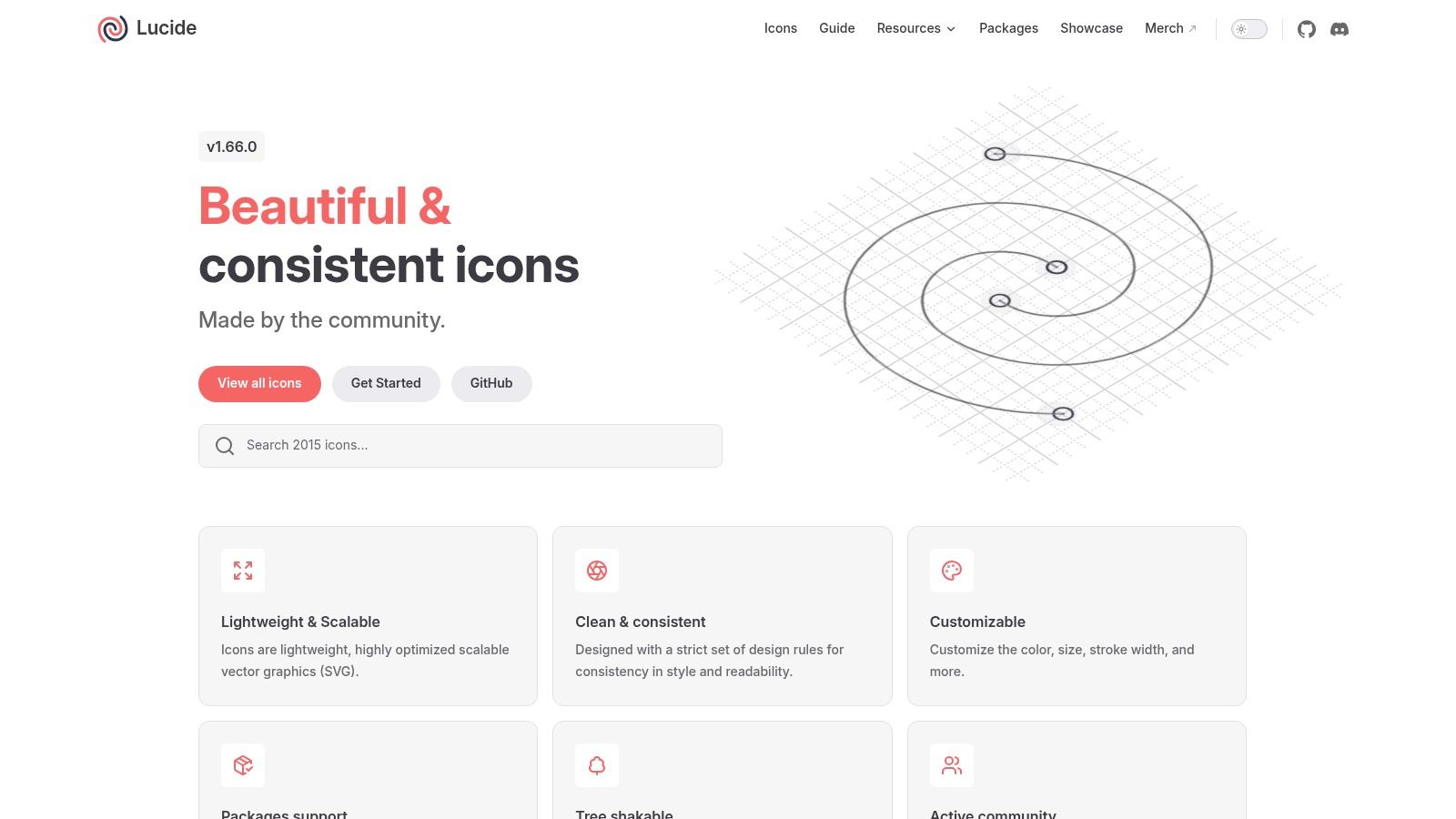
For most Vue SaaS products, I’d start with Lucide. It’s a clean outline SVG set with more than 1,600 icons, an official Vue package, and packages for other major frameworks. Size, colour and stroke width are customisable, so one glyph can work in a dense toolbar and a roomier empty state without redrawing anything.
Why it ships well
Tree shakeable imports keep the bundle honest. You import the chevron, search and close icons you use, not a font file carrying the whole catalogue. That distinction matters because, according to the Digital Otter UK web design statistics, only about 48% of mobile websites pass all three Core Web Vitals. Shipping unused glyphs is an easy way to make that harder for no user benefit.
The ISC licence allows free personal and commercial use, which removes a common procurement headache. In a headless menu, the icons sit predictably in leading slots, and directional glyphs behave as you’d expect, which is worth checking against guidance on left arrow icons in navigation before you standardise them.
The limits are real. It’s outline only, so designs needing solid, filled states for selected tabs will need another treatment. There are also no brand logos. If you need those daily, Lucide alone won’t cover you.
2. Tabler Icons
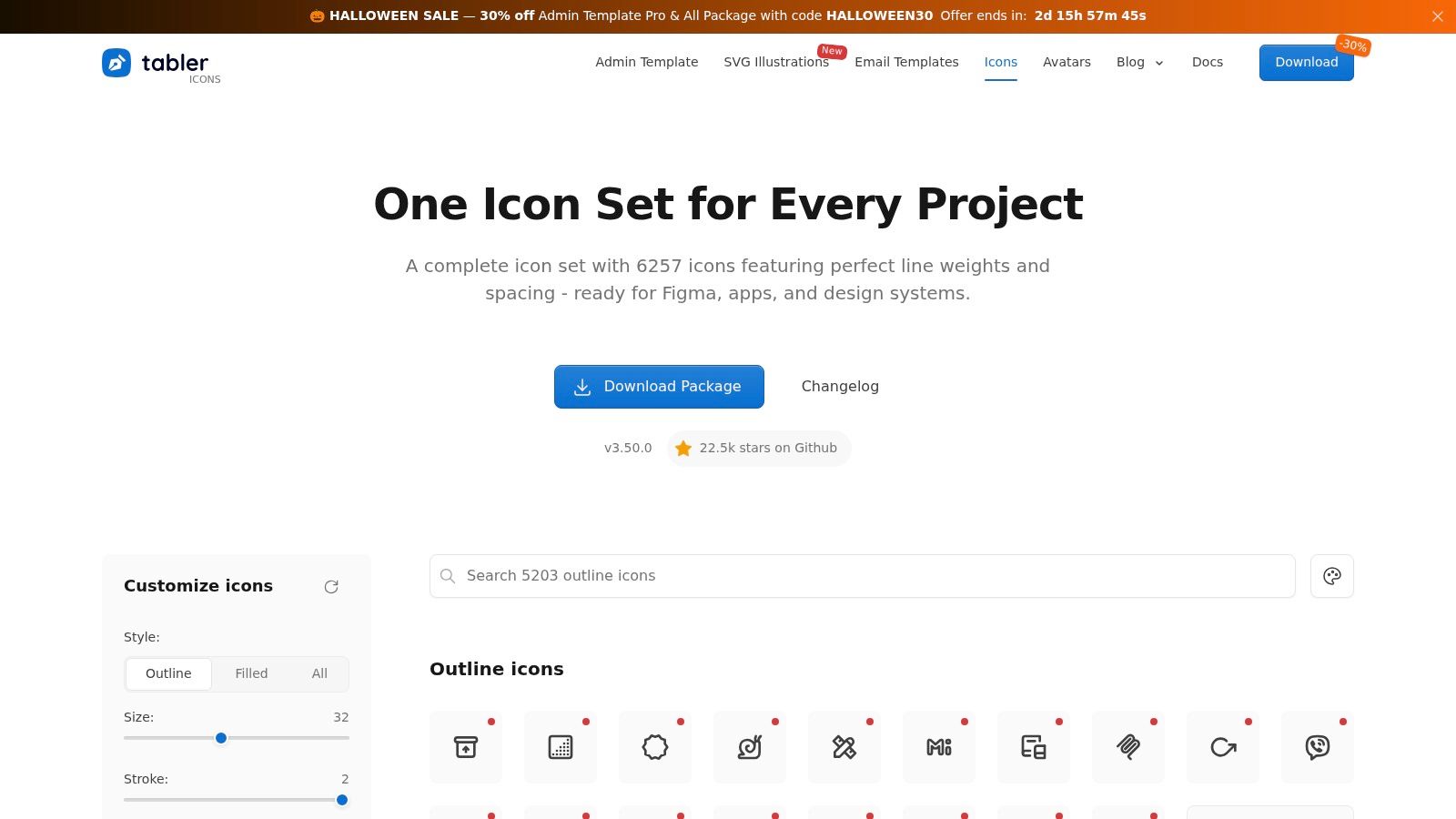
Tabler Icons is the pick when coverage, not minimalism, is your problem. It’s drawn on a consistent 24 by 24 grid and offers thousands of icons in outline and filled versions, plus SVGs, a webfont and a Figma plugin. For a large admin product with charts, files, devices and obscure settings screens, that breadth keeps you in one visual system.
The official @tabler/icons-vue package for Vue 3 supports individual imports, so bundle cost stays tied to what you render. It’s MIT licensed and free for commercial projects. Tailwind classes handle sizing cleanly because you’re working with components, not background images.
Practical rule: with a catalogue this large, agree a naming convention and a short approved list per product area before developers start picking near duplicates.
That governance point isn’t bureaucratic. In a 2022 Adobe UK survey of 1,000 emoji users, 50% of UK users said they used emoji differently from their intended meanings. Interface icons carry the same ambiguity risk, and a huge library makes it easier to choose three similar glyphs for one concept.
The default stroke can also feel thin and technical against a soft consumer brand. Test it at your smallest menu size, in both themes, before committing the whole app.
3. Heroicons
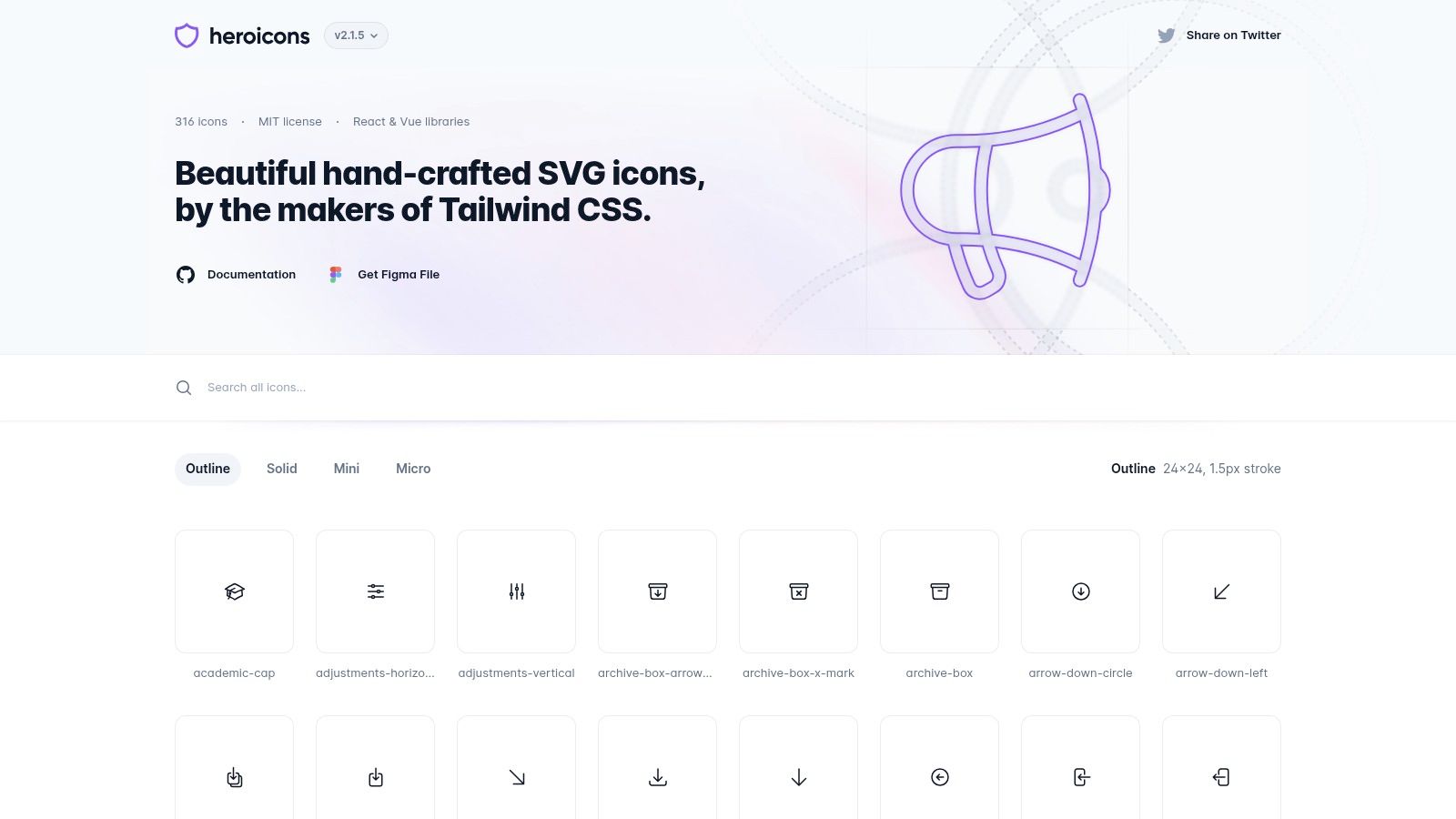
Heroicons comes from the makers of Tailwind CSS, and it shows in the details that matter to developers. You get outline and solid styles, families drawn at 16, 20 and 24 px, React and Vue component libraries, and plain SVGs you can paste without a framework package. It’s MIT licensed.
The optically sized families are a key advantage. A 24 px outline glyph shrunk to 16 px often turns muddy, while Heroicons’ smaller cuts are drawn for that job. Inside a button with an icon, that means the glyph stays legible next to compact text instead of becoming a grey smudge.
Accessibility still sits with you
No pack labels your controls for you. The UK Government accessibility monitoring report tested 1,203 public sector websites and 21 mobile apps between January 2022 and September 2024 and found 26,171 accessibility issues. Icon only buttons without accessible names are exactly the sort of repeatable defect that accumulates across components.
- Decorative icons: hide them from assistive technology.
- Functional icons: give the control itself a clear accessible name.
The trade off is selection. Heroicons is curated and smaller than Tabler or Font Awesome, and it offers fewer weights. If your product surface is broad, you’ll hit gaps sooner.
4. Phosphor
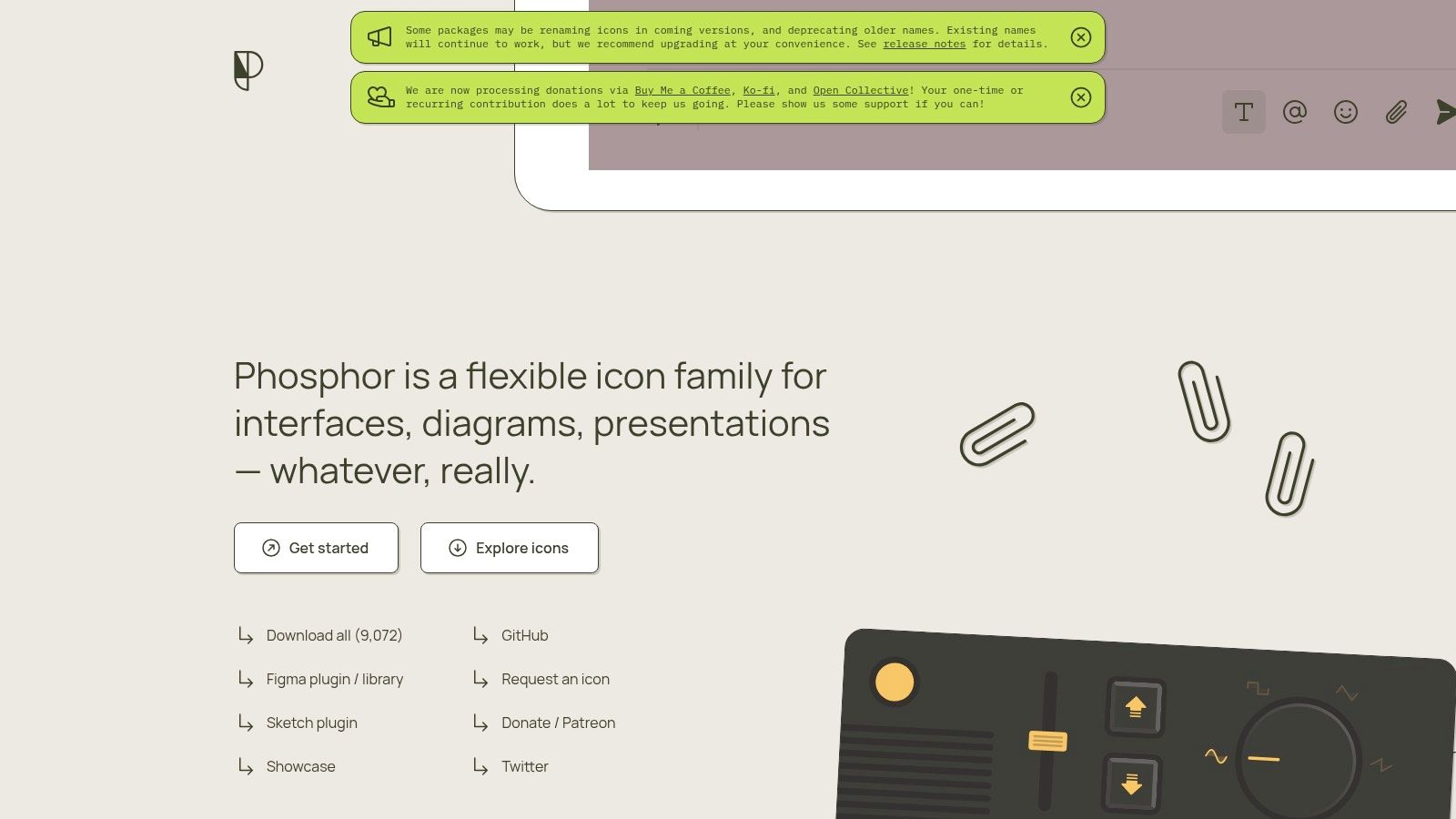
Phosphor sells flexibility. Instead of one outline treatment, you get thin, light, regular, bold, fill and duotone weights in an SVG based family with framework and design tool integrations. Used with discipline, that range lets you signal state without swapping libraries.
Say your navigation uses regular weight at rest and fill for the selected item. Phosphor handles that pairing natively, and the bolder weights also work at larger sizes in onboarding or empty states, where a hairline outline set starts to look lost. It’s open source, though you should verify the current package and licensing details in the official documentation before adoption.
Where teams get into trouble
Six weights invite six opinions. Without written rules, one team member uses light for menus, another uses bold for the same menu, and duotone creeps into tables because it looked nice once. Decide which weight means what, then enforce it in your component wrappers rather than in code review arguments.
Multiple weights should encode state, emphasis or hierarchy. If a weight change doesn’t mean anything, don’t make it.
Contrast also needs checking per weight. Thin strokes that pass on a light background can fail visually in dark mode or at small sizes for users with reduced vision. Test the thinnest weight you plan to ship first, not last.
5. Iconoir
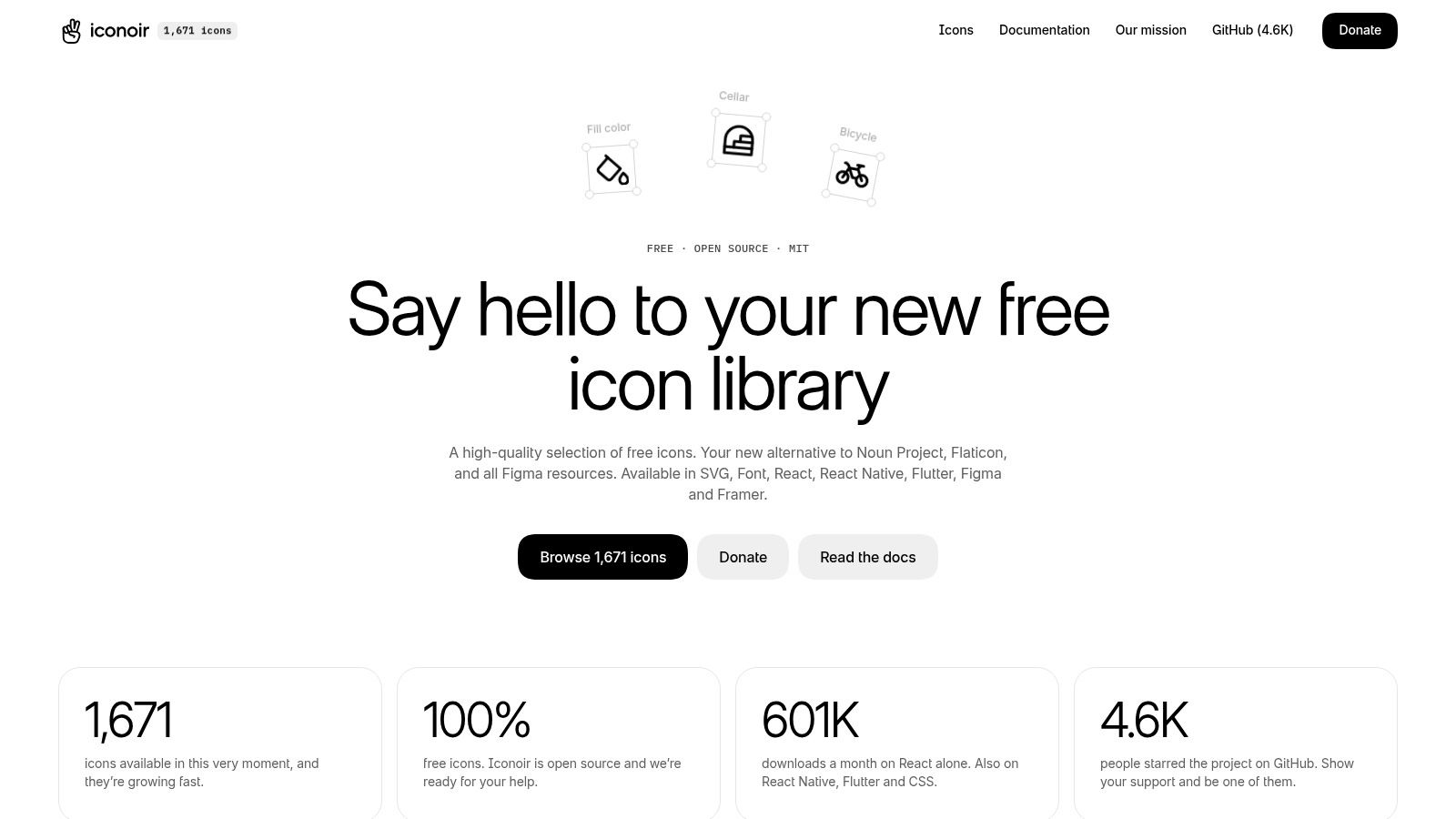
If Lucide feels slightly heavy for your brand, Iconoir is the Vue ready alternative worth testing. It’s a free, open source SVG library built on a 24 by 24 grid with a 1.5 px stroke, which gives it a lighter, more editorial feel than many 2 px sets. There are more than 1,300 icons, with solid variants for some of them.
The package coverage is unusually complete for a free set.
- Framework packages: official Vue, React, React Native, Solid and Flutter options.
- Design handoff: SVG, CSS, Figma and Framer availability.
- Licence: MIT, free for commercial use without attribution, and no premium tier hiding the icons you need.
The Vue package supports tree shaking, and individual SVGs are easy to copy when you’re prototyping outside the component system. That matters for UK mobile users in particular, because granular imports avoid paying for a global font or JavaScript registry on every page.
Not every icon has a solid counterpart, so selected states may need colour or background treatment instead. The FAQ also doesn’t list official Svelte or Angular packages, which rules it out for some multi framework organisations. For a Vue first team that wants a lighter line, neither issue is fatal.
6. Google Material Symbols
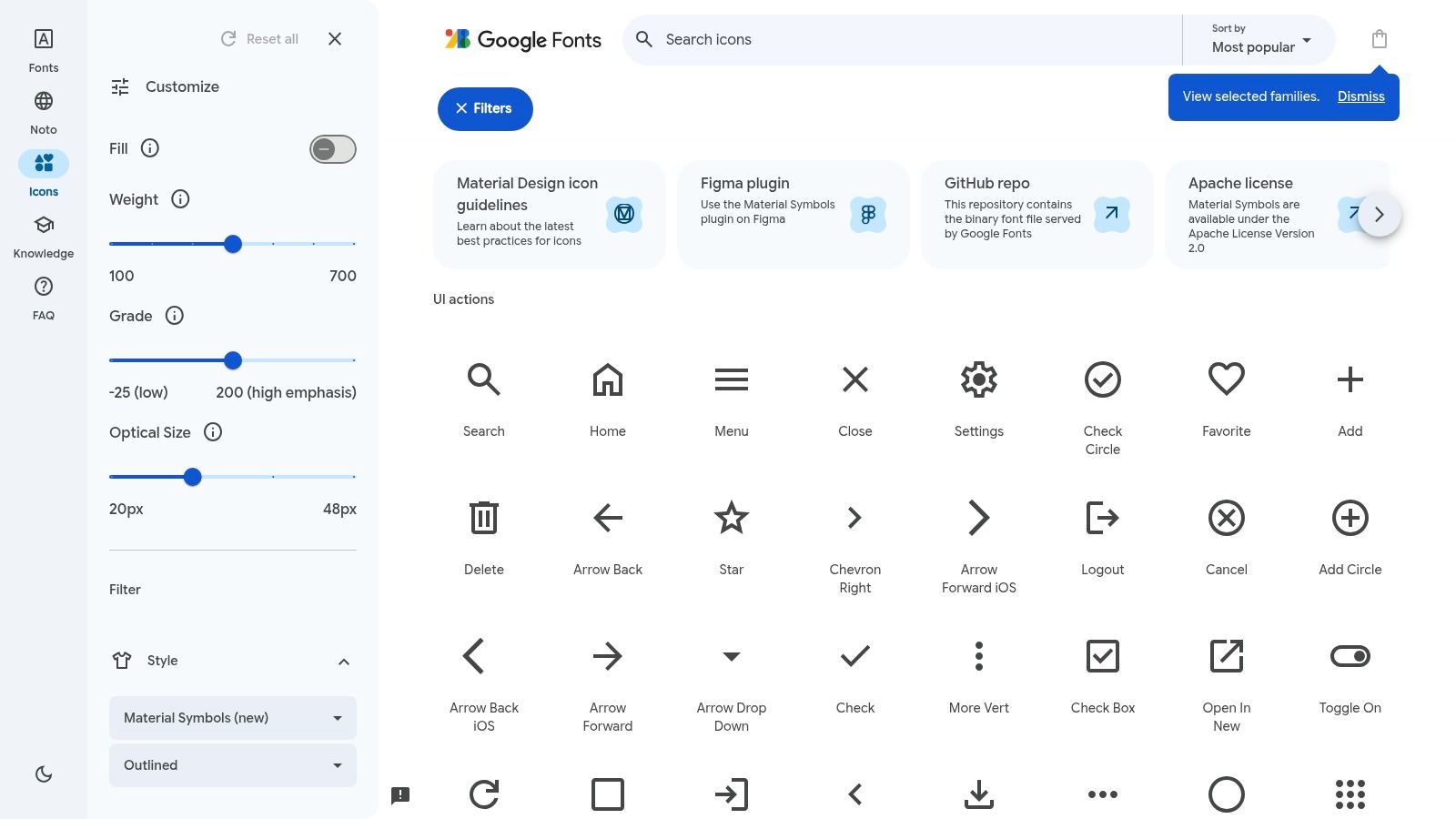
Google Material Symbols uses a variable font rather than a collection of SVG components. You can adjust weight, fill and optical size through font settings, and the symbols follow familiar Material conventions. The trade-off is delivery: a font is easy to add globally, but offers less fine-grained control than importing individual SVGs.
The production caveats
Font-based icons render as text. If the font loads late or fails, users may see ligature words or blank boxes; screen readers can also announce icon names as stray text unless the markup is handled deliberately. Check how the icons behave inside your headless components and Tailwind styles, and label icon-only buttons independently of the glyph.
If your interface lets users choose symbols, test the picking flow for consistent names. A searchable icon picker is one way to check whether users can find the same symbol reliably.
Choose Material Symbols when their visual language fits the product. For a distinct brand system, the familiar Material shapes may constrain the look rather than support it.
7. Bootstrap Icons
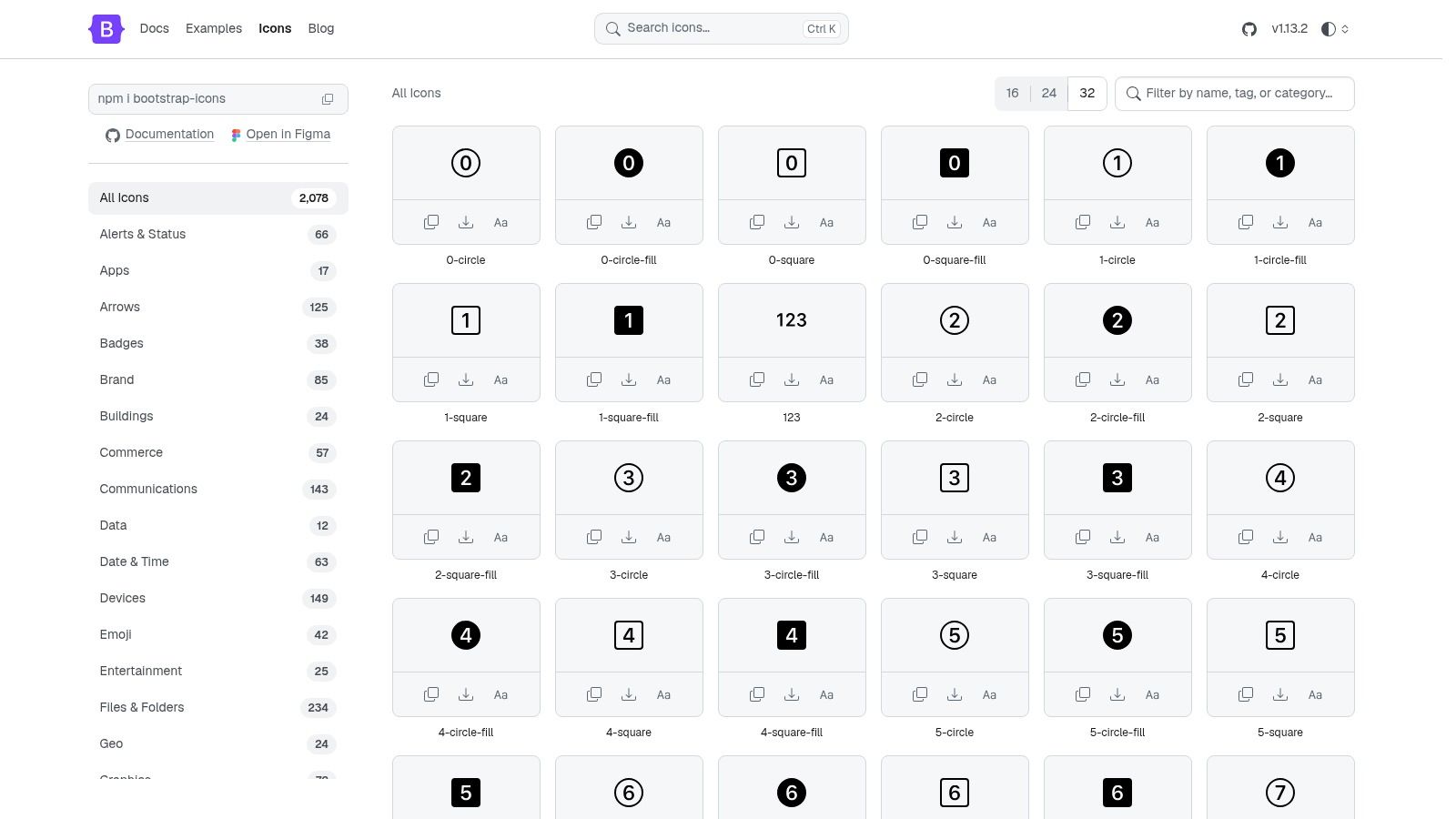
Bootstrap Icons is the pragmatic option for mixed estates. It’s an open source library of more than 2,000 icons that works with or without Bootstrap itself, and it’s available as individual SVGs, an SVG sprite, icon fonts, Sass and CSS, with package manager and CDN installation.
That delivery flexibility is the whole pitch. A legacy marketing site can use the SVG sprite and get caching benefits across pages. A newer Vue app can take individual SVGs and wrap them as components. A quick internal tool can load the font and move on, accepting the weaker failure behaviour as a known cost.
Choose your format deliberately
Sprites cache well but make per icon styling and tree shaking clumsier. Individual SVGs style cleanly with Tailwind and inherit currentColor, but you own the component wrapper and the accessible naming. The full font or stylesheet is fastest to add and least targeted, so measure what it costs on mobile before it becomes the default everywhere.
Visually, the style reads as Bootstrap adjacent. That’s fine for internal tools and documentation sites, less fine if you’re paying for a distinctive product identity. It doesn’t require adopting the Bootstrap UI framework, so judge it purely as an asset library and pick the format that matches your build.
8. Font Awesome
Font Awesome is the name your stakeholders already know. It’s a mature toolkit with free and paid collections, multiple styles, packages for common web and JavaScript framework workflows, and kits with managed delivery for subscribers. Recognition is a real benefit, since users have seen these symbols across the web for years.
The friction sits in the packaging. Pro icons require a paid plan under that plan’s licence terms, and free and paid collections differ, so check that the specific glyphs in your designs exist in your tier before anyone builds with them. Discovering a missing icon at handoff means redrawing screens or upgrading under time pressure.
Performance needs the same discipline. All inclusive packages can be large, and loading every style to use a dozen glyphs is wasteful. Use subsets or individual packages, self host where your licence allows, and confirm that your delivery method keeps decorative icons hidden from assistive technology rather than announced.
Licence check: confirm your product tier, your seat count and whether client or resale use is covered, in writing, before the first production release.
I’d recommend Font Awesome when a team needs its specific breadth, brand adjacent symbols or managed kits. For a fresh Vue app that only needs standard UI glyphs, a tree shakeable open source set is usually simpler and cheaper to run.
9. Icons8
Icons8 works better as an asset library than as a code-first icon pack. Its catalogue spans many visual styles, downloadable formats, design tool integrations and other graphics, with separate API plans for programmatic use. For developers, the trade-off is a broad source of assets without the consistency or package-level integration of a focused icon set.
That range can help when a product needs illustrated or coloured assets alongside standard interface glyphs. It can also cause style drift quickly: pin one named style per surface, and review exported icons together before they reach production.
Read the free terms carefully
Free use may require attribution or limit formats and sizes. A credit link that works on a blog may not fit a paid enterprise dashboard. Paid plans remove some restrictions, but a subscription licence is still different from an open source licence. Check the terms for assets already shipped if the subscription ends.
Treat Icons8 as an asset source, not a runtime dependency. Export the SVGs you need into your repository and use consistent filenames. That keeps the application’s icon choices under version control, while avoiding a build-time dependency on the catalogue.
10. Unicons
Unicons is IconScout’s icon family, covering line, solid, monochrome and thin line styles, SVG and icon font workflows, and related animated and 3D assets. It has documented Vue and React packages, free line icons and premium options, so it spans the gap between interface glyphs and richer product visuals.
That range helps when one team ships both the app and the marketing site. Interface icons can stay monochrome and consistent while landing pages use animated or 3D assets from the same family, instead of bolting on an unrelated illustration style. Vue integration is available, so it isn’t limited to static downloads.
The costs are administrative. Licensing differs across assets and plans, and some premium packages require a plan or access token, so you need to record exactly which assets your product uses and under which terms. Keep finished SVGs in your repository rather than depending on marketplace access at build time.
The broader marketplace can also be more than a basic UI project needs. If you only want twenty reliable glyphs inside headless components, Tabler or Lucide will get you there with less procurement overhead. Pick Unicons when the animated and 3D side earns its place in your product, not as decoration you have to maintain.
How the ten icon packs compare on licence, Vue integration and best fit
The licence and delivery format affect production more than an icon’s appearance. An official Vue package can fit directly into component props and Tailwind classes; SVG files and fonts work across frameworks but require you to manage markup, sizing and accessibility yourself. In every case, give icon-only buttons an accessible name and hide decorative icons from assistive technology.
| Item | Licence | Vue integration | Best for |
|---|---|---|---|
| Lucide | ISC; free for commercial use | Official Vue package; tree-shakeable | Clean outline icons for production interfaces |
| Tabler Icons | MIT | Official Vue 3 package; tree-shakeable imports | Large applications needing broad icon coverage |
| Heroicons | MIT | Vue component library; direct SVGs also available | Tailwind-oriented product interfaces |
| Phosphor | Open source | Vue package details are not established here; SVG and other framework-agnostic assets can be used directly | Interfaces needing multiple icon weights |
| Iconoir | MIT; free for commercial use | Official Vue package; supports tree-shaking | Lightweight line icons for Vue projects |
| Google Material Symbols | Open-source licence; check the package’s licence file for the applicable terms | No official Vue component package; use the variable font or downloadable assets | Material Design products and Android-familiar interfaces |
| Bootstrap Icons | MIT | No official Vue package; use SVGs, sprites or the icon font | Bootstrap sites and projects needing flexible asset formats |
| Font Awesome | Free and paid collections; terms vary by plan | Packages available for JavaScript framework workflows | Teams seeking familiar symbols and a mature toolkit |
| Icons8 | Commercial licensing; terms vary by plan | No official Vue package; use its framework-agnostic assets | Designers needing icons and broader visual assets |
| Unicons | Free and premium options; terms vary by asset and plan | Documented Vue package | Teams combining interface icons with richer visual assets |
Tree-shaking can limit imported code to the icons a Vue app uses, but check the generated bundle rather than assuming every package behaves the same. SVGs give direct control over markup and styling; fonts can reduce repetitive imports, but need careful sizing and accessible labels. Licence terms also affect paid products: confirm whether redistribution, modification and commercial use are allowed for the specific package or asset before shipping.
Choosing an Icon Pack You Will Still Want in Year Three
Choose the pack that fits your component layer, not only your mockups. The best icon pack for a Vue app built on headless primitives is the one whose SVGs accept your Tailwind classes, size predictably inside slots, and don’t force you to fight fixed dimensions every time a designer asks for a denser table. Style matters, but it’s the fourth question, not the first.
Start smaller than your instincts suggest. An NHS Digital audit discussed in the UK website health check context around accessibility practice is a useful reminder that using a design system alone does not automatically make a service accessible. Build a short, semantically named core set covering navigation, common actions, status and disclosure. Add glyphs only when a documented interaction needs one, and delete near duplicates instead of keeping three arrows that mean slightly different things to different developers.
Then run the acceptance tests that catch production failures. Confirm every icon only control exposes an accessible name. Confirm decorative icons are hidden from assistive technology. Check focus visibility, contrast in light and dark themes, and behaviour in selected, expanded, disabled and loading states. In 2025, Warbox’s State of Accessibility Report, covered by PPC Land, found 48% of more than 1,200 UK websites across 14 sectors required accessibility improvements. Icon misuse is a small, fixable slice of that problem, and it’s cheapest to fix at selection time.
Measure delivery with the same rigour. Record the transferred size for one icon, ten icons and your typical application set, using the import method you’ll ship. A smaller library with granular imports can beat a giant catalogue that arrives as one font file. Test on realistic mobile conditions, not just your office connection, and verify that your accessibility handling survives whichever sprite, font or component method you chose.
Confirm the licence for your exact product tier before release. MIT and ISC sets like Heroicons, Tabler, Iconoir and Lucide are straightforward for commercial interfaces. Subscription and marketplace licences from Font Awesome, Icons8 and Unicons need specific checks on paid plans, attribution, seats and what happens if payment stops. None of that is difficult, but all of it is painful to unwind after launch.
A practical final test is the menu row. DOM Studio’s item row slot adds leading icons, shortcuts, disabled rows and icon bearing submenus to a menu, which concentrates every problem into one component. Your chosen glyphs need to align optically, hold contrast in both themes, stay silent to screen readers when decorative, and remain recognisable at small sizes. If the set struggles there, it’ll struggle everywhere. Pick the pack that passes that row, document your naming and weight rules, and you’ll still be content with the choice in year three.
DOM Studio pairs headless, accessible components for menus, dialogs, tabs and comboboxes with its own icon set and a thin Vue and Tailwind layer, so your chosen icons drop into primitives that already handle ARIA roles, keyboard behaviour and focus management. Browse the components, test how your shortlisted glyphs behave in real menu rows, and build your next interface with DOM Studio.