Your toolbar looks tidy on desktop, but the labels wrap on a phone. You replace them with icons, then discover that the screen reader announces only “button”, the close control submits the form, and nobody agrees what the archive symbol means.
A button with icon is still an interactive control, not a drawing with a click handler. Build it around a testable contract: its name identifies the action, its state describes what’s happening, its focus remains discoverable, its target is usable, and its colours survive the theme.
Table of Contents
- Which Button to Use
- How to Build an Icon Button Step by Step
- Icon Sizes, Hit Areas and Spacing That Work
- Keyboard, Focus and Screen Reader Checks
- Stateful Icons, Disabled States and Theming
- Common Problems and How to Fix Them
- Confirm the Button Pattern Before You Ship
Which Button to Use
Choosing an icon-only button because it looks cleaner in a mockup is the wrong starting point. Decide what the user needs to recognise, then choose how much visual explanation the action deserves.
Icon button patterns and when each fits
| Pattern | Best for | Accessible name comes from | Main risk |
|---|---|---|---|
| Icon with visible label | Save, download, add to cart | The visible text | Wraps awkwardly on narrow screens |
| Icon-only with visible tooltip | Close, settings, search in toolbars | aria-label matching the tooltip text |
Tooltip opens late or only on hover |
| Icon-only with visually hidden label | Dense table rows, repeated row actions | Visually hidden text inside the button | Sighted users have to guess the action |
| Text-only | Delete account, export all | The visible text | Takes the most space |
The UK Intelligence Community Design System’s button guidance requires a programmatic label and a visible tooltip for icon-only buttons. That’s a useful baseline for compact controls, but a tooltip doesn’t make an unfamiliar symbol immediately understandable.
Icon-only works most reliably when users already interpret the symbol consistently and encounter the action repeatedly. Close, search and menu controls can qualify in familiar interface chrome. Share, filter and overflow need more context, particularly when neighbouring controls look similar.
Practical rule: If the action is destructive, rare or ambiguous, add visible text.
Choose the pattern at the breakpoint
A label that fits on desktop can force a toolbar to wrap on a phone. Don’t automatically hide every label at the narrowest breakpoint. Keep the primary action explicit, move secondary actions into a labelled menu, and reserve icon-only treatment for recognisable utilities.
A hidden label solves the screen-reader naming problem, not the sighted-user comprehension problem. In repeated table rows, give actions contextual names such as Delete invoice INV-204 rather than repeating Delete without identifying the affected item.
Text-only is often the clearest choice for consequential actions. A bin pictogram adds little to Delete account, while a visible label gives users something concrete to review before committing.
How to Build an Icon Button Step by Step
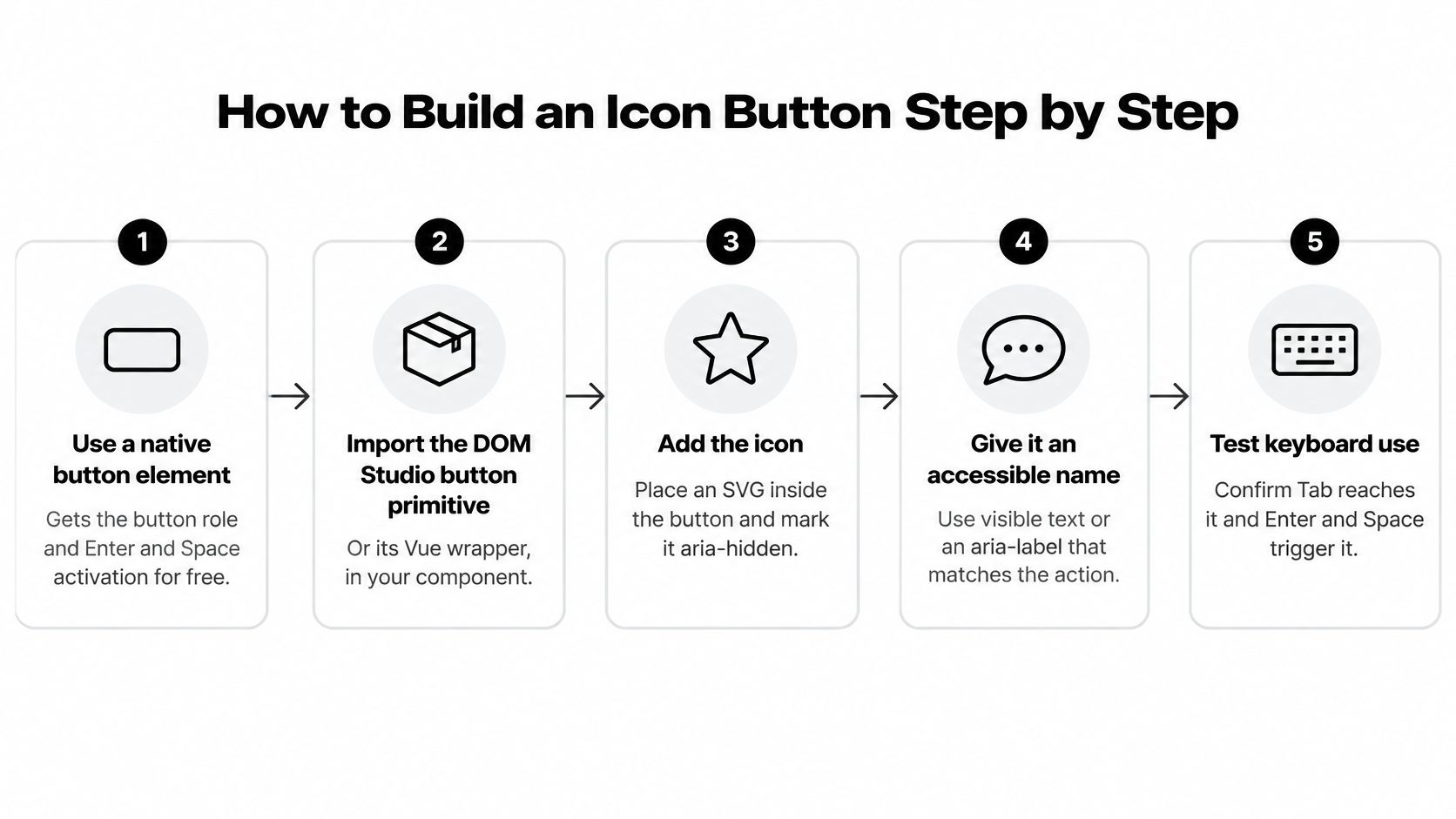
Start with a native <button>, not a styled <div>. The browser supplies the button role, focus behaviour, and keyboard activation without custom key handlers.
The government accessibility monitoring report identifies contrast, visible focus, keyboard operation and reflow as recurring problems. Semantic markup is the starting point, not the entire implementation.
Build the semantic shell
- Choose the implementation. Import your established primitive or Vue wrapper. DOM Studio is one option alongside a native implementation; check its documentation for exact imports and props, and use the icon catalogue when choosing the drawing.
- Insert the icon. Use an inline SVG or a Vue component that renders an SVG in the icon slot.
- Hide decorative content. Apply
aria-hidden="true"andfocusable="false"to the SVG. - Name the action. For icon-only content, use an explicit name such as Close dialog, not Icon or X.
- Prefer visible words. When text is present, omit
aria-labelso those words supply the accessible name. - Prevent accidental submission. Default to
type="button"unless the control deliberately submits a form. - Provide visual clarification. For an ambiguous symbol, prefer a visible label or attach a keyboard-accessible tooltip matching the action name.
This sequence keeps the drawing separate from the control’s semantics.
A reusable Vue shell
This local component deliberately leaves tooltip positioning and interaction to your application’s tooltip primitive. Its tooltip slot receives the same name used by the icon-only button, preventing copy from drifting.
<script setup lang="ts">
import { useSlots } from 'vue'

defineOptions({ inheritAttrs: false })

const props = withDefaults(defineProps<{
  name: string
  tooltip?: boolean
  type?: 'button' | 'submit' | 'reset'
}>(), {
  tooltip: false,
  type: 'button'
})

const slots = useSlots()
</script>

<template>
  <slot
    name="tooltip"
    :enabled="props.tooltip"
    :text="props.name"
  >
    <!-- Supply a tooltip wrapper through this slot if needed. -->
  </slot>

  <button
    v-bind="$attrs"
    :type="props.type"
    :aria-label="slots.default ? undefined : props.name"
    class="icon-button"
  >
    <span aria-hidden="true" class="icon-button__icon">
      <slot name="icon" />
    </span>
    <slot />
  </button>
</template>
The required name prop supplies the icon-only accessible name; a populated default slot supplies visible text instead. inheritAttrs: false lets the component explicitly forward listeners, state attributes and descriptions to the native button.
The hidden icon wrapper excludes its descendants from the accessibility tree, but still set focusable="false" on the slotted SVG itself. Treat the default slot as visible label content, not an arbitrary container that might render empty.
For a tooltip-enabled version, compose this shell inside a tested tooltip primitive using its documented trigger mechanism. Don’t treat the optional slot above as a functioning tooltip: the wrapper still needs focus and hover handling, Escape dismissal, positioning and touch consideration.
Icon Sizes, Hit Areas and Spacing That Work
The visible glyph and the clickable area are different things. A small drawing can sit inside a generous button, and that’s usually preferable to enlarging every icon until the toolbar feels crowded.
The following values form a worked implementation preset, not a statement of accessibility conformance. The Tailwind mappings assume its default spacing configuration; inspect computed styles if your project overrides that configuration.
Icon sizes, hit areas and spacing values
| Element | Value in this preset | Tailwind 4 class | Notes |
|---|---|---|---|
| Icon in a standard button | 20px | size-5 |
Pair with 14 to 16px label text |
| Icon in a dense table row | 16px glyph | size-4 |
Keep the glyph small and pad the hit area instead |
| Icon in a touch toolbar | 24px glyph | size-6 |
Useful when tapping is the main interaction |
| Icon-only hit area | 44 by 44px | p-3 around size-5, or min-h-11 min-w-11 |
A practical touch-oriented preset |
| Gap between icon and label | 8px | gap-2 |
Keeps the glyph and label visually paired |
| Space between adjacent icon buttons | 8px minimum in this preset | gap-2 in the toolbar |
Gives neighbouring targets breathing room |
| WCAG minimum target assessment | Check the applicable criterion and exceptions | n/a | Don’t infer conformance from a utility class |
In that example, the standard glyph plus padding produces the target dimension without enlarging the drawing. For a denser glyph, minimum dimensions keep the button usable even though its contents occupy less space.
Size the target for the interaction, then size the drawing for visual balance.
Padding belongs on the button, not just on a surrounding layout wrapper. Otherwise, the apparent breathing room may not respond to a click or tap.
Use inline-flex items-center justify-center shrink-0 to keep the drawing centred and stop flex layouts squeezing the control. Test the smallest supported viewport with translated labels, browser zoom and neighbouring actions present. More padding won’t help if an overlapping element intercepts the tap.
Keyboard, Focus and Screen Reader Checks
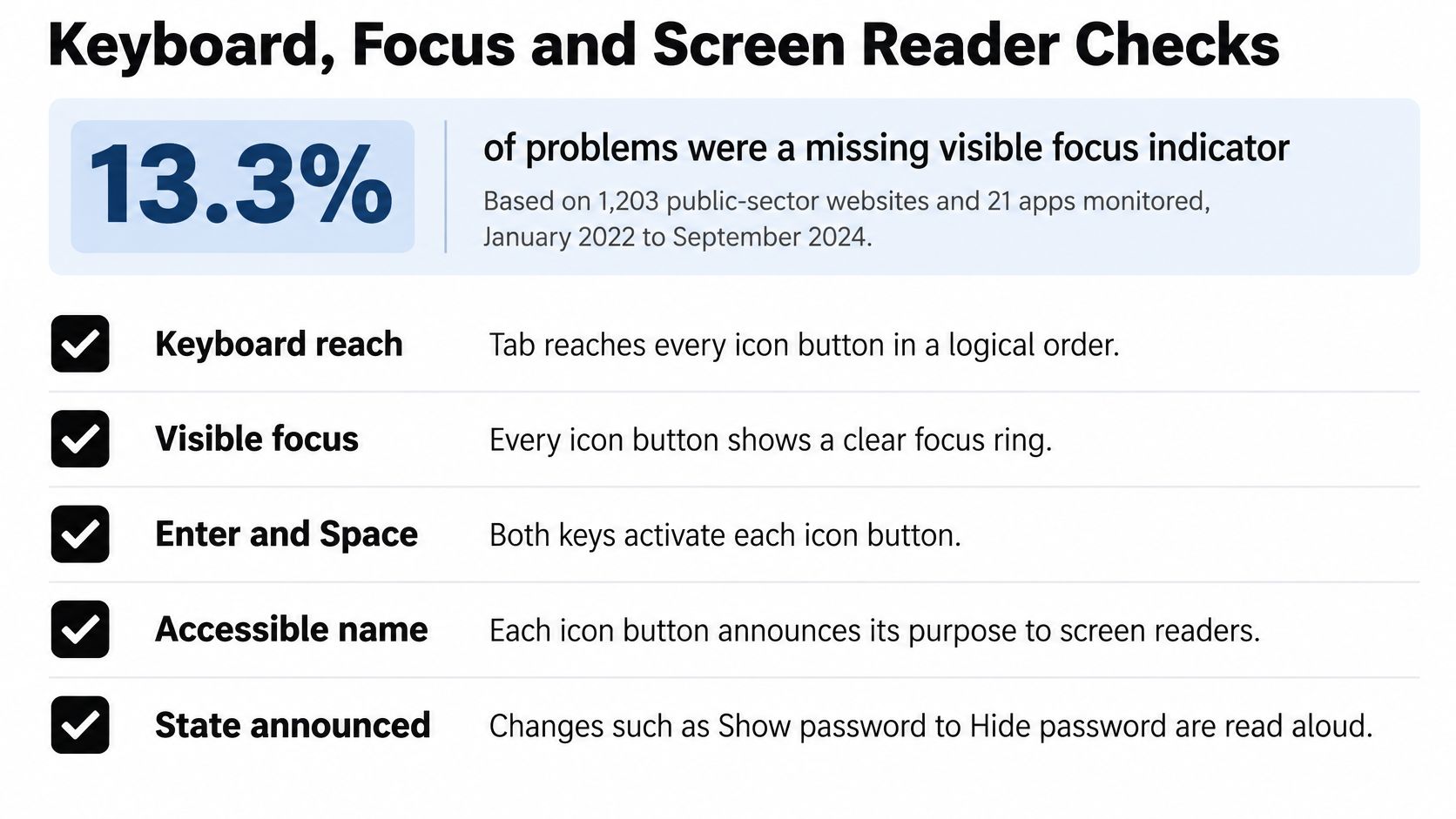
In Government Digital Service monitoring of UK public-sector websites and apps between January 2022 and September 2024, missing visible keyboard focus accounted for 13.3% of recorded issues, while keyboard-operability problems accounted for 10.8%. These are interaction failures, not cosmetic defects.
Use this checklist as a reminder during the manual pass.
Test the complete interaction
- Reach it logically. Use Tab and Shift+Tab through the actual page. The order should follow the task, without positive
tabindexvalues used to patch a confusing DOM. - Activate it predictably. Test Enter and Space separately. Watch for duplicate actions caused by custom key handlers alongside native click behaviour.
- Keep focus identifiable. Check the focused button against every background it crosses. Never remove the browser outline without a visible replacement.
- Dismiss transient content. Escape should dismiss an open tooltip. Menus and dialogs also need their expected dismissal behaviour, with focus restored to a sensible trigger when they close.
- Expose tooltip content. Keyboard focus must reveal it, not just pointer hover. Check that users can dismiss it and that it doesn’t obscure essential content.
- Listen to the control. Confirm the accessible name, button role and applicable state. A menu trigger should expose expansion; a toggle should expose its selected state.
Test with VoiceOver on macOS or iOS and NVDA on Windows. Listen for the intended meaning rather than requiring identical spoken wording, because assistive technologies announce controls differently.
A changing name in the accessibility tree doesn’t guarantee an unsolicited spoken announcement. Verify the actual experience before adding a live region, which can otherwise produce repetitive speech.
For a broader release pass, use the WCAG compliance checklist alongside component-specific tests. Automated tools can detect missing names, but they can’t decide whether a symbol makes sense in its surrounding workflow.
Use the video as a companion to hands-on testing, not a replacement for testing your own rendered interface.
Stateful Icons, Disabled States and Theming
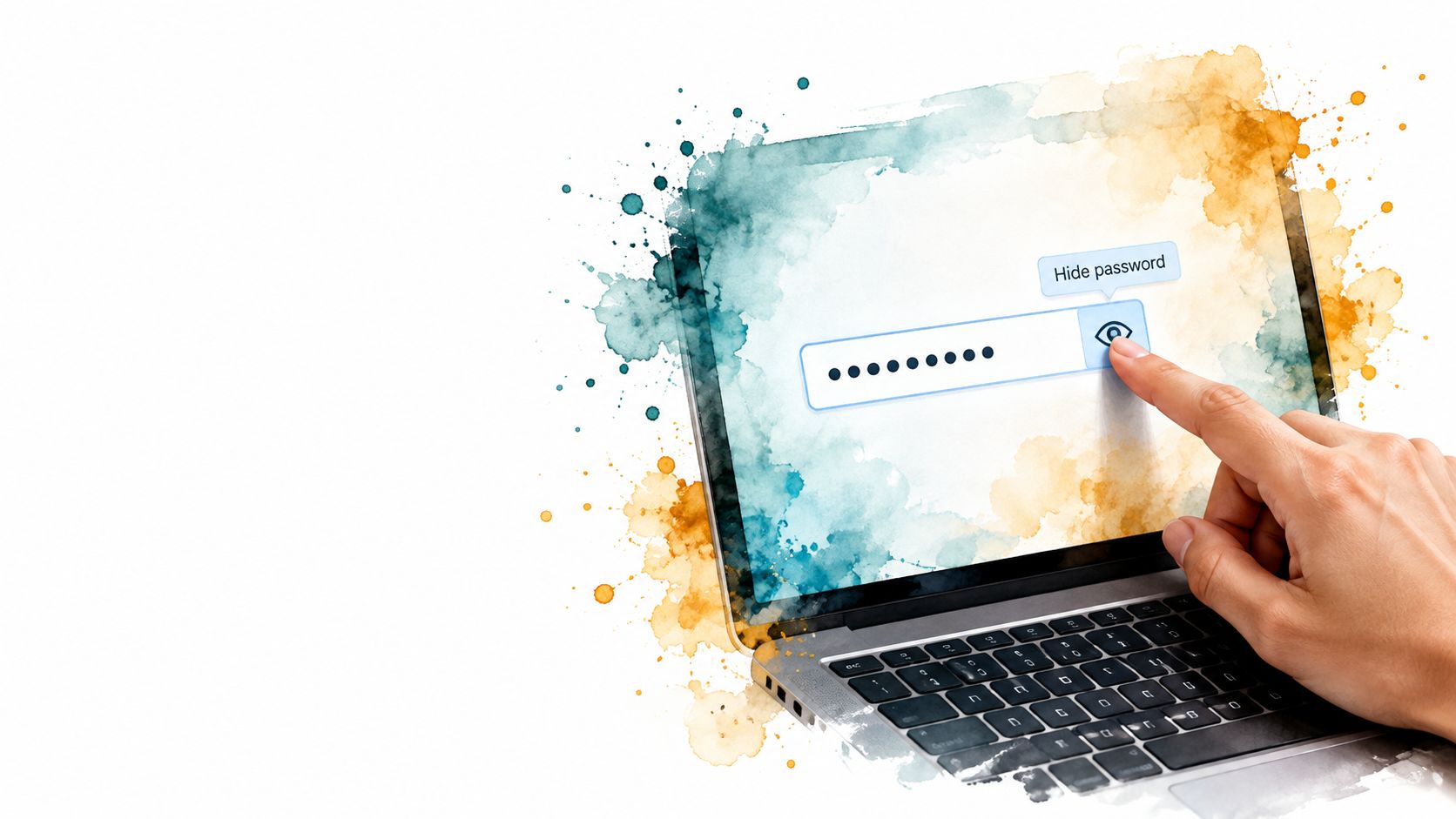
A password visibility control exposes the state problem immediately. The eye changes appearance, but does the button identify the next action or announce a persistent toggle state?
The visual change needs a deliberate semantic counterpart.
Choose an action name or a pressed state
For an action-changing control, update the accessible name from Show password to Hide password. Play and Pause follow the same model: the name describes what activation will do next.
For a persistent toggle, keep the name fixed and expose aria-pressed. A Bookmark button remains Bookmark while its pressed value changes to indicate whether the item is bookmarked.
<button
  type="button"
  :aria-pressed="bookmarked"
  @click="bookmarked = !bookmarked"
>
  Bookmark
</button>
Don’t casually combine changing action names with a pressed-state model. Users shouldn’t have to interpret whether Hide password, pressed means the password is currently hidden or will become hidden.
The ONS icon guidance recommends pairing icons with text because meaning isn’t always clear. State styling doesn’t remove that ambiguity: a filled icon still needs an understandable semantic state.
Separate disabled behaviour from an explanation
Native disabled prevents interaction and removes the button from sequential keyboard navigation. Use it when that behaviour is appropriate, but put any important explanation somewhere users can discover without focusing the disabled control.
When discovery matters, aria-disabled="true" can retain focusability. It doesn’t prevent activation, so guard the click handler and any other activation route yourself. Describe the reason with aria-describedby, preferably pointing to visible text rather than a hover-only explanation.
For example, an unavailable export action can explain that the user lacks permission. Don’t make users repeatedly activate an apparently working control to discover the restriction.
Theme the whole contract
Use semantic tokens for foreground, background, hover, pressed, unavailable and focus colours. An SVG using currentColor can inherit the button’s foreground token rather than carrying a hard-coded fill.
Use focus-visible styling with an offset outline that remains distinguishable in light and dark themes. Check forced-colours mode too; a shadow-only indicator may disappear there.
The Tailwind CSS themes guide is useful when organising these variants. Check the library’s Visual Blocks documentation for actual token names instead of inventing a parallel naming scheme.
Common Problems and How to Fix Them
Icons feel universal to the team that chose them. Users bring different platform conventions and task expectations, so share, archive, filter and more can all require interpretation.
The Conversation’s discussion of emoji and language illustrates how pictorial meaning depends on context. Familiarity with graphical communication isn’t proof that someone understands an application’s action.
Icon button symptoms, causes and fixes
| Symptom | Likely cause | Fix |
|---|---|---|
| Screen reader says only button | Icon-only button has no accessible name | Add an action-specific aria-label matching the tooltip |
| Screen reader reads SVG shapes or image | Decorative SVG is exposed | Set aria-hidden="true" and focusable="false" on the SVG |
| Keyboard users never see the tooltip | Tooltip opens only on hover | Open it on focus with the same text |
| Focus lost after closing a menu | Trigger isn’t restored as the focus destination | Return focus to the button that opened the menu |
| Form submits when the icon is clicked | Button defaults to submit inside a form | Set type="button" |
| Users guess wrong on share or more | Abstract pictogram lacks context | Add a visible label, or a tooltip for a familiar repeated action |
| Icon fades in dark mode | Foreground token lacks contrast against the background | Adjust the dark-theme icon token and recheck |
| Toggle looks selected but sounds unchanged | Visual state isn’t exposed programmatically | Choose a changing action name or a fixed-name pressed state |
Diagnose the rendered control
Inspect the accessibility tree, not just the Vue source. A wrapper might swallow attributes, a conditional slot might render empty, or a rerender might replace the focused element.
Check the accessible name first, then focus, then contrast. Once those are correct, investigate state transitions and event handling rather than adding more ARIA attributes speculatively.
Confirm the Button Pattern Before You Ship
Map each action to a deliberate pattern in your design-system documentation. Record its visible treatment, naming source, state model and responsive behaviour so the next developer doesn’t have to reconstruct the decision from a screenshot.
Mark icon-only uses in code review. Keep tooltip and action-name copy in a shared prop or translation entry, and give repeated row actions enough context to distinguish their targets.
Make failures actionable
- Record the pattern. Identify whether the control is labelled, icon-only, stateful or a menu trigger.
- Capture the transition. Note the starting state, input method, expected result and actual focus destination.
- Attach the environment. Include the browser, operating system and assistive technology when relevant.
When a device-specific failure appears, use the 99tests guidance to write reproducible bug reports from device tests. A precise reproduction sequence is more useful than a screenshot labelled accessibility issue.
Start with your most frequently used icon-only actions, such as close, search and overflow. Confirm their contracts in the actual responsive layout before extending the same component across the application.
A button that works without its icon and without a mouse is ready to ship.
DOM Studio offers headless primitives, Vue integration and Tailwind styling for building controls such as buttons, tooltips and menus. Visit DOM Studio to explore components you can use as the foundation for a consistent, testable icon-button pattern.