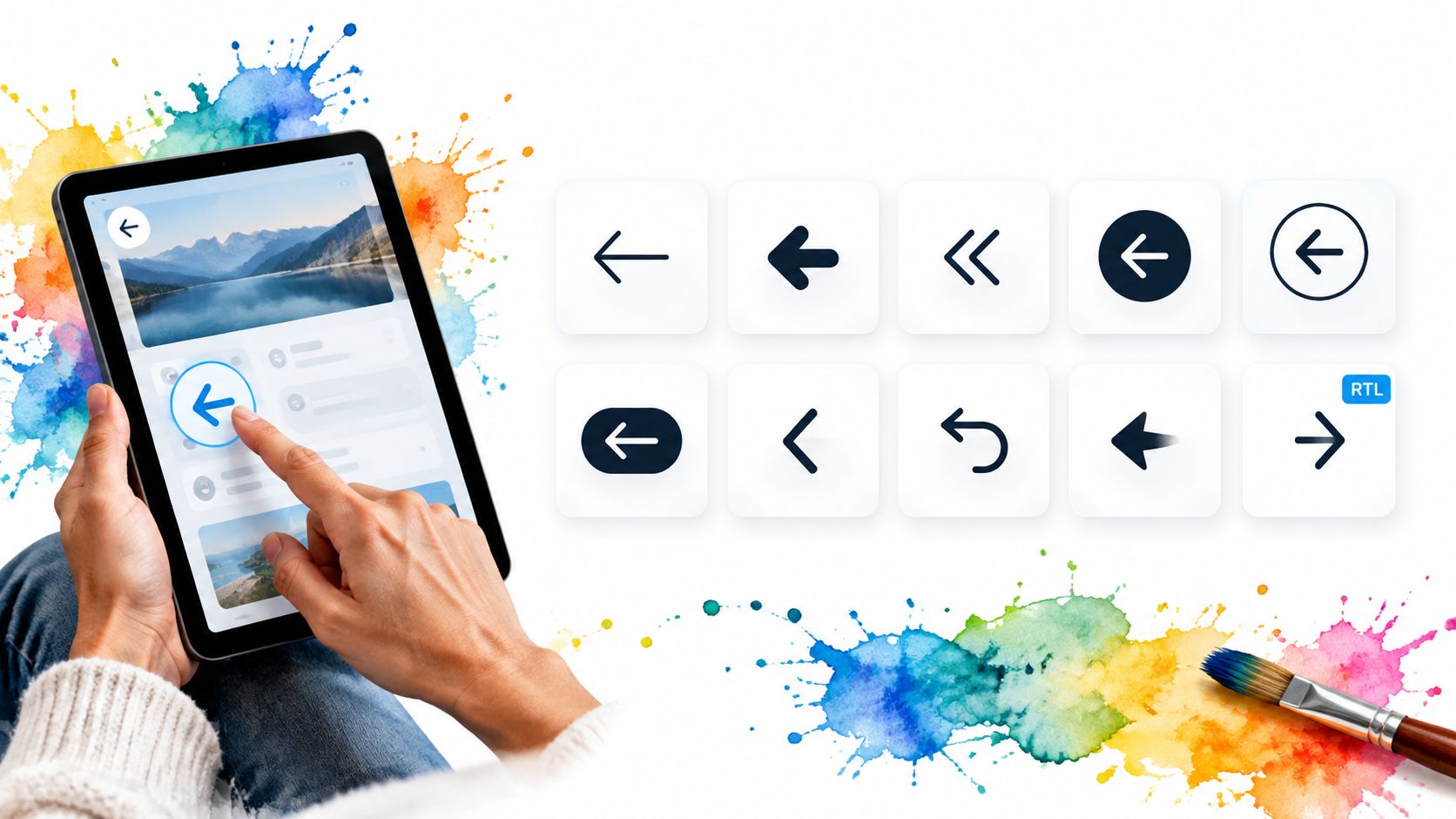
You’re finishing a navigation bar when the left arrow stops looking simple. The back button looks right on desktop, but its label disappears on mobile. In a right-to-left layout, the same arrow points against the expected reading direction. Inside a submenu, it looks clickable, yet pressing the keyboard’s left arrow does nothing.
The problem isn’t usually the SVG path. It’s the decision behind it. Browser-history back, previous page, previous step and return to parent are different actions, even when designers give them the same symbol.
That distinction matters for accessibility. In the UK government’s public-sector accessibility monitoring from 2022 to 2024, only 63.6% of monitored websites met the keyboard criterion. A recognisable arrow doesn’t make a control keyboard-operable.
Choose the navigation behaviour first. Choose the arrow shape second.
SVG is usually a sensible delivery format because you can style it without tying the control to an image’s intrinsic dimensions. The principles behind using vector graphics for responsive websites help, but scaling the artwork isn’t enough. You still need a meaningful label, a usable target and visible focus.
These left arrow icons suit different workflows, from direct SVG imports to design-led asset selection.
Table of Contents
- 1. Lucide
- 2. Heroicons
- 3. Tabler Icons
- 4. Phosphor
- 5. Bootstrap Icons
- 6. Google Material Symbols
- 7. Remix Icon
- 8. Iconoir
- 9. Icons8
- 10. Iconsax
- How the ten left arrow icon sources compare
- Choosing a Left Arrow Icon You Will Not Replace Later
1. Lucide
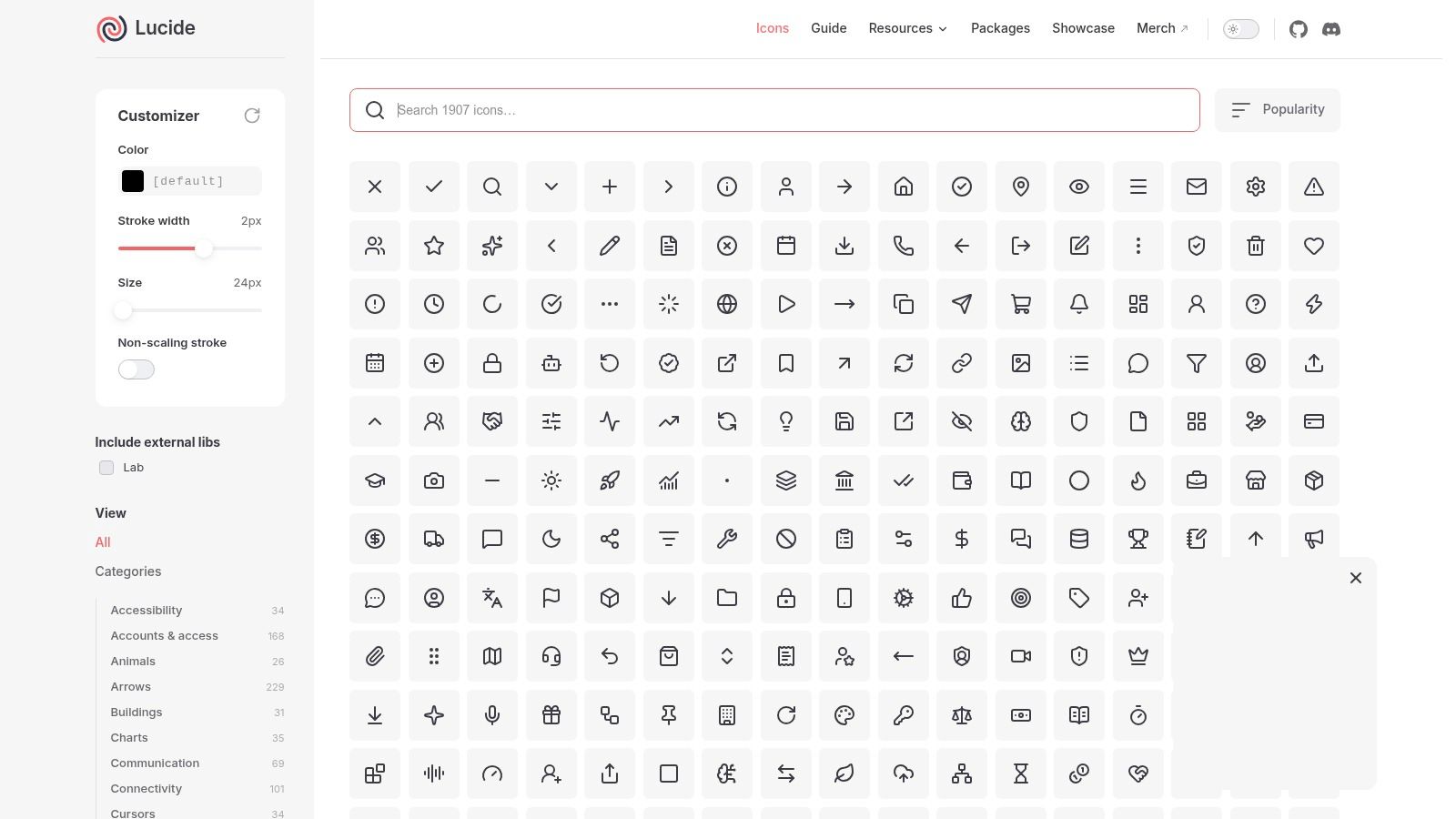
Lucide is a strong default for applications with a restrained outline style. Its arrow-left works beside a back label, while chevrons suit compact pagination and hierarchical navigation. The consistent stroke treatment makes those related controls look like parts of the same system.
Its framework packages are convenient when you want icons to inherit colour and accept sizing props. For Vue, import the required component rather than building a runtime catalogue containing the whole library. Named imports make your intent clearer, although you should still inspect the production bundle rather than assume every build configuration removes unused assets.
Best for a consistent application shell
Use a full arrow for a prominent return action and a chevron for a compact directional affordance. Don’t alternate between them just because different developers picked different names from autocomplete.
- Licence: Lucide uses the ISC licence, with attribution considerations for inherited Feather assets. Preserve the notices shipped with your selected package.
- Packaging: Framework components and standalone SVGs suit code-led workflows. Runtime name-based lookup needs deliberate import management.
- Shipping check: Adjust stroke weight alongside size, then inspect the result beside your actual text and focus ring.
Lucide’s limitation is visual emphasis. An outline arrow can look weak against a dense toolbar or bold filled controls. Increase clarity through the complete button treatment before switching that isolated icon to another family.
2. Heroicons
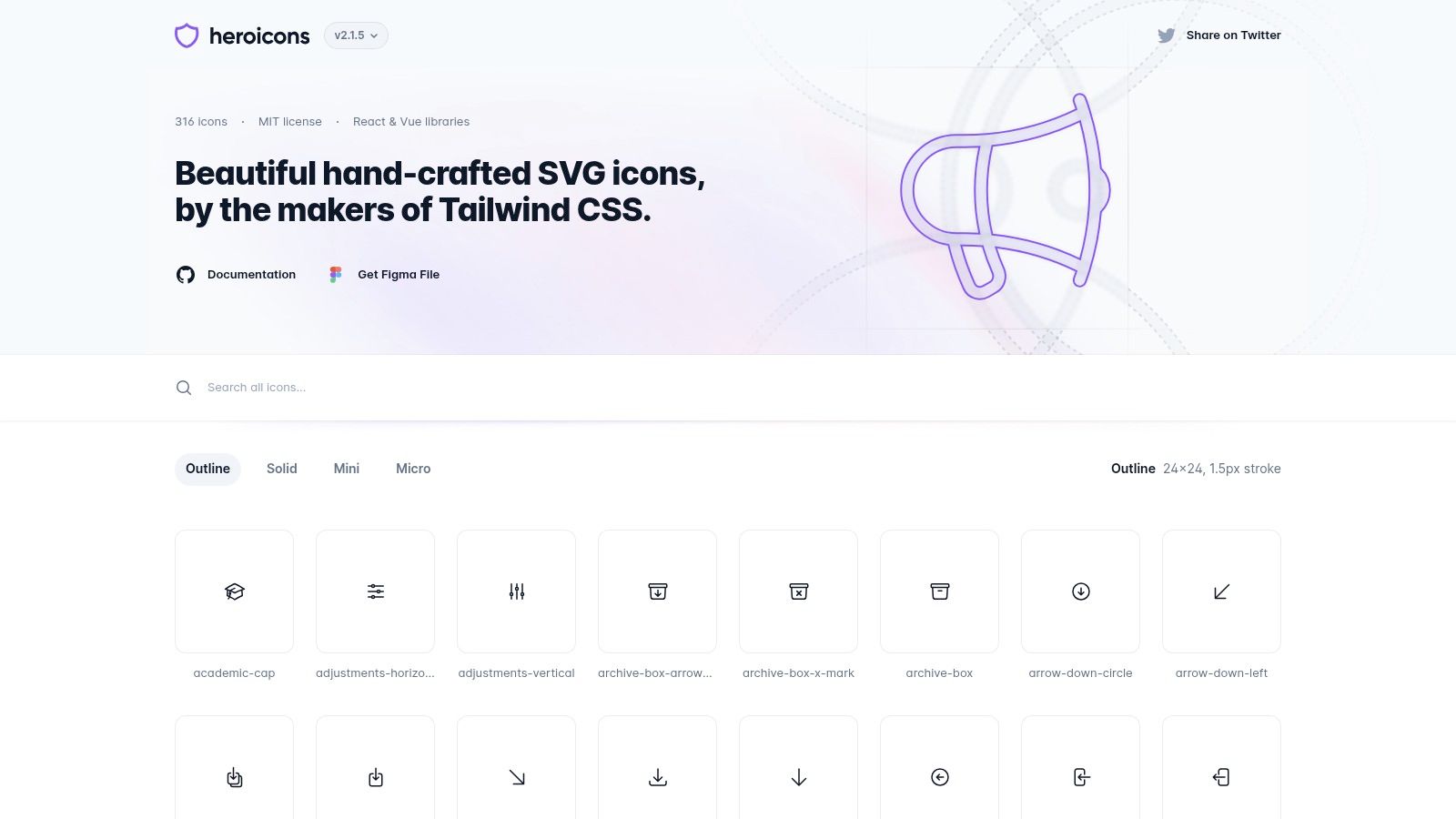
A labelled back button in a Tailwind interface is a natural home for Heroicons. The collection is focused enough that choosing a navigation arrow doesn’t become a separate design project. Outline and solid treatments give teams useful alternatives without introducing unrelated visual families.
Heroicons doesn’t require Tailwind. Its SVGs and React and Vue packages work wherever you can render ordinary markup or framework components. The package’s style-specific import paths matter, though: select the intended treatment explicitly rather than expecting a weight prop to transform the artwork.
Keep the button responsible for behaviour
The icon should sit inside the interactive element, not become the interactive element itself. A button-with-icon implementation should keep the accessible name, disabled state and focus styling on the button, while treating the arrow as supporting artwork.
GOV.UK’s accessibility guidance for developers recommends native button elements, visible focus and testing with keyboards and assistive technology. For destination navigation, use a link instead.
Licence and packaging: Heroicons uses the MIT licence. Keep the licence notice with redistributed assets, and choose either direct SVG markup or the appropriate framework package.
The main compromise is catalogue breadth. Heroicons handles familiar product navigation well, but it’s less suitable when you need many specialised directional metaphors. Don’t force a vaguely related arrow into an unfamiliar action merely to stay within the set.
3. Tabler Icons
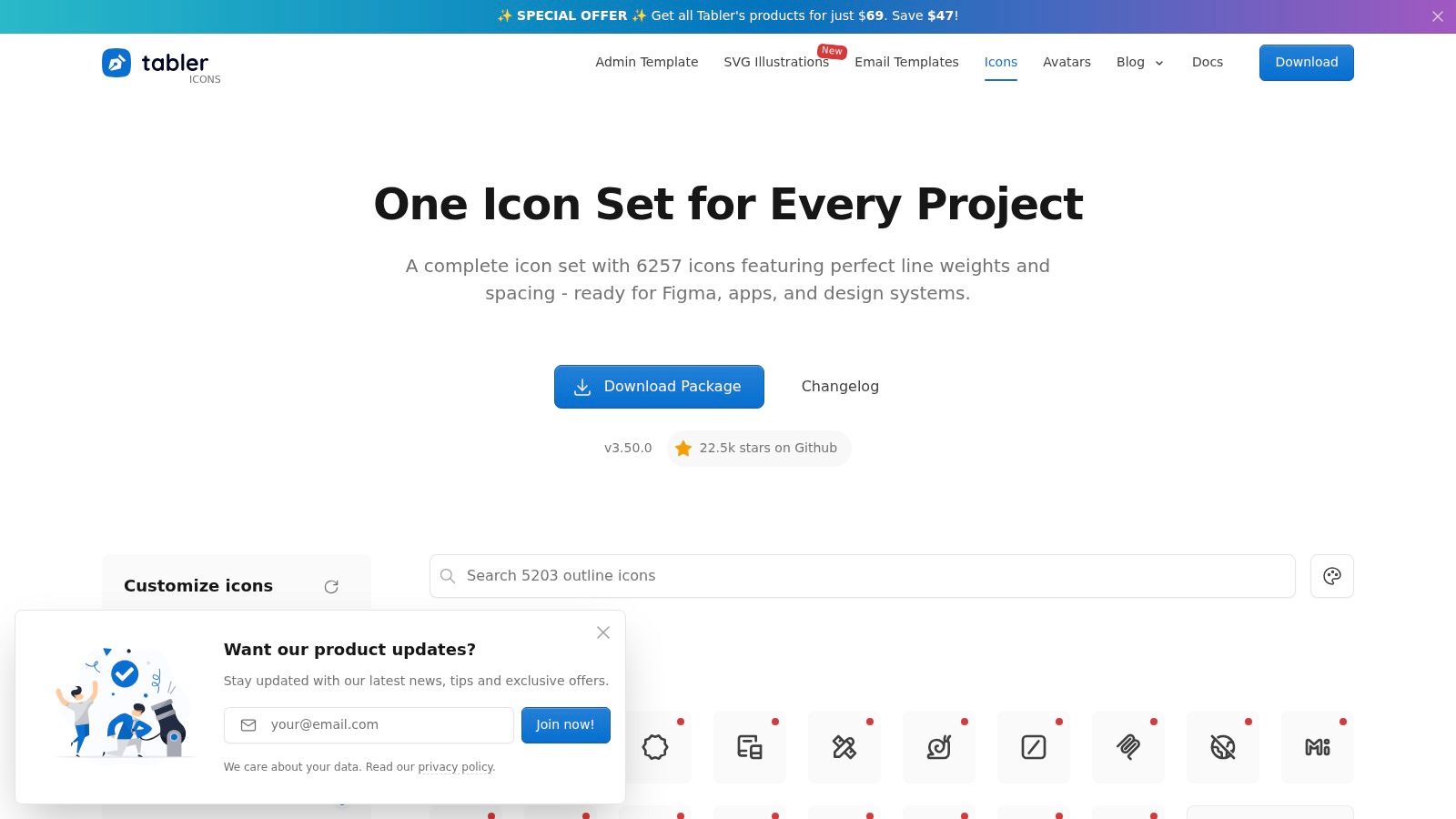
Tabler Icons is useful when a product needs more than a back arrow. Its broader directional family lets you distinguish previous content, return navigation and movement into or out of a container without immediately adding another library.
That breadth is also its main cost. Similar-looking variants make local choices easy and system-wide consistency harder. Establish approved names for back, previous and collapse actions before developers start selecting icons independently.
- Good fit: Vue applications that want an official framework package alongside downloadable SVG assets.
- Licence: Tabler Icons uses the MIT licence. Retain the distributed copyright and permission notice.
- Packaging constraint: SVG, framework, sprite and font workflows have different loading characteristics. Pick a primary delivery method rather than mixing them casually.
Separate inventory from interaction
An icon catalogue helps designers and developers agree on the glyph, but the surrounding component must define what activation does. A submenu arrow shouldn’t add another tab stop unless it represents a separate action.
For headless menus, let the menu primitive own roving focus and keyboard events. Render the Tabler icon inside the provided item structure instead of adding a competing keydown handler.
Tabler is less compelling if your brand needs heavy, filled navigation throughout. Check that the specific arrow treatment you want exists rather than assuming every outline asset has an equivalent filled version.
4. Phosphor
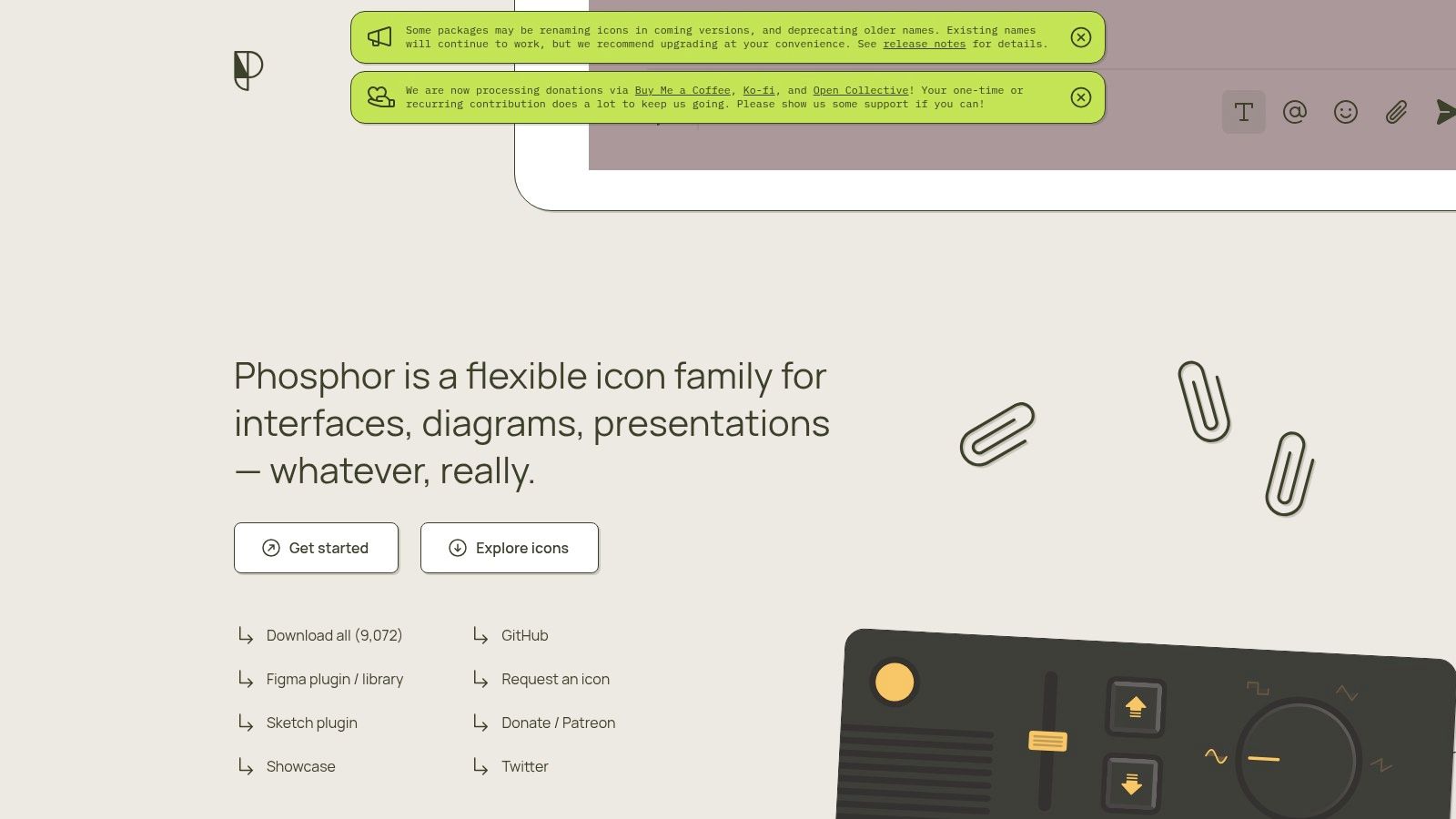
Choose Phosphor when visual weight is a design requirement, not an afterthought. Its regular, bold, fill and other treatments let you keep related arrow shapes while changing emphasis across navigation contexts.
Say a dashboard has a prominent return-to-results action and quieter previous-item controls. Phosphor gives you room to differentiate them without combining unrelated icon families. The danger is turning those options into arbitrary decoration.
Practical rule: Assign icon weights to component roles, not individual screens.
Make the available choices intentional
If your interface includes an icon selector, expose a curated selection for navigation rather than every arrow and weight combination. Store a stable icon identifier separately from the translated action label.
Phosphor uses the MIT licence and offers SVG downloads, framework integrations and design-tool resources. Preserve its licence notice and verify the package API for your framework before standardising component props.
Packaging needs attention when users can choose icons dynamically. A convenient import of the entire catalogue may include assets your application never displays. Prefer an explicit registry of approved icons and test what the bundler includes.
Phosphor works particularly well for expressive product systems. For a small utility interface, its flexibility may create more decisions than you need. A fixed weight and a short approved arrow list keep implementation predictable.
5. Bootstrap Icons
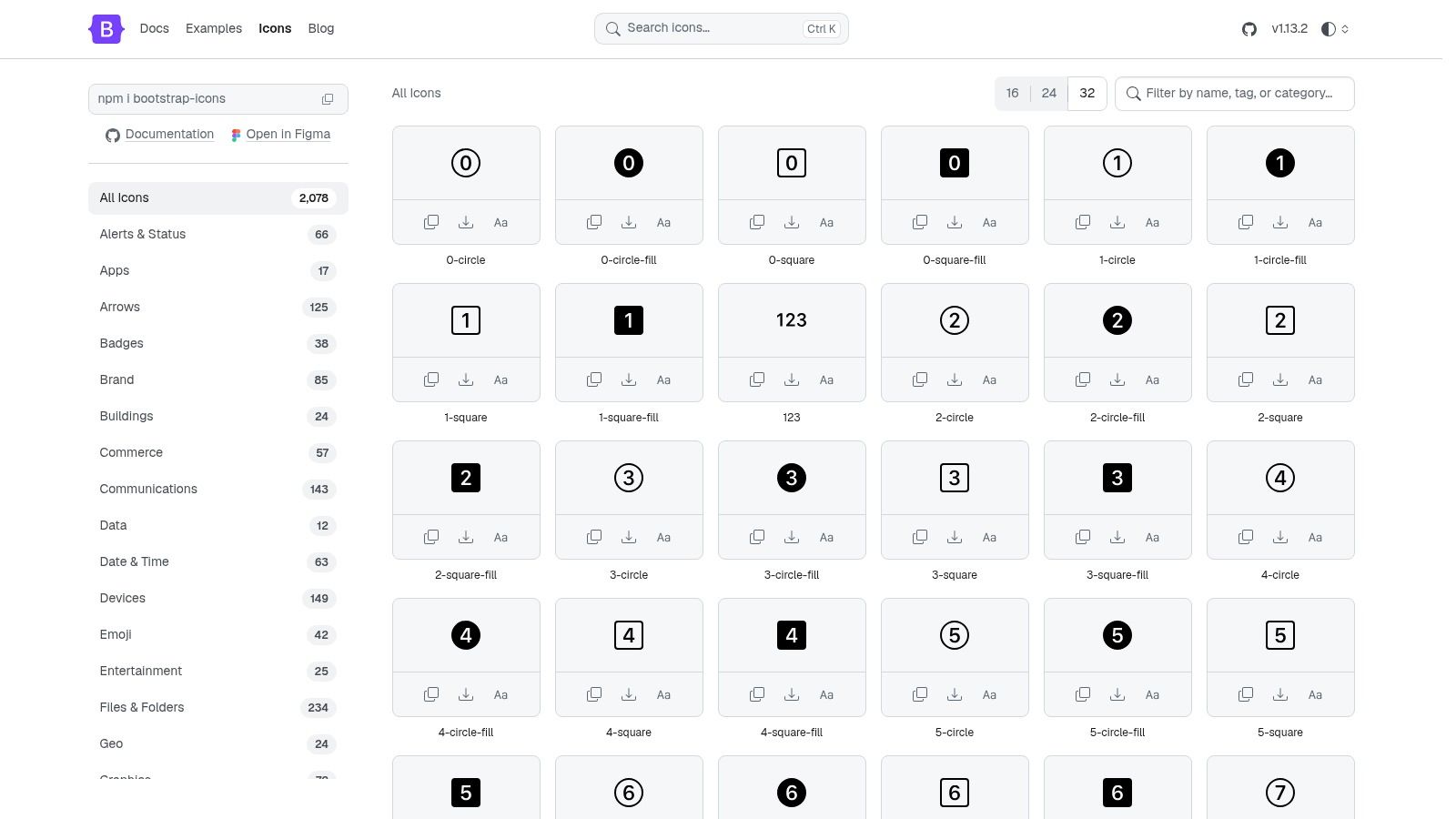
You don’t need Bootstrap to use Bootstrap Icons. Standalone SVGs, sprites and a webfont make it practical for server-rendered applications and projects that never adopted a dedicated icon-component layer.
The arrow family includes plain, short, circular and square forms. Enclosed variants read as stronger buttons at a glance, but a circle inside the artwork does not define the clickable area or supply a focus indicator. Handle the hit target and focus ring in the control itself, not in the icon.
Match delivery format to usage
For a single back link, inline SVG markup is straightforward to inspect and style. A sprite suits repeated assets across a larger interface. The icon font is less attractive when you only need a small selection and do not otherwise depend on font-based icons.
- Licence: Bootstrap Icons uses the MIT licence. Keep the relevant notices when distributing the assets.
- Packaging constraint: The npm package supplies assets, but your framework integration may still need a local wrapper.
- Navigation check: Pair previous and next controls from the same variant family, including their enclosing shapes. In an RTL layout, decide whether the arrow mirrors with reading direction or stays fixed to spatial position.
Screen readers announce raw arrow characters inconsistently, so avoid using a raw arrow character as the accessible label. When visible text already names the action, hide the supporting SVG from assistive technology. For an icon-only control, name the button or link itself.
6. Google Material Symbols
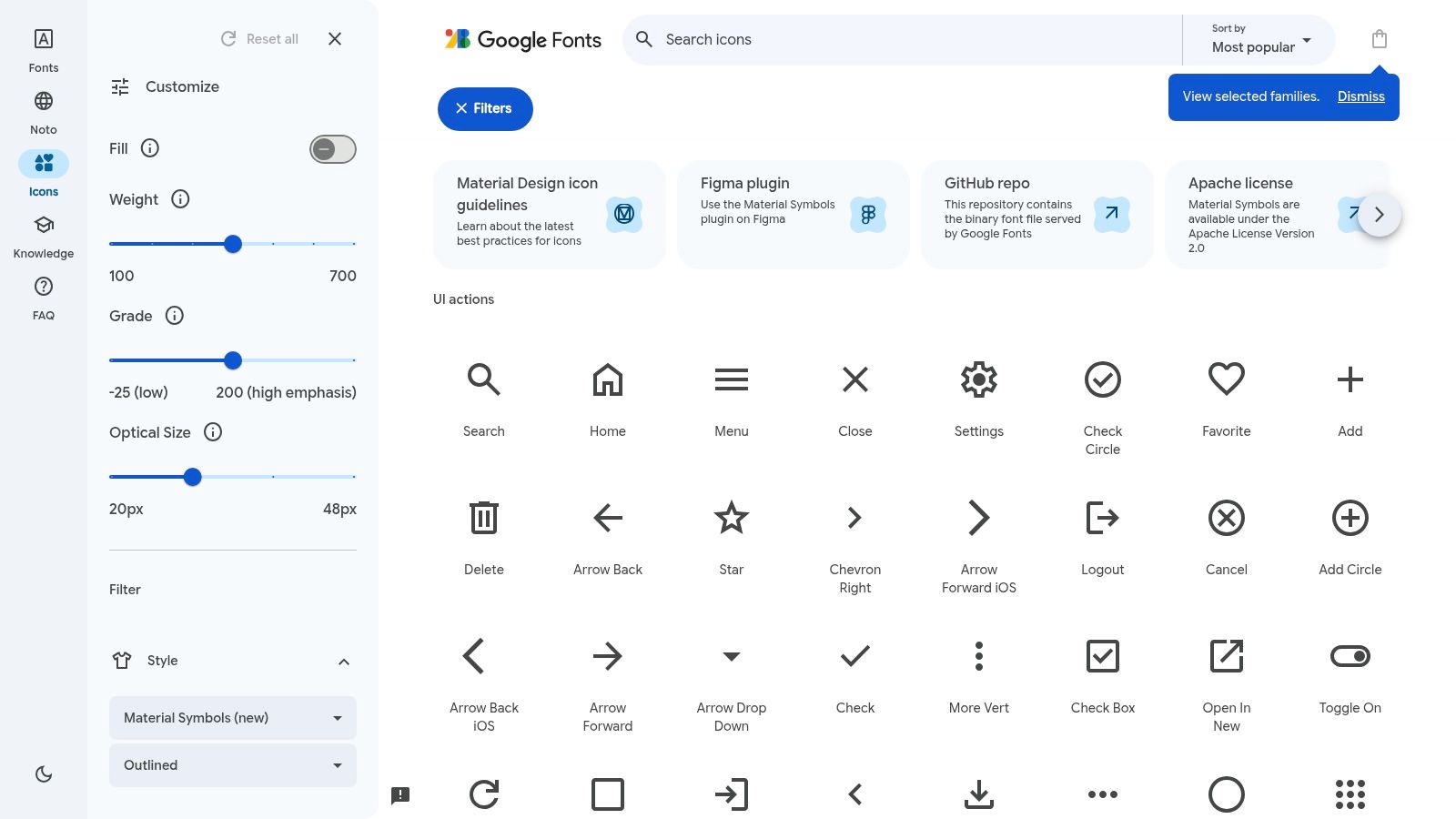
In Google Material Symbols, arrow_left and arrow_back aren’t interchangeable merely because both point left. Inspect the artwork and choose the symbol that communicates the intended action. A triangular direction marker can feel different from a conventional back-navigation arrow.
Material Symbols is especially useful when the surrounding interface already follows Material conventions. Variable controls for weight, fill, grade and optical size provide more styling flexibility than a fixed SVG asset.
Decide whether you actually need the font
The font workflow makes CSS-driven variation convenient. It also introduces font loading, fallback and subsetting decisions that a standalone SVG avoids. If navigation depends on an icon appearing immediately, test slow loading and blocked font requests.
Licence and packaging: Material Symbols uses the Apache licence. Preserve the applicable licence and notices, including any supplied NOTICE material. Choose between downloadable assets and font delivery according to the interface’s actual requirements.
For ligature-based rendering, keep the icon token out of the control’s accessible name. Otherwise, users may encounter implementation text rather than the navigation action.
RTL needs a semantic decision here too. A back action may need mirrored artwork, while an arrow describing physical movement should continue to represent that movement. Don’t flip every symbol with a blanket stylesheet rule just because the document uses right-to-left text.
Material Symbols is less neutral than some alternatives. Its distinctive proportions can look out of place beside another established icon family.
7. Remix Icon
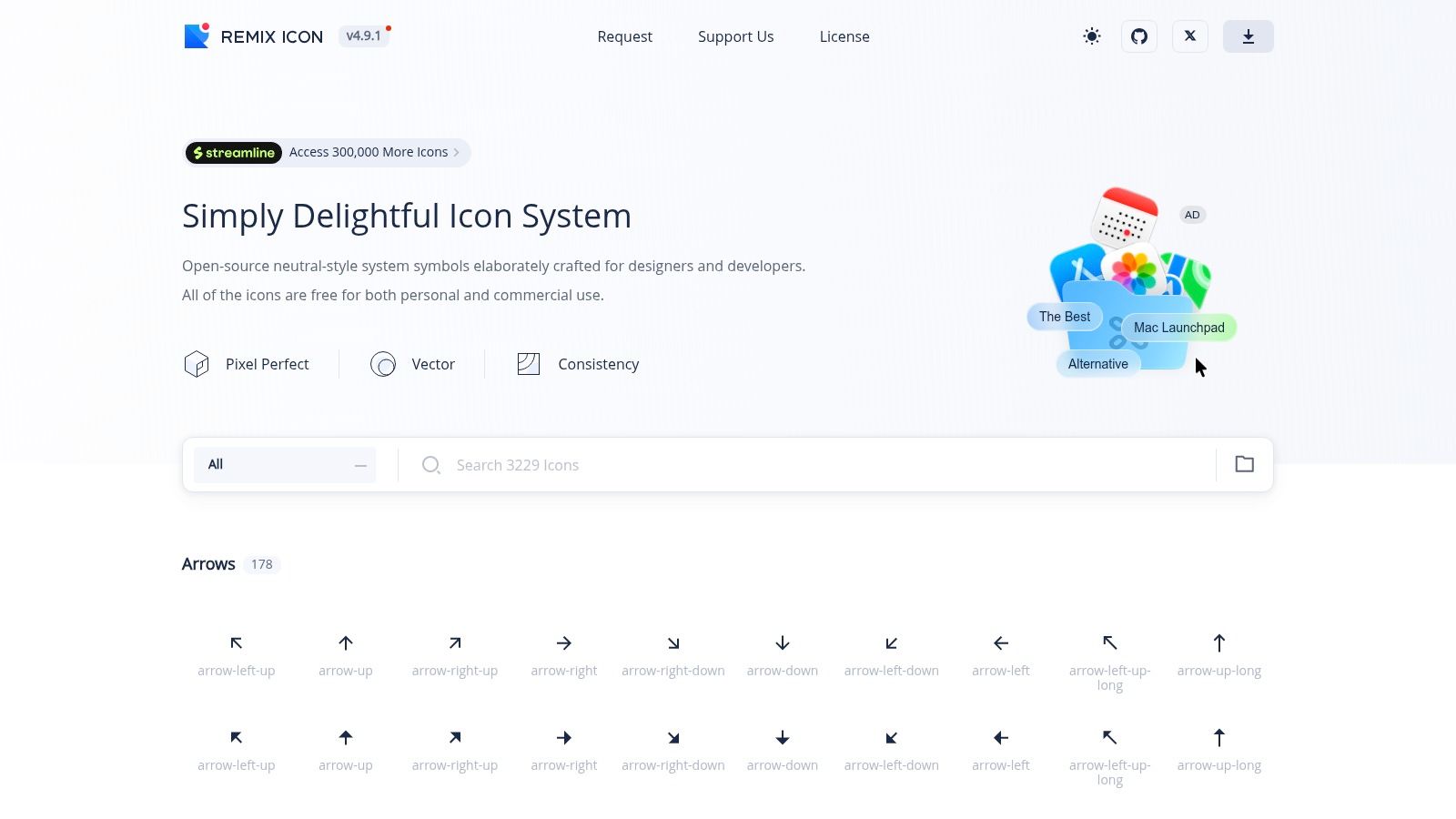
Remix Icon suits teams looking for a neutral product style with a useful range of directional symbols. Its ordinary left arrows and longer forms can support both compact application navigation and more spacious return links.
A longer arrow can look appropriate beside a return-to-overview label. In a tightly packed pagination toolbar, the same shape may demand too much horizontal space. Test the icon in its final control rather than choosing it from a large catalogue preview.
- Visual trade-off: Related line and fill treatments help maintain consistency, but don’t assume every variant has identical optical alignment.
- Packaging: Vector assets and font-based delivery support different workflows. Framework wrappers should be checked for maintenance, provenance and import behaviour.
- Licence: Review the Remix Icon licence included with your selected release. Don’t assume every release carries the same terms or rely on an older licence summary.
Keep route behaviour outside the asset
A previous-page link should preserve ordinary link capabilities, including opening the destination separately. A back action based on application history needs an intentional fallback when there’s no suitable previous view.
Remix supplies the symbol, not that routing policy. Keep the policy in a navigation component or route helper so different screens don’t implement incompatible versions of back.
Its broad catalogue is useful during exploration. Before shipping, narrow it to approved navigation variants and record the exact asset names in your design-system documentation.
8. Iconoir
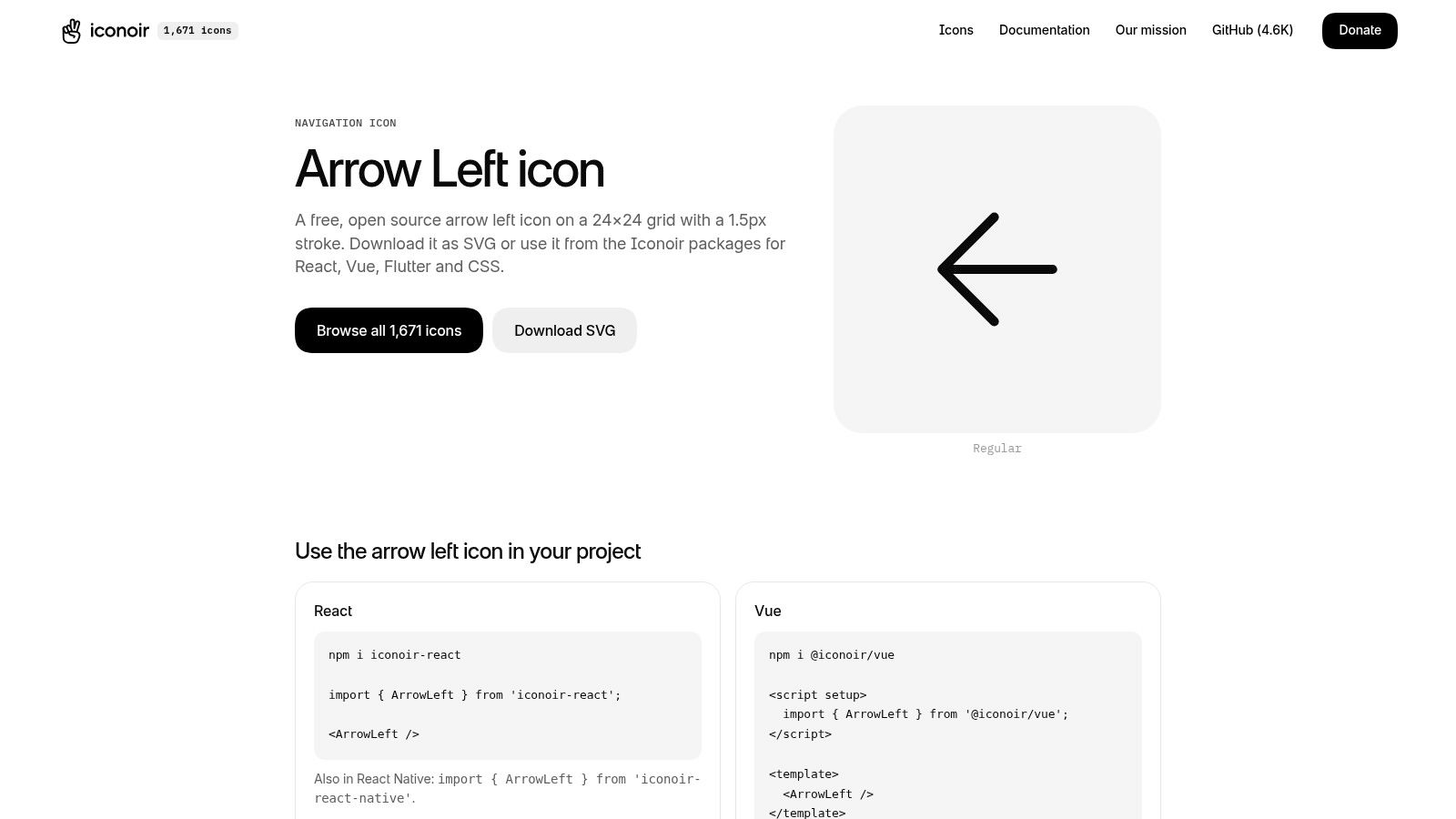
Iconoir’s arrow-left is a good candidate for a light, open interface. Its outline treatment works well beside restrained typography, especially when the back control shouldn’t compete with the page’s primary action.
Vue support makes it convenient for teams that prefer component imports. Direct SVG remains useful when you want the asset without introducing another runtime abstraction.
Judge the complete control at small sizes
A delicate arrow can look excellent in a catalogue and become difficult to distinguish in a compact toolbar. Test it against the actual background, with disabled styling, browser zoom and forced colours. Don’t compensate for weak visibility by making the hit area as small as the artwork.
Licence and packaging: Iconoir uses the MIT licence and offers SVG, CSS and framework options. Retain its licence notice and confirm that the chosen framework package fits your application’s dependency requirements.
For submenu return controls, the visual choice is secondary to focus restoration. Closing a child menu should return focus to the appropriate parent item, not leave it on removed content or send it to the document body.
Iconoir’s standard left arrow has a specific outline character. If your application needs a bold filled navigation language, changing only this arrow’s stroke may not produce a convincing match. Choose the family based on the wider interface, not the appeal of an isolated glyph.
9. Icons8
Icons8 is better approached as an asset catalogue than as a component dependency. It’s useful when a designer needs to compare visual directions, recolour an arrow or find artwork matching an existing illustration-led interface.
That flexibility can save design effort, but it requires more discipline during implementation. Arrows from unrelated styles may have different internal padding, visual centres and apparent weights even when their exported dimensions match.
Freeze the asset before integration
Select the style family, export the approved asset and keep it in your repository with its licensing record. Don’t make production navigation depend on a designer’s temporary preview or an undocumented download.
- Licence: Icons8 uses its own licensing terms. Attribution requirements and permitted downloads depend on the asset and access arrangement; free access doesn’t automatically mean attribution-free use.
- Packaging constraint: Download and embed options aren’t equivalent to maintained, tree-shakeable framework components.
- Shipping check: Inspect exported SVG markup, inherited colours and any unnecessary fixed dimensions before wrapping the asset.
Icons8 is a weaker fit when the main requirement is a predictable developer API across many controls. You’ll probably need a local icon wrapper to standardise sizing, decorative semantics and alignment.
It remains useful for design exploration. Once the team chooses a direction, resist selecting a different style for each navigation context. Recognition comes from consistent application, not catalogue variety.
10. Iconsax
For teams starting in Figma, Iconsax offers a design-led route to a broader icon system. Its catalogue, organisation and export tools are useful when the left arrow is part of a larger visual selection rather than an isolated development task.
Free and premium assets introduce an approval question before implementation starts. Confirm that the exact arrow style selected in the design file is available under terms the engineering team can distribute.
Treat handoff as part of the choice
The design file should identify the asset family and treatment, not just contain an unnamed vector group. Otherwise, developers may recreate the arrow or select a superficially similar asset from another package.
Licence and packaging: Iconsax assets are governed by the applicable Iconsax terms and selected offering. Record those terms, confirm redistribution permissions and distinguish official exports from third-party packages that use similar naming.
A Figma plugin makes selection convenient, but it doesn’t establish the runtime integration. Decide whether exported SVGs enter a local component pipeline or whether a suitable maintained package supplies them.
A design-tool export gives you artwork. It doesn’t give you keyboard handling, routing semantics or focus management.
Iconsax is most useful when designers and developers agree on the handoff process. If the requirement is a dependable arrow component in an existing Vue application, a code-focused library may involve fewer decisions.
How the ten left arrow icon sources compare
Read the table as a shortlist for navigation behaviour, not as a beauty contest: the right source depends on whether the arrow sits in a back button, pagination, a submenu trigger or an RTL layout.
| Item | Icon style | Framework packages | Licence notes | Best for |
|---|---|---|---|---|
| Lucide | Lightweight, consistent outline | Framework packages available | Open source under ISC | Customisable SVGs and cohesive web interfaces |
| Heroicons | Outline and solid | Developer-friendly packages | Free, open source under MIT | Compact interface icons and Tailwind-oriented projects |
| Tabler Icons | Consistent outline and filled | Official Vue and other framework libraries | Free, open source under MIT | Broad arrow choices and multiple integration formats |
| Phosphor | Multiple weights and treatments | SVG downloads; wrap in your own component | Free, open source under MIT | Visual hierarchy and expressive arrow styles |
| Bootstrap Icons | Recognisable, standard navigation style | npm package; SVG and webfont options | Free, open source under MIT | Familiar arrows with flexible integration |
| Google Material Symbols | Multiple styles with adjustable weight and fill | Web and mobile options | Free under Apache License 2.0 | Material-style interfaces needing adjustable icons |
| Remix Icon | Neutral, general-purpose vector style | Integration approach depends on the stack | Free for personal and commercial use according to the site | General-purpose directional icons |
| Iconoir | Consistent 1.5px outline | Vue, CSS, and other framework options | Free and open source under MIT | Direct Vue integration and simple outline arrows |
| Icons8 | Broad range of styles with filters | Not focused on component packages | Download and commercial-use terms vary; check each asset | Design exploration and asset exports |
| Iconsax | Broad collection with varied visual directions | Figma plugin; exports feed a local SVG pipeline | Free and premium options; confirm asset terms | Building a substantial icon library in design workflows |
Choosing a Left Arrow Icon You Will Not Replace Later
Pick a family that works across your whole navigation system, not just the back button currently on screen. Compare its left and right arrows, chevrons, close controls and submenu indicators beside real typography. A consistent family reduces the temptation to explain different actions through tiny, unreliable differences in shape.
Confirm the licence and packaging before adoption. Keep the licence file with vendored assets, record the package version and inspect the production import path. A convenient catalogue isn’t necessarily a convenient dependency, and a framework wrapper isn’t automatically an official integration.
Match the control to the destination
Use a link when the action leads to a known destination. Use a button when it changes application state, moves a carousel or invokes a history operation. For history-based back behaviour, define a fallback for direct arrivals instead of assuming users entered through the previous screen.
Labels should make those distinctions understandable. Returning to search results is more specific than going back; moving to a previous setup step is different from returning to a parent section. Keep visible text when the destination would otherwise be ambiguous, especially after responsive layouts remove surrounding context.
Test RTL with representative content, not just a direction attribute on an empty shell. Decide which arrows express logical progression and which express physical movement. Then verify the visual direction, placement and keyboard behaviour together.
Keep headless behaviour and icon meaning aligned
With headless components, let the primitive manage its interaction model. In our DOM Studio menus, ArrowLeft or Esc returns to the parent level, while menu orientation determines which arrow-key direction applies. Our included icon set is used across the product, so submenu and back-button artwork can remain visually consistent without introducing another library.
Don’t apply menu keyboard behaviour to ordinary pagination. Users should be able to tab to navigation links without custom arrow-key interception, while composite widgets need the keyboard model appropriate to their pattern. After an action, check where focus lands and whether a screen reader announces the control’s name without redundant icon text.
If you also browse free and paid Mac icons, keep decorative desktop assets separate from functional web navigation. Visual compatibility matters, but the navigation control still needs predictable semantics.
The best left arrow icons are the ones your team can use consistently, license confidently and test inside complete controls. Choose the artwork only after those decisions are clear.
DOM Studio combines headless primitives, Vue integration and a shared icon set for building consistent navigation controls. Visit DOM Studio to explore buttons and menus, then check how your chosen arrow works with their keyboard handling and focus behaviour.