Have you ever looked at a settings screen, seen a sliding control, and wondered whether it should be a switch, a checkbox, or a button? The visual design may look clear, but the question is what happens when someone activates it: does a setting change immediately, or does the control trigger an action that happens elsewhere?
A toggle is a binary control for changing and exposing a persistent state, such as on or off. Getting that behaviour right means choosing the right HTML and accessibility semantics, not just styling a track and thumb. It also means making sure keyboard and screen-reader users can understand the control and operate it.
Table of Contents
- Why Toggle Buttons Cause So Much Confusion
- What a Toggle Button Actually Is
- Toggle Buttons vs Checkboxes Switches and Radio Buttons
- The Accessibility Rules Toggles Cannot Skip
- Why a Native Checkbox Often Beats a Custom Switch
- A Quick Look at a DOM Studio Toggle in Practice
- When a Toggle Is the Wrong Control
- A Pre-Ship Checklist for Toggle Buttons
Why Toggle Buttons Cause So Much Confusion
A settings page can show a sliding control beside “Email notifications”, a checkbox beside “Include my details”, and radio buttons for choosing a delivery method. They may all look like ways to make a choice, but they don’t promise the same interaction. A notification toggle might save as soon as it changes; a checkbox in a form might wait until the user submits; a radio group offers one choice from several alternatives.
The confusion often starts in a design file, where the shape suggests a pattern before the behaviour has been decided. A toggle that looks polished can still be the wrong choice if activating it submits a form, opens a dialog, or changes an irreversible setting without warning. The behaviour, not the slider styling, defines the control.
Three questions help settle the decision. Is the user changing one independent yes-or-no setting, or choosing among several options? Does the change take effect immediately, or is it part of a form submission? And can the control’s name, current state, focus, and keyboard behaviour be understood without relying on its appearance?
Answering those questions prevents a familiar mismatch: the interface promises a simple on/off setting, but the underlying control behaves like something else. That mismatch matters to mouse users, keyboard users, and people relying on a screen reader.
What a Toggle Button Actually Is
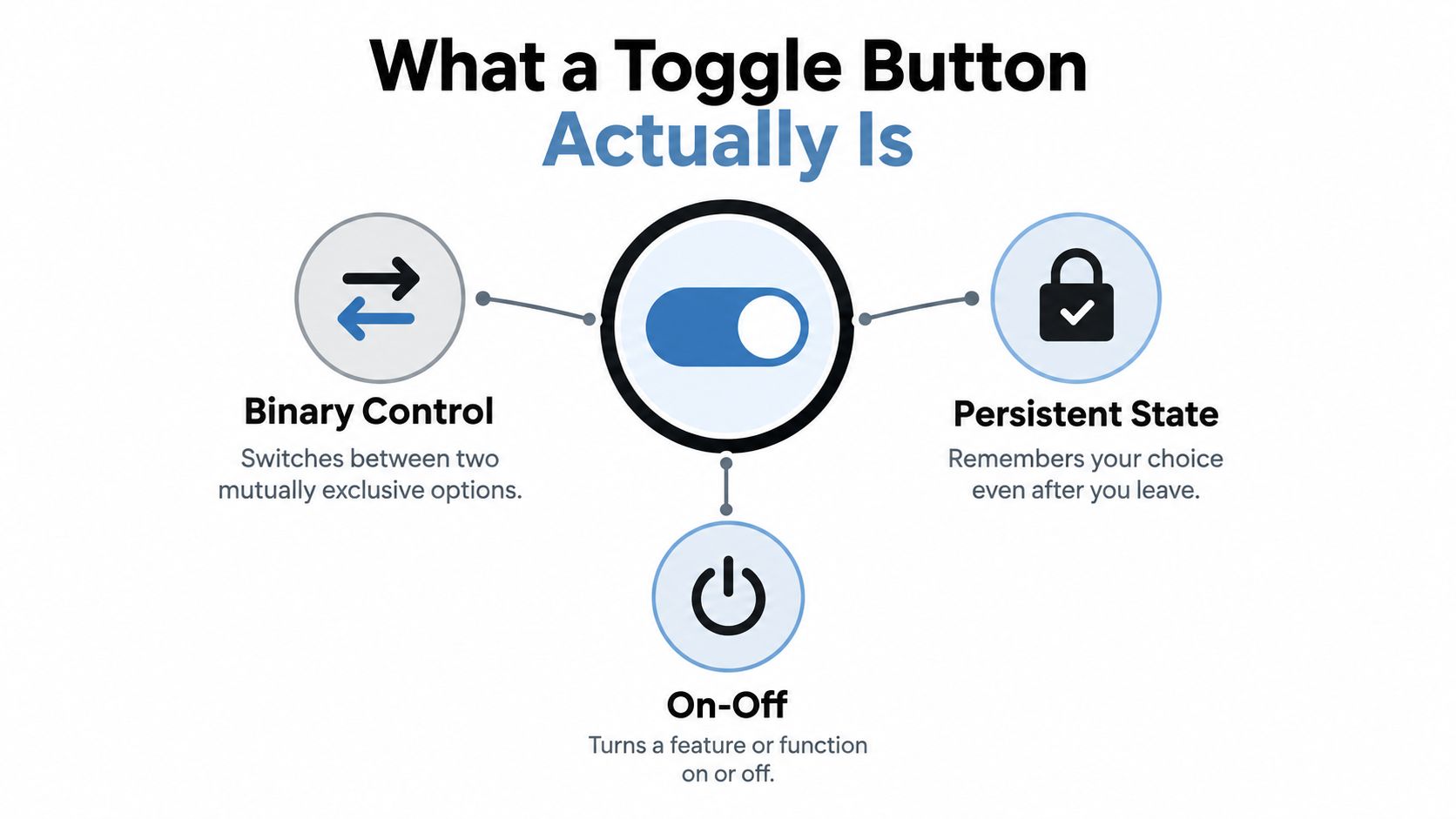
A toggle button is a state controller, not just a button with a sliding shape. It changes between two states, such as enabled and disabled, and keeps the selected state until it changes again. A regular button usually triggers an action, such as opening a menu or submitting a form, without representing a continuing on/off choice.
That difference should show up in the component’s data model. If “dark mode” is enabled, the application should hold a boolean value that represents the setting. The interface then renders the corresponding state and updates the value when the user activates the control. A CSS class can style the on position, but it shouldn’t be the only place where the state exists.
For a custom button-style toggle, a button with aria-pressed can communicate whether it’s pressed. A switch pattern instead uses role="switch" and aria-checked to expose its state. A native checkbox has built-in checked semantics. The right pattern depends on the control you’re implementing, but each option needs an accessible name that tells users what the setting is, and state information that assistive technology can receive.
The visual state and programmatic state must stay in sync. If a user turns on a preference, the change should be apparent in the interface and available to assistive technology, not merely reflected in a changed colour or position. For a broader way to think about how visual design and interaction work together, see Vision’s UX vs UI breakdown.
A useful shorthand is: a toggle is a binary controller of persistent state. That mental model helps developers choose semantics and connect the control to application data, rather than treating it as a decorative widget.
Toggle Buttons vs Checkboxes Switches and Radio Buttons
The word “toggle” often describes the interaction, while “switch”, “checkbox”, and “radio” describe particular control patterns or semantics. A switch is a binary control styled like an on/off switch. A checkbox is a native form control that represents a checked or unchecked choice. A radio button belongs to a group where users select one option from several.
Use a standalone checkbox when a user needs to answer yes or no for one form option. It can also represent a setting that turns on or off. A switch can suit a preference that takes effect immediately, while a radio group is the better fit for mutually exclusive choices, such as selecting one notification channel. UK public-sector guidance says not to use radio buttons to turn something on or off. The UK Intelligence Community’s radio guidance also describes the distinct group semantics and keyboard behaviour for radios.
| Control | Semantics | Keyboard | Best for |
|---|---|---|---|
| Toggle button | A button with an exposed pressed state, commonly aria-pressed |
Activate the focused button using its standard keyboard behaviour | A button-like control that switches between two persistent states |
| Switch | A binary setting using role="switch" and a checked state |
Space changes the focused switch’s state | An independent setting presented as an on/off switch |
| Checkbox | A native checked or unchecked form control | Tab reaches it; Space changes its checked state | A yes-or-no choice, especially when the form submits later |
| Radio button | One selected option within a mutually exclusive group | Tab enters the group; arrow keys move between options | Choosing one option from a set |
Don’t copy radio-group keyboard behaviour onto a standalone toggle. A radio group has a selected value within a group; a toggle has its own independent on/off value. They may both respond to a keyboard, but their semantics and interaction contracts are different.
Decision rule: Choose a toggle or switch for an independent setting that changes on activation. Choose a checkbox when the choice belongs in a form submission. Choose radios when the user must select one option from a group.
The Accessibility Rules Toggles Cannot Skip
A sleek switch animation doesn’t prove that a control is accessible. If a keyboard user can’t reach it, or a screen reader can’t identify what it controls and whether it’s on, the visual design hasn’t delivered a working interaction.
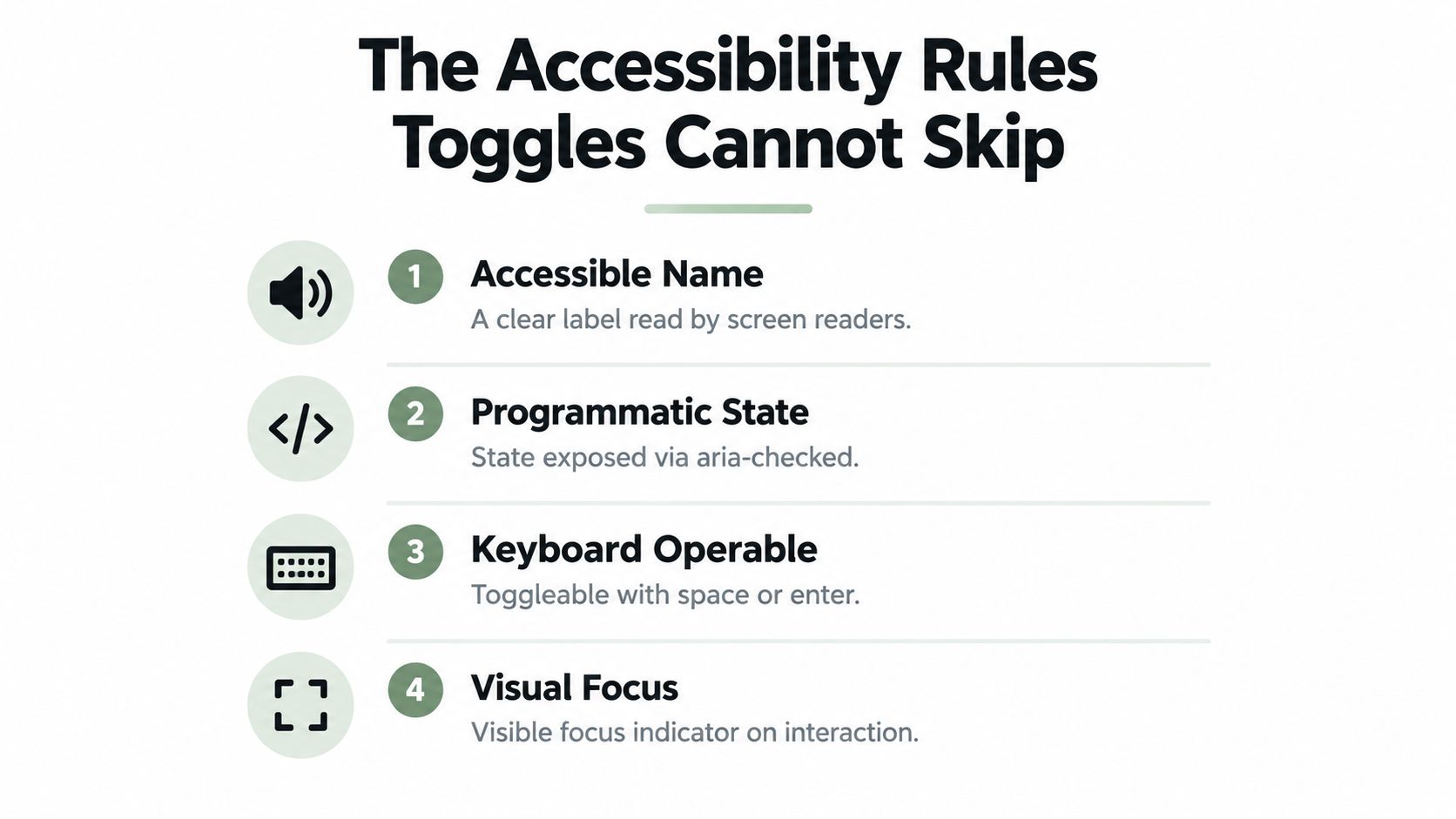
Check the control against four requirements:
- Accessible name: Give it a label that describes the setting, such as “Email notifications”. A label like “Toggle” doesn’t tell someone what will change.
- Exposed state: Use the semantics for the control pattern, so assistive technology can identify whether the setting is on or off.
- Keyboard operation: Make sure the control can receive focus and change state using the keyboard behaviour expected for its pattern.
- Visible distinction: Provide a clear focus indicator and don’t communicate the two states through colour alone. Use sufficient contrast and another visual cue, such as position or text.
The UK Intelligence Community Design System specifies that switches use the ARIA switch role so screen readers announce state changes, and that users can change the state with the Space bar when the control is focused. Its guidance also recommends high-contrast colours and additional visual cues rather than relying on colour alone. Its switch accessibility guidance makes the practical point clear: the control’s accessible state and its visible presentation must agree.
Accessibility concerns are part of how you choose and implement the control, not a polish task to leave until later. For related implementation checks, see accessibility best practices for web interfaces. Teams working on online shops can also use this overview of how to make Shopify stores accessible to consider accessibility across a wider storefront.
Why a Native Checkbox Often Beats a Custom Switch
A native checkbox already has browser-provided semantics and keyboard behaviour. That makes it a sensible starting point for a setting in a form, especially when the user will review their choices and submit them together. You can style a checkbox, but there’s no need to replace its underlying semantics just to make the interface look more custom.
The UK NHS recommends using the correct native HTML element for each form control, making controls reachable with Tab, visibly focused, and operable with Space. Its digital accessibility development guidance warns against rebuilding controls as generic div elements. A styled div doesn’t acquire checkbox or switch behaviour because it looks like one.
A custom switch can be appropriate when the interface needs a switch appearance and the setting changes immediately. In that case, use a suitable control pattern and expose the current state. Don’t make the CSS class the source of truth, and don’t use a generic element without adding the required semantics and keyboard handling.
A practical build check includes the following:
- Name the setting: Associate a clear label with the control.
- Expose the state: Use native checked semantics for a checkbox,
aria-checkedfor a switch, oraria-pressedfor a toggle button. - Preserve focus: Keep the control reachable by keyboard and show where focus is.
- Handle activation: Make sure keyboard activation changes the same state as mouse and touch input.
If you’re deciding whether a native checkbox fits a form, review the checkbox input type guide. The important choice is the primitive whose built-in behaviour matches the job.
A Quick Look at a DOM Studio Toggle in Practice
In a Vue component, the state should be explicit and reactive. A switch-like setting might bind to a boolean such as notificationsEnabled; the component then renders the appropriate state when that value changes. That’s more dependable than checking whether a particular CSS class happens to be present.
DOM Studio provides a Vue <DomToggleButton> that uses aria-pressed and v-model, with support for different labels in pressed and unpressed states. That lets the application bind the control to a boolean while the component communicates the button’s state. For example, the labels could make the two states explicit: “Notifications off” and “Notifications on”.
A component should keep its visual state, bound value, and accessible state aligned whether the user interacts by mouse, touch, or keyboard. If the control is disabled, it should still retain its identity and state in the interface. The disabled state should be apparent, and users shouldn’t be left wondering whether the control failed to respond or was unavailable.
For a closer look at toggle behaviour in practice, use the video below as a companion to the component example.
When a Toggle Is the Wrong Control
A toggle works best when the choice is binary, independent, clearly labelled, and safe to change in the moment. It can be a poor fit when an accidental activation would have serious consequences. Account deletion, for example, is an action that needs an explicit confirmation path, not an ordinary on/off setting.
Ambiguous labels create another problem. “Enable” doesn’t tell users what will be enabled, and a collection of dependent settings can’t always be explained by a row of independent switches. Use a clear parent-child relationship, a confirmation step, or an explicit action when users need more context before a change takes effect.
Check the layout too. The UK NHS recommends testing interfaces in portrait and landscape orientations, maintaining consistent control order, and providing skip links for long lists of controls. Its accessibility testing guidance also notes that switch-control users may interact through physical switches, sensors, or camera-based systems. A control that works with a mouse alone hasn’t been adequately considered for different input methods.
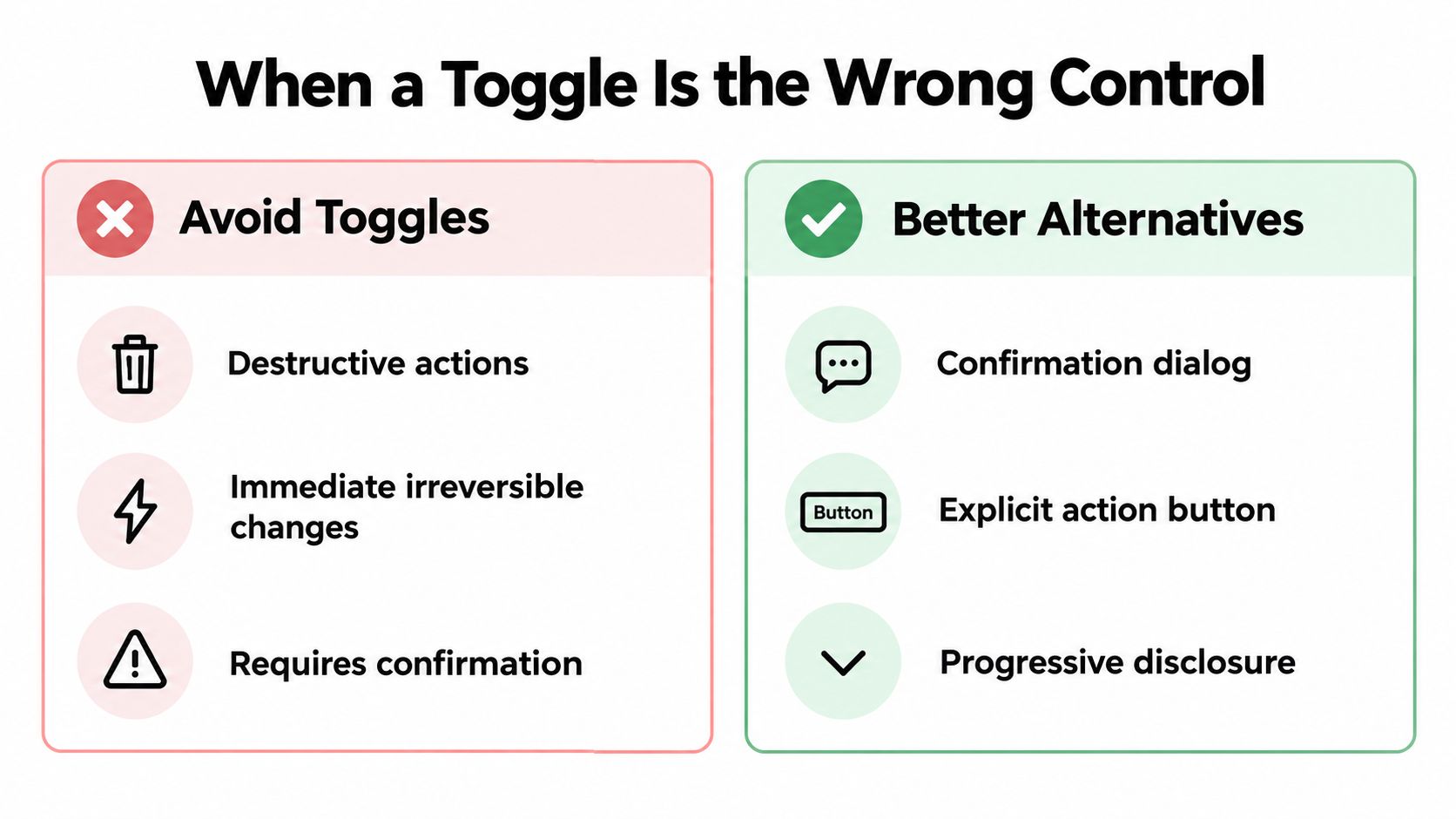
Use a toggle when the setting is independent, the label is specific, and changing state is safe and understandable. If the choice is part of a group, deferred until form submission, or consequential enough to need confirmation, choose a different pattern.
A Pre-Ship Checklist for Toggle Buttons
Before shipping, confirm that the control:
- Exposes its state programmatically and names the setting clearly.
- Works with the keyboard and shows visible focus.
- Communicates state without relying on colour alone.
- Has an appropriate touch target and behaves as expected when disabled.
- Persists the change, or makes its persistence behaviour clear.
Include the control in functional checks alongside its surrounding settings, and use a functional testing framework design guide to shape a repeatable testing approach. For a broader accessibility review, keep the WCAG compliance checklist close at hand. A toggle is a state control, not a visual flourish.
Build accessible toggles without re-creating their behaviour from scratch: DOM Studio offers Vue components with reactive bindings and built-in interaction patterns for production interfaces. Visit DOM Studio to explore the component library and see how its primitives can fit into your next settings screen.