
TL;DR
If by “vuejs slides” you mean a control that moves through numeric values, use a single-thumb range slider for an approximate choice, not a slideshow component. In Vue 3, start with a labeled native <input type="range">, bind its numeric value with v-model.number, set meaningful bounds and steps, and test keyboard, touch, and screen-reader behavior. If you need two independently adjustable endpoints or deeper visual customization, evaluate a dedicated slider component against the same accessibility checklist.
The word slides can point to image carousels, presentation decks, sliding transitions, or form sliders. Those are different interactions. Here we will build a numeric range control for a Vue application, using a confidence setting as our example. If your actual task is an image gallery or animated panel, a range input is the wrong tool.
Table of contents
- Before you start
- 1. Choose the right control for the decision
- 2. Set the value contract before building the UI
- 3. Bind a native slider to Vue state
- 4. Add instructions, validation feedback, and a usable fallback
- 5. Customize without sacrificing the interaction
- 6. Verify the finished control in real conditions
- Frequently asked questions
- Ready to ship a range control
- Sources
- Recommended Reads
Before you start
You need a Vue 3 project that supports Single-File Components, a browser for manual testing, and a numeric setting with an agreed minimum, maximum, and increment. Our example uses values from 0 to 100 in steps of 5. No slider package is required for the working example. We will keep the number in local component state; connecting it to a server, form library, or shared store is application-specific.
Decide what the number means before writing code. Is 40 an exact quantity, an approximate confidence level, or the lower endpoint of a filter? That answer determines whether the slider is appropriate and what users need to hear and see. MDN describes the range input as most suitable when precise entry is less important than choosing a position between two bounds. MDN’s range input reference explains its values, constraints, and events.
1. Choose the right control for the decision
Start with the user action rather than the component name:
| User needs to… | Start with… | Why |
|---|---|---|
| Pick one approximate numeric setting, such as confidence or volume | Single-thumb range input | One value moves between known bounds. |
| Enter an exact quantity, especially when small changes matter | Number input | Direct entry is easier than repeated dragging or keypresses. |
| Choose a lower and upper bound, such as a price interval | Two-thumb range component or two numeric fields | There are two distinct values and a relationship between them. |
| Advance between photos, panels, or presentation pages | Slideshow, carousel, or step navigation | The user is choosing content, not a numeric value. |
A native range input has one numeric value. It does not become a genuine two-thumb control by displaying two copies on top of one another. The W3C multi-thumb slider pattern describes the extra obligations: separate focusable thumbs, stable tab order, and updated limits when one endpoint constrains the other. If users need precise endpoints, offer editable number fields as well, or choose an existing range component whose multi-thumb behavior you can verify.
Expected result: you can state the control’s purpose in one sentence: “Change the confidence percentage from 0 to 100 in increments of 5.” Check: if that sentence instead describes moving through images or picking an exact invoice amount, change control types now. Troubleshooting: search results for “vuejs slides” often describe slide effects or image galleries; a result about visual slides does not establish that it supports accessible numeric input.
2. Set the value contract before building the UI
For the confidence example, we will start at 40, use min="0", max="100", and step="5", and display the unit as a percentage. Pick an initial value that belongs to the allowed steps. Define what a value of 0 and a value of 100 mean in product language; arbitrary endpoints make even a technically correct slider hard to use.
Keep these responsibilities separate:
- Underlying value: a number such as
40, suitable for calculations or submission. - Visible feedback:
40%, with clear endpoint or helper copy if the scale is unfamiliar. - Accessible feedback: a meaningful label plus a unit-aware value where the raw number alone is unclear.
- Commit behavior: changes can update the visible UI continuously while an expensive save waits until the interaction finishes.
HTML range inputs support min, max, and step, and emit both input and change events. A range control always has a value; required is not an effective way to demand that someone actively make a choice. If explicit consent or deliberate selection is essential, design a separate interaction instead of relying on the slider’s default position. MDN documents the range input’s defaults and unsupported attributes.

Expected result: product and engineering agree on one valid starting value, its units, and when a change should be saved. Check: try the first and last positions, then one intermediate step. Troubleshooting: if the initial value is outside the bounds or off the step grid, correct the data model rather than asking CSS to make the thumb appear in the right place.
3. Bind a native slider to Vue state
Create ConfidenceRange.vue in your Vue 3 application. This complete component shows a live value and a locally committed value. The second number illustrates the distinction between updating the UI and reacting when an interaction changes; it does not send data to a server.
<script setup>
import { ref } from 'vue'

const confidence = ref(40)
const committed = ref(40)

function onCommit() {
  committed.value = confidence.value
}
</script>

<template>
  <div class="confidence-field">
    <label for="confidence">Confidence</label>
    <p id="confidence-help">Choose a percentage from 0 to 100.</p>

    <input
      id="confidence"
      v-model.number="confidence"
      type="range"
      min="0"
      max="100"
      step="5"
      aria-describedby="confidence-help"
      :aria-valuetext="`${confidence} percent`"
      @change="onCommit"
    >

    <output for="confidence">{{ confidence }}%</output>
    <p>Last committed value: {{ committed }}%</p>
  </div>
</template>

<style scoped>
.confidence-field {
  display: grid;
  gap: 0.5rem;
  max-width: 28rem;
}

.confidence-field input[type="range"] {
  width: 100%;
  min-height: 2.75rem;
  accent-color: #4f46e5;
}

.confidence-field input[type="range"]:focus-visible {
  outline: 3px solid #1e40af;
  outline-offset: 3px;
}
</style>
Vue’s form input bindings document v-model and the .number modifier; its reactivity guide documents ref() in <script setup>. Here, Vue state sets the initial value, rather than a conflicting static value attribute. The live <output> is visible feedback, while aria-valuetext supplies a spoken unit. The native range input already has an implicit slider role, so we do not add role="slider" or manually duplicate aria-valuenow. The W3C slider pattern explains when human-friendly value text is useful.
The @change handler is a place to initiate a save after user interaction, not a guarantee that a remote request will succeed. In a real application, handle pending and failed requests, reject out-of-date responses, and revalidate the number server-side before persisting it. If other parts of the application can change this value, update the owning Vue state and ensure you do not silently overwrite a newer user edit.
Expected result: the slider opens at 40%, moves in five-point increments, and updates the visible percentage immediately. Its last committed value changes when the native change event fires. Check: set confidence.value to 75 in your own application state or devtools and confirm the thumb and output move together. Troubleshooting: if the UI starts at an unexpected value, check the initial ref() and the slider bounds; with v-model, the bound JavaScript value is the source of truth.
4. Add instructions, validation feedback, and a usable fallback
An accessible slider needs more than a color-changing thumb. Keep the visible <label> tied to the input with matching for and id attributes. Use helper text for what the scale represents; avoid announcing a long instruction every time the value changes. If 40 means “low confidence” rather than literally 40 percent, describe that meaning in the interface and use a corresponding human-friendly spoken value. The W3C slider guidance distinguishes the numeric value from aria-valuetext, which conveys its meaning when a bare number would not.
If the containing form rejects a setting, show an error beside the control and connect that error to the input with aria-describedby. Add aria-invalid="true" while the error is present, and remove it after correction. Do not rely on a red track alone; users must be able to find out what went wrong. A successful browser-side range constraint is not proof that a server will accept a changed account or pricing rule. For patterns involving field errors and server responses, see our Vue form validation guide.
A slider is also not always the best only route to an exact number. For an expensive pricing filter or a large range with tiny increments, offer an appropriately labeled number input alongside the slider, keep both bound to the same numeric model, and reconcile min, max, and step rules in one place. Treat this as a separate enhancement, not as a promise that two controls will synchronize automatically.
Expected result: a user can identify the setting and current unit without relying on the track color. Check: navigate with a screen reader and listen for the label and unit; trigger a real validation error and verify its message is discoverable. Troubleshooting: if the output looks correct but the spoken value lacks context, inspect the input’s accessible name and value rather than adding extra live announcements by default.
5. Customize without sacrificing the interaction
Start with the least invasive styling that meets the design brief. The example uses CSS accent-color, which MDN documents for range inputs. Browsers retain control over some of the native appearance, so treat this as theming rather than a pixel-perfect track specification. The code also reserves room for touch input and explicitly draws a focus indicator. Check its contrast against your real background and themes.
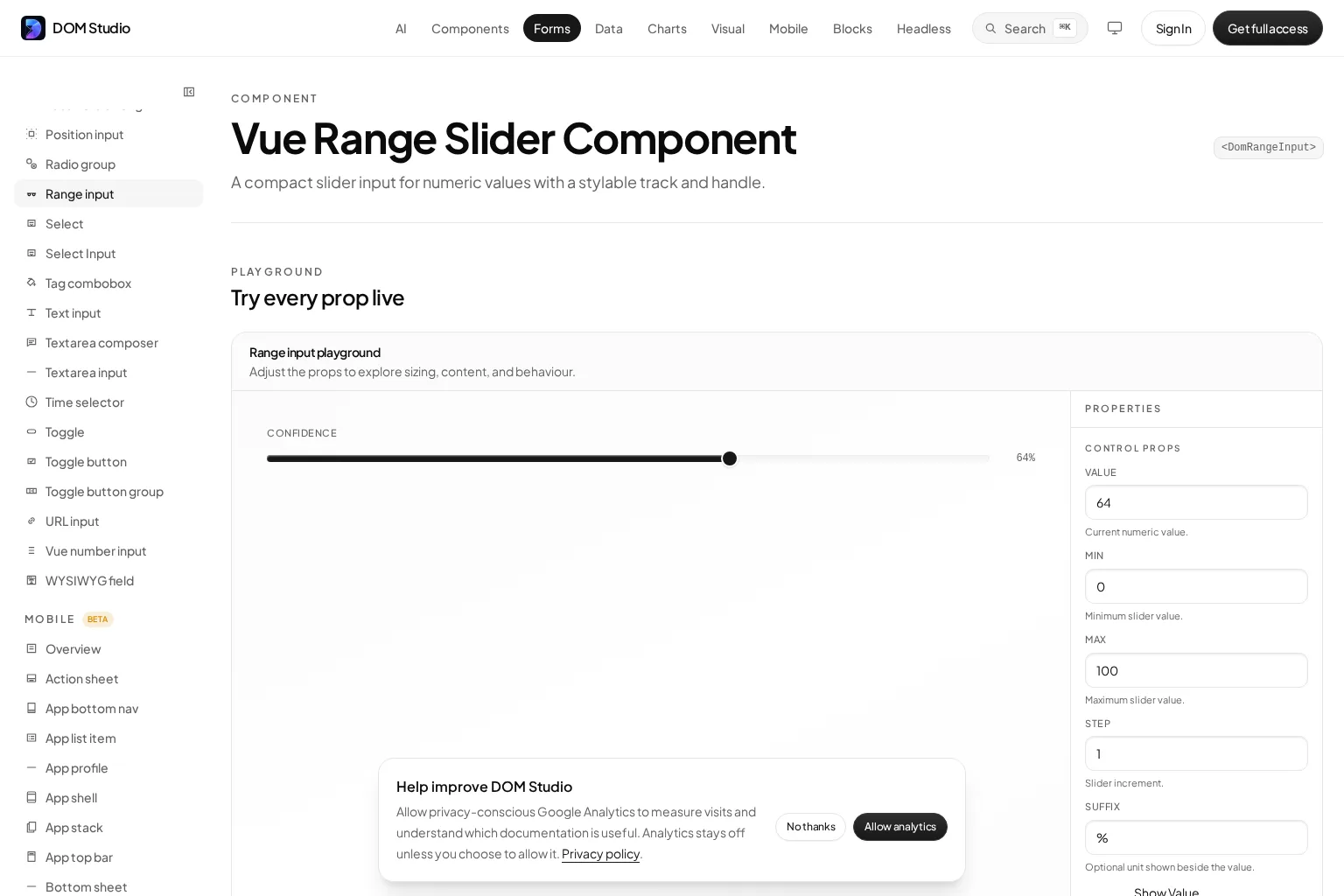
A more designed control may need a separate track, filled segment, thumb, hover treatment, disabled treatment, vertical layout, or density options. That is where component selection becomes a contract decision, not just a screenshot comparison. DOM Studio’s Range Input reference lists modelValue, min, max, step, suffix, showValue, and styling hooks for the track, progress, handle, and interactive area; the documentation also lists value and dragging events. Its live playground lets us inspect a one-value slider and try those properties. This reference does not, by itself, prove that the component passes every keyboard or assistive-technology check in your product.
If the task actually requires two handles, compare dedicated range modes rather than stretching a one-value control. For example, the PrimeVue Slider reference documents a two-handle range mode with array values, a minimum gap, orientation, and keyboard interactions. That is a meaningful alternative for a min/max filter, not a reason to add a dependency to a single percentage setting. Whatever component you choose, confirm how it handles constrained endpoints, labels for each thumb, controlled updates, and disabled and invalid states. W3C’s multi-thumb pattern is a useful acceptance checklist.
A short visual companion, Google’s settings-component walkthrough, shows a framework-neutral settings interface with sliders. It is useful for inspecting the surrounding UI, but use the Vue and accessibility references above for this guide’s implementation details. Google’s accompanying settings-component article discusses responsive layout and custom range styling.
Expected result: either the native control meets your needs with light theming, or you have a concrete list of gaps that justifies a dedicated component. Check: change the value and theme, then inspect the focus, disabled, filled, and unfilled states. Troubleshooting: if a styled visual thumb looks right but the keyboard focus lands on an invisible control, stop and fix the interactive element before polishing the graphic.
6. Verify the finished control in real conditions
Run this test sequence on the built application, not only on an isolated screenshot:
- Keyboard: Tab to the slider; use arrow keys for small moves and Home and End for bounds. Keep focus visible throughout. The W3C slider pattern describes these expected interactions and optional larger-step keys for custom widgets.
- Value and state: confirm the starting number, every permitted step, both endpoints, external Vue state updates, and the last committed value. Make sure disabled controls cannot be changed and explain why a user cannot edit a restricted setting elsewhere in the interface.
- Assistive technology: test a screen reader on desktop and, if mobile use matters, with touch-based assistive technology. The W3C patterns specifically warn that some touch assistive-technology gestures may not operate custom sliders reliably, so manual device checks matter. W3C slider pattern.
- Touch and layout: try tapping near the track ends, dragging without accidentally activating adjacent controls, using the control at narrow widths, and zooming the page. WCAG 2.2’s target-size guidance describes the 24 by 24 CSS pixel criterion and its exceptions, including how spatial targets such as sliders are considered. Aim for a comfortably operable track, not merely a tiny decorative thumb.
- Failure and persistence: if the value is saved remotely, simulate a rejected request, a delayed response, and a newer user change arriving before the older request completes. The visible value and saved state should never disagree without an explanation.
Expected result: the slider remains labeled, operable, and predictable across input methods and failure states. Troubleshooting: if one assistive-technology combination cannot operate a custom slider, provide a reliable alternative numeric input or choose a different control rather than declaring the visual version finished.
Frequently asked questions
Are VueJS slides the same thing as a Vue slider?
No. “Slides” often means carousel pages, animated panels, or presentation frames. A slider in this guide selects a numeric value within a bounded range. Define the user action first, then choose the corresponding component.
Can I make one native range input select both a minimum and maximum?
No. A native <input type="range"> represents one value. Use two clearly labeled numeric inputs or a purpose-built multi-thumb component if the task requires both endpoints, and verify their ordering and keyboard behavior. MDN documents the single value of a range input; W3C describes the multi-thumb pattern.
Ready to ship a range control
We now have a working Vue 3 single-value slider with a defined numeric contract, visible and spoken value feedback, a commit point, and a concrete release check. The next action is to place it in the real settings or filter screen, test it with your actual units and theme, and add application-specific persistence only after its failure behavior is clear.
If you need an editable application UI foundation, inspect the DOM Studio Range Input playground and reference alongside our form component patterns. Start with the interaction contract and use a component only when it preserves the behavior your users need.
Sources
- Vue.js: Form Input Bindings
- Vue.js: Reactivity Fundamentals
- MDN: HTML range input
- MDN: CSS accent-color
- W3C WAI: Slider Pattern
- W3C WAI: Multi-Thumb Slider Pattern
- W3C WAI: WCAG 2.2 Target Size (Minimum)
- DOM Studio: Range Input reference
- DOM Studio: Vue Form Validation
- PrimeVue: Slider reference
- web.dev: Building a Settings component
Recommended Reads
- Vue Form Components: How to Build Reusable, Validated Forms for integrating range controls into a shared field contract.
- Customizable Vue Components: A Practical Step-by-Step Guide for styling and extending components without losing their public API.
- Production Vue Components: Architecture, Quality, and Release Readiness for testing component behavior beyond the single control.