
You’ve just fixed focus return in a dialog for the second time this quarter, in a second codebase, and you’re wondering why your team keeps paying for the same work. A good user interface kit answers that frustration, not by shipping prettier buttons, but by shipping behaviour you’ve already tested once and shouldn’t have to test again.
Table of Contents
- The Repetition Every Front-end Team Knows
- What a User Interface Kit Actually Is
- UI Kits, Component Libraries, and Design Systems Compared
- What Makes a Production Kit Worth Adopting
- How to Verify Accessibility Survives Customisation
- The AI-Ready Kit Is the Inspectable Kit
- Where DOM Studio Fits in This Picture
- Choosing and Adopting a User Interface Kit
The Repetition Every Front-end Team Knows
Your team ships an admin dashboard. Someone builds a dialog, wires up Escape to close, traps Tab inside it, returns focus to the trigger on close, and adds the right ARIA roles. It works. Three months later, a sister product needs the same dialog. A different developer builds it again, traps focus slightly differently, forgets focus return, and a keyboard user ends up lost at the top of the page.
Multiply that across a combobox, a toast, tabs, and a menu. Each copy carries its own subtle bugs. Each fix has to happen twice, then three times, and nobody’s quite sure which version is correct.
Why the bugs cluster in the same places
The hard part of these components isn’t the styling. It’s the interaction contract:
- Dialogs: Which element receives focus on open, and where does focus go on close?
- Comboboxes: How do arrow keys move through options, and what does a screen reader announce when selection changes?
- Menus and listboxes: Does Tab leave the component, while arrows move inside it?
These rules are invisible in a screenshot. That’s why copy and paste fails quietly. The markup looks identical, the colours match, and the behaviour drifts.
If you’ve written the same keyboard handler twice, you don’t have a component problem. You’ve got a missing shared contract.
Teams reach for different names for the fix. Some adopt a kit, some build a component library, some invest in a full design system. The labels differ, but they’re all answering one question. Where should tested interaction behaviour live so nobody rebuilds it by hand?
That question matters more than visual consistency. A mismatched border radius is embarrassing. A dialog that strands a keyboard user is a broken product. Keep that ordering in mind, because it changes how you’ll judge every option that follows. The kit worth adopting is the one that removes retesting from your week, not the one with the nicest demo page.
What a User Interface Kit Actually Is
Start with the simplest picture. A user interface kit is a set of reusable components, such as buttons, inputs, cards, and dialogs, that teams drop into an application instead of building from scratch. That definition is true, and it’s also where most confusion begins, because it describes a folder of styled elements rather than something you can rely on in production.
The diagram below breaks a kit into its three constituent parts.
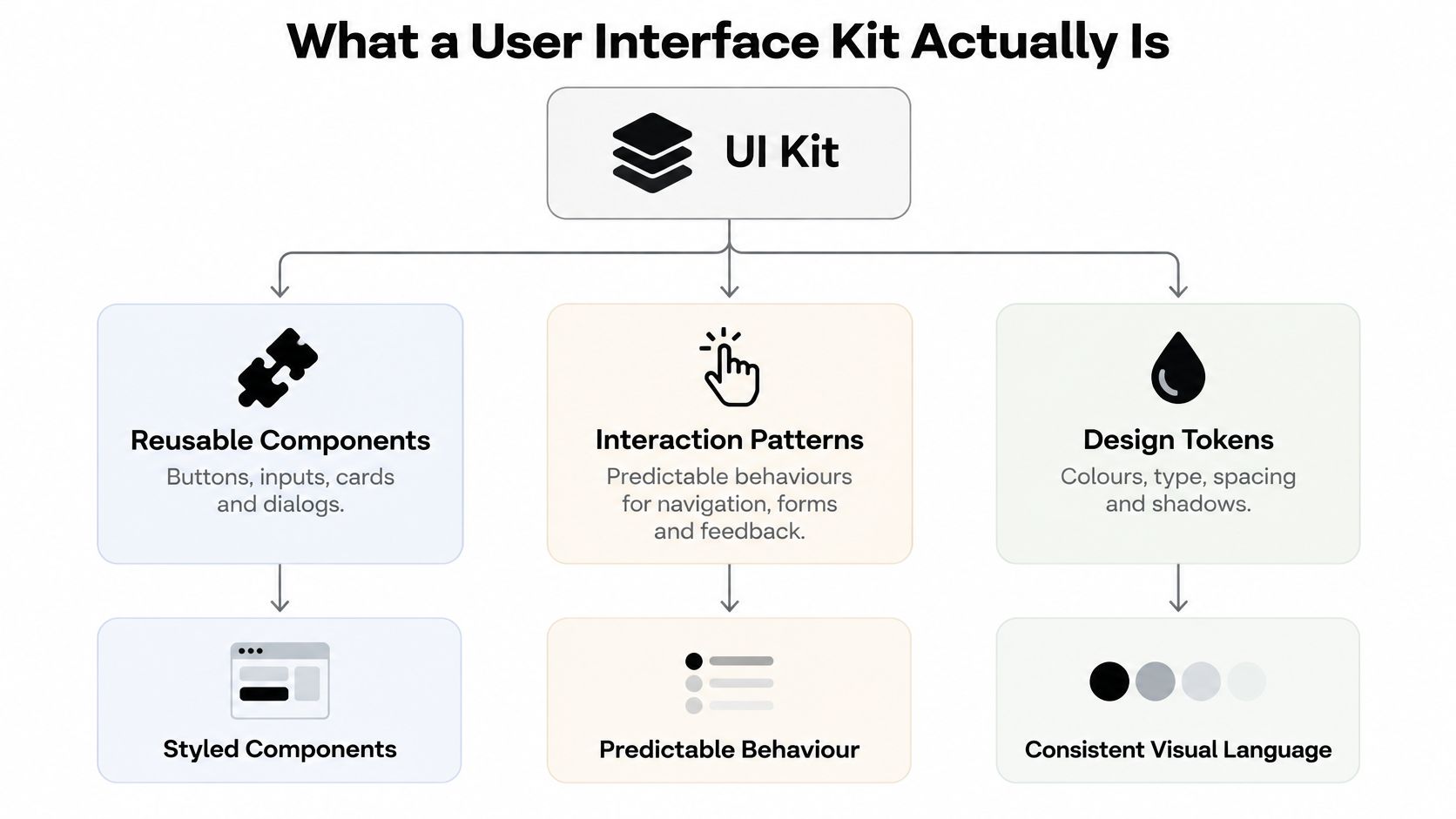
The three layers inside a kit
A production kit usually has three layers working together.
Behaviour primitives come first. These know how a dialog traps focus, how a combobox tracks its active option, and how a disclosure control reports whether it’s expanded. They carry keyboard handling, ARIA roles, and state. You rarely see them, and that’s the point.
The styling layer sits on top. It applies your colours, spacing, and typography, often through design tokens, which are named values for things like colour and type scale. Change a token and every component updates. Restyle a component and the behaviour underneath stays untouched.
Finally, there’s a documentation surface. It explains what each component is for, which states it supports, and where you shouldn’t use it. Without this layer, developers guess, and guessing produces the drift described earlier.
A useful analogy
Think of a car platform. Manufacturers share the chassis and engine across models because that engineering is expensive to get right and dangerous to get wrong. The body panels differ per model. Nobody argues the shared platform limits design.
A headless kit works the same way. The primitive is the chassis. Your styling is the bodywork. Standards based custom elements make this practical on the web, because the behaviour can live in a framework agnostic element while a thin wrapper adapts it to your framework’s props, events, and slots.
Practical rule: If restyling a component forces you to touch its keyboard handling, the layers aren’t separated. You’re looking at a theme, not a kit.
So a kit isn’t defined by how many components it lists. It’s defined by whether behaviour, styling, and guidance travel together. Remove the behaviour layer and you’ve got artwork. Remove the documentation and you’ve got code nobody uses correctly.
UI Kits, Component Libraries, and Design Systems Compared
These three terms get swapped freely in job adverts and vendor pages, which makes buying decisions muddy. They’re not competitors. They sit at different levels of investment, and most mature teams run more than one at once.
UI Kits, Component Libraries, and Design Systems at a Glance
| Aspect | UI kit | Component library | Design system |
|---|---|---|---|
| What it ships | Ready made, styled components | Primitives you compose and style | Components, tokens, patterns, and guidance |
| Who maintains it | A vendor or small internal team | Library authors, often open source | A dedicated cross functional team |
| Main guarantee | Speed of assembly | Behaviour and accessibility contracts | Consistency across products and brands |
| Typical cost | Low upfront, some customisation limits | More styling work for your team | Highest upfront, ongoing governance |
| Best fit | Shipping a coherent product quickly | Teams with strong design ownership | Many products sharing one language |
A UI kit optimises for getting screens built. You accept its visual opinions and move fast. The risk appears when your brand diverges and you start overriding styles deep inside components you don’t own.
A component library optimises for control. You get the tested behaviour and bring your own styling, which costs more design effort but rarely forces a fork. If you’re weighing where that boundary should sit in your stack, a breakdown of design system architecture maps the layers in more detail.
A design system optimises for agreement at scale. It adds contribution rules, review processes, and the tokens that keep product, engineering, and brand aligned. That governance is the expensive part, not the code.
The UK Government shows what the top of this spectrum looks like in practice. Its design system launched in June 2018, and by March 2022 government teams had reused its code more than 3,300 times, with the frontend package downloaded more than 2.7 million times, according to the Government Digital Service account of the system’s history. Those numbers describe shared infrastructure, not a style guide PDF.
Label what you already have before buying anything. Many teams discover they own a kit but need library level control, or they’ve built library code with no system level guidance. The gap tells you where to invest next.
What Makes a Production Kit Worth Adopting
Screenshots can’t tell you whether a kit will survive contact with real users. These six questions can. Run them against any candidate before you commit, and test with a keyboard, not just your eyes.
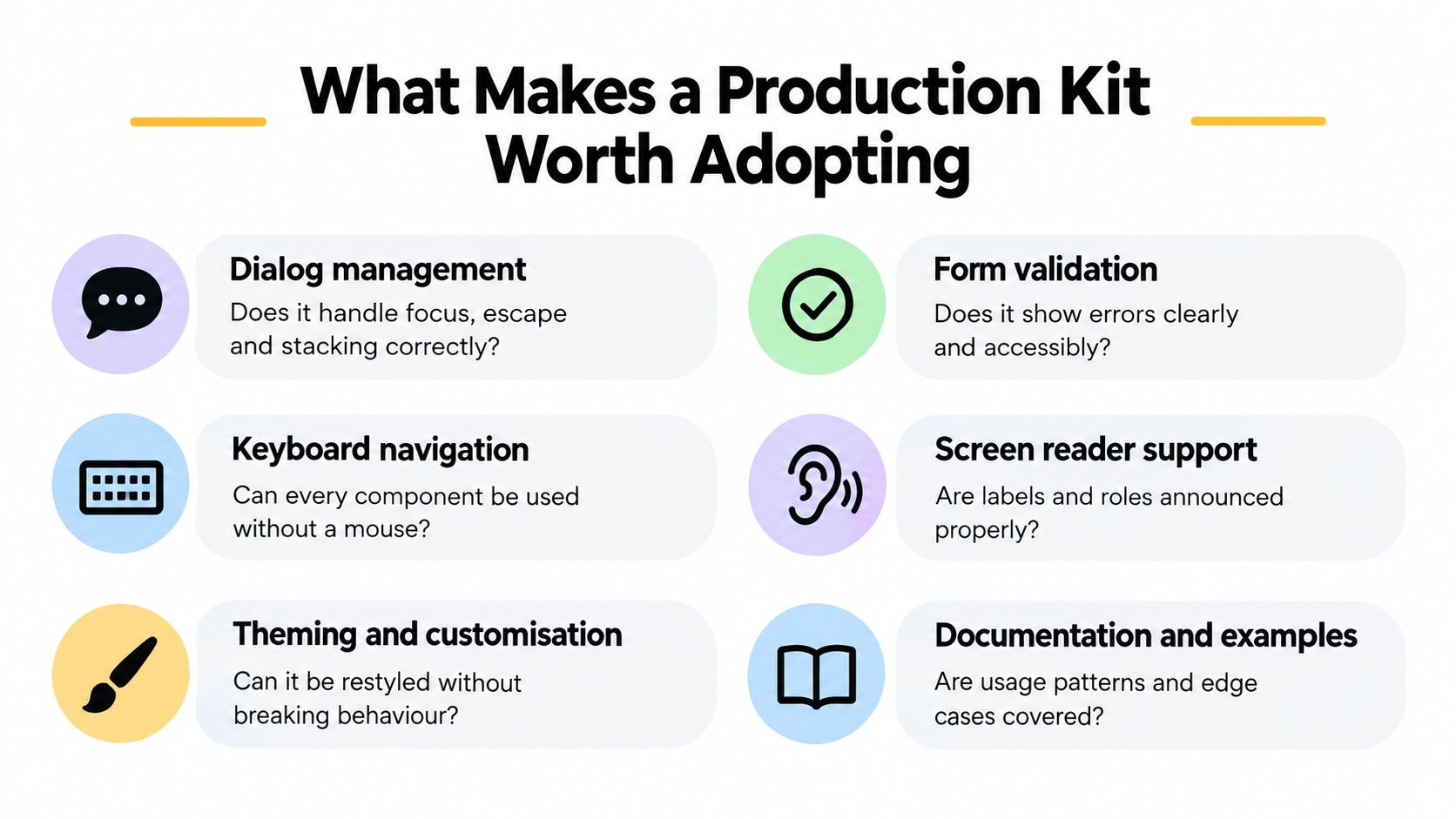
Six questions to ask
- Does the dialog manage focus correctly? Focus should move into the dialog on open, stay trapped while it’s modal, and return to the trigger on close. Escape should dismiss it, and stacked dialogs shouldn’t confuse the return target.
- Does the combobox follow a real pattern? It should expose the correct roles, keep its expanded state and active descendant in sync, and announce selection changes. A styled text input with a dropdown drawn under it isn’t a combobox.
- Do the modules tree shake? Importing one dialog shouldn’t pull the entire catalogue into your bundle. Ask for per component entry points, then check compressed sizes in your own build rather than trusting a marketing figure.
- Can you theme it without forking? Tokens and documented styling hooks should cover brand changes. If your only option is copying source files into your repo, you’ll own every future bug fix.
- Does it ship semantics, not divs? Interactive elements should use native elements where they exist and correct ARIA where they don’t. Click handlers on generic elements are a warning sign.
- Can you extend it cleanly? Composition through slots and documented events beats subclassing internals. You want to add application logic around the primitive, not inside it.
Why these criteria are not abstract
For UK public sector work, these questions map directly onto legal duties. Current UK government guidance identifies WCAG 2.2 Level AA, covering 55 Level A and AA success criteria, as the required target, as set out in the UK guidance on accessibility requirements for public sector websites and apps. Dialogs, menus, tabs, and comboboxes each need explicit keyboard, focus, and assistive technology behaviour to meet that bar.
UK service guidance also expects services to work with screen magnifiers, screen readers, and speech recognition tools, and recommends an accessibility audit before public beta, per the Government Service Manual introduction to making services accessible. A kit that centralises behaviour makes that audit narrower, because you test the primitive once and then verify each usage.
Score the kit on behaviour you can test, not on components you can count.
Bundle size belongs in the same conversation. Smaller payloads mean less parsing and execution work on modest devices, and shared primitives remove duplicated event handlers. Measure route level output in continuous integration, set a budget, and treat regressions like test failures. Size alone proves nothing about quality, though. A tiny component with broken focus handling is still broken.
How to Verify Accessibility Survives Customisation
Here’s the uncomfortable part. An accessible kit doesn’t guarantee an accessible product, because your team will restyle components, compose them in new ways, and connect them to forms and state the kit authors never saw. Every one of those changes can quietly remove a guarantee.
The stakes aren’t theoretical. UK Parliament reporting cited research estimating 7.15 million disabled internet users in the UK had access needs, and 72% of people with access requirements encountered barriers on more than a quarter of websites they visited for the first time, according to the Women and Equalities Committee report on disability and the built environment of digital services. The same research recorded 42% reporting poor keyboard access and 35% poor screen reader access, which are exactly the behaviours customisation tends to break.
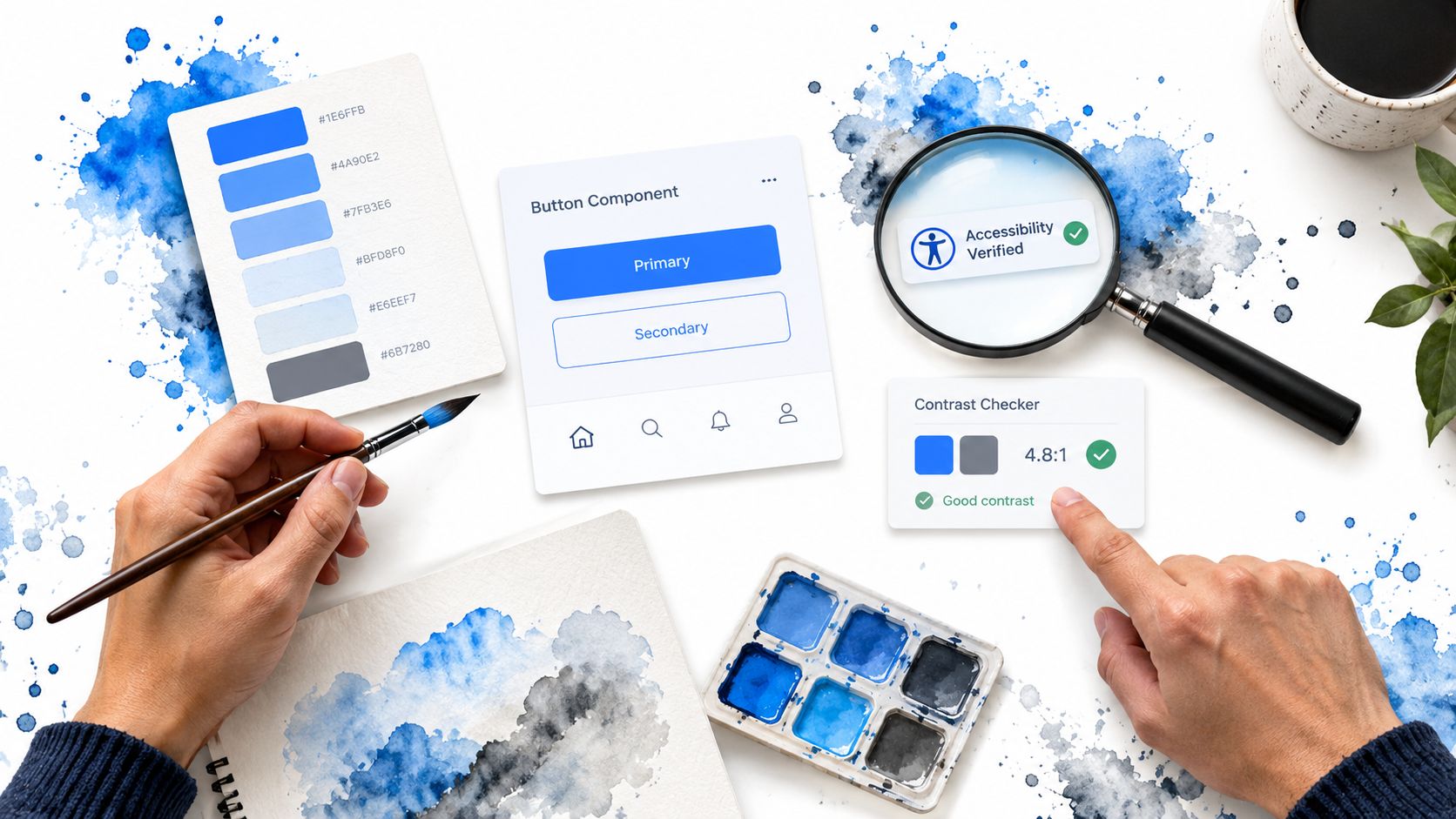
A verification protocol you can run
Treat each override as a hypothesis and test it against this list:
- Keyboard traversal: Tab through every state, including open, loading, and error states. Confirm arrow keys behave per the pattern and nothing traps focus unintentionally.
- Focus visibility: Check the focus indicator survives your theme on every background. This matters because the 2025 Web Almanac reports that 67% of sites removed default focus outlines, as documented in the Web Almanac accessibility chapter for 2025.
- Accessible names: After changing slots or labels, inspect the computed name in your browser’s accessibility tree. Icon only buttons lose names easily.
- Screen reader announcements: Run dialog and combobox flows with a screen reader and listen for state changes. Silent state changes are invisible failures.
- Error recovery: Submit forms with mistakes. Errors should be described in text, linked to their fields, and reachable without starting over.
- Motion, zoom, and reflow: Honour reduced motion settings, then zoom the page and confirm content reflows without horizontal scrolling or clipped controls.
Automated checks catch missing names and contrast failures. They can’t judge whether an announcement makes sense or whether a flow exhausts a keyboard user. You need both layers, which is why practical accessibility best practices for component work pair tooling with manual passes. For the underlying markup thinking, this guide for web developers on semantics is a solid companion when you’re deciding between a native element and an ARIA pattern.
Conformance and usability aren’t the same thing. A page can pass automated checks while a disabled person still can’t complete the task. Build the protocol into code review, so a styling change triggers the same scrutiny as a logic change.
The AI-Ready Kit Is the Inspectable Kit
Vendors love to demo generation speed. An assistant produces a settings screen in seconds, and it looks convincing. Then you Tab through it and focus vanishes, or you open the combobox with a screen reader and hear nothing useful. Generation was never the hard part. Review is.
Scepticism is rational here. In 2025, 46% of UK developers surveyed said they did not trust the accuracy of AI outputs, up from 31% the previous year, as reported in ITPro coverage of UK developer attitudes to AI. Distrust doesn’t mean refusing the tools. It means demanding components you can inspect and correct.
The cycle below shows what inspectability looks like as a working loop rather than a one off generation.
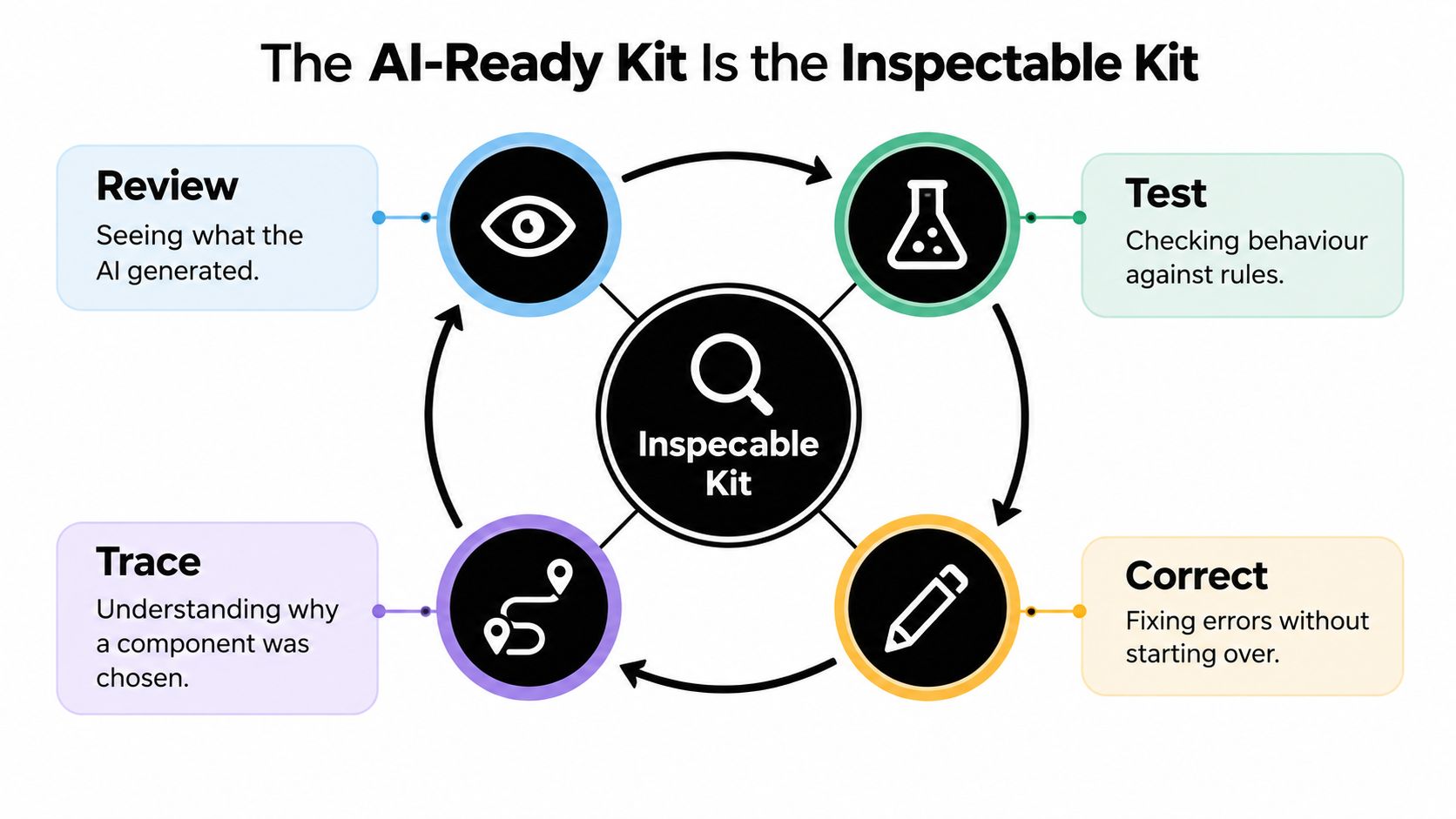
What an inspectable component carries
A kit built for review exposes an audit trail with each component. Look for supported states, the keyboard contract, the ARIA mapping, which design tokens were applied, available test evidence, and known limitations. Embedded documentation and machine readable specs let both humans and tools check generated output against intent, which is the thread running through the case for embedded documentation in component libraries.
Watch for these red flags in generated interfaces:
- Missing accessible names on icon buttons and custom controls
- Broken focus return after a dialog closes
- Invalid combobox semantics, such as expanded state on the wrong element
- State changes with no announcement, so assistive technology users miss updates
The video below walks through how quickly generated markup can look right while behaving wrong, and what to check before you accept it.
Judge AI readiness by correction cost. If fixing a generated component means rewriting it, the kit saved you nothing. If you can read its contract, adjust a token or a prop, and rerun a test, generation becomes a draft you can trust a process around.
Where DOM Studio Fits in This Picture
It’s easier to judge the criteria above against a concrete library, so consider DOM Studio as a worked example of the component library position. It pairs standards based custom elements with a Vue wrapper layer, so behaviour ships once in framework agnostic primitives while Vue developers get reactive props, v-model support, and slots.
Measured against the six questions, the mapping looks like this. Dialogs, menus, listboxes, tabs, and comboboxes carry their WAI-ARIA roles, keyboard handling, and focus management inside the primitive rather than in application code. Modules are tree shakeable, so importing one component doesn’t drag in the catalogue. Theming runs through a Visual Blocks surface and utility styling, which keeps brand changes at the token and style layer instead of inside behaviour code.
On inspectability, components carry embedded documentation, inspector hints, and Studio specs. That means a generated screen can be reviewed against stated contracts and corrected in place, following the loop from the previous section.
The fit is clearest for Vue teams shipping production interfaces across many routes, SaaS builders who need accessible defaults without a platform team, and larger organisations standardising behaviour across products. If you don’t use Vue, or you need a full governance layer today, you’d weigh it differently. Either way, the checklist does the judging, not the brand.
Choosing and Adopting a User Interface Kit
Before you adopt any user interface kit, ask five questions. Does it centralise behaviour so you stop retesting it? Does it cover the components and patterns you build? Does it meet the accessibility bar your users and regulators require? Does it stay small in your bundle? Can humans and AI tools inspect what it produces?
Run those against your shortlist this afternoon, with a keyboard in hand. Kits are moving toward standards based primitives, embedded metadata, and reviewable generated code. Choosing on behaviour now puts you on the right side of that shift.
If you’re building Vue interfaces and want behaviour, accessibility, and inspectability handled at the primitive level, explore the component catalogue and try the verification approach from this guide against it at DOM Studio. Bring your toughest dialog or combobox flow, test it with a keyboard and a screen reader, and judge the results for yourself.