
Most advice on toggle buttons JS is backwards. It starts with the animation, the moving knob, the active class, and only later asks whether the control exposes its state to assistive tech. In production, that order causes bugs. A toggle isn’t just a visual pattern. It’s a contract between your markup, JavaScript, keyboard behaviour, and the accessibility tree.
I’ve seen teams ship polished “switches” that looked right in Figma and still failed the basic question a screen reader user asks first, what is this control, and is it on or off? If you treat a toggle as a class flip, you’ll miss the hard parts. If you treat it as semantics first, the code gets simpler, not harder.
Table of Contents
- Why Most Toggle Button Tutorials Get the Semantics Wrong
- The HTML Foundation for a Native Toggle Button
- Building the Vanilla JavaScript Toggle Step by Step
- Hand-Written Toggle Versus DOM Studio Primitives
- Wiring the Toggle as a Vue Component With v-Model
- State Persistence, Progressive Enhancement and Verification
Why Most Toggle Button Tutorials Get the Semantics Wrong
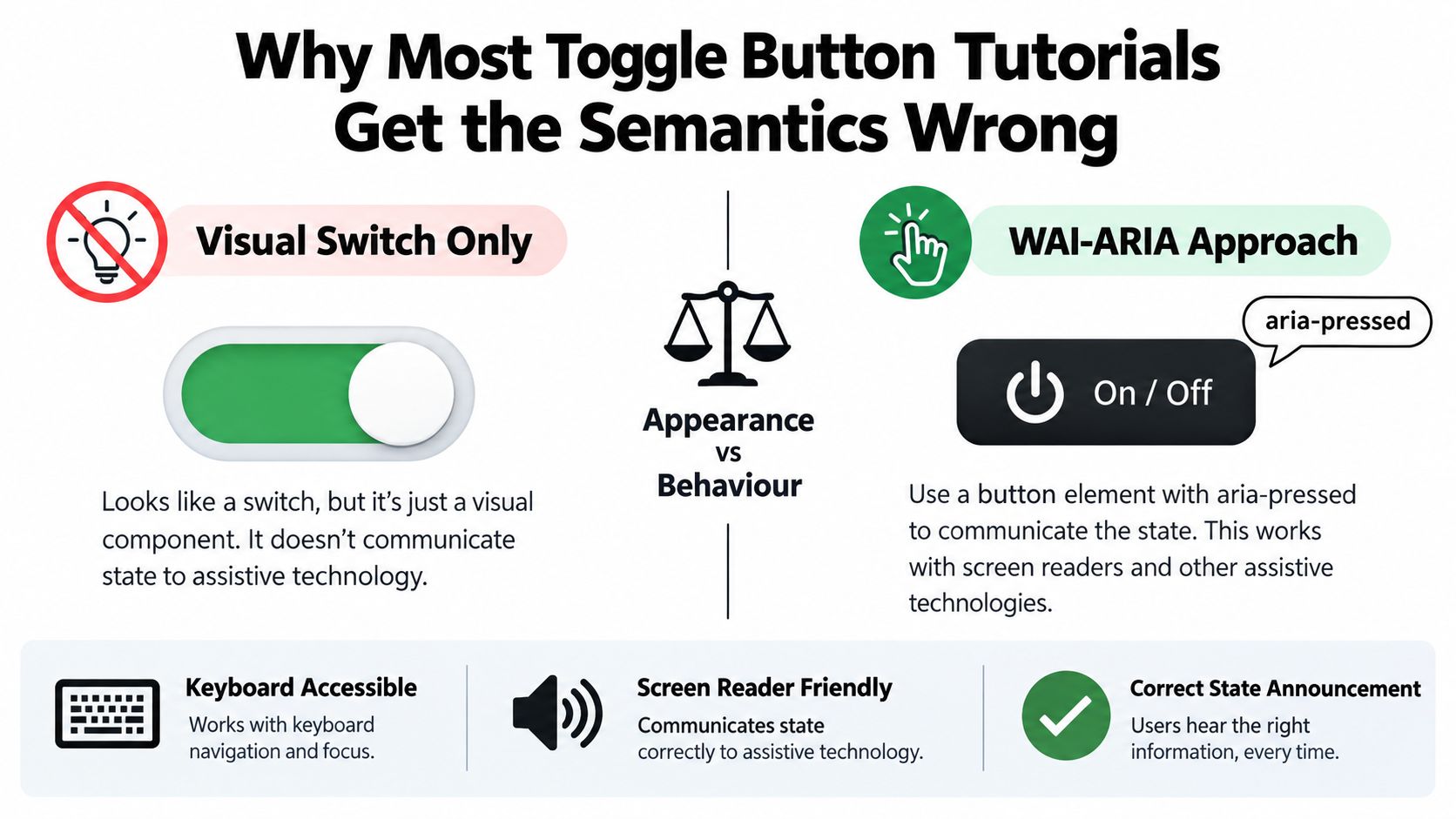
A polished switch-shaped control can still describe the wrong interaction. A toggle button represents a command with two states, while a switch represents a setting, a checkbox represents a selectable form value, and a disclosure button reveals or hides related content. Their visuals may overlap, but their semantics and expected behaviour differ.
The WAI-ARIA Authoring Practices button pattern defines a toggle button as a two-state control whose state is exposed with aria-pressed="true" or aria-pressed="false". Use that model for actions such as apply or remove, activate or deactivate, pin or unpin, mute or unmute, or applying bold formatting. The control remains a button with a pressed state, rather than posing as a form field.
Where tutorials go wrong
A typical tutorial walks through four steps:
- add a click handler
- flip a boolean
- toggle an
.is-activeclass - animate the UI
That sequence can produce the expected appearance for sighted mouse users. It leaves the accessibility tree and keyboard interaction under-specified, though. A class changes pixels. It does not announce whether the control is pressed, provide a reliable name, or guarantee that the state stored in JavaScript matches what the interface displays.
The UK Government’s accessibility monitoring programme recorded 26,171 accessibility issues across public sector websites and mobile apps. Keyboard accessibility represented 10.8% of recorded issues, while Name, Role, Value failures represented 8.6%, according to the UK government monitoring report. Those findings make the implementation details practical concerns, not theoretical checks.
Practical rule: if the control changes its own command state, use a toggle button. If it shows or hides content, use a disclosure pattern. If it captures a form value, a checkbox or switch may fit better.
The semantic choice changes the user experience
A rounded control with a sliding knob does not automatically make a switch the right pattern. “Mute audio”, “favourite item”, and “bold text” describe commands whose current state belongs to the button. A switch-like setting can suggest a form preference instead, which changes how users interpret and operate it.
Once the pattern is chosen, the implementation has clear boundaries:
- Use a native
<button> - Expose state with
aria-pressed - Keep the accessible name stable
- Update visual and accessible state together
That’s the part a class-flip implementation skips, and it is what makes a JavaScript toggle reliable for keyboard and assistive technology users.
The HTML Foundation for a Native Toggle Button
A reliable toggle starts with markup that already describes its state. Use a native <button>, give it a stable accessible name, and include the initial aria-pressed value before JavaScript runs.
The minimum markup that holds up
A production-ready baseline includes four decisions:
- Native element first: use
<button type="button">, rather than aspanordiv - Deterministic state: include
aria-pressed="false"oraria-pressed="true"in the initial HTML - Accessible name: provide visible text, or an
aria-labelwhen the control is icon-only - No accidental submit: set
type="button"unless activating the control should submit its form
The initial attribute must match the UI shown on first render. If the control appears active while aria-pressed="false" says otherwise, users receive conflicting information before the first interaction. Keeping the name stable also gives keyboard and assistive technology users a consistent reference as the state changes.
This approach supports progressive enhancement and aligns with inclusive design for user-friendly experiences. The control remains understandable across different input methods and presentation modes, rather than depending on a visual class alone.
Why a button beats a role shim
A div with role="button" can be made functional, but it requires extra handling for focus, keyboard activation, and browser behaviour. A native button supplies those defaults and gives the browser a control with the correct interaction model. Starting with the platform element leaves JavaScript responsible for state changes instead of recreating basic control behaviour.
The element choice also depends on what the state represents. A toggle button usually exposes the pressed state of an action such as muting audio, saving an item, or applying bold text. A checkbox or switch represents a form value or setting. This checkbox input type guide helps separate those cases when a visual design makes them look similar.
Keep the accessible name stable. A button labelled “Mute” can retain that label while
aria-pressedchanges, so users do not need to learn a new command name after every activation.
Icon-only toggles need extra discipline
Mute, save, theme, and pin buttons often contain only an SVG. The icon does not provide a dependable accessible name by itself, so add an aria-label or visually hidden text. Mark decorative SVG content appropriately when needed, and ensure the label identifies the action rather than relying on the icon’s appearance.
The HTML establishes the contract. JavaScript should update that contract, not invent it after the page loads.
Building the Vanilla JavaScript Toggle Step by Step
Once the HTML is stable, the JavaScript for a real toggle button is refreshingly small. The trick isn’t adding more code. It’s making sure every state change updates the same source of truth and keeps the DOM, styling, and accessibility state in sync.
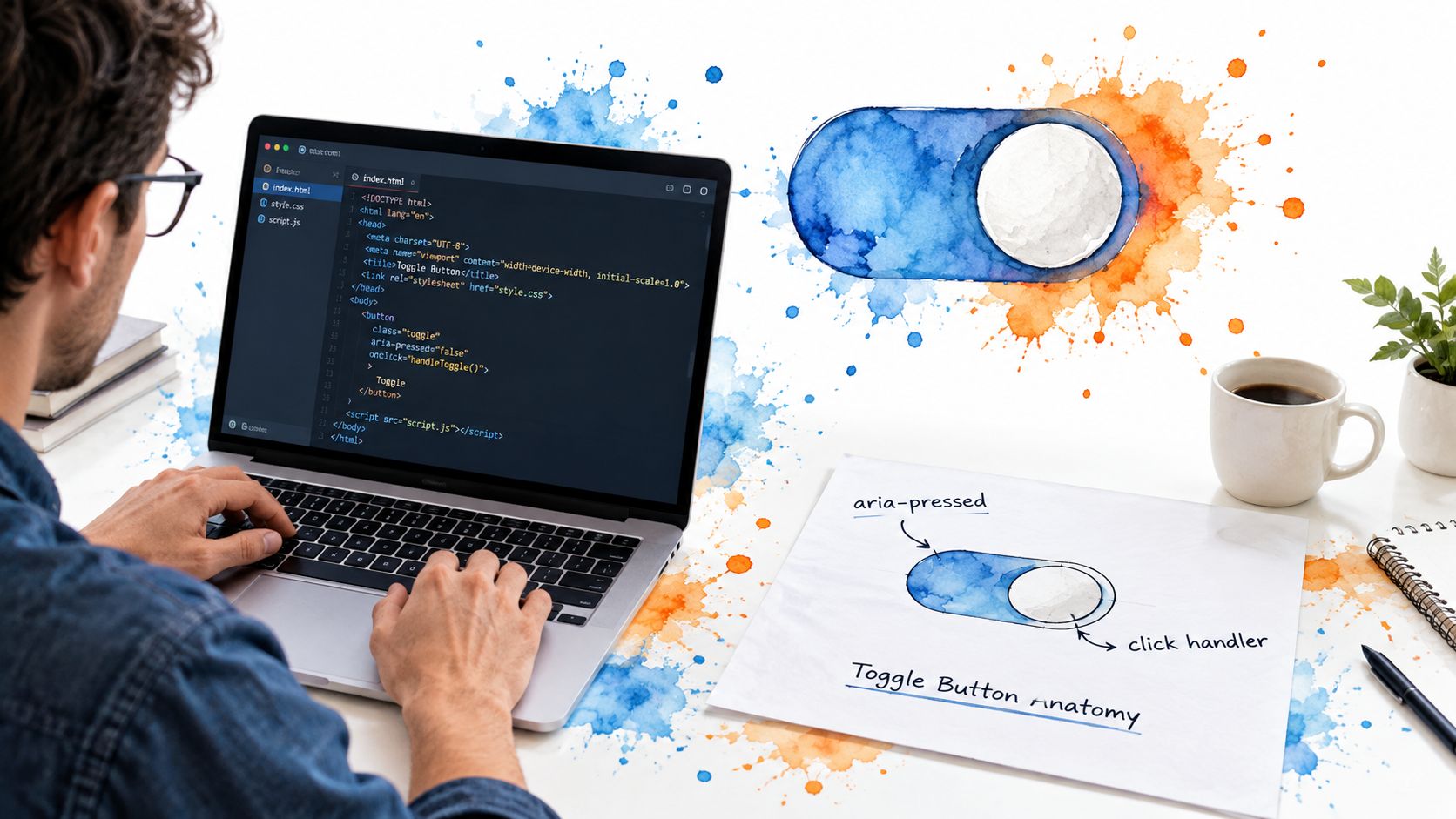
A good pattern starts by reading the initial state from the button itself, not from a duplicate variable hidden somewhere else.
A small implementation that does the right things
In vanilla JS, I’d keep it as direct as possible:
- Select the button.
- Read
aria-pressed. - In one click handler, compute the next state.
- Update
aria-pressedand visual classes together. - Leave focus where it is.
That flow matters more than whatever CSS effect you add afterward. The point is atomic updates. If the button looks pressed but still exposes aria-pressed="false", you’ve created two truths.
A simple pattern is:
- Read state from the DOM: the attribute is the source on initial load
- Flip once: derive the next boolean from the current value
- Write once: update both class and attribute in the same handler
- Avoid custom keyboard plumbing when possible: native buttons already do the hard part
The reason to insist on a native button here isn’t stylistic. Deque’s guidance on accessible buttons notes that native buttons provide Enter and Space activation without custom key handlers, while non-button elements need extra role, focus, and keyboard logic to match that behaviour. That’s exactly why hand-rolled “button-like” divs become brittle.
One source of truth beats event spaghetti
The most common vanilla JS bug is splitting state across multiple places:
- a JS boolean
- a CSS class
- a
data-*attribute - an ARIA attribute
Pick one authoritative value and derive the rest from it. For most simple toggles, reading and writing aria-pressed directly is enough. If the app has a central state store, then that store becomes authoritative, and the button reflects it. What you don’t want is four partially synced representations.
There’s a useful engineering parallel in product UI work outside accessibility. This write-up on the enterprise talent acquisition button shows how button design changes when different audiences need different behaviours. Toggle buttons are similar. A “simple button” stops being simple once multiple user contexts depend on it behaving consistently.
After you wire the click handler, test it the boring way:
- Tab to it
- Press Space
- Press Enter
- Click it
- Check that focus stays put
- Inspect that
aria-pressedchanged with the visual state
Later, if you want a walkthrough on interaction details, this video is a helpful companion:
A production toggle is finished when the visual state and the accessibility state change together, every time, under every input method.
What I won’t add unless there’s a reason
I don’t add custom keydown handlers to native buttons for ordinary toggles. I don’t swap the button element for a div. I don’t let CSS classes become the actual state. Those shortcuts usually create more maintenance than they save.
That restraint is what makes a vanilla implementation dependable.
Hand-Written Toggle Versus DOM Studio Primitives
A toggle that works once is easy. A toggle pattern that stays correct across products, frameworks, and future refactors takes deliberate ownership. In production, the choice is usually between maintaining the semantic contract yourself and adopting a primitive that encodes it for repeated use.
Hand-written code fits an isolated control with local state, limited variants, and a clear owner. It also keeps markup and bundle decisions entirely in your hands. The cost appears later when several teams copy the first implementation, adjust one detail, and leave different versions of the same interaction behind.
The trade-off in plain terms
| Concern | Hand-written toggle | Primitive library |
|---|---|---|
| Markup control | Full control over every element | High control, shaped by the API |
| Bundle cost | Minimal for one control | Depends on the library and modules used |
| Accessibility burden | You maintain semantics, keyboard flow, focus, and announcements | Much of that contract is already wired |
| Consistency across apps | Requires a shared implementation and discipline | Easier when the primitive is reused |
| Refactor risk | Higher when later changes remove small details | Lower when the primitive preserves the pattern |
When a primitive earns its keep
If the same toggle appears across a design system, I prefer a shared primitive to repeated code review debates about aria-pressed, focus, and keyboard behaviour. DOM Studio’s toggle primitive packages that interaction contract, while its modules stay under 2 kb gzipped. What you get in practice is headless web component primitives, a thin Vue integration layer, and Tailwind CSS 4 styling available without forcing one visual design onto every consumer. The accessibility behaviour still needs verification in your application, especially when you add custom markup or state transitions.
Hand-written code remains a sound choice for a one-off control. The practical question is whether the team wants to keep reimplementing the same semantic and interaction decisions as the pattern spreads.
Use hand-written code for a tightly scoped toggle with simple local state. Use a primitive when reuse, cross-framework support, and consistent accessibility maintenance matter more than owning every line.
A practical decision rule
Choose the hand-written route when:
- You need full custom markup for one product-specific control
- The state model is simple and local
- You can verify accessibility manually and retain tests for the behaviour
Choose a primitive when:
- The same pattern appears in multiple places
- Vanilla and Vue consumers share the interaction
- You want ARIA and keyboard behaviour maintained in one implementation
That decision reflects build context, not a preference for one coding style.
Wiring the Toggle as a Vue Component With v-Model
In Vue, the cleanest toggle component doesn’t mutate the DOM and then hope the framework catches up. It treats the reactive value as the source of truth and reflects that value into the button’s aria-pressed state.
That distinction matters because Vue can change the pressed state from outside the component. A parent can reset preferences, sync server data, or apply saved settings. If your toggle only reads from the DOM, it’ll drift.
The Vue rule that keeps this sane
MDN’s button role reference describes aria-pressed as the mechanism for creating a toggle button and recommends updating it whenever JavaScript changes the pressed state so assistive technologies announce the new value. In Vue, that means the reactive prop should drive the attribute, not the other way round.
A wrapper built around v-model should do three things:
- reflect the current boolean prop into
aria-pressed - emit a typed state-change event when the user activates the button
- keep the accessible name independent from whatever visual label styling is present
Hand-written toggle versus DOM Studio Vue wrapper
| Concern | Hand-Written Toggle | DOM Studio Vue Wrapper |
|---|---|---|
| State ownership | You define prop and emit conventions | v-model pattern is already integrated |
| ARIA sync | You wire :aria-pressed manually |
Wrapped into the component contract |
| Slots and labels | Fully custom, but easy to under-specify | Easier to structure on and off labels consistently |
| Keyboard behaviour | Native if you keep <button> |
Native plus wrapper conventions |
| Maintenance | Review every implementation | Review the wrapper once, then reuse |
If you’re building your own, keep the surface small. A modelValue or pressed prop is enough. On click, emit the opposite boolean. Let the parent own persistence and side effects. That keeps the component predictable.
For teams already standardising Vue patterns, this guide to v-model in Vue is useful because it reinforces the parent-child contract that toggle components should follow. The button should reflect state, not hide it behind private DOM mutations.
What the wrapper must never do
A Vue toggle wrapper should never rely on inner text alone to communicate state. It’s fine to display “On” and “Off” labels visually through slots or conditional rendering, but the button still needs the programmatic state on the element itself.
It also shouldn’t decide persistence on its own. That’s application logic.
A good Vue toggle component is boring. Props in, event out,
aria-pressedsynced, native button semantics intact.
That sounds almost too plain, but that’s usually the point. Boring components are the ones that survive refactors.
State Persistence, Progressive Enhancement and Verification
The hard question isn’t whether the toggle flips. It’s where the state lives, how the first render knows about it, and what happens when reality changes underneath the UI.
If the toggle controls a non-sensitive preference, local storage can be reasonable. If it controls account settings, permissions, or server-backed preferences, the server should stay authoritative. That’s the difference between a demo and a production control. For broader thinking on browser storage trade-offs, this piece on Stoa team’s advice on local data is worth reading before you persist everything client-side by habit.
The single source of truth rule
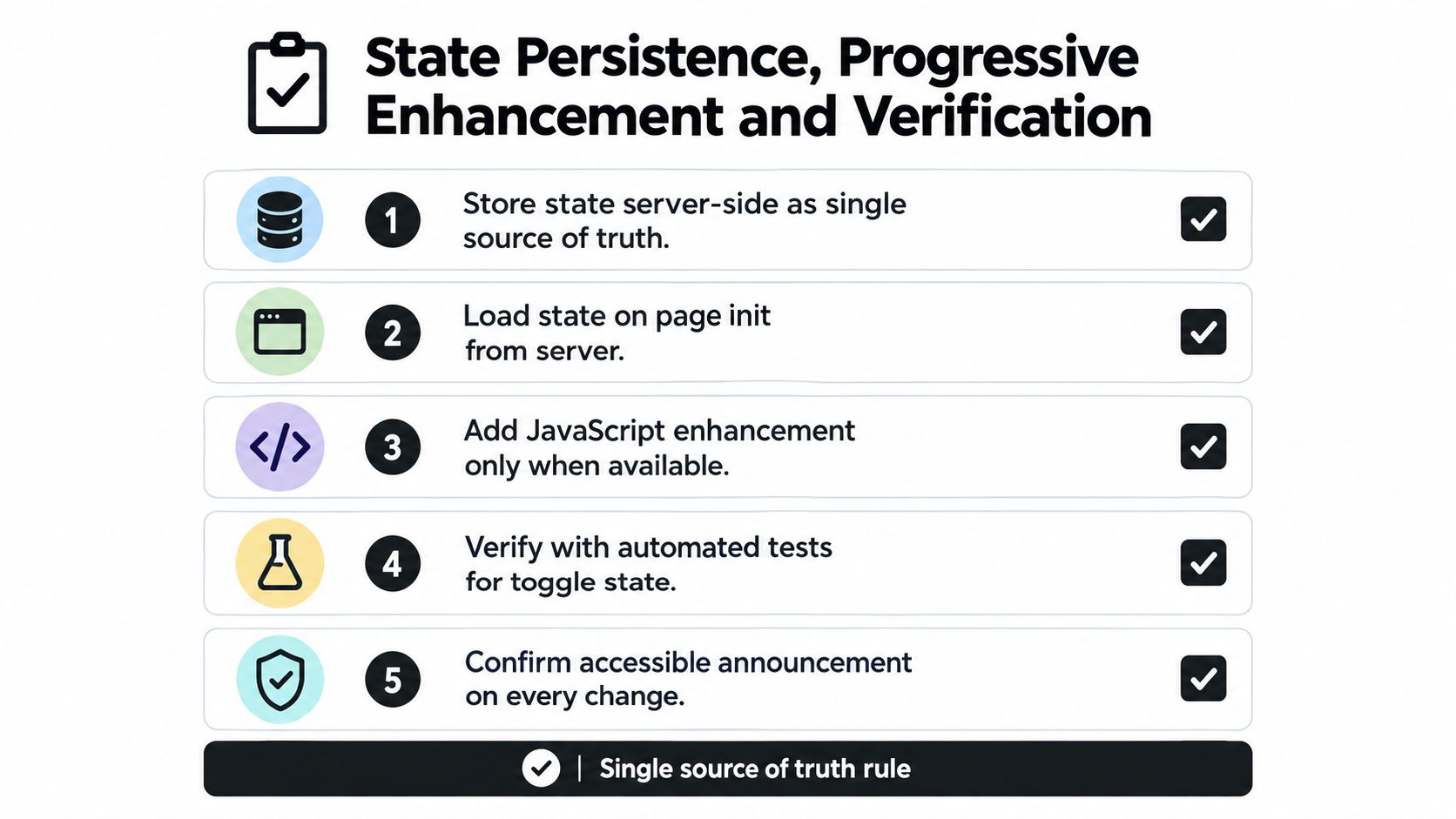
The safest pattern is straightforward:
- Render the initial state from the true source, ideally server data or the app state that already owns the preference
- Set
aria-pressedfrom that initial value - Enhance with JavaScript without changing the semantic contract
- Write visual and accessible state atomically
- Handle failed updates by restoring a truthful state
That last point gets ignored in most toggle buttons JS tutorials. If a preference save fails, the UI shouldn’t stay cheerfully “on” while the backend rejects it.
Verification that catches real bugs
The NHS accessibility development guidance recommends starting with correct HTML for buttons and form controls and notes that accessibility widgets cannot make a site fully compliant. That’s a direct reminder that automated scans are useful, but they won’t tell you whether the interaction is predictable.
My manual check for a toggle is simple:
- Inspect the DOM: does the button have a real accessible name, native role, and initial state?
- Use the keyboard: can you tab to it, activate it, and still see focus clearly?
- Zoom and forced colours: does the state remain understandable without relying on one colour treatment?
- Use a screen reader: does the state change get announced when the control is activated?
The test isn’t “does it animate?” The test is “does every user get the same truth about the control’s current state?”
Progressive enhancement is part of accessibility
A toggle should degrade gracefully. If JavaScript hasn’t loaded yet, the initial HTML should still describe the state correctly. If hydration runs later, it shouldn’t briefly show one state visually while exposing another semantically.
That’s why state, persistence, and verification belong together. If they’re separated, the component will eventually lie.
If you’d rather stop rebuilding this contract by hand, DOM Studio offers headless toggle primitives and Vue-friendly wrappers that keep keyboard behaviour, ARIA state, and reactive integration aligned. It’s a practical option when your team wants production toggles without re-implementing the same accessibility details in every app.