
The form looks finished. A tester opens the country field, highlights France, and the closed control still says “Select a country”. You’re about to restyle the chevron. That won’t fix it. To select from dropdown fields is a behaviour you have to prove, with a mouse, a thumb and a keyboard, before anyone debates the styling.
I would start with the cheapest check. Close the list and read the field. If the new value isn’t sitting there, the choice never landed, however polished the open menu looked.
Three decisions follow. Pick a control people can actually compare. Learn which keys open, move and close it, because browsers don’t agree. Then sign the field off only when a keyboard path, a screen reader and a phone all match.
Table of Contents
- How to Pick an Option With a Mouse or Touch
- Keyboard Keys That Open, Move and Close a Dropdown
- Choosing Between a Select, Radio Group and Combobox
- How to Build an Accessible Native Select
- Common Dropdown Problems and How to Fix Them
- Accessibility Checks and a Keyboard Sign-Off Drill
How to Pick an Option With a Mouse or Touch
Click or tap the control, choose an option, and the value changes. On a native <select>, that is the whole interaction. Plenty of forms still need a separate Submit, so read the closed control before you move on.
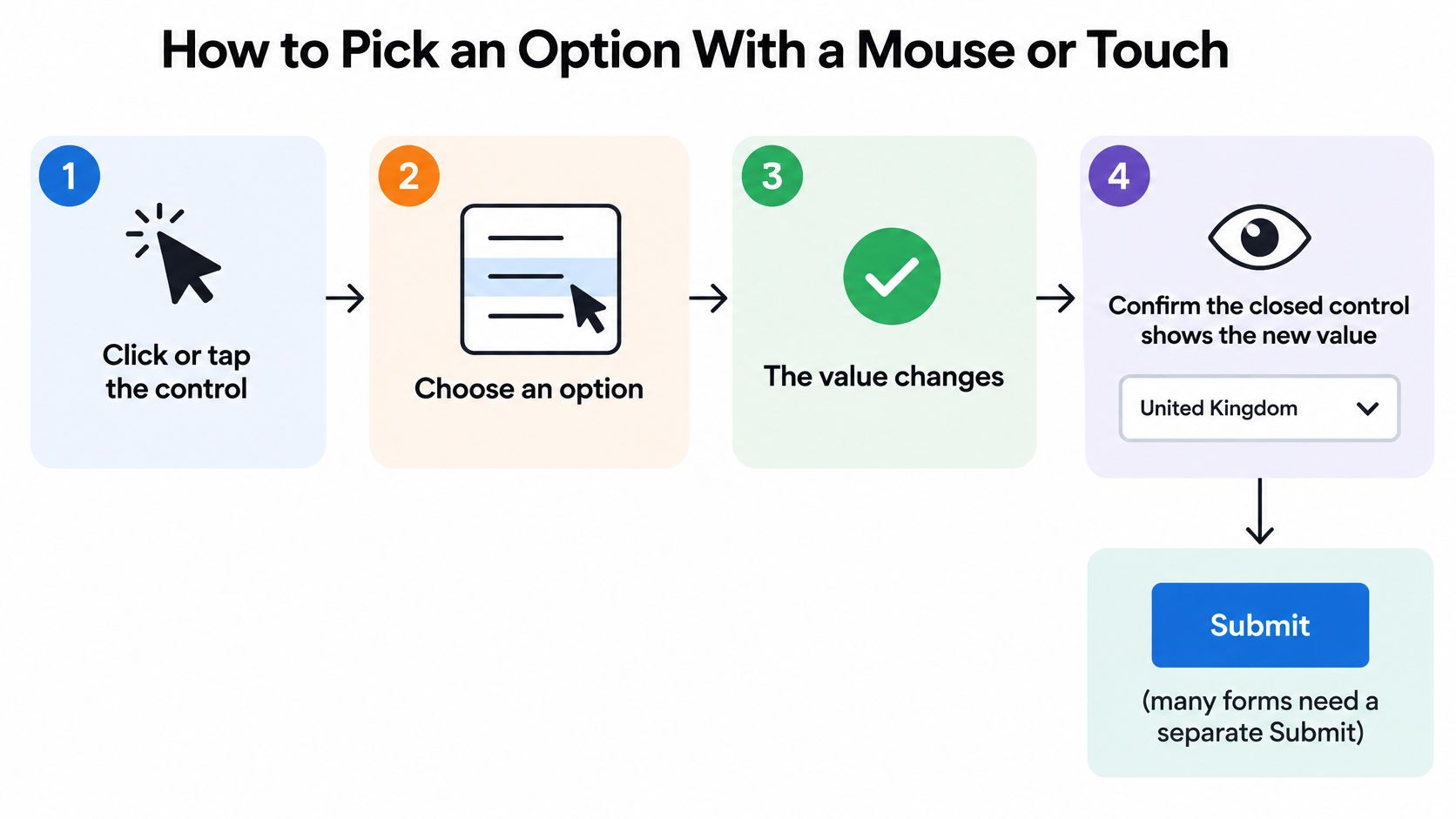
Five steps that prove the choice
- Read the label first. It names what the list is for. Without it, “Monthly” could be a billing cycle or a report period.
- Open the list by clicking or tapping. On iOS and Android the browser draws its own picker sheet, so a custom panel often never appears.
- Find the option. Scroll the list, or on a desktop type the first letters. Those keys jump to the next option that starts with that character. They don’t search the middle of the word.
- Choose it, then read the closed control. A highlighted row isn’t the stored value. The collapsed field has to show the new text.
- Watch what the page does next. Some pages submit or redirect the moment the value changes. A solid form waits for an explicit button.
Why thumbs miss and lists stick
WCAG 2.2 criterion 2.5.8 sets a minimum target of 24 by 24 CSS pixels. I would still size each option around 44 px. A thumb on a crowded phone misses anything smaller, and a wrapped label shrinks the hit area again.
Custom menus often need a second tap to dismiss. People used to the native picker expect the sheet to close on the first choice. A list that stays open, or that sits under a sticky header, feels stuck even when the value did update.
Finish one selection on a phone and one on a laptop. If the closed field shows the new value and the page didn’t move to another address, the pointer path works.
Keyboard Keys That Open, Move and Close a Dropdown
Enter and Arrow Down are the keys people hit first, and they don’t do the same job on every control. A native <select> and a custom listbox diverge, and Windows doesn’t match macOS.
On Windows, the arrow keys change a closed select’s value without opening it. On macOS, those same keys open the list. Space on an open native list selects the highlight in Chrome and Firefox. In Safari it can scroll the page and leave the value alone. Test those three browsers before you write “expected keys” into a ticket. The pattern a custom widget should follow is set out in this note on an accessible dropdown menu.
Keyboard behaviour by control type
| Key | Native select (closed) | Native select (open) | Custom listbox (ARIA pattern) |
|---|---|---|---|
| Enter | Opens the list | Selects the highlighted option and closes | Selects the focused option |
| Space | Opens the list | Selects the highlighted option in Chrome and Firefox | Selects the focused option |
| Alt + Arrow Down | Opens the list on Windows and Linux | Closes and keeps the highlight | Opens the listbox |
| Arrow Down / Arrow Up | Changes the value without opening on Windows | Moves the highlight | Moves focus between options |
| Home / End | Jumps to first or last option | Jumps within the open list | Moves focus to first or last option |
| Escape | No effect | Closes without changing the value | Closes and returns focus to the trigger |
| Letter keys | Jumps to the next option starting with that letter | Same, within the open list | Typeahead moves focus to the match |
| Tab | Moves to the next field | Closes the list in Chrome and Firefox | Moves focus out and closes the listbox |
Tab closing an open native list is a browser habit, not a contract you can lean on. A custom listbox should move focus to the next field on purpose and close in that same keypress.
Sit on one real form and press every row. Mark any key that doesn’t match what the team expects. That mismatch is the bug, not the person’s “wrong” key.
Choosing Between a Select, Radio Group and Combobox
A compact dropdown isn’t automatically easier than a control that shows every choice. Hidden options cost time, and people can’t compare what they can’t see. The ONS service manual guidance on select says radios are preferable when users need to compare a small number of choices, while long selects hide useful context, make scrolling difficult, and create small touch targets on mobile devices.
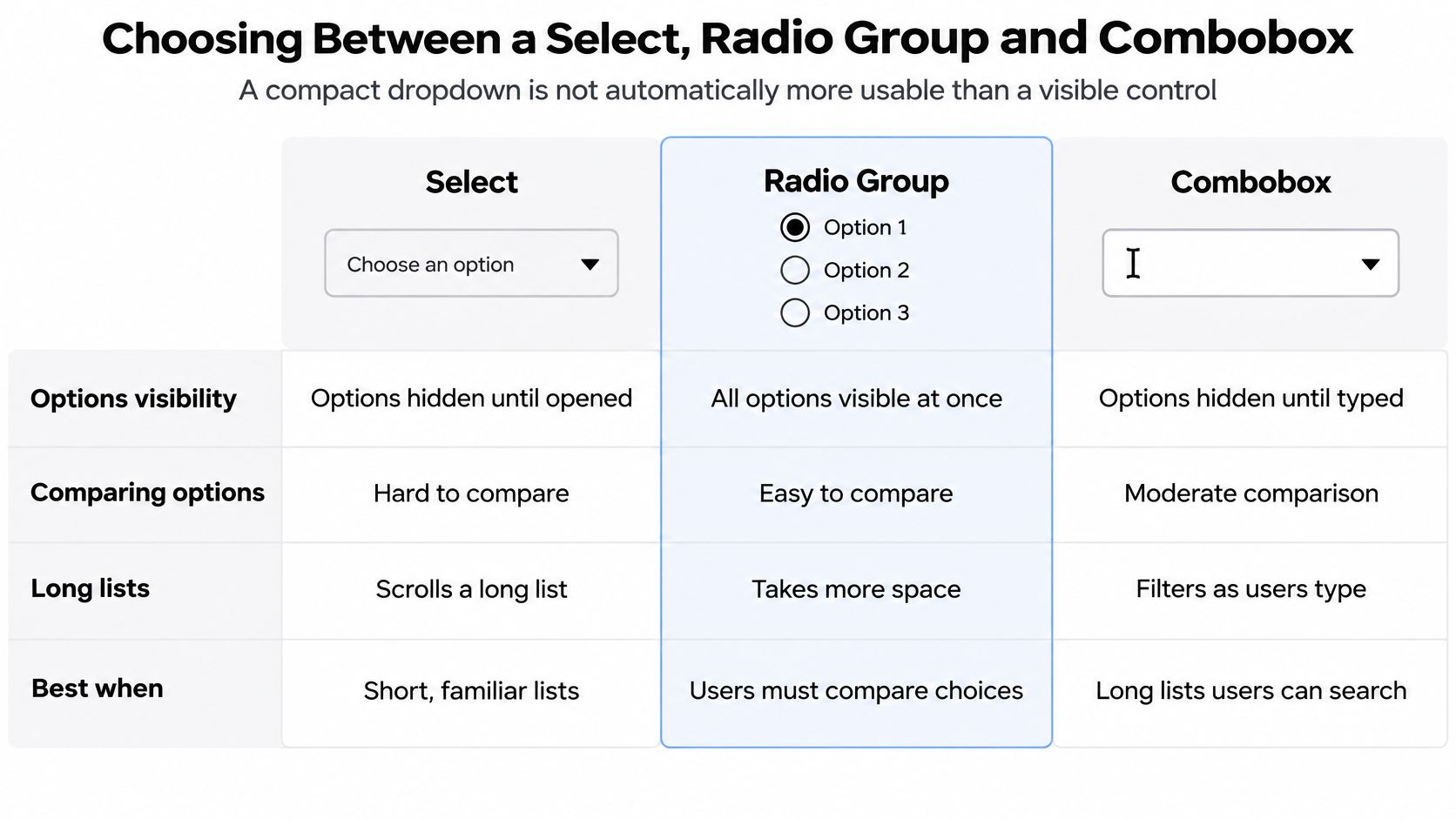
The same guidance points at a better cut. Ask a qualifying question, or group the options, instead of shipping one long alphabetical list. Government research on UK services keeps finding the same pains: difficulty scrolling, discovering hidden options, and using selects on small screens.
Control choice by option count and task
| Situation | Recommended control | Reason |
|---|---|---|
| 2-4 options, user compares | Radio group | Every choice is visible and needs one tap |
| 5-12 known options | Native select | Lightweight, with native keyboard and screen-reader support |
| Large set, user types to find | Filterable combobox | Typing narrows the list quickly |
| More than one answer | Checkboxes | Each answer needs its own tick, not a hidden multi-list |
| Action, not a stored value | Menu button | Opens actions without setting a form value |
Count the options, then ask four questions. Do people need them side by side? Will they type a name they already know? Is this a stored value, or an action such as Export? How long is each label? Four words that wrap are a poor fit for a narrow select even when the count looks fine.
I would keep the native select for a short, familiar list. Where the set is long and people know the name, a filterable combobox is the better tool. DOM Studio’s combobox and listbox primitives supply the ARIA keyboard pattern and a reactive v-model, so a Vue team doesn’t rebuild focus movement. Radios, segmented controls and checkboxes stay available for the rest. A radio button group is the right swap whenever a list has four options or fewer.
Count the dropdowns on the page this week. Move any with four or fewer options onto radios.
How to Build an Accessible Native Select
A native <select> is a practical choice for one answer when users can complete the task with it. Check that assumption with a usability test. The GOV.UK Design System select guidance recommends using a select only as a last resort because some users find it difficult. It also advises against multi-select controls because they can be hard to use with assistive technology. The ONS service manual select guidance recommends checking that a user has selected an option and showing an error when they have not.
The seven steps
- Add a visible label and connect it with
forandid. The accessible name should state the question, not the current value. A screen reader should announce “Country,” then “France.” - Add one short hint if the choice may be unfamiliar, and reference it with
aria-describedby. Keep the instruction to one useful sentence. Extra help can be missed. - For a required choice, make the first option a disabled prompt with an empty
value. Without it, the browser can submit the first real option before the user makes a choice. - Set an explicit
valuefor every real option. You can change a label from “UK” to “United Kingdom” without changing the value your application stores. - Validate on submission, not on every change. Early errors interrupt people while they are still choosing.
- If submission fails, show an error summary above the field and a message beside it. Link the message with
aria-describedby. A red border alone does not explain the problem. Keep the focus ring visible. - In Vue, bind the value with
v-modeland include the error in the accessible description. Update the description when the visible error text changes.
Practical rule: A disabled prompt with an empty value leaves a required select unselected until the user chooses an answer. An enabled “Please choose” option can be submitted as a real answer.
When a custom listbox is justified
Choose a custom listbox only when a test shows that the native control prevents users from completing the task. Follow the WAI-ARIA listbox pattern: put role="listbox" on the list and role="option" on each item. Arrow keys move focus between options. Escape closes the list without changing the value. After selection, return focus to the trigger.
Rebuild one existing field using the seven steps, then test the interaction from start to submission. Use Tab to reach the field, arrow keys to choose, and a real form submission to check validation. Finish by inspecting the accessible tree with a screen reader. Treat each action as a pass-or-fail check: the label is announced, the prompt cannot be submitted, the chosen value is clear, and an invalid submission exposes its error.
Common Dropdown Problems and How to Fix Them
A dropdown that submits a form or changes the page as soon as someone picks an option interrupts the task. Keep choosing separate from acting. The UK Parliament design system guidance on select advises against changing context automatically when a value changes. Put submission or navigation behind a clear button.
Before editing the change handler, capture the selection event and any navigation that follows in the same run. A recording shows whether the jump happens on selection or later, which makes the fault easier to reproduce and isolate.
Dropdown symptoms, causes and fixes
| Symptom | Likely cause | Fix |
|---|---|---|
| Form submits or redirects on change | Side effect bound to the change event | Move the action to an explicit button |
| Screen reader announces no name | Label not linked by for and id |
Connect the label and check the accessible name |
| Placeholder submitted as a value | Prompt option is enabled or has a non-empty value | Disable the prompt, give it an empty value, and mark the field required |
| Error shown but not announced | Error text not linked to the control | Add aria-describedby and place the summary above the field |
| Focus lost after choosing | Custom list removed from the DOM without restoring focus | Return focus to the trigger after selection |
| Dropdown clipped in a modal or on mobile | overflow: hidden on a parent |
Render the list in a layer above the container |
| Long labels cut off | Fixed width | Let the width grow or wrap, then test the longest real label |
A grey prompt is not enough. If its option is enabled and its value is not empty, the form can submit it as an answer.
Reproduce each symptom before changing code. Check the event, the resulting value, and whether focus stays where the user expects. A clipped list inside a modal points to a container or layering issue. A missing accessible name points to the label relationship. Treat these as separate failures; changing keyboard behaviour will not fix either one.
For a custom dropdown, also check that choosing an option leaves focus on the trigger. If the list disappears and focus falls elsewhere, the user may lose their place. Use a native select when it meets the task; custom behaviour adds more failure points to test.
Keep a concise record of the steps, selected option, event, and page result so another developer can repeat the issue. Use the same sequence after the fix to confirm that selection no longer triggers an unwanted submission or navigation. Teams that need tooling can reproduce and verify bugs with AppJet, but the key is to capture the full interaction before changing the handler.
Accessibility Checks and a Keyboard Sign-Off Drill
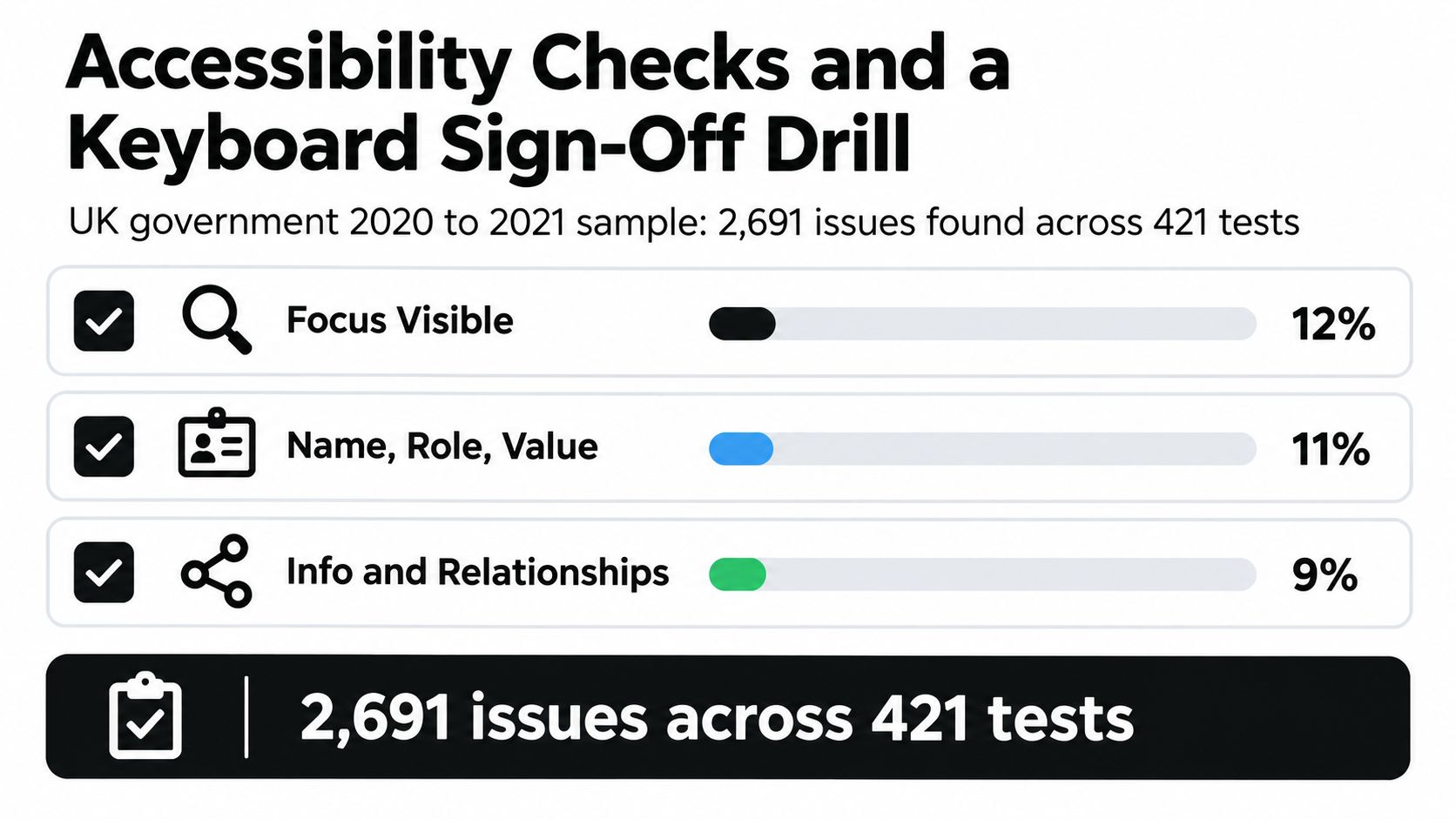
A dropdown passes only when people can find it, operate it, understand its value, and recover from errors. The UK government’s 2020 to 2021 accessibility monitoring identified 2,691 issues across 421 tests. 12% concerned Focus Visible, 11% Name, Role, Value, 9% Info and Relationships, and 8% Keyboard access. Of 388 websites checked again, 229 (59%) had fixed issues or set a short-term roadmap; 159 (41%) still had issues.
The Accessibility Regulations 2018 set accessibility requirements for public-sector websites and mobile apps. Replacing a native select means rebuilding its keyboard and ARIA behaviour, then testing those behaviours again after changes. For practical guidance, use these accessibility best practices and this guide to inclusive design for business websites.
Tick these before you call it done
- Name. The label is announced before the control.
- Focus. The focus ring stays visible, including when the list is open.
- Value. The closed control exposes its current value.
- No pointer. The field works with the keyboard alone.
- Errors. After submission, the error is announced and focus can move to it.
Check whether people can tell that more options are available, dismiss the list, and distinguish a searchable field from a select that does not accept typing. Choosing an option must not unexpectedly move focus or submit the form. Test at 200% zoom, at a 320 px reflow width, and in forced colours.
The walkthrough below follows the same keyboard path as the drill, using a real select rather than a styled mock.
The sign-off drill
- Unplug the mouse. Press Tab until the field receives focus. If its focus ring is missing, stop. The control fails.
- Choose a value using keys only, then reach the last option. If you cannot, it fails.
- Submit while the prompt is selected. The error must appear and be announced by a screen reader.
- Repeat on a phone with VoiceOver or TalkBack. Confirm the spoken value matches the closed control.
Record each pass or fail with the browser and device. Keep a native select for a short list. Use a combobox with v-model when people need to search a long set, then run the same drill. Fix the first failure before adding another control.
DOM Studio provides headless listbox, select, and combobox primitives with WAI-ARIA roles and focus management, plus Vue wrappers with v-model. These can reduce the keyboard behaviour teams need to build themselves. Run the sign-off drill against the control you choose. DOM Studio includes listbox and combobox components to try on a form.