
The most common advice about the off and on switch circle and line is too simple: “the line means on, the circle means off”. That describes the two separate marks, but it misses the history and ambiguity of the combined symbol. A familiar power icon may control a device without disconnecting its mains supply, so understanding the mark matters both for clear interfaces and for safety.
Start by identifying which mark you’re using and what state it’s meant to communicate. Then decide whether it belongs on a physical product, in a diagram or in a digital control. The drawing comes last. The state and its meaning come first.
Table of Contents
- Circle and Line Marks and What Each State Means
- Power Icons, Wiring Symbols and Isolators Compared
- How to Build the Accessible Toggle
- Keyboard Contrast and Screen Reader Checks
- Place the Toggle Only Where It Cannot Be Misread
Circle and Line Marks and What Each State Means
The three IEC catalogue entries are the starting point. The line and the circle encode different circuit states. The broken circle with a line is a combined mark, and it shouldn’t automatically be read as “off”.
| Mark | Catalogue reference | State it encodes | Use on a control |
|---|---|---|---|
| Vertical line | IEC 60417-5007 ON | Closed circuit, power flowing | On-state indicator beside text |
| Circle | IEC 60417-5008 OFF | Open circuit, power interrupted | Off-state indicator beside text |
| Broken circle with central line | IEC 60417-5009 | Combined power or standby, not full disconnection | Soft power control, never presented as isolation |
| English label with the mark | Not an IEC glyph | Removes on, off or standby ambiguity | Use wherever the symbol could be misread |
The history of the IEC power marks explains why the combined mark needs special care. It was introduced in 1973 to indicate standby, not complete disconnection. Around three decades later, an international technical committee recommended the same mark for the more widely understood power function. In 2004, IEEE Standard 1621 also addressed clearer distinctions between powered, standby and sleep states, including a crescent-moon concept for sleep.
Choose the control before styling the mark
On a product face, place a mark beside the control it describes, with a written label close enough to make the relationship clear. On a web interface, place it within the button or switch, but expose the same meaning in visible text and the accessible name. A line can indicate an on state, and a circle can indicate an off state. Those marks work best when users can also read what the control does.
The combined mark is different. It’s commonly used as a power control, but its history includes standby. It therefore doesn’t establish that the device is fully disconnected from the supply. A button may put a screen to sleep or change a software setting while parts of the appliance remain energised.
Practical rule: Describe the action and the resulting state, not just the shape. “Switch off” is clearer than an unexplained icon where users might confuse standby with safe isolation.
For a UK product, the English label matters whenever the symbol could be ambiguous. Safety information must be clear and legible in English, and a label such as Power, On, Off or Switch off gives users a way to confirm the intended meaning. Pick the correct row before writing CSS: if the state is unsettled, a polished icon only makes the wrong assumption look finished.
Power Icons, Wiring Symbols and Isolators Compared
A circle-and-line badge on a device, a switch mark on an electrical drawing and a physical isolator may all relate to power, but they don’t communicate the same thing. Compare the convention with the job it performs before deciding what a user should infer.
| Convention | Visual cue | What it communicates | Does it isolate supply? |
|---|---|---|---|
| Interface power icon | Circle, line or broken circle with line | On, off, power available or standby | No |
| UK diagram one-way switch | Single line in IEC 60617 style | One-way switching on an installation drawing | No, it’s a drawing convention |
| Two-way, intermediate or double-pole | Additional lines | A different switching function | No |
| Physical isolator or emergency cut-off | A reachable, rated switch, not an icon | Supply can be cut for safety | Yes, when correctly rated and used |
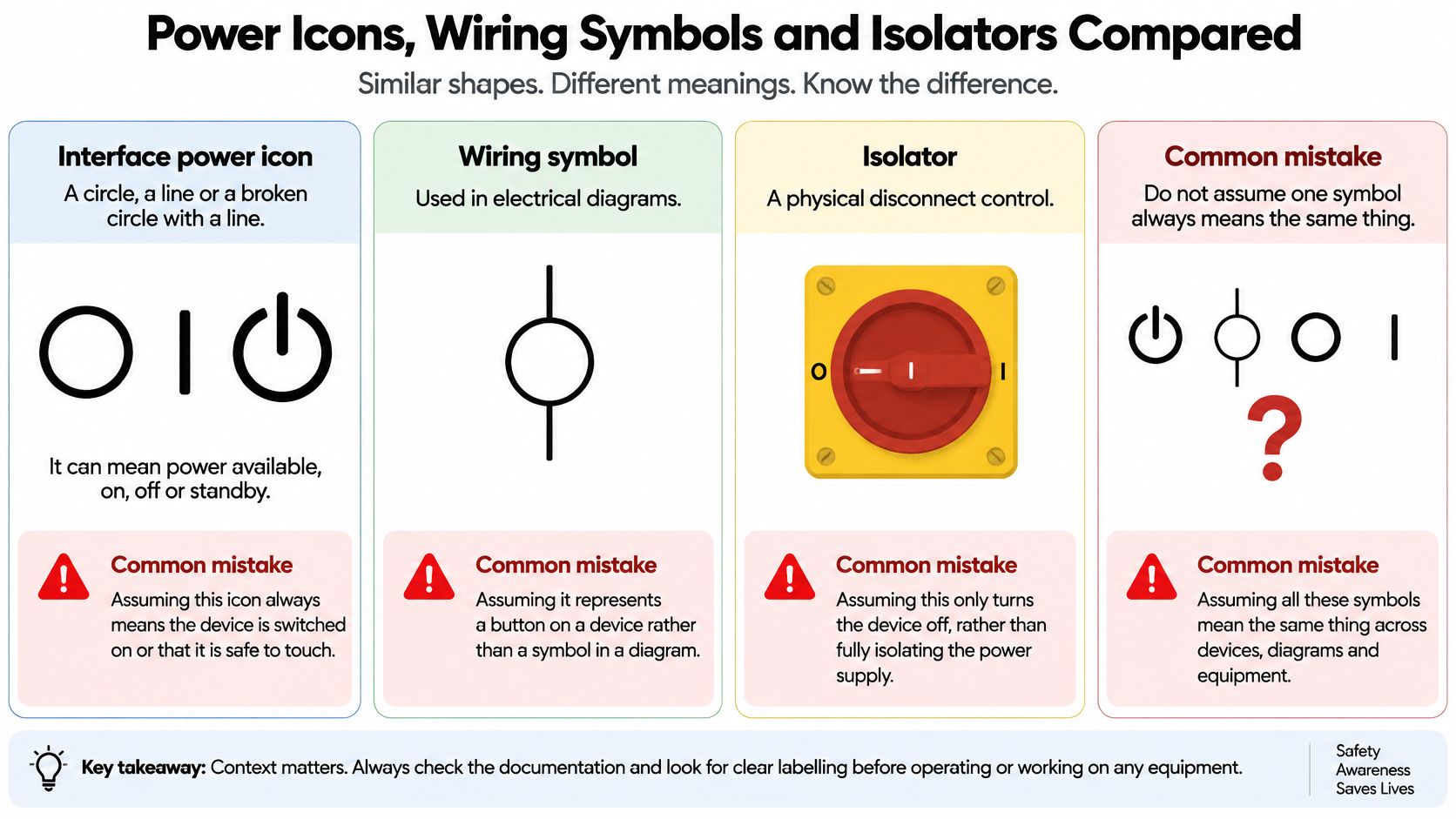
The first common mistake is treating every circle-and-line mark as power off. The combined interface symbol can indicate a power function or standby behaviour, while a line or circle used alone conventionally represents on or off. UK electrical diagrams use IEC 60617-based graphic symbols; a one-way switch may be shown with a single line, while additional lines can represent different switching arrangements. The guide to electrical symbols and their use is useful context, but a wiring symbol on a drawing isn’t a consumer power button.
The second mistake is assuming an interface control tells you whether the supply has been isolated. It doesn’t. If a laptop’s power button sleeps its display, the device may still be connected to mains power. On machinery, the Health and Safety Executive says an accessible switch or isolator should be available for quickly cutting power in an emergency. That is a physical safety control, not a visual status mark. The HSE’s electrical safety guidance also connects safe operation to suitable equipment and correctly rated protection.
A generic Power tooltip can also leave a safety-critical action unclear. Pair the icon with a visible label such as Switch off, then show the current state in words. If the question is whether a real appliance has disconnected from mains, verify its design using the manufacturer’s schematic or an appropriate electrical test. Don’t infer isolation from the icon or from a screen going dark.
Choose the applicable product standard after identifying the control: fixed-installation switches and appliance cord switches are covered by different standards, and household appliances need assessment as a complete product. Products placed on the UK market are governed by the Electrical Equipment (Safety) Regulations 2016 and relevant designated standards. A soft-power click isn’t a substitute for a correctly rated isolator where risk requires physical disconnection.
For the interface side, toggle buttons and the way they represent a setting can help clarify the difference between changing a UI state and cutting an electrical supply. The most recognisable icon can still be the least sufficient description. Users need a clear state, an accessible action and, where risk exists, a physically reachable means of disconnection.
How to Build the Accessible Toggle
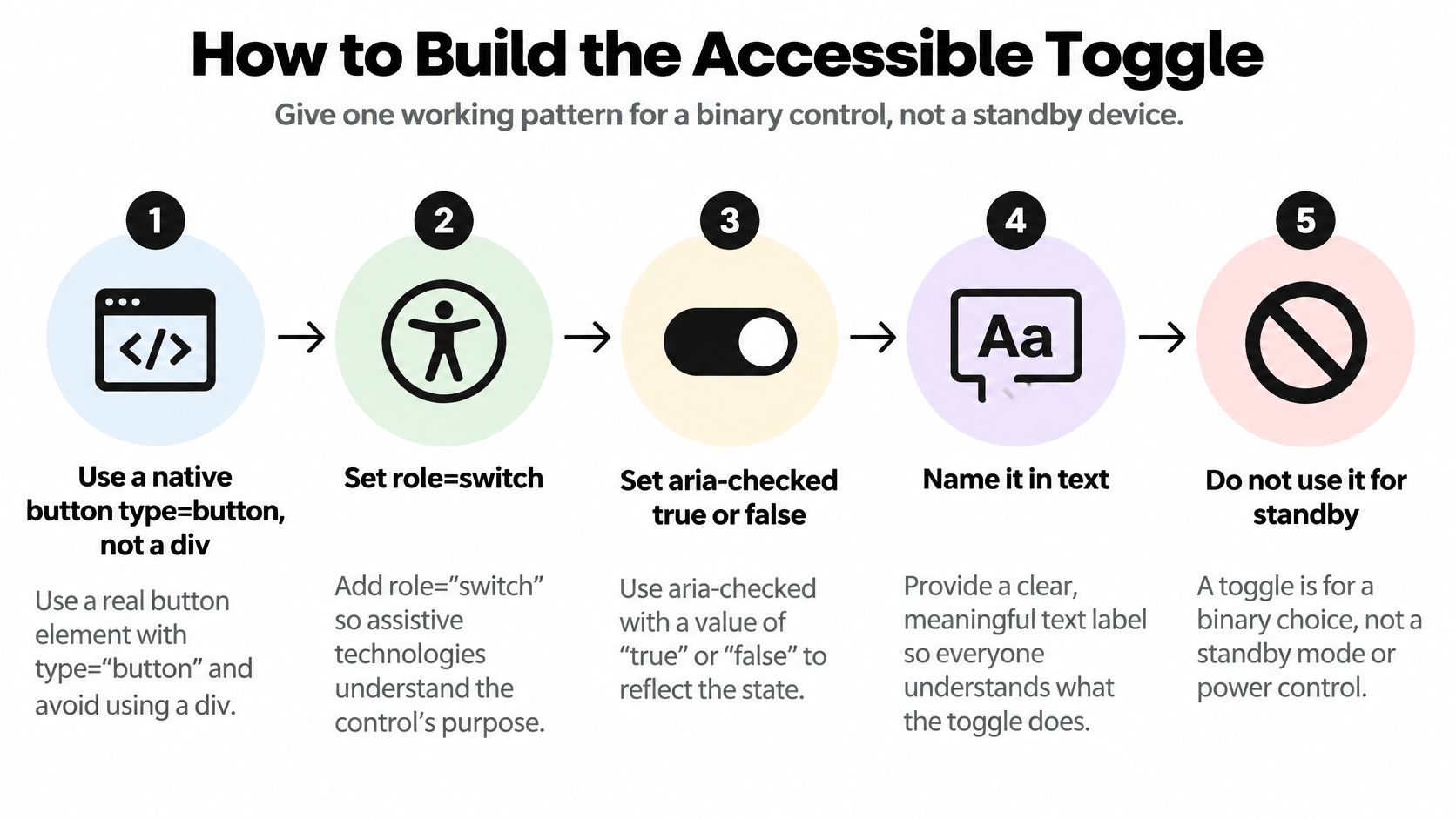
A binary setting needs a binary switch pattern. Don’t use this pattern for standby, or make one control combine on, off and standby. The markup should give assistive technology the control’s name and state, while pointer and keyboard actions change the same state.
-
Start with a native button. Use a
<button type="button">, not a styled<div>. The browser gives a native button expected focus and keyboard behaviour; adivneeds those behaviours added and tested. -
Set switch semantics and state. Add
role="switch"and keeparia-checkedin sync with the actual setting. When the setting is on, exposearia-checked="true"; when it’s off, exposearia-checked="false". If the visual switch and accessible state disagree, users receive conflicting information. -
Give it a text name. Keep Power visible beside the mark. Put the current word, On or Off, where it can be seen. Mark the circle or line as decorative with
aria-hidden="true"so the accessible name doesn’t depend on interpreting a glyph. -
Make the state persistent. Store the value in the component’s state, then update it from the same activation handler. The change should survive focus moving away and the component rendering again, rather than snapping back to its initial appearance.
-
Style for use, not just appearance. Draw the track and thumb in CSS, keep the active and inactive mark distinct, and provide a 44 by 44 pixel hit target. Add a clearly visible focus indicator, such as a 2 pixel outline that doesn’t rely on colour alone. Check the mark and label in both light and dark themes.
-
Handle unavailability explicitly. If the switch can’t be changed, set its disabled state, expose
aria-disabledwhen appropriate, and block the state transition. A visually muted switch that still activates gives users a false signal.
Here’s the minimal DOM shape. In a component, checked must be persistent state and toggle must update it; don’t add a separate pointer-only path.
<button
  type="button"
  role="switch"
  aria-checked="false"
  onclick="toggle()"
  onkeydown="handleKeydown(event)"
>
  <span>Power <span>Off</span></span>
  <span aria-hidden="true">○</span>
</button>
For a production implementation, use a native button that handles Enter and Space through its built-in activation behaviour. Connect its click activation to the same state update used by every activation path. A headless primitive can own that behaviour layer, while Tailwind styles the track, thumb and focus ring.
The expected result is simple: one activation, one announced state, and the same outcome whether the user activates the control with a pointer or keyboard.
Keyboard Contrast and Screen Reader Checks
Test On, Off and, where the product needs it, Standby or Unavailable as distinct semantic states. A web toggle normally changes a setting in the interface. It doesn’t prove that an appliance has been disconnected from mains.
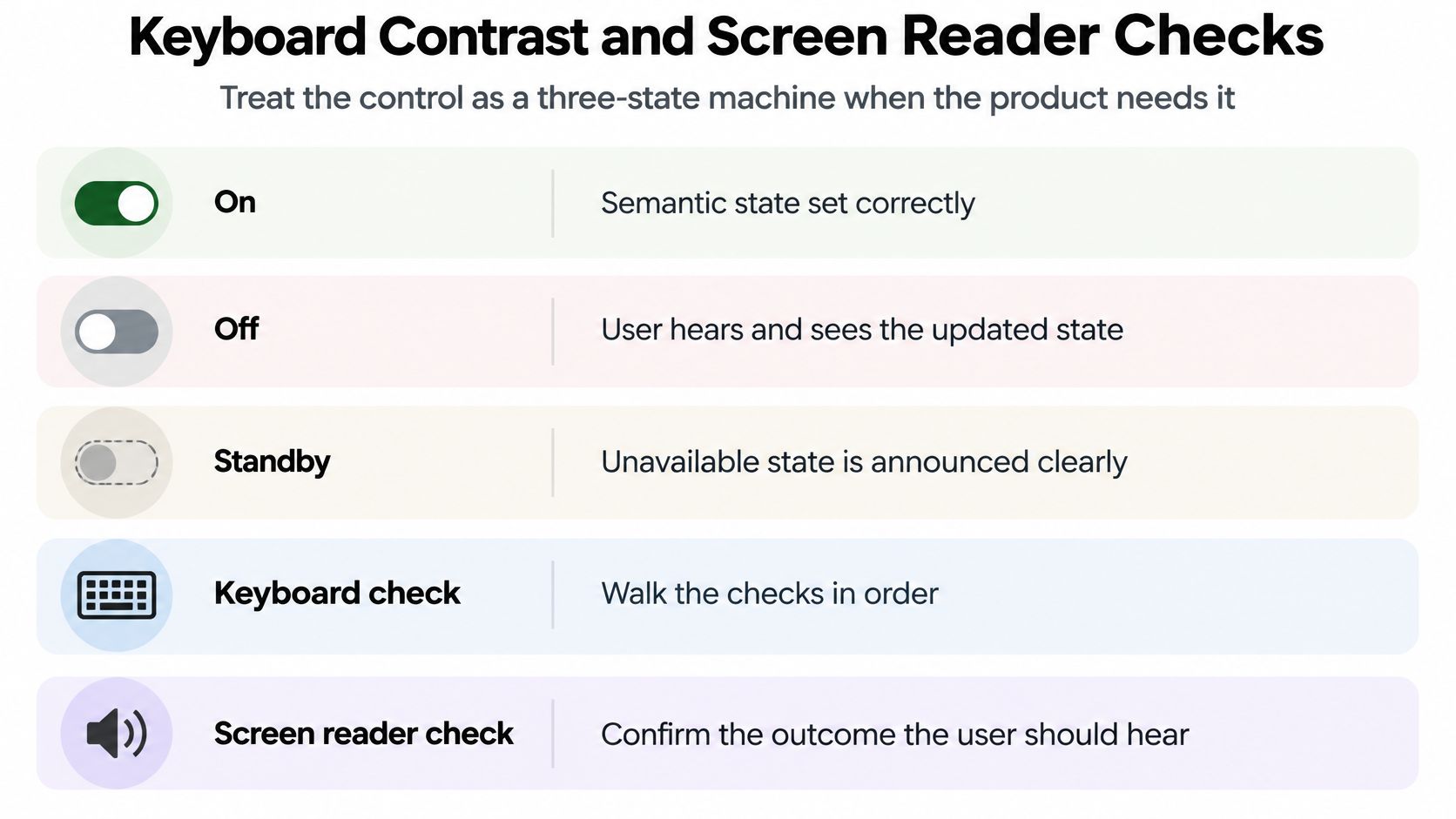
Test in a fixed order. First, write down what each state means and what happens when the user activates the control. Next, confirm that the accessible name and visible text identify the control and its state. Then compare keyboard and pointer activation, move focus away, and render the component again. The state should remain correct rather than returning to its previous value.
| Check | Pass condition | Evidence to file |
|---|---|---|
| Normal activation | Click, Enter and Space give the same state change | Screen recording |
| Rapid repeated activation | One transition per activation | Event log |
| Disabled state | Transition blocked, aria-disabled set |
Markup snapshot |
| Focus change and re-render | Checked state unchanged | Test script result |
| Screen-reader output | Name and On or Off announced | Reader transcript |
The UK Electrical Equipment (Safety) Regulations 2016 form part of the product-safety context, but an interface test isn’t an electrical safety test. If an icon is also used on a physical appliance, assess the appliance’s control system and applicable product standards separately. For the digital component, test the written label and mark in light and dark themes, Windows high-contrast mode and a zoomed layout. Don’t use red and green as the only way to distinguish status.
Record the outcomes for ordinary activation, rapid repeated activation, disabled behaviour, focus changes and screen-reader output. The screen reader should announce a useful name and state, such as Power, On, rather than an unlabelled graphic. Teams can organise broader screen-reader testing around these checks. For a wider view of implementing WCAG accessibility principles, include people with different access needs in the review rather than relying on visual inspection alone.
Don’t invent a UK-wide success-rate figure for people interpreting the icon. Measure your own interface with moderated usability sessions and record task-completion rate, misactivation rate, time to identify the state and accessibility defects. The pass rule is practical: a colleague who can’t see the icon can still name the control and its state.
Place the Toggle Only Where It Cannot Be Misread
Use a custom switch when the control represents one binary setting and your team can test its behaviour. If the same pattern appears across several screens, a headless switch primitive can own the keyboard and ARIA behaviour, leaving the application to provide the right label, state and visual treatment. Choose the primitive only after you’ve defined what “on” and “off” mean.
A settings row can include a switch-style checkbox as its own item rather than adding a second, competing menu pattern. DOM Studio’s item.slot supports custom per-item markup, including status rows, live badges, shortcuts and switch-style checkbox items. Whatever structure you choose, keep the English label visible, expose the current state and treat the icon as decoration rather than the full accessible name.
The theme can change the track and surrounding surface for light, dark or system settings, but it shouldn’t change the glyph’s meaning. Check that text and control outlines remain distinguishable across themes; this guide to colour contrast accessibility can inform that visual review. Teams designing controls for mapped environments can also use guidance on improving indoor mapping accessibility to think through labels and interaction beyond a standalone icon.
On a smart-home or appliance dashboard, state plainly that the UI control doesn’t isolate the supply, and direct operators to the correctly rated physical switch or isolator where disconnection matters. On a physical product, place the mark next to the control and its English text. If people need to locate it by touch, visual placement alone won’t solve that access need.
Implement the checked state, run the keyboard and screen-reader checks, then place the control only where a wrong reading can’t be mistaken for a disconnected circuit.
DOM Studio offers headless interface components with built-in ARIA roles, focus management and screen-reader behaviour, alongside a Vue integration layer and Tailwind styling. If you’re building a production toggle, visit DOM Studio to explore components that can help your team create and test a clear, accessible control.