
Between January 2022 and September 2024, the UK Government Digital Service accessibility monitoring programme monitored 1,203 public-sector websites and 21 mobile apps and found accessibility issues on nearly all of them. That’s the production problem in miniature. A screen can look finished, score well in an automated check, and still stop someone from completing a job. When you design web apps for real use, the finish line isn’t a percentage. It’s whether the primary task works, with a keyboard, with assistive technology, and on a mid-range Android phone.
Table of Contents
- Why a Web App Is a Task Not a Page
- The Six Layers of a Production Web App
- Design Interaction So Assistive Tech Can Finish the Job
- Keep Controls Fast on the Slowest Phones
- Separate Behaviour Theme and Screen Assembly
- Shared Patterns Survive a Device Shift
- Start From Primitives You Can Inspect
Why a Web App Is a Task Not a Page
A team management screen shows the difference. On a brochure page, a slow hero image is an irritation. In your app, the same delay sits in front of the filter, the menu, the edit dialog and the save button. The user hasn’t come to read. They’ve come to change someone’s role before a meeting starts, and every control either helps them finish or gets in the way.
That distinction matters more as UK audiences move to phones. The GOV.UK review of how people used the service in 2025 recorded 1 billion visits in 2025, with mobile accounting for 61% of monthly visits by December. Plenty of polished sites are slow exactly where people now use them, and in an app that slowness lands on the task itself.
Who this is for
You’re a developer or designer shipping production UI, often in Vue, and you’ll be judged on whether someone can finish a job. How tidy the artboard looked, and how well the demo ran on your laptop, won’t come up. A hiring manager approving a request on a train, or an administrator using a screen reader at a desk, doesn’t care which tool produced the screen.
So define production-grade design as five promises kept at once. The next action is obvious on each key screen. Controls behave the same way every time they’re used. A theme can change without rewriting behaviour. The route stays inside a performance budget. And a generated screen is accepted only after inspection against explicit rules, never trusted because it looks plausible.
A high Lighthouse or accessibility percentage can sit on top of a broken journey. Treat scores as a smoke alarm, not as proof the building is safe.
Five promises, yet they expand into six layers you can design and test one by one, and the reason is worth understanding. The behaviour promise is really two jobs: a control has to act predictably, and it has to announce itself correctly to assistive technology. A button can work perfectly with a mouse and still be invisible to a screen reader, so the work splits. The task model carries the next-action promise. Interaction primitives and accessible states share the behaviour promise between them. Theme tokens carry the theme promise, the performance budget carries the route promise, and AI assembly rules carry the inspection promise.
Design against that layer map before you choose any component. Widgets picked first give you a populated screen that demos well while hiding the missing empty state, the broken focus return and the heavy bundle, and by the time those surface, fixing them means unpicking work you’re already attached to.
The Six Layers of a Production Web App
Pin this table to a ticket. It’s the deliverable you fill in for your own app before you open a design tool, because each row ends in a test someone can run.
| Layer | Design decision | Done when |
|---|---|---|
| Task model | Primary job, entry points, empty loading and error states | A new user can name the next action on each key screen |
| Interaction primitives | Menus, dialogs, tabs, listboxes, comboboxes and forms | Keyboard, focus and announcements match the control role |
| Accessible states | Name, role, state, value and focus visibility | Keyboard-only and screen-reader journeys complete, including errors |
| Theme tokens | Colour, type, space, density and motion | A second theme restyles the screen without changing behaviour |
| Performance budget | Route weight, hydration and loading states | A slow phone still gets a usable control, not a blank shell |
| AI assembly rules | What may be generated and what must stay a primitive | Generated markup can be inspected against the same contracts |
How to read the done column
Start with the task model. Name the primary job in one sentence, such as “change a team member’s role”. Then name where the user enters, what they see when there’s no data yet, what they see while data loads, and what they see when a request fails. If a new user can’t say what to do next on the empty screen, the layer isn’t done, however good the populated screen looks.
Interaction primitives come next because they’re where custom controls break. A menu, dialog or combobox isn’t a styled div. It’s a contract about which keys work, where focus goes, and what gets announced. The done test is behavioural, so you can’t pass it with a screenshot.
Accessible states are a separate row for a reason that confuses people. A primitive can have the right keyboard map and still fail if its accessible name is missing, its state doesn’t update, or its focus outline is invisible against a themed background. Prove this layer on a full journey that includes a validation error, not on a static markup sample.
The rows teams skip
Theme tokens decide colour, type, spacing, density and motion in one place. The test is strict. Apply a second theme, perhaps a denser data view or a high-contrast mode, and the screen should restyle completely while every behaviour stays identical. If restyling means editing component markup, your tokens are decoration, not a system.
The performance budget row forces a decision about route weight and hydration before the screen grows. A slow phone should get a usable control early, not a blank shell that becomes interactive once every script has run. Write the budget down as a number the route may not exceed, or it will lose every argument with a new feature.
AI assembly rules state what a generator may produce and what must stay a tested primitive. Generated layout and copy are usually fine. A freshly invented dialog is not. Many teams discover the production readiness gaps in AI-built apps that Continuum Solutions describes here, because generated code often works in a demo while skipping the error handling, accessibility and performance work a real release needs.
The layers work like a kitchen pass, not a mood board. Plating never changes the recipe, and styling never rewrites behaviour.
If you want the architectural detail behind the rows, our guide to design system architecture works through how the layers fit together in a codebase. For now, fill in the done column for one real screen. A row you can’t write a test for is a row you haven’t designed yet.
Design Interaction So Assistive Tech Can Finish the Job
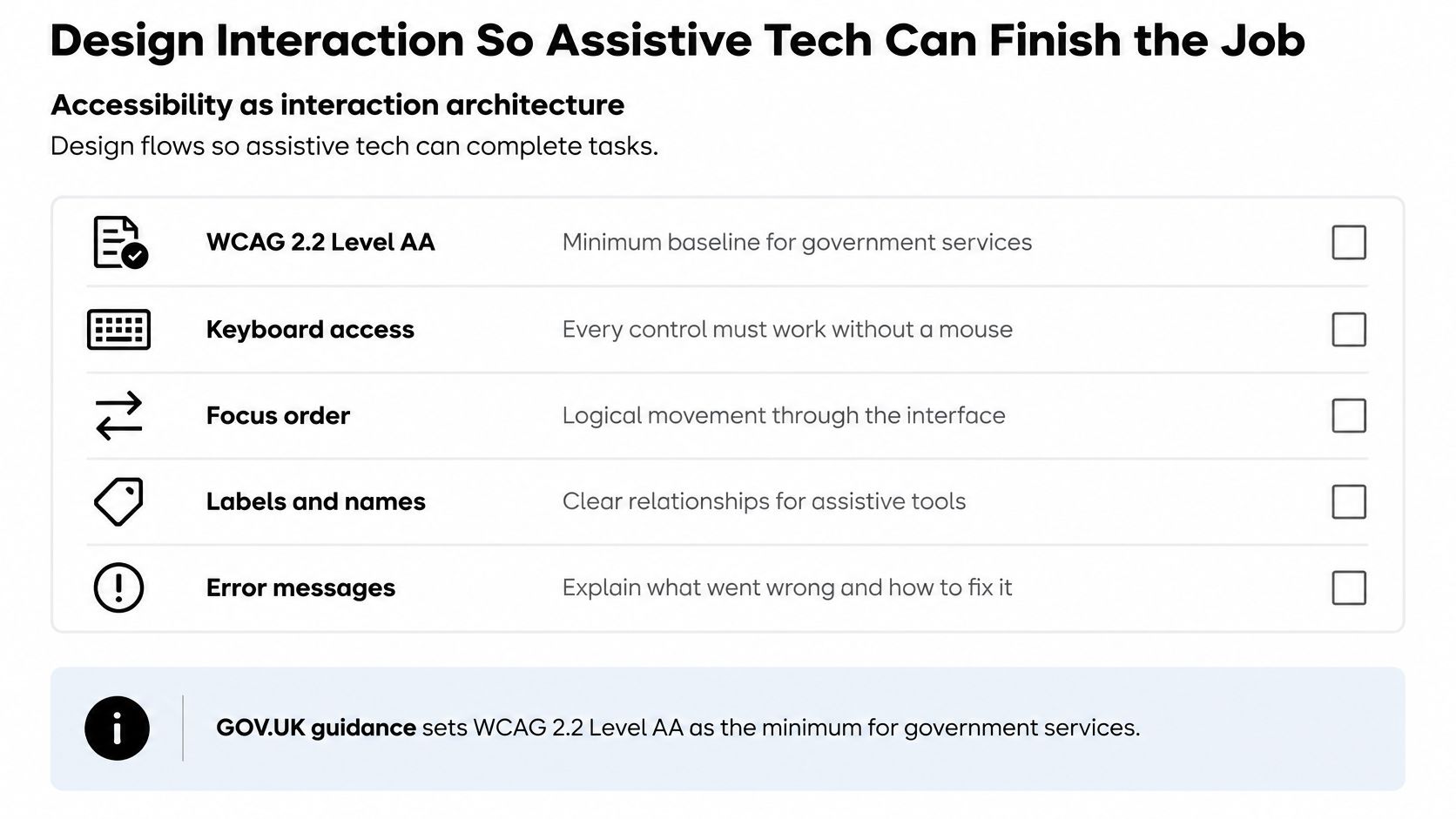
A menu that opens on hover and closes when the pointer leaves can look finished in a demo. To a screen reader it may not exist at all: no name to speak, no state to report, no way to reach it without a mouse. Accessibility is decided when you choose how a control behaves, which makes it interaction architecture rather than a visual audit you run before launch. The GOV.UK service manual guidance on making your service accessible sets WCAG 2.2 Level AA as the minimum target for government services and requires compatibility with screen magnifiers, screen readers and speech-recognition tools. It also records that approximately one in five people has a long-term impairment affecting everyday activities. That is ordinary traffic.
Late checklists keep losing to the same failures. Government monitoring of public-sector websites and apps repeatedly finds accessibility issues at scale, and retests show a stubborn share still unresolved when the services are checked again. The recurring categories are the ones a custom control produces when its behaviour was never specified: focus visibility, name, role and value, contrast, information relationships and keyboard access. Teams restyle the control and leave the interaction broken underneath.
The contract for a custom control
Every menu, dialog, listbox, tab set, combobox or command palette needs six things. An accessible name a screen reader can speak. The correct role, so assistive technology knows what kind of control it is. A state and value that update as the user acts. Complete keyboard operation, a logical focus order, and an announcement when content changes dynamically.
Treat those six as a wiring diagram. The paint on a component can change freely, but cut one wire and the control may still work perfectly with a mouse while being unusable without one.
| Control | Keyboard | Focus rule | What must be announced |
|---|---|---|---|
| Menu | Arrow keys move, Enter activates, Escape closes | Focus returns to the trigger | Expanded or collapsed state |
| Dialog | Tab cycles inside, Escape dismisses if allowed | Focus moves in on open and back to the trigger on close | Dialog name when it opens |
| Tabs | Arrows change tab, Tab enters the panel | Active tab stays in the tab order | Selected state of the tab |
| Listbox | Arrows move the option, Home and End jump | Focus stays on the listbox or active option | Selected option and position |
| Combobox | Type filters, arrows highlight, Enter selects, Escape closes | Focus stays in the input while the popup is open | Result count and selected value |
| Command palette | Type to filter, arrows move, Enter runs, Escape closes | Focus starts in the field and returns to the trigger | Active command name |
Run the proof, not the score
Test the journeys that break in practice, and run them on a mid-range Android phone with a keyboard and a screen reader, because that is where timing and focus bugs surface. Open a dialog from a button, confirm focus is trapped while it is open, close it, and check focus returns to that button rather than the top of the page. Move through a tab list with arrow keys without focus escaping to the browser chrome. Type in a combobox, hear the result count announced, then simulate a failed request and check the user gets a recoverable error instead of silence. Submit a form with a validation error and confirm focus lands where the error is described.
An average automated score, even a high one, proves none of that. Automated checks are good at catching missing names and contrast failures in static markup. They cannot tell you whether focus survives an asynchronous load or whether a nested overlay announces itself correctly. Our WCAG compliance checklist covers the static pass well, and that pass is the starting line.
A generated screen earns its place the same way a hand-built one does: by passing inspection against the contract. If the generator used primitives that already carry the six behaviours, the screen inherits them. Anything it assembled from scratch has to demonstrate each row of the table before you accept it, on the same phone and the same journeys.
Encode the contract in the primitive so every screen inherits it, then still verify by hand. When the behaviour lives in the component, a fix lands everywhere at once. When it lives in each screen, you fix the same focus bug a dozen times and miss the thirteenth.
Keep Controls Fast on the Slowest Phones
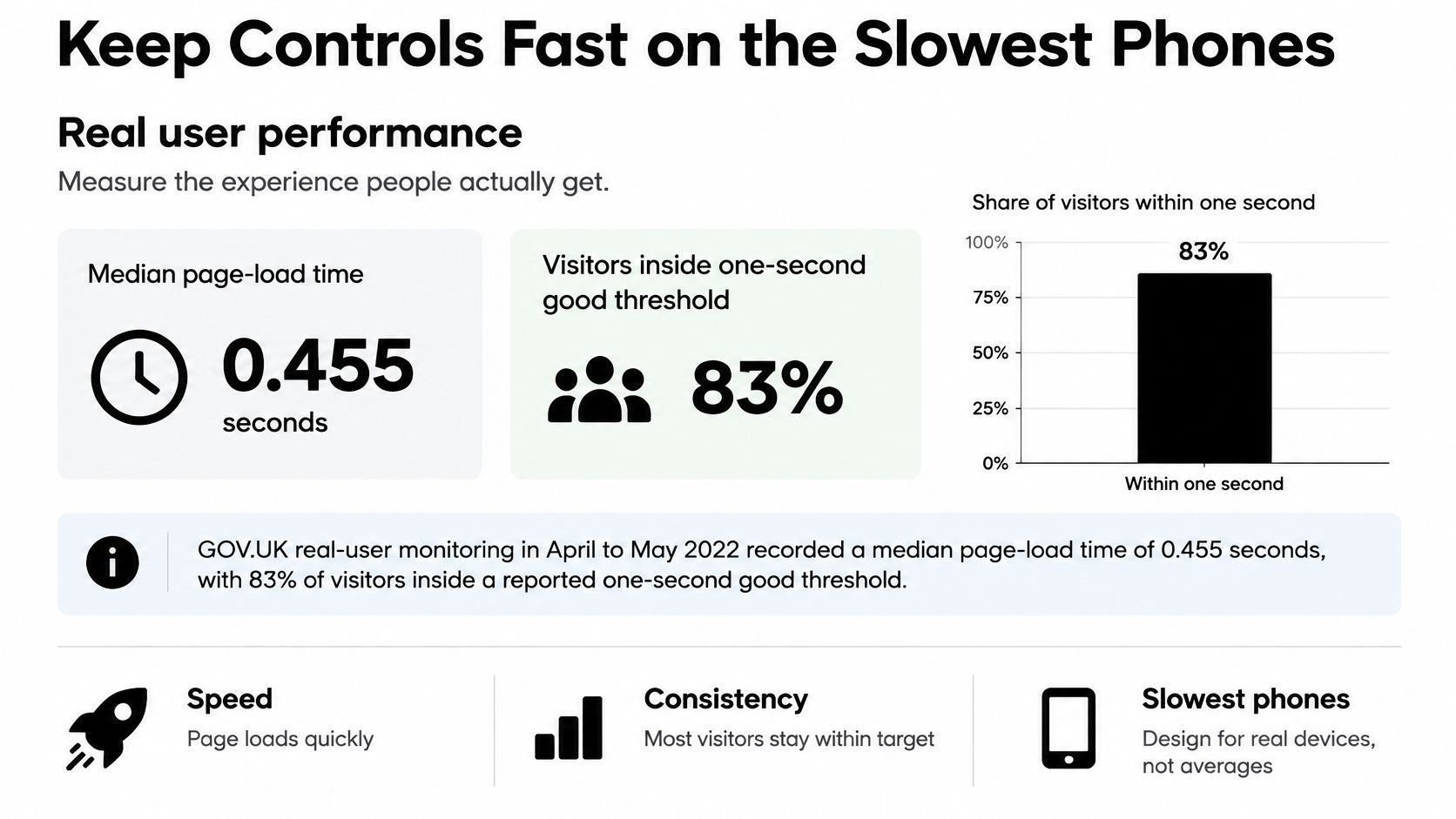
Averages flatter you. The GOV.UK real-user monitoring report from April to May 2022 recorded a median page-load time of 0.455 seconds across pages and devices, with 83% of visitors inside a reported one-second “good” threshold. Read further into the same report and the picture changes. The slowest users experienced loads of up to 2.35 seconds, and Android phones accounted for 36% of slow visits. Your design problem lives in that tail.
A median works like a group photo taken from a distance: everyone looks fine because nobody is visible up close. The causes of slowness differ by route and device. A mid-range Android phone on a patchy connection pays far more for JavaScript parsing, execution and rendering than an office desktop does, so lab tests on fast hardware will pass a screen that real users experience as late, janky or half-built.
Budgets you can write into a definition of done
| Signal | Figure to design against | What it tells you |
|---|---|---|
| GOV.UK median load, April-May 2022 | 0.455 seconds | A fast service is achievable, but it is not the design target by itself |
| Share of visits called good under 1 second | 83% | Averages hide the people outside the good band |
| Slowest observed loads | Up to 2.35 seconds | The tail is where controls feel late or incomplete |
| Android share of slow visits | 36% | Budget for phones, not for the office desktop |
| Largest Contentful Paint good band | At or under 2.5 seconds | The main content should arrive before patience runs out |
| Interaction to Next Paint good band | At or under 200 milliseconds | A tap or keypress should not wait on a heavy script |
| Cumulative Layout Shift good band | At or under 0.1 | Loading states must reserve space so controls do not jump |
Treat the Core Web Vitals bands as design constraints rather than reporting trivia. A high automated speed score is a false finish line on its own, because it says nothing about the slowest devices. Measure these signals from real users, then segment the results by device class, connection and route. A route that passes on desktop and fails on Android is failing for the people least able to absorb the cost.
The controls that move the numbers
- Server-render or ship static HTML: Where the screen allows it, send meaningful content in the first response instead of an empty shell that waits for scripts.
- Split code by route: A settings page shouldn’t pay for the charting code only the dashboard uses.
- Tree-shake and refuse spare dependencies: Don’t import a library that exists only to power one widget on one screen.
- Keep primitives small: If hydration and event wiring dominate time to interactive, the component is too heavy, however elegant its API looks.
Richness doesn’t require a heavy first paint. Use progressive disclosure so secondary panels load only when they’re asked for. Use a skeleton that reserves the final layout’s space, so controls don’t jump as data arrives. Give every asynchronous region an explicit error state with a retry, because a spinner that never resolves reads as a broken app. The companion guide to performance optimisation covers the measurement setup in more depth.
Decision rule: If a slower Android phone can’t operate the primary control promptly, the screen isn’t designed yet, however polished the desktop demo looks. Generated screens are no exception: inspect each one against these budgets before accepting it.
Separate Behaviour Theme and Screen Assembly
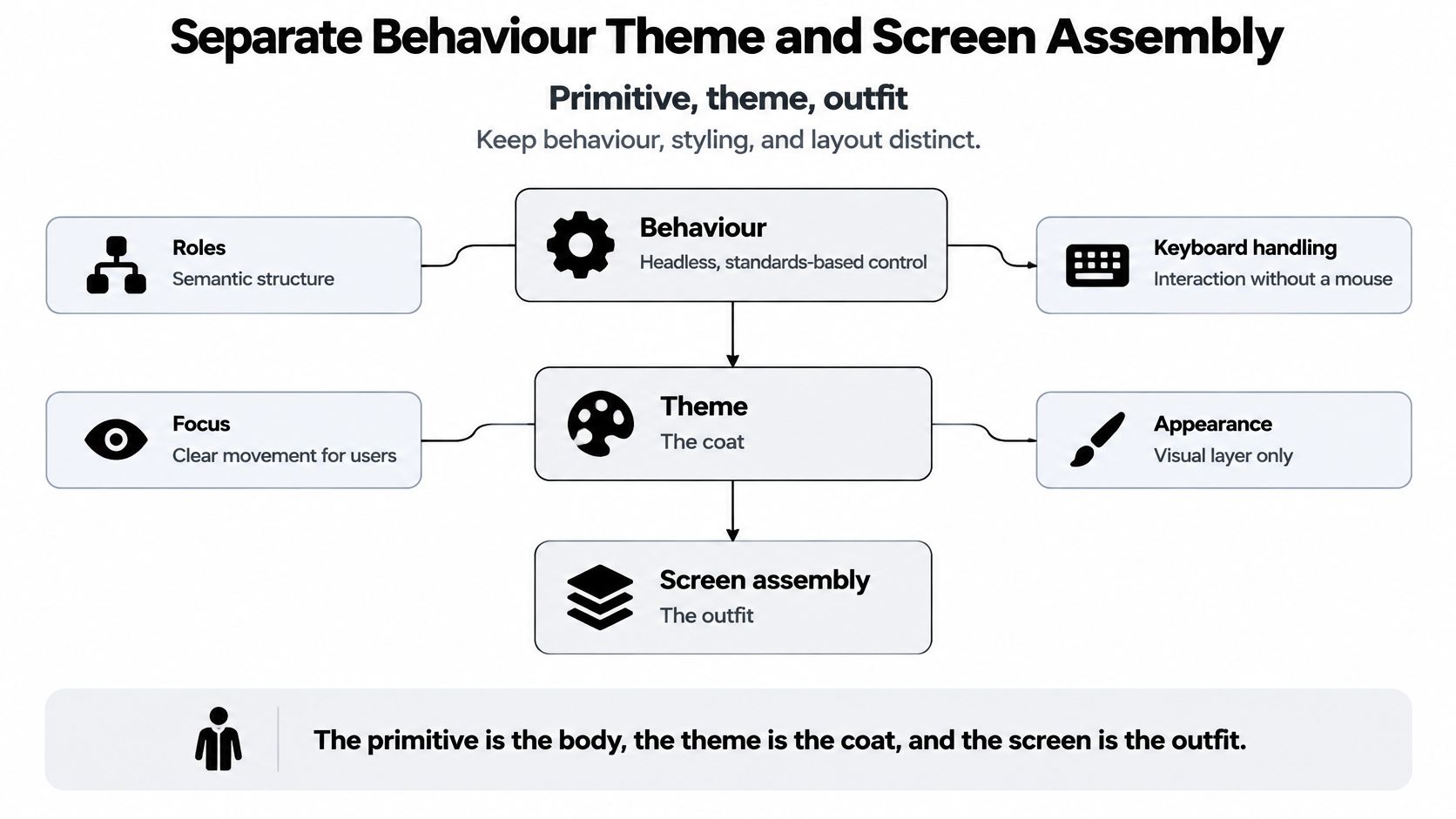
Think of it in clothing terms. The primitive is the body, the theme is the coat, and the screen is the outfit. You don’t rebuild the body every time the weather changes, and you don’t judge an outfit by cutting it apart. Keeping those three jobs separate is what lets you restyle, recompose and generate screens without breaking the parts users depend on.
Behaviour lives in the primitive
A headless, standards-based control owns its roles, keyboard handling, focus management and state. It doesn’t own its colours. That same primitive can sit in plain HTML or behind a thin framework wrapper that adds reactive props and slots, which is handy in a Vue app. The wrapper’s job is plumbing. The moment a wrapper reimplements the accessible pattern in framework code, you have two behaviours to test and two places for bugs to hide.
This is the part readers often get backwards. They start from a styled component, like the look, and then try to retrofit keyboard support onto markup that was never shaped for it. Start from behaviour instead. If the control can’t be operated blindfolded with a keyboard, its styling is irrelevant.
Theme lives in tokens
Colour, type, spacing, density and motion belong in tokens that a stylesheet consumes. A second brand theme, a denser data view for power users, or a high-contrast mode should each be a token change. Test it bluntly. Swap the tokens and use the screen. If a focus outline disappears, a disabled state becomes indistinguishable, or a developer has to touch the component’s script, the separation has leaked.
Assembly is where generation helps and harms
Composing primitives into a task is a different job again. A screen arranges a filter bar, a list, an edit dialog and an empty state into a flow. An AI assistant is very good at this composition. It’s also where quality regresses, because a generator will happily invent a new menu instead of reusing yours, drop a focus return it can’t see in a screenshot, or import a heavy charting package to draw one simple stat.
So write the assembly rules in one place the generator can read.
- Use the existing primitive: Never generate a one-off version of a control already in the system.
- Restyle through tokens: Don’t rewrite markup to achieve a visual change.
- Include every state: Loading, empty and error states are part of the screen, not follow-up work.
- Defer secondary panels: Reveal them on demand rather than shipping them in the first bundle.
Embedded docs and inspector hints on a component make the second pass possible. They let you, or a tool, check generated source against the contract instead of accepting a rendered screenshot as evidence. Ban one-off widgets that duplicate a primitive you already have. Every duplicate is a second keyboard map, a second focus bug and a second thing to fix at midnight.
Shared Patterns Survive a Device Shift
Take a team directory screen, the kind every SaaS product eventually builds. Someone in operations needs to find a person, check their role and change it. That task doesn’t change between a wide monitor and a phone held on a platform. Everything around it does, and whether your patterns survive that change is the true test of the system.
The image below shows the consolidation problem such a directory usually solves, with fragmented records pulled into one shared view.

The UK has run this experiment at national scale. According to the GOV.UK design team’s account of the service’s history, GOV.UK launched in 2012 as a single entry point that replaced 1,882 separate legacy government websites, with an estimated ongoing saving of £63 million per year and approximately 4.6 billion visits in total. The design bet was plain language, a distraction-free interface and compatibility with assistive technology.
Those bets only paid off because the patterns held while devices changed underneath them. The same team reported that about 20% of visits came from mobile devices roughly a decade earlier, compared with more than 60% in 2023. A system built around shared patterns absorbed that shift. A pile of individually crafted pages would’ve needed rebuilding screen by screen.
The short video below walks through how a directory-style interface is composed from reusable parts, which is the working habit to copy.
The same directory at two widths
On a wide artboard, your directory is a filter bar, a list of people with avatars and roles, and a dialog for editing a role. Everything is visible at once, and density is your friend. On a phone, the same task becomes a top bar, a list optimised for thumbs, a full-screen editor, and a confirm step before a destructive swipe action does something irreversible.
Notice what didn’t change. The dialog still traps focus and returns it on close. The role selector still exposes its selected value to assistive technology. The list still has an empty state that tells a new administrator how to add their first person. What changed is density, disclosure and touch target size. Those are token and layout decisions, not behavioural ones.
A new screen should be mostly composition of patterns you already trust. A new device width should never invent a second interaction model.
If shrinking the viewport forces you to rebuild a control, the control was never really a primitive. It was a desktop arrangement with behaviour tangled into its layout. Untangle it once, and the next device shift, whatever it is, becomes a layout exercise instead of a rewrite.
Start From Primitives You Can Inspect
Don’t start by generating a whole app. Choose a primitive set whose behaviour, theme and source you can read, install it into the app you already have, and only then let an assistant assemble screens from it. Any library that clears that bar works. Judge every option by the six done tests, not by catalogue size, because a large catalogue of untested behaviour is a liability wearing a nice gallery page.
DOM Studio is one option for Vue 3 and HTML teams. Its components are built with Vue 3, Web Components and Tailwind CSS, it’s installed by adding the package to a Vue or HTML app, and the generated source is built from its primitives, so the code you preview is the code you can copy, edit and document inside your own app. That inspectability is the criterion. Apply it to whatever you shortlist.
A deliberately small first week
- Render three controls: Install the package and build one dialog, one menu and one form. Run the keyboard and focus contracts on each before you style anything.
- Add a second theme with tokens only: Change colour, density and type without touching component code, then confirm every behaviour still works and focus is still visible.
- Generate one real screen: Build a team list with an edit dialog, then inspect the output for focus return, accessible names, loading and error states.
- Test on a mid-range Android phone: Check route weight and operate the primary control on the device. If it’s sluggish there, it isn’t done.
- Repeat only after it passes: Generate the next screen once the first one holds up, so you’re copying a proven pattern rather than multiplying an unproven one.
Stop when that single screen passes all six done tests. Resist expanding sideways into more screens, more themes and more generated variations until the contracts hold on one. A larger catalogue can wait. A broken focus return copied across twenty screens cannot, because you’ll be fixing it twenty times under launch pressure.
You design web apps well when the boring parts are guaranteed by the primitives and your creative effort goes into the task itself. That’s the standard to hold every tool, generator and design decision against from here on.
DOM Studio gives you inspectable Vue 3 and Web Component primitives with accessible behaviour and Tailwind CSS theming built in, so you can assemble production screens and still read, edit and test every line of the generated source in your own app. Start with one dialog, one menu and one form, run the six done tests on a real phone, and build from what passes. Visit DOM Studio to browse the components and try the workflow on your next screen.