
TL;DR
For one expandable content panel, use <details> with a labeled <summary> and style it with CSS. It works without your JavaScript. If you need application-controlled state or a separate button controlling an actual <div>, use a little JavaScript to keep aria-expanded and the panel’s hidden state synchronized. Test both versions with a keyboard, visible focus, and reduced motion. MDN’s <details> reference and the W3C disclosure pattern describe the underlying behavior.
A search for a CSS expand/collapse div example often leads to checkbox tricks, fixed-height animations, or JavaScript-heavy accordions. We can solve the immediate problem more directly: let HTML own the disclosure interaction, let CSS own its appearance, and add JavaScript only when the product needs a custom state contract. The content can still live in a <div> inside the native disclosure.
We will build a single optional settings panel, not a multi-section accordion. That distinction keeps the example small enough to copy into a plain HTML file and inspect before adapting it to Vue.
Table of contents
- Before you start
- 1. Create a native disclosure around the content div
- 2. Keep CSS styling separate from disclosure behavior
- 3. Choose a custom button only when you need custom state
- 4. Wire a button to a div without splitting the state
- 5. Test the finished interaction before reusing it
- Frequently asked questions
- Build the next panel from the working example
- Sources
- Recommended Reads
Before you start
You need a text editor and a current browser. Save the first example as disclosure.html, open it locally, and use Tab plus Enter or Space to try the control. No package, build step, or permission is required. The second example is a separate file named custom-disclosure.html; do not paste both complete documents into the same file.
Success criteria: the trigger remains visible while the content is closed; when opened, the content and any controls inside it can be reached; when closed, those controls are not in the normal Tab sequence. For the custom version, the button’s aria-expanded value must always match whether the panel is visible. W3C’s disclosure guidance defines the button interaction and expanded state.
1. Create a native disclosure around the content div
Put a <summary> first inside <details>, followed by the <div> you want to show and hide. Save this complete document as disclosure.html. The browser manages the open state; CSS supplies spacing, a directional indicator, focus styling, and a small indicator transition only when reduced motion has not been requested. The native element is closed by default unless you add its Boolean open attribute. MDN documents both the structure and the open behavior.
<!doctype html>
<html lang="en">
<head>
  <meta charset="utf-8">
  <meta name="viewport" content="width=device-width, initial-scale=1">
  <title>Expandable settings</title>
  <style>
    body {
      max-width: 34rem;
      margin: 3rem auto;
      padding: 0 1rem;
      font: 1rem/1.5 system-ui, sans-serif;
      color: #17243d;
    }

    .disclosure {
      border: 1px solid #aab9d0;
      border-radius: 0.75rem;
      background: #f7f9fd;
    }

    .disclosure > summary {
      display: flex;
      align-items: center;
      justify-content: space-between;
      gap: 1rem;
      padding: 0.9rem 1rem;
      font-weight: 650;
      cursor: pointer;
      list-style: none;
    }

    .disclosure > summary::-webkit-details-marker {
      display: none;
    }

    .disclosure > summary::after {
      content: "";
      width: 0.5rem;
      height: 0.5rem;
      flex: none;
      border-right: 2px solid currentColor;
      border-bottom: 2px solid currentColor;
      transform: rotate(-45deg);
    }

    .disclosure[open] > summary::after {
      transform: rotate(45deg);
    }

    .disclosure > summary:focus-visible {
      outline: 3px solid #2563eb;
      outline-offset: 3px;
      border-radius: 0.5rem;
    }

    .disclosure__panel {
      padding: 0 1rem 1rem;
    }

    .disclosure__panel p { margin: 0; }

    @media (prefers-reduced-motion: no-preference) {
      .disclosure > summary::after {
        transition: transform 180ms ease;
      }
    }
  </style>
</head>
<body>
  <h1>Report settings</h1>
  <details class="disclosure">
    <summary>Advanced filters</summary>
    <div class="disclosure__panel">
      <p>Choose optional filters before generating your report.</p>
    </div>
  </details>
</body>
</html>
Expected result: the page initially shows “Advanced filters” with a right-facing chevron. Select it and the paragraph appears below; select it again and the paragraph disappears. The summary is the interaction control, not the nested <div>. MDN identifies <summary> as the label that toggles its parent <details>. See its element reference.
The same structure can hold a short explanatory paragraph, a list, or optional form fields. Do not put an essential warning or a field required for the current task behind a closed panel merely to save space. Our expansion-panel design guide discusses when content should remain visible.
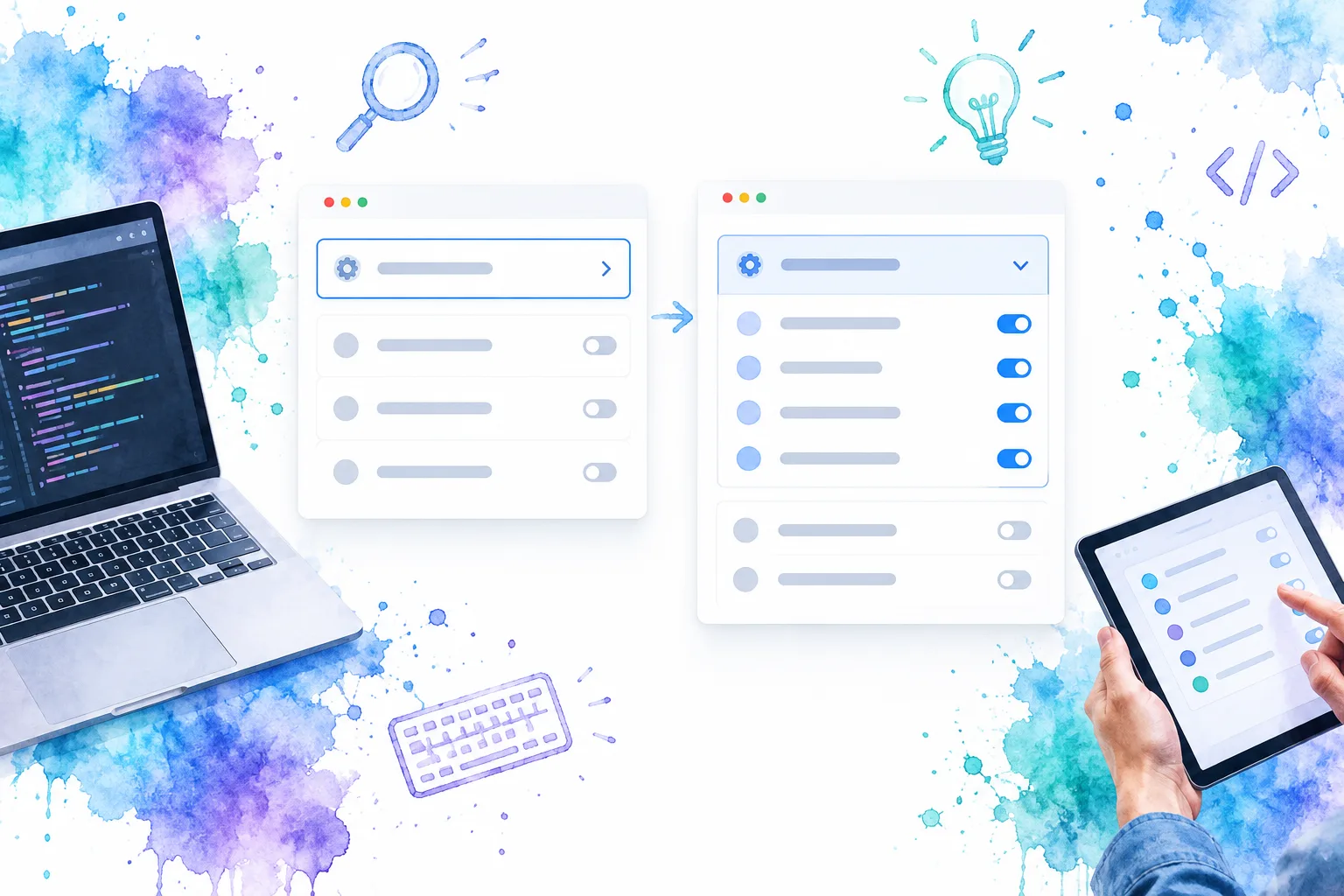
If clicking appears to do nothing, check that <summary> is the first child of <details> and that you did not add an application style that hides the content regardless of the native open state. To start expanded, write <details class="disclosure" open>; open="false" still means open because the attribute is Boolean. MDN explains this attribute detail.
2. Keep CSS styling separate from disclosure behavior
The CSS above removes the default marker and draws a chevron using summary::after. It changes direction via .disclosure[open], which reads the real native state rather than maintaining a second CSS class. The visible label stays the same in either state, so a user can identify what the control opens. A visible :focus-visible outline makes keyboard focus apparent. MDN documents both default summary-marker styling and custom icon approaches in its <summary> reference.
Notice what is not transitioning: the content’s intrinsic height. The example rotates a small indicator, while the native disclosure shows and hides its content normally. A height: 0 to height: auto transition is not a universal drop-in solution; fixed max-height values can clip long content or leave a transition running after the content has finished expanding. If animated content is genuinely important, review modern ::details-content transition techniques and their support in your target browsers before making them part of the required interaction. The simpler version remains fully usable without an opening animation.
We make the chevron transition opt-in under prefers-reduced-motion: no-preference. The disclosure still works when the user asks for reduced motion, only the decorative rotation stops animating. MDN’s reduced-motion reference explains the preference and its CSS values.
For a visual companion, the video below demonstrates styling and optional animation for native <details> and <summary>. It covers more advanced CSS than this baseline, so check browser support before copying a height-animation technique.
Verify it: resize the browser and replace the short paragraph with several lines. The panel should grow to fit its content, without a guessed max-height. Use Tab to reach the summary and activate it with Space; test Enter as well in your supported browsers. If the marker seems duplicated, check for an existing sitewide summary rule or the browser’s default marker style before adding another icon. MDN describes native keyboard interaction and summary styling.
3. Choose a custom button only when you need custom state
A checkbox plus a label can change a sibling div’s styles with :checked, but it exposes a checkbox interaction unless additional semantics and behavior are built around it. That is not the clearest default for a control whose job is “show or hide this content.” We prefer the native disclosure for one independent section. When a product must open or close the same panel from another application action, maintain state outside the element, or place the controlling button elsewhere in the layout, use a real button and manage the controlled div explicitly. The W3C pattern requires a button with an accurate aria-expanded state and lists aria-controls as an optional association.
The two approaches share the same visual idea, but not the same ownership of state: native HTML tracks open; the custom version must update the button and content together.
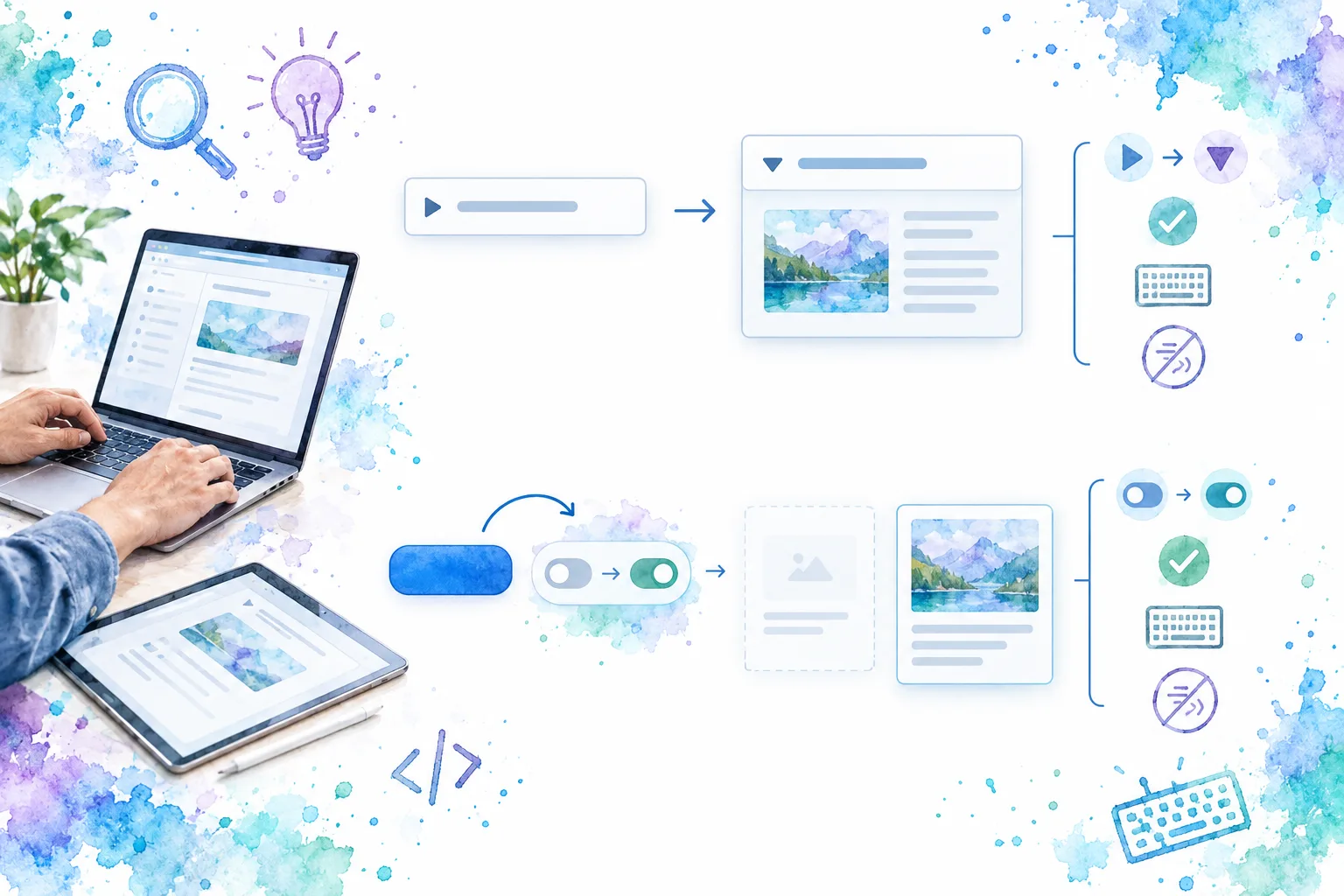
Decision check: if removing all custom JavaScript still leaves the interaction usable with <details>, keep the native version unless there is a concrete requirement it cannot meet. If your design requires a separate button targeting a specific <div>, use Step 4 instead of forcing the checkbox pattern to act like a disclosure button.
4. Wire a button to a div without splitting the state
Save this as custom-disclosure.html. It has a deliberately visible content div and an initially hidden button in its HTML. If JavaScript does not load, the information stays available rather than leaving an unresponsive control. During initialization, the script hides the div and reveals the button, then each click updates both visibility and aria-expanded. The [hidden] rule is intentional: MDN notes that another CSS display declaration can override the normal hidden rendering. See the hidden attribute reference.
<!doctype html>
<html lang="en">
<head>
  <meta charset="utf-8">
  <meta name="viewport" content="width=device-width, initial-scale=1">
  <title>Button-controlled panel</title>
  <style>
    body {
      max-width: 34rem;
      margin: 3rem auto;
      padding: 0 1rem;
      font: 1rem/1.5 system-ui, sans-serif;
      color: #17243d;
    }
    [hidden] { display: none !important; }
    .toggle {
      padding: 0.75rem 1rem;
      border: 1px solid #476a9e;
      border-radius: 0.5rem;
      background: #eef4ff;
      color: inherit;
      font: inherit;
      cursor: pointer;
    }
    .toggle:focus-visible {
      outline: 3px solid #2563eb;
      outline-offset: 3px;
    }
    .panel {
      margin-top: 0.75rem;
      padding: 1rem;
      border: 1px solid #aab9d0;
      border-radius: 0.5rem;
    }
    .panel p { margin: 0; }
  </style>
</head>
<body>
  <h1>Report settings</h1>
  <button class="toggle" type="button" hidden
          aria-controls="settings-panel" aria-expanded="false">
    Advanced filters
  </button>
  <div class="panel" id="settings-panel">
    <p>Choose optional filters before generating your report.</p>
  </div>
  <script>
    const button = document.querySelector('.toggle');
    const panel = document.querySelector('#settings-panel');

    panel.hidden = true;
    button.hidden = false;

    button.addEventListener('click', () => {
      const willOpen = panel.hidden;
      panel.hidden = !willOpen;
      button.setAttribute('aria-expanded', String(willOpen));
    });
  </script>
</body>
</html>
Expected result: with scripting enabled, only the button appears at first, with aria-expanded="false" and the div hidden. Click or activate the button with Enter or Space: the div appears and the attribute becomes true. Activate again to reverse both values. A native button supplies the familiar keyboard activation; the script does not need to recreate it. W3C specifies Enter, Space, and expanded-state semantics for disclosures.
This is intentionally a single-instance example. In an application with several panels, do not reuse settings-panel as an ID or select every control with the same global .toggle selector. Scope each button to its associated panel and define how state survives re-rendering. If another action can close the panel while focus is inside it, return focus to the controlling button before hiding the focused content. Those application-specific paths are not implemented in this stand-alone demo.
5. Test the finished interaction before reusing it
Run the checks on both files, with realistic content rather than placeholder text:
- Mouse and keyboard: activate the label or button, then confirm the content changes. Tab to the control and test both Enter and Space. The custom button should retain focus after it closes its own panel. W3C documents the disclosure keyboard contract.
- Closed content: temporarily add a link inside the content div. Tab through the page when it is closed: you should not land on the concealed link. Reopen the panel and confirm the link is reachable. The
hiddenattribute means the custom panel should not be presented while closed. MDN explains its rendering and accessibility implications. - State and focus: inspect the custom button in developer tools after each activation.
aria-expanded="true"must correspond to a visible panel, andfalseto a hidden one. Check that the focus outline is visible, not cropped by a parent container. - Reduced motion and narrow screens: enable your device’s reduced-motion setting, then reopen the native example. The chevron should change direction without animating; the content must still appear. At a narrow width, the label should remain readable and the div should not overflow the viewport. MDN describes the motion preference.
- Script failure: disable JavaScript and reload
custom-disclosure.html. The button should disappear and the informational content should remain visible. If an application requires a closed initial state even without scripts, document that tradeoff and provide an alternative route to important content.
If a screen reader announces an unclear label, replace “Advanced filters” with the actual section name in your product. Test with the browsers and assistive technologies your team supports; MDN notes that the accessibility treatment of nested heading content inside <summary> can vary between browsers, so this example uses plain text as its summary. See MDN’s <summary> usage notes.
Frequently asked questions
Can CSS alone expand and collapse a div?
CSS can style a state such as [open] or :checked, but it does not give a plain <div> a disclosure control by itself. Wrap your content div in <details> with a <summary> for a no-custom-JavaScript interaction, or use a button plus script when the control must manage an independent div. MDN documents the native element, while the W3C pattern covers a custom disclosure button.
Do I need aria-expanded on a summary?
No manual aria-expanded wiring is needed for the native example; its disclosure state is managed by <details>. On a separate custom button, set aria-expanded to match the panel’s visibility whenever state changes. Do not put a button inside the summary simply to create another toggle. MDN explains native summary behavior; W3C explains the custom button’s state.
What if several sections should open independently?
Use separate <details> elements without a shared name attribute. Giving them the same name makes them a group in which only one can be open at a time, so choose that behavior deliberately. MDN documents the grouping rule. For a Vue application that needs a reusable grouped interface rather than this single-panel example, explore our Vue Accordion component reference, which documents an items prop and a multiple option.
Build the next panel from the working example
You now have a native CSS-styled disclosure and an alternative button-controlled div. Start with the first file in your interface, replace its example content with one genuinely optional section, and repeat the keyboard and focus checks with your actual styles. If the interaction repeats across Vue screens, compare the requirements with our headless Accordion reference before turning a one-off snippet into a shared component.
Sources
- MDN:
<details>HTML disclosure element - MDN:
<summary>HTML disclosure summary element - W3C WAI: Disclosure (Show/Hide) Pattern
- MDN:
::details-contentCSS pseudo-element - MDN:
prefers-reduced-motionCSS media feature - MDN:
hiddenHTML global attribute - DOM Studio: Vue Accordion Component
- DOM Studio: Headless Accordion Web Component
- DOM Studio: Expansion Panels in Application UI
Recommended Reads
- Expansion Panels in Application UI: When to Use Them and How to Make Them Accessible, for decisions about what content should stay visible and how panel focus should work.
- Vue Component Examples: 6 Reusable Patterns to Build Today, for turning a proven one-off interaction into a focused Vue component contract.