
TL;DR
For a Vue loading spinner, keep the request state in the feature that starts the work. Show the spinner beside the affected control or region, keep a persistent text status for screen readers, and handle success, failure, and repeat requests explicitly. Use a skeleton for a predictable first-load layout and real progress when completion is measurable.
A spinner is the easy part. The harder question is what remains usable while the request runs and how someone learns that it finished. In this guide, we will build a small decorative Vue 3 spinner, wire it to an orders list and a form, then check the behavior on slow, failed, and interrupted requests. If you want the broader pattern comparison before writing code, see our spinner component decision guide.
Table of contents
- Before you start
- 1. Choose the indicator and its scope
- 2. Create a small reusable visual spinner
- 3. Wire an orders list to explicit request state
- 4. Announce state without announcing every frame
- 5. Protect a form submission and an AI reply
- 6. Test the boundary, then choose the next pattern
- Ship a loading state that tells the truth
- Sources
- Recommended Reads
Before you start
You need a Vue 3 project that supports single-file components, an endpoint for your actual data, and a definition of what counts as a successful response. The examples use native browser fetch() and plain Vue, with no DOM Studio package imports. /api/orders and /api/profile are illustrative application endpoints; create or replace them, confirm their response shapes and authorization requirements, and test server-side validation before shipping. They are not DOM Studio APIs.
Decide which request owns each pending state. An initial list fetch, a manual refresh, a form submission, and an AI response can all wait at once without the entire application becoming busy. We recommend starting with the smallest region that genuinely depends on the operation.
1. Choose the indicator and its scope
Use a spinner for active work whose remaining duration is unknown, such as refreshing a list or submitting a short form. For the first load of a known card or list structure, a skeleton can reserve approximately the right space. If a transfer reports genuine bytes or completed items, show that progress rather than an invented percentage. For a task fast enough not to need visible feedback, avoid a briefly flashing animation; a delayed visual indicator can help, but do not delay essential feedback or block a necessary action without explanation. Vue’s async-component loading option, for example, defaults to a 200 ms display delay specifically to avoid flicker. That option applies to async components, not automatically to every fetch() call. Vue’s async component documentation distinguishes the loading and error states for that boundary.
| Work being done | Where to put feedback | Keep available |
|---|---|---|
| Submit one form | In the submit action and a nearby status | Existing field values and unrelated navigation |
| Load a new results list | Inside the list’s reserved space | The surrounding page |
| Refresh existing results | Near the list heading or Refresh action | Previously displayed results, if still useful |
| Generate an AI response | Beside the pending answer and a Stop action when supported | The prompt and earlier answers |
| Wait for indispensable route data | In the affected route view; reserve its layout | Global navigation when safe to use |
A full-page overlay is a last resort for a genuinely unusable whole-screen workflow, not the default for one card. In an independently scrolling workspace such as our Application Layout example, put a panel’s request state in that panel, not the entire shell.
Check: say aloud what is waiting and point to its indicator. If you have to gesture at the whole page for a single button request, reduce the scope.
2. Create a small reusable visual spinner
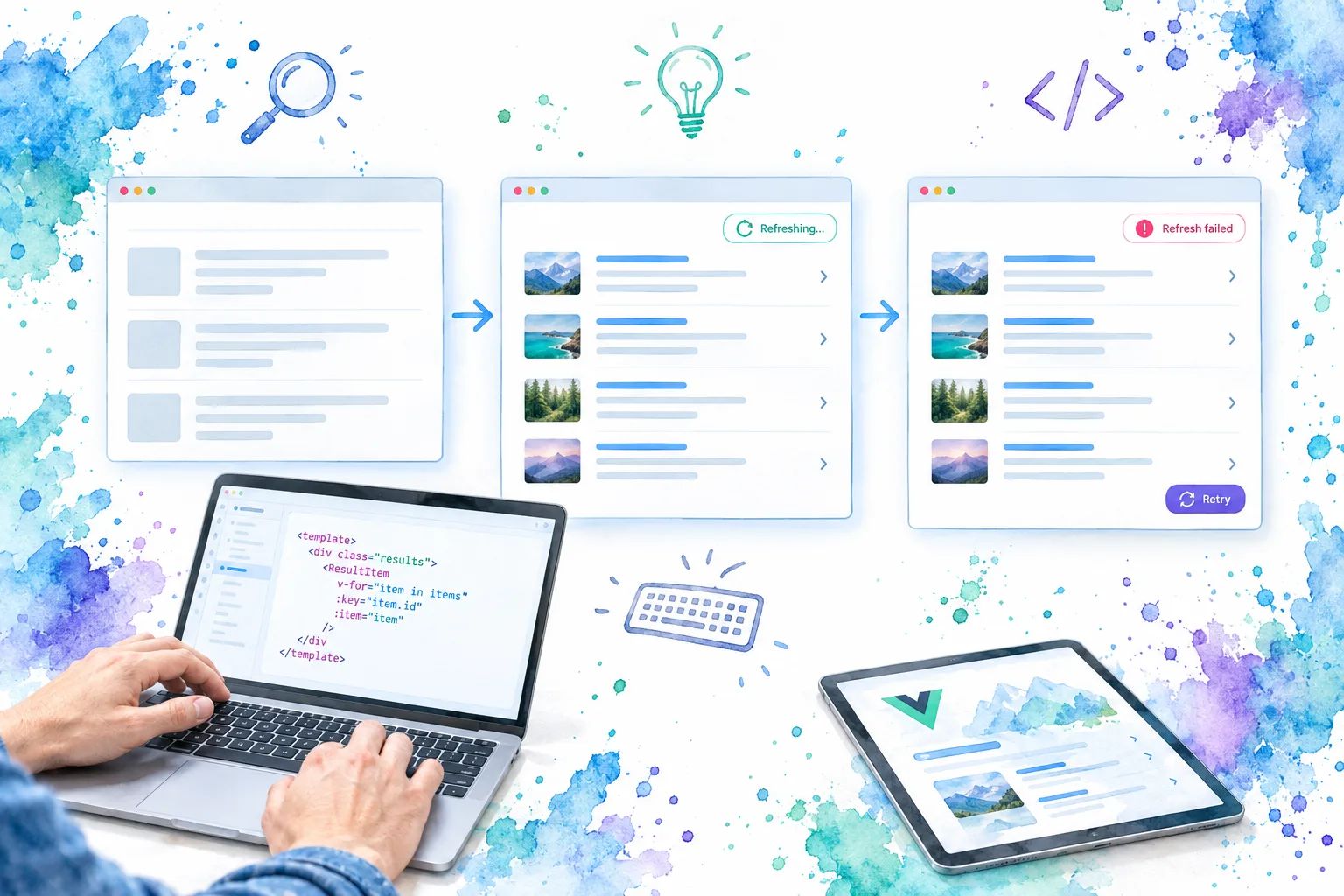
Keep the visual primitive separate from the request and its announcements. This local LoadingSpinner.vue accepts active, size, and an optional visible label; it does not fetch data or decide whether a form can submit. The ring is decorative. A parent must provide a persistent, meaningful status region for live announcements, even when this component has a visible label. Vue’s ref() and <script setup> let the parent pass reactive values directly to the template, while v-if controls whether the ring is rendered. Vue’s reactivity guide and conditional-rendering guide document those behaviors.
<!-- LoadingSpinner.vue -->
<script setup>
defineProps({
  active: { type: Boolean, default: true },
  size: { type: String, default: '1.25rem' },
  label: { type: String, default: '' },
})
</script>

<template>
  <span v-if="active" class="loading-indicator" :style="{ '--spinner-size': size }">
    <span class="loading-indicator__ring" aria-hidden="true"></span>
    <span v-if="label">{{ label }}</span>
  </span>
</template>

<style scoped>
.loading-indicator { display: inline-flex; align-items: center; gap: .5rem; }
.loading-indicator__ring {
  display: inline-block;
  inline-size: var(--spinner-size);
  block-size: var(--spinner-size);
  flex: none;
  border: 2px solid currentColor;
  border-right-color: transparent;
  border-radius: 50%;
  animation: spin .8s linear infinite;
}
@keyframes spin { to { transform: rotate(360deg); } }
@media (prefers-reduced-motion: reduce) {
  .loading-indicator__ring { animation: none; }
}
</style>
Expected result: active=false removes the indicator; a different size changes the ring without changing status behavior. Honor reduced-motion preferences without removing the adjacent text. If the static ring resembles an idle decoration in your design, show a clearer textual “Working” state instead.
We let the parent determine placement with ordinary layout CSS rather than making a spinner prop choose between button, panel, and page positioning. If you use DOM Studio UI primitives, the Spinner playground and reference is a place to inspect that component’s options; the request logic below remains the feature’s responsibility.
3. Wire an orders list to explicit request state
Here is a complete Vue single-file component that imports the visual spinner. It assumes a same-origin GET /api/orders returning { "orders": [{ "id": "o1", "name": "Sample order" }] }. The example checks for an array but does not validate individual order objects. Replace that small check with your actual response contract. It renders an initial placeholder, retains rows during refresh, and gives users a retry path after failure. The status element is mounted before the request changes its text, outside the busy list region. W3C’s status-message technique specifically tests that the status container exists before the message occurs.
<!-- OrdersPanel.vue -->
<script setup>
import { onBeforeUnmount, onMounted, ref } from 'vue'
import LoadingSpinner from './LoadingSpinner.vue'

const orders = ref([])
const pending = ref(false)
const loaded = ref(false)
const message = ref('')
const errorMessage = ref('')
let controller = null
let requestId = 0

async function loadOrders() {
  if (pending.value) return
  const id = ++requestId
  const wasLoaded = loaded.value
  const request = new AbortController()
  controller = request
  pending.value = true
  errorMessage.value = ''
  message.value = wasLoaded ? 'Refreshing orders' : 'Loading orders'

  try {
    const response = await fetch('/api/orders', { signal: request.signal })
    if (!response.ok) throw new Error('Orders request failed')
    const data = await response.json()
    if (!Array.isArray(data.orders)) throw new Error('Invalid orders response')
    if (id !== requestId) return
    orders.value = data.orders
    loaded.value = true
    message.value = wasLoaded ? 'Orders refreshed' : 'Orders loaded'
  } catch (error) {
    if (id !== requestId) return
    errorMessage.value = 'Could not load orders. Try again.'
    message.value = ''
  } finally {
    if (id === requestId) {
      pending.value = false
      controller = null
    }
  }
}

onMounted(() => { void loadOrders() })
onBeforeUnmount(() => {
  ++requestId
  controller?.abort()
})
</script>

<template>
  <div class="orders-panel">
    <h2>Orders</h2>
    <button type="button" :disabled="pending" @click="loadOrders">
      <LoadingSpinner :active="pending" size="1rem" />
      {{ pending && loaded ? 'Refreshing…' : 'Refresh orders' }}
    </button>
    <p role="status" aria-atomic="true">{{ message }}</p>
    <p v-if="errorMessage" role="alert">{{ errorMessage }}</p>

    <section aria-label="Order list" :aria-busy="pending">
      <div v-if="pending && !loaded" class="placeholder">
        <p>Preparing order list…</p>
      </div>
      <ul v-else-if="loaded && orders.length">
        <li v-for="order in orders" :key="order.id">{{ order.name }}</li>
      </ul>
      <p v-else-if="loaded">No orders yet.</p>
      <p v-else-if="errorMessage">Nothing to display. Retry loading.</p>
    </section>
  </div>
</template>

<style scoped>
.orders-panel { max-inline-size: 40rem; }
.orders-panel button { display: inline-flex; align-items: center; gap: .5rem; }
.orders-panel section { min-block-size: 8rem; }
.placeholder { min-block-size: 8rem; display: grid; place-items: center; }
</style>
Expected result: the first request shows a reserved list area; Refresh keeps existing rows readable and disables only the repeated Refresh action. A failed initial load displays a retryable error; a failed refresh leaves the previous rows in place. We use a native disabled button here to prevent another request through that control. Disabled buttons leave the tab sequence, so the nearby status and error remain readable without relying on button focus. MDN’s disabled attribute reference explains that focus behavior.
Troubleshooting: fetch() does not throw just because the server returned an HTTP error; inspect response.ok. The Fetch API guide also documents abort signals. The incrementing requestId guards against an older result updating this component after teardown; aborting a browser request is not a guarantee that a server task has stopped. If other components can start the same operation, coordinate concurrency in the shared data layer too. Vue documents mount and unmount hooks for the start and cleanup points used above. This example has no retry backoff, timeout, caching, or server-specific authorization logic.
4. Announce state without announcing every frame
aria-busy marks content that is being updated; it does not make controls unusable or speak a useful status on its own. Put :aria-busy="pending" on the affected content, and keep the persistent role="status" element outside that region so “Loading orders” can be announced while the list is busy. A status is polite and should not steal focus. For a failed operation, use a clear error with a recovery action; test whether an alert announcement is appropriate for your product rather than adding several competing live regions. MDN’s aria-busy reference, status role reference, and W3C’s status technique describe these roles.
Check the exact transition rather than the presence of ARIA attributes alone: start the request, wait for an update, then fail it. A screen-reader user should hear a specific start and an understandable outcome without having to follow the animated ring. Do not send each streamed AI token or every progress tick through a polite status. For measurable work, use a correctly named, determinate progress indicator; for an unknown duration, say what task is running instead of fabricating a percentage.
Check: with reduced motion enabled and your screen reader of choice, confirm the text still describes the work and that focus stays on the user’s task. If the completion message disappears too quickly to discover, leave it visible or put it in a durable result area rather than adding a timed focus jump.
5. Protect a form submission and an AI reply
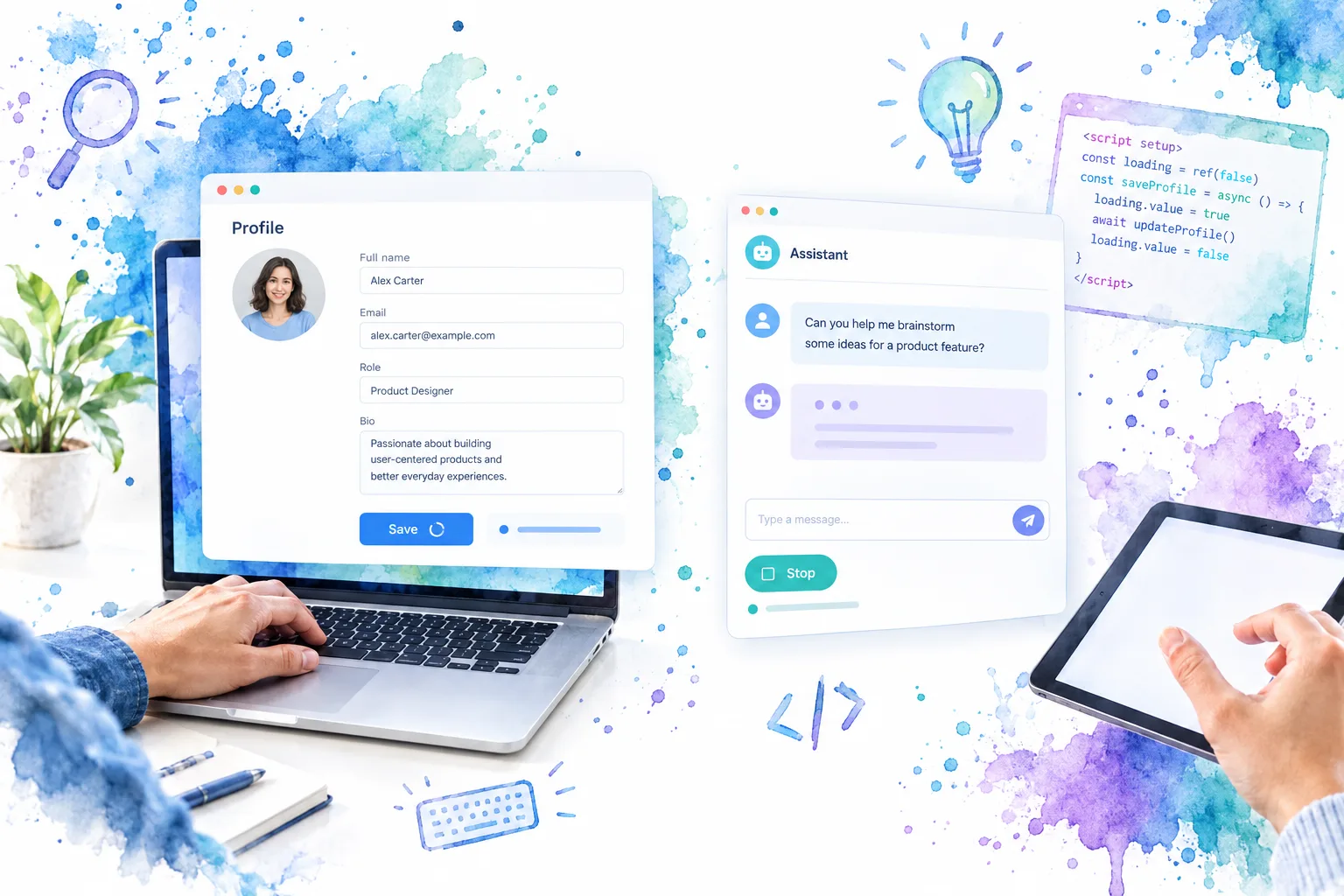
A list refresh is read-only; a submission can create a lasting side effect. Keep values and field errors visible, change the button text to “Saving…”, and prevent a second click while the same request is pending. Here is a standalone native-form variant using the same LoadingSpinner.vue and a server endpoint you supply. The server still owns validation and duplicate-write protection.
<!-- ProfileSave.vue -->
<script setup>
import { ref } from 'vue'
import LoadingSpinner from './LoadingSpinner.vue'

const name = ref('')
const saving = ref(false)
const status = ref('')
const errorMessage = ref('')

async function save() {
  if (saving.value) return
  saving.value = true
  status.value = 'Saving profile'
  errorMessage.value = ''
  try {
    const response = await fetch('/api/profile', {
      method: 'POST',
      headers: { 'Content-Type': 'application/json' },
      body: JSON.stringify({ name: name.value }),
    })
    if (!response.ok) throw new Error('Save failed')
    status.value = 'Profile saved'
  } catch (error) {
    errorMessage.value = 'Could not save profile. Check your details and try again.'
    status.value = ''
  } finally {
    saving.value = false
  }
}
</script>

<template>
  <form @submit.prevent="save">
    <label for="profile-name">Name</label>
    <input id="profile-name" v-model="name" name="name" required>
    <button type="submit" :disabled="saving">
      <LoadingSpinner :active="saving" size="1rem" />
      {{ saving ? 'Saving…' : 'Save profile' }}
    </button>
    <p role="status" aria-atomic="true">{{ status }}</p>
    <p v-if="errorMessage" role="alert">{{ errorMessage }}</p>
  </form>
</template>
Check: click Save twice quickly, then simulate an HTTP error. The in-flight request should not be repeated by this button; the entered name stays visible, the button re-enables, and the failure explains what to do. The example does not parse server field errors or guarantee that a timed-out POST did not succeed. Use your server’s idempotency and validation contract, and consult our Vue form validation guide when errors need to return to individual fields.
An AI reply needs a different interaction policy. Place “Generating answer” in the pending response area, preserve the submitted prompt and previous answers, and expose Stop only if the application can actually stop or ignore that generation. If a browser fetch uses AbortController, pass its signal to fetch() and ignore results from an older request after Stop or a new prompt. Do not claim that aborting the browser fetch necessarily reverses server work. When the first usable text arrives, transition the pending reply to content instead of leaving an endless spinner beside a completed answer. For a background job that survives navigation, persist status in the application rather than in a component that may unmount. MDN documents abort behavior; our chat-bubble patterns guide discusses where a pending AI reply belongs within a conversation.
6. Test the boundary, then choose the next pattern
Run these checks with a throttled connection and a keyboard, then repeat the status transitions with a screen reader:
- Load an empty list, then a populated one. The initial placeholder should not imply a measured completion percentage or shift the rest of the page unexpectedly.
- Refresh while rows already exist. They should remain readable if they are still useful, and the pending cue should identify that panel rather than the whole page.
- Reject the request, return malformed JSON, and retry. The indicator stops; the error and retry action remain discoverable.
- Trigger the same submission twice rapidly. Confirm the client blocks the second click and the server independently prevents unintended duplicate effects.
- Start a fetch, navigate away, or cancel an AI response. Stale completions must not overwrite a newer result; if server-side work may continue, describe that honestly.
- Turn on reduced motion, increase text size, and tab through neighboring controls. The status still makes sense without spinning or color, and unaffected controls stay usable.
For known first-load structure, a skeleton can be a useful alternative to a spinner. This companion video demonstrates a Vue 3 skeleton-loading approach with <Suspense>:
Treat that as an async component-tree example, not a replacement for the explicit request state of the orders list. Vue describes <Suspense> as experimental and notes that it waits on async component dependencies or async setup(), not arbitrary requests started later by a click. Read Vue’s <Suspense> documentation before choosing that boundary.
Ship a loading state that tells the truth
You now have an in-place Vue 3 list loader and a guarded form submit: the indicator shows where work is happening, text communicates the outcome, and the feature owns recovery. For your next screen, start from the request that is hardest to interrupt. Decide what remains usable, define success and failure, and test that boundary before adding another animation. To explore an editable visual primitive, try the DOM Studio Spinner playground, then connect it to the state and status contract in your own feature.
Sources
- Vue: Reactivity Fundamentals
- Vue: Conditional Rendering
- Vue: Composition API Lifecycle Hooks
- Vue: Async Components
- Vue: Suspense
- W3C WAI: Using role=status to present status messages
- MDN: ARIA status role
- MDN: aria-busy
- MDN: Using the Fetch API
- MDN: AbortController.abort()
- MDN: Disabled HTML attribute
- MDN: prefers-reduced-motion
- DOM Studio: Spinner reference
- DOM Studio: Application Layout example
- DOM Studio: Spinner Component Guide
- DOM Studio: Vue Form Validation
- DOM Studio: Chat Bubbles