
A design hand-off arrives with a neat row of labels: Overview, Pricing, Reviews. The desktop screenshot looks finished, so the first implementation takes an afternoon. Then QA asks why the panel can’t be reached with a keyboard. At 200% zoom, the active tab disappears off-screen. A screen reader reports every label but never makes the relationship between the selected tab and its content clear. On mobile, the back button can’t return someone to the state they just chose.
That isn’t a styling problem. User interface tabs are an interaction contract between controls, focus, content, browser history, and assistive technology. The visual strip is only the part designers see first.
Table of Contents
- Why Tabs Deserve Their Own Conversation
- What User Interface Tabs Actually Are
- Manual Versus Automatic Activation
- Keyboard Behaviour and Focus Management
- Responsive Layouts and Mobile Connectivity
- Implementing Tabs in Vanilla, Vue, and DOM Studio
- Common Mistakes Worth Avoiding
- Shipping a Release-Ready Tabs Component
Why Tabs Deserve Their Own Conversation
The first failure usually appears during keyboard testing. A developer presses Tab and lands on every tab individually, or worse, on none of them. Arrow keys do nothing because the component was built from clickable div elements. The selected panel changes with a pointer, but keyboard users receive no equivalent operation.
The second failure is less obvious. The focus indicator exists in the CSS, yet it vanishes against the selected background, gets clipped by an overflow container, or moves beyond the visible tab row. The UK Government’s accessibility monitoring programme examined 421 public-sector website samples and identified 2,691 issues. Among the relevant failures were missing visible focus, low colour contrast, and parsing errors that affected assistive technology.
The third failure is state. A user selects Pricing, copies the URL, sends it to a colleague, and the colleague opens Overview because the chosen tab only exists in component state. The browser history also feels broken because selecting a tab changed the page without creating an addressable state or a predictable back-button result.
Practical rule: Treat a tab as a small navigation system, not a decorated button. Define its focus model, announcement behaviour, fallback, and URL policy before writing the CSS.
The useful question isn’t “How should the tabs look?” It’s “What must a keyboard user, screen reader user, magnifier user, touch user, and browser history each be able to do?” Once those answers are explicit, the implementation becomes easier to review and harder to accidentally break.
What User Interface Tabs Actually Are
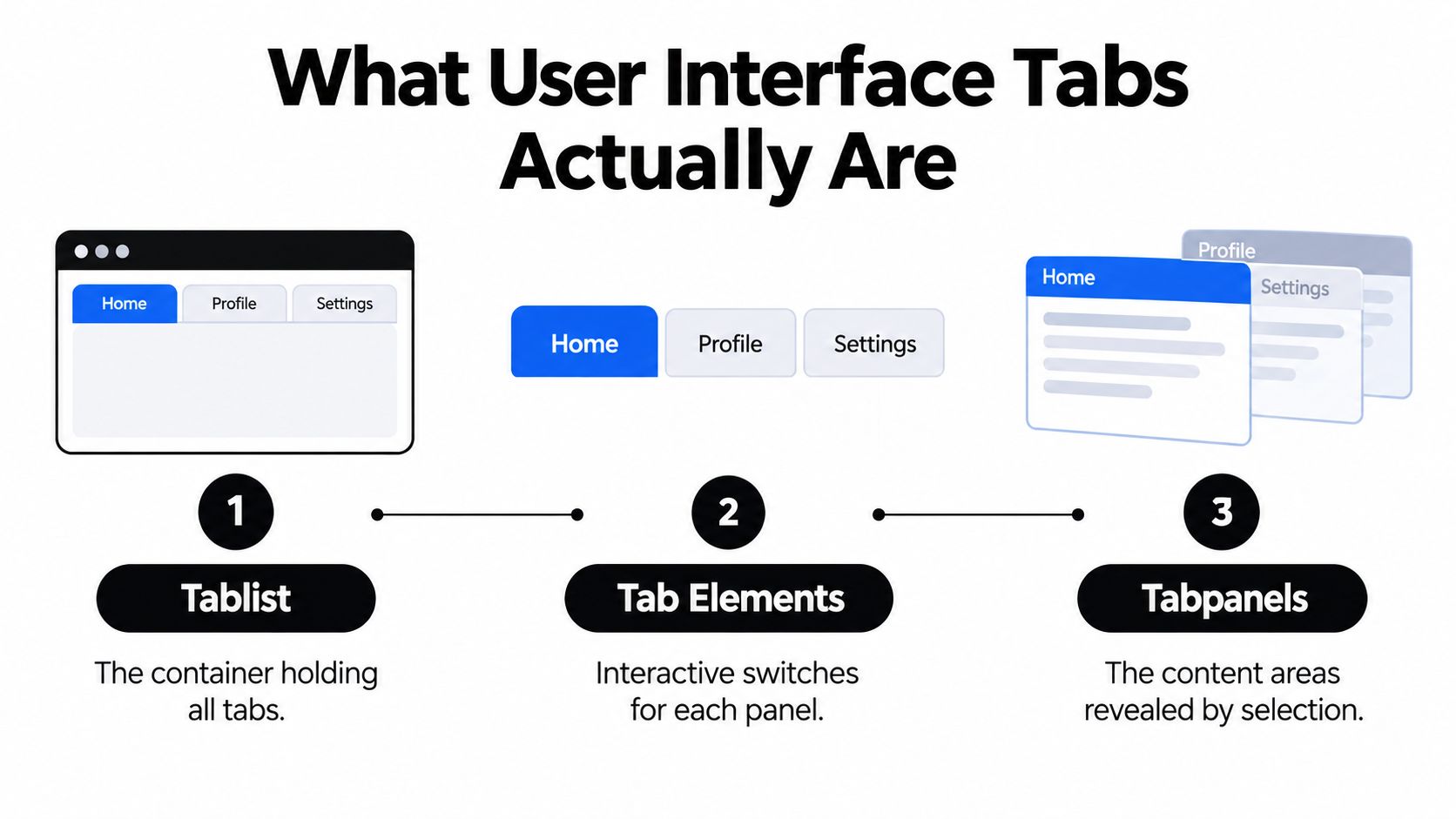
A conforming tab pattern has three connected parts:
- Tablist: The container that groups the available tabs.
- Tab: An interactive element that selects one panel.
- Tabpanel: The content region revealed by the selected tab.
For an example with Overview, Pricing, and Reviews, the relationship should be unambiguous:
tablist → tab#overview-tab → tabpanel#overview-panel
tablist → tab#pricing-tab → tabpanel#pricing-panel
tablist → tab#reviews-tab → tabpanel#reviews-panel
The tab points to its panel through aria-controls. The panel points back to its tab through aria-labelledby. Each tab exposes its current state through aria-selected, and inactive tabs must not present themselves as selected. The active panel needs a stable id, while inactive panels should be removed from the interaction flow in a way that matches the chosen implementation.
A minimal relationship might look like this:
<div role="tablist" aria-label="Product information">
  <button
    id="overview-tab"
    role="tab"
    aria-selected="true"
    aria-controls="overview-panel"
    tabindex="0">
    Overview
  </button>

  <button
    id="pricing-tab"
    role="tab"
    aria-selected="false"
    aria-controls="pricing-panel"
    tabindex="-1">
    Pricing
  </button>
</div>

<section
  id="overview-panel"
  role="tabpanel"
  aria-labelledby="overview-tab"
  tabindex="0">
  ...
</section>
The native button matters because it already supplies activation semantics, focusability, and keyboard behaviour. ARIA then supplies the relationship and state that native HTML doesn’t provide on its own. A div with a click handler can be made to resemble a tab, but the team must recreate every relevant interaction detail and test it across assistive technologies.
Hiding an inactive panel can be correct. A panel with hidden or an equivalent removal from the accessibility tree won’t be announced while another panel is active. What isn’t correct is hiding content while leaving the tab and panel relationship incomplete, changing only a CSS class, or relying on visual proximity to explain which panel belongs to which tab.
The evidence from UK public services makes this distinction practical, not academic. The monitoring programme found that parsing errors, contrast failures, and missing focus were recurring issues, so semantic structure and visible state belong in the component contract, not in an optional accessibility pass.
Manual Versus Automatic Activation
The WAI-ARIA tabs pattern supports two activation models. They look similar to a pointer user, but they produce very different keyboard experiences.
With automatic activation, Right Arrow moves focus to the next tab and immediately displays its panel. With manual activation, the arrow moves focus only. Enter or Space then selects the focused tab and changes the panel. Both models can be valid, but they suit different content.
Automatic activation works well when panels are small, already available, and safe to display immediately. It makes browsing feel direct because the user can scan through related content with the arrow keys. It becomes a poor choice when every change fetches data, starts media, fires analytics, resets a form, or causes a large layout shift.
Manual activation creates a deliberate pause between focus and selection. That extra action is worthwhile when changing panels has cost or consequences. It also gives a user time to move across a tablist without triggering every associated operation.
Choosing an activation mode
| Factor | Automatic activation | Manual activation |
|---|---|---|
| Lightweight content | Good fit, panels change as focus moves | Works, but adds an extra action |
| Data fetching | Risky if every arrow key starts work | Safer, selection commits the request |
| Media or side effects | Usually unsuitable | Better control over when effects begin |
| Keyboard scanning | Fast and fluid | More deliberate |
| Form-heavy panels | Can cause unwanted state changes | Usually easier to predict |
| Default production choice | Use when behaviour is genuinely safe | Prefer when the cost of selection is unclear |
The decision shouldn’t be based on which interaction looks more modern. Ask whether the user is moving through labels or committing to content. A product comparison with short, pre-rendered panels can reasonably use automatic activation. A reporting interface where each panel loads a query should usually wait for Enter or Space.
The GOV.UK Design System tabs guidance adds a related constraint: tabs should progressively enhance a single page. If JavaScript isn’t available, the content should remain in panel order with a table of contents linking to each section. That fallback also clarifies the component’s purpose. Tabs organise related content. They shouldn’t become the only route to information.
Keyboard Behaviour and Focus Management
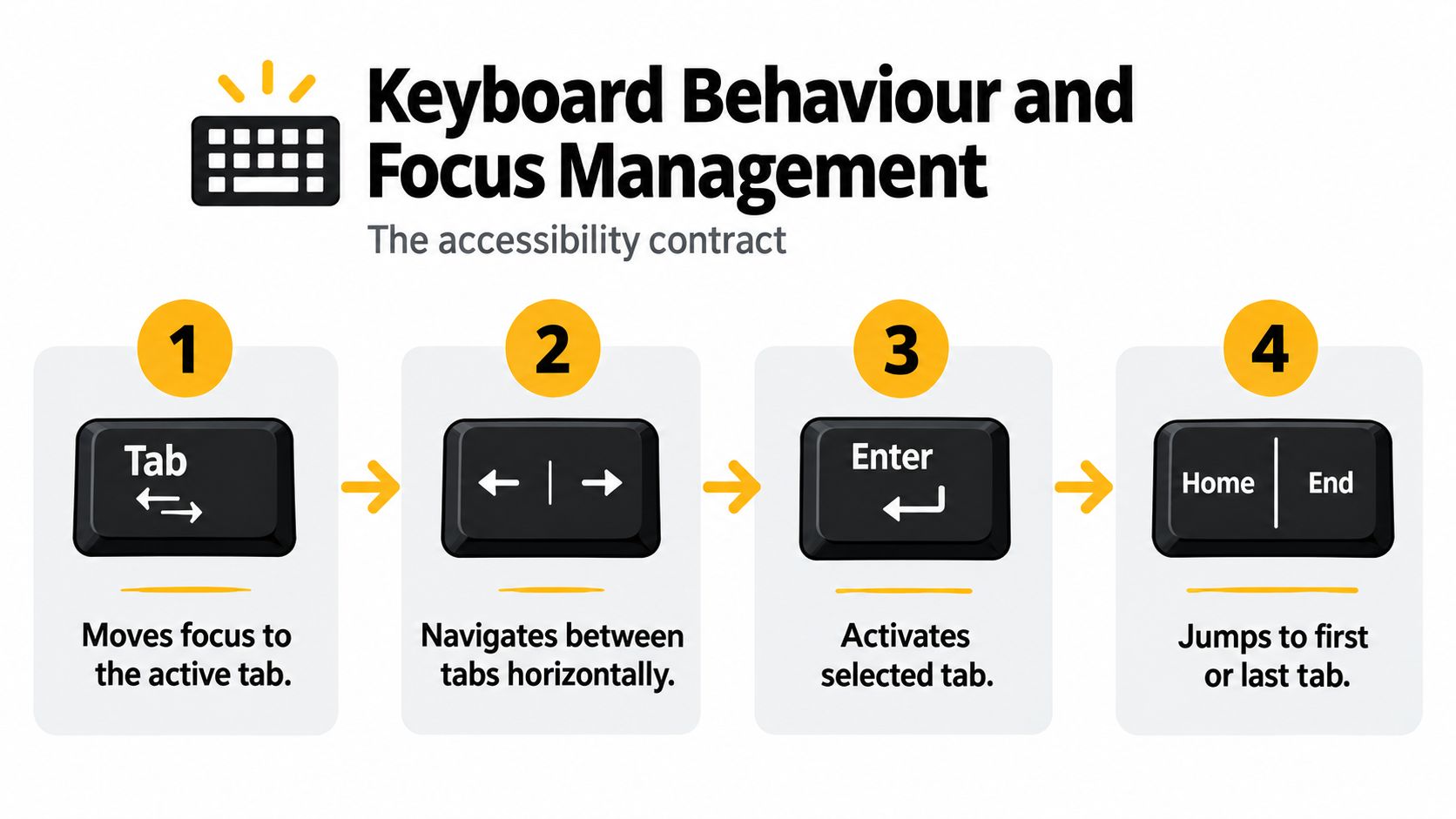
A tablist should behave as a predictable keyboard unit. In the common horizontal pattern, Tab moves focus into the active tab. Once focus is inside the tablist, Left and Right Arrow move between tabs, Home moves to the first, and End moves to the last. In manual mode, Enter or Space activates the focused tab. Shift+Tab leaves the tablist and continues through the page.
The usual implementation is roving tabindex. The active tab receives tabindex="0", while the remaining tabs receive tabindex="-1". The browser therefore treats the tablist as one stop in the page’s Tab sequence, while the component’s arrow-key handler manages movement inside it.
The focus sequence
- Enter the group: Tab focuses the selected tab, not every tab in sequence.
- Move predictably: Arrow keys update the roving
tabindexand call.focus()on the destination. - Reach the edges: Home and End provide direct access to the first and last tab.
- Commit when required: Enter or Space selects the focused tab in manual mode.
- Keep focus stable: After activation, focus normally remains on the tab.
Focus should stay on the tab when the panel is ordinary text, a list, or a small collection of links. Moving it into the panel immediately can make the user’s position harder to understand, especially when activation already changes the page.
Moving focus into a panel can be justified for a task-oriented flow, such as a tab that reveals a form and expects immediate completion. Even then, make the decision explicit. The focus target should be meaningful, and the movement shouldn’t surprise users who merely wanted to inspect another label.
A magnifier user shouldn’t need to infer which tab is active from a clipped colour change. University of York testing for the UK Home Office found that a screen magnifier user couldn’t see the full tab row or determine the active tab, which informed guidance that focus must remain visible and predictable across responsive layouts. Teams working on clinical workflows can also consult these practical focus requirements for healthtech teams when focus changes intersect with dense forms and high-consequence tasks.
For an implementation reference outside a component library, the DOM Studio screen reader compatibility guidance is useful alongside testing with keyboard-only navigation and a screen reader. A passing visual inspection isn’t enough. Check the spoken name, selected state, panel relationship, focus ring, and behaviour after wrapping from the last tab to the first.
Responsive Layouts and Mobile Connectivity
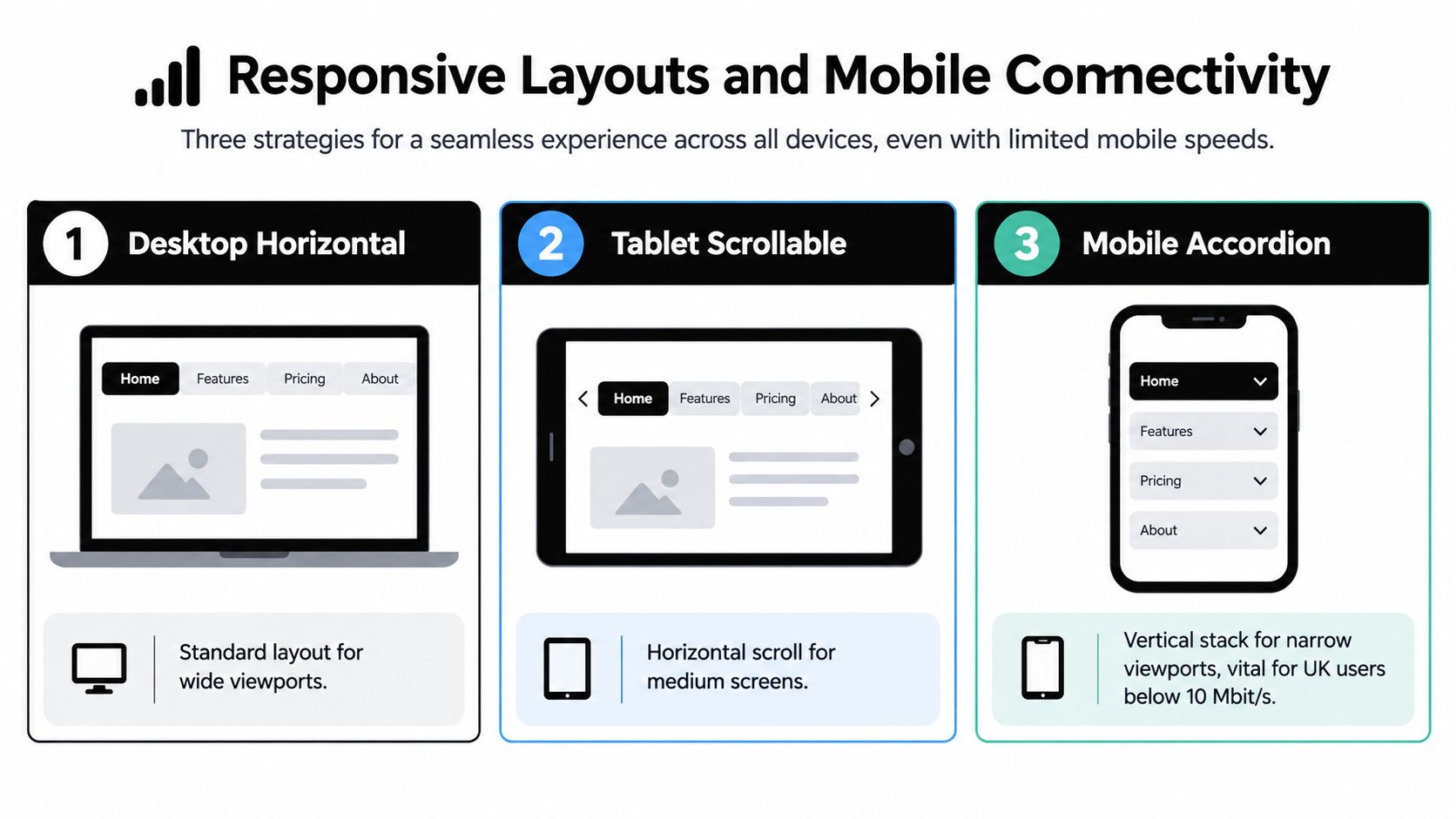
A horizontal tab strip has a physical limit. Labels wrap, overflow, or disappear behind a clipped container, and each workaround changes how users discover content. On a wide viewport, a conventional row can work well. On a narrow viewport, the component should usually become a contents mechanism rather than a compressed desktop control.
The ONS Service Manual uses a useful responsive model. Below its medium breakpoint, tabs become a list that behaves like a table of contents, while panels appear in document order and links jump to the associated panel. This preserves content discovery for keyboard users, screen-magnifier users, and people who increase text size.
Three practical choices
Scrollable labels preserve the tab metaphor, but users may not see every option. Use them only when the row remains discoverable, the active tab can be scrolled into view, and touch users receive a clear visual cue that more labels exist.
A select-like or disclosure control saves space, but it changes the interaction model. It can be effective for long labels or many categories, provided the selected value remains visible and the content still has a stable heading and addressable state.
Stacked sections expose everything in document order. This is often the strongest narrow-layout choice when panels are short, search visibility matters, or users may arrive directly at a section. It also gives the no-script version a natural shape.
Connectivity should influence the decision. Ofcom’s Mobile Matters 2025 report found that 28% of UK 4G connections and 88% of 3G connections had average download speeds below 10 Mbit/s during its measurement period. The report also recorded average monthly mobile data use rising 7% to 10.6 GB per user. Those conditions make eager loading of every hidden panel an avoidable cost.
Use a breakpoint-independent rule: keep critical content available, render essential panel structure on the server where practical, preserve URL-addressable state, and lazy-load only content whose absence won’t make the page confusing. The media query breakpoint guidance can help teams keep the layout transition tied to content fit rather than to a device label.
Implementing Tabs in Vanilla, Vue, and DOM Studio
A reliable tabs component starts with behaviour, not styling. In vanilla JavaScript, keep one selected value, map each tab to its panel, and separate focus movement from selection when activation is manual.
const tabs = [...document.querySelectorAll('[role="tab"]')];
const panels = [...document.querySelectorAll('[role="tabpanel"]')];

function selectTab(nextTab) {
  tabs.forEach((tab) => {
    const selected = tab === nextTab;
    tab.setAttribute('aria-selected', String(selected));
    tab.tabIndex = selected ? 0 : -1;
  });

  panels.forEach((panel) => {
    panel.hidden = panel.id !== nextTab.getAttribute('aria-controls');
  });
}

tabs.forEach((tab, index) => {
  tab.addEventListener('keydown', (event) => {
    const last = tabs.length - 1;
    let nextIndex = index;

    if (event.key === 'ArrowRight') nextIndex = index === last ? 0 : index + 1;
    if (event.key === 'ArrowLeft') nextIndex = index === 0 ? last : index - 1;
    if (event.key === 'Home') nextIndex = 0;
    if (event.key === 'End') nextIndex = last;

    if (nextIndex !== index) {
      event.preventDefault();
      tabs[nextIndex].focus();

      if (activationMode === 'automatic') {
        selectTab(tabs[nextIndex]);
      }
    }

    if (activationMode === 'manual' &&
        (event.key === 'Enter' || event.key === ' ')) {
      event.preventDefault();
      selectTab(tab);
    }
  });

  tab.addEventListener('click', () => selectTab(tab));
});
The code leaves several production choices explicit: orientation, wrapping, initial selection, URL synchronisation, and the value of activationMode. That visibility makes each decision testable rather than burying it in a styling layer. In a finished component, also define the tab and panel IDs, their aria-controls and aria-labelledby relationships, and the no-script fallback.
Vue usually keeps the selected value in v-model, with panel content supplied through named slots:
<DomTabs v-model="activeTab" activation="manual">
  <template #tabs>
    <button value="overview">Overview</button>
    <button value="pricing">Pricing</button>
    <button value="reviews">Reviews</button>
  </template>

  <template #overview>...</template>
  <template #pricing>...</template>
  <template #reviews>...</template>
</DomTabs>
For a full walkthrough of this integration, see the Vue tabs component guide.
Tailwind should express state without becoming the state owner:
<button
  class="border-b-2 px-4 py-2 data-[selected=true]:border-black"
  data-selected="true">
  Overview
</button>
The component must still manage aria-selected, tabindex, panel visibility, and keyboard movement. Teams comparing component boundaries may also find SupportGPT’s component design insights useful when deciding which behaviour belongs in primitives and which belongs in application code.
DOM Studio’s headless tabs primitive exposes the WAI-ARIA contract as reusable configuration. Its Vue integration can expose the selected value through v-model, while props make activation mode and orientation explicit. The primitive handles linked tab and panel relationships, roving focus, and arrow-key navigation, so each product team does not have to reproduce that keyboard logic.
Choose the implementation according to the codebase. Vanilla suits a small component with disciplined accessibility tests. Vue adds reactive state and slots. A headless primitive fits several products that need the same interaction contract with different markup, styling, and panel content.
Common Mistakes Worth Avoiding
The same shortcuts recur because the first version works with a mouse. It isn’t until keyboard and assistive technology testing that the missing contract becomes visible. A 2025 review of 20 UK university websites found frequent accessibility problems in tabs and accordions, including screen readers continuing through tab labels before reaching the active panel, as reported by the Department for Education Digital team.
Six code-review checks
- Clickable
divelements: Replace them with buttons or provide a complete equivalent interaction model. Native buttons give you a reliable starting point. - CSS-only selection: Don’t let colour or a class name represent the state alone. Update
aria-selectedand expose the active panel relationship programmatically. - Missing stable IDs: Pair every tab’s
aria-controlswith an actual panel ID, and pair every panel’saria-labelledbywith the tab that names it. - One tab stop per tab: Use roving
tabindex. If Tab visits every tab before the user can reach the panel, the component is unnecessarily costly to move through. - Hover activation: Pointer hover must not be the only way to switch panels. Keyboard and touch users need an explicit equivalent.
- Render resets: Don’t set every tab back to
tabindex="0"after each render. Preserve the selected and focused state through updates.
A panel hidden with display: none isn’t automatically wrong. The failure is usually the missing semantic relationship or the loss of a predictable focus destination. Likewise, an overflow strip isn’t automatically inaccessible, but it must keep the active label visible and make the selected state distinguishable at zoom.
Reviewers can catch most defects quickly by asking a tab to do four things: enter with Tab, move with arrows, activate with the documented key, and identify its panel in a screen reader. If any answer depends on a mouse or on visual position, the implementation isn’t ready.
Shipping a Release-Ready Tabs Component
Use this definition of done before merging:
- The markup exposes
tablist,tab, andtabpanelroles where the chosen HTML doesn’t already provide the required semantics. - Each tab has a stable ID, an
aria-controlsreference, and a programmatic selected state. - Each panel has a stable ID and an
aria-labelledbyreference. - Tab, Shift+Tab, arrows, Home, End, Enter, and Space behave consistently with the chosen activation mode.
- Focus remains visible at high zoom and in every selected or unselected colour state.
- The narrow layout doesn’t clip labels or conceal the active state.
- JavaScript failure leaves the content available in panel order with a contents route.
- Right-to-left layouts reverse visual movement appropriately without corrupting DOM order.
- Deep-linked state, anchor links, and browser history work when the tabs represent meaningful page state.
Questions that belong in review
Should focus move into the panel? Usually not. Keep it on the selected tab unless activation begins a form or task where a deliberate focus target improves completion.
How should the back button work? If a selected tab is meaningful outside the component, reflect it in the URL and listen for history changes. Don’t create history entries for every incidental focus movement.
What about right-to-left languages? Keep document order meaningful, then test the visual and keyboard direction with real RTL content. Avoid assuming that swapping CSS direction alone resolves arrow-key expectations.
Is automatic activation defensible? Yes, when panels are lightweight, available without disruptive work, and safe to preview. Otherwise, manual activation gives users better control.
When a team needs more implementation capacity, a useful hiring brief should name these behaviours rather than asking only for a “tabs component”. For distributed delivery, hire developers from latam is one possible route, but the acceptance criteria still need to specify focus, state, fallback, and responsive behaviour.
DOM Studio provides headless web-component primitives with Vue integration, reactive props, slots, and managed tabs behaviour, so teams can make activation and focus decisions explicit without rebuilding the same ARIA logic in each feature. Visit DOM Studio to evaluate its tabs primitive and use it as a foundation for a tested, responsive component in your next sprint.