You’ve got a delivery question on the page, the circles look right, and a click updates the selected option. Then someone tabs through the form, changes their answer, and discovers that the follow-up question never gets announced. Setting checked was the easy part. Making the decision understandable takes more care.
To select radio button groups accessibly, start with the question users must answer, preserve the browser’s native form behaviour, and treat conditional content as an interaction that needs testing. A styled circle isn’t an accessible radio group.
Table of Contents
- When a Radio Button Is the Right Choice
- Build a Radio Group That Assistive Tech Can Read
- Select a Radio Button with the DOM
- Keep Selection from Changing Context
- Make Conditional Radio Content Announced
- Choose DOM Studio for Production Radio Groups
When a Radio Button Is the Right Choice
A delivery form asks whether the customer wants collection or delivery. Either answer is valid, but both can’t describe the same fulfilment choice. That’s a radio-group decision: one answer from mutually exclusive options.
Compare that with a communication-preferences question. Someone might want email and text messages, so independent checkboxes are the better model. Don’t force a multiple-selection decision into radio buttons by adding increasingly complicated combinations.
Design the answer set before the control
The question and its answers need to make sense together. “How should we contact you about this request?” is more useful than “Contact options”, because it establishes what choosing an answer means.
Review the available responses before writing any selectors:
- Mutual exclusivity: Could someone reasonably need to choose several answers? If so, reconsider the control.
- Complete coverage: Include “None of these” when that’s a genuine answer, rather than forcing an inaccurate response.
- Explicit commitment: Don’t pre-select an answer just to make the form look complete.
- Clear distinctions: Explain differences between similar options in their labels or supporting text.
A default can be appropriate when there’s a user-centred reason, such as restoring an answer the person already supplied. That’s different from choosing the organisation’s preferred outcome.
Practical rule: If the answers don’t describe a clear decision, changing the appearance of the inputs won’t fix the question.
Treat radios as a decision structure
The GOV.UK radio-component history records guidance from October 2018 on communicating single selection, offering a valid “none” response, and normally avoiding pre-selection. Later changes in November 2018, August 2021 and January 2022 addressed conditional content, horizontal layouts and errors inside revealed sections.
That progression matters to implementation. Selection, layout and validation aren’t separate decorations added after the circles work. They determine whether a person understands the answer they’re providing and what happens next.
Use a short instruction such as “Select one option” when it helps clarify the interaction. Don’t rely on users recognising the visual difference between a circle and a square.
Also distinguish optional from negative. Skipping an optional eligibility question isn’t necessarily the same as answering “No”. If the service needs an explicit negative answer, include it in the answer set rather than interpreting silence as a decision.
Build a Radio Group That Assistive Tech Can Read
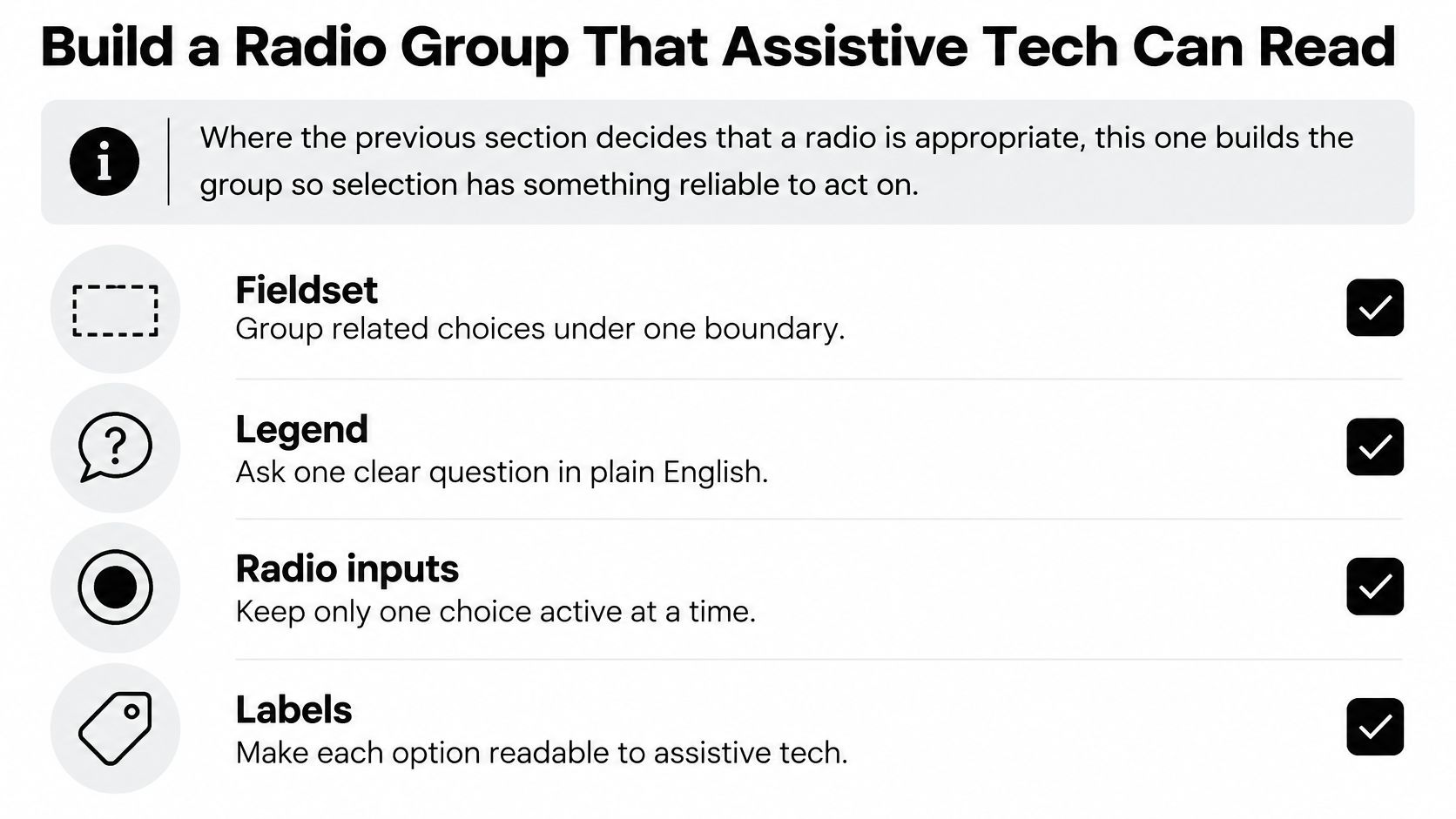
Build the question as a fieldset, with its wording in a legend. The options belong inside that boundary so assistive technology can interpret them in the context of the question, rather than as unrelated controls.
Give every input a unique id, and make its label’s for value match exactly. The UK Parliament radio-button guidance specifies this association, which connects the accessible label to the input and makes the label an interactive target.
Establish the structure before styling
A contact-method question can start with ordinary HTML:
<fieldset aria-describedby="contact-hint">
  <legend>How should we contact you?</legend>
  <p id="contact-hint">Select your preferred method for this request.</p>

  <div>
    <input id="contact-email" name="contact" type="radio"
           value="email" required>
    <label for="contact-email">Email</label>
  </div>

  <div>
    <input id="contact-phone" name="contact" type="radio"
           value="phone" required>
    <label for="contact-phone">Phone</label>
  </div>
</fieldset>
Here, name="contact" identifies the decision, while the distinct IDs identify individual options. Don’t generate IDs from the group name alone when several instances of the component might appear on the same page.
Keep the radio to the left of its label, and favour a vertical layout when labels are long. Avoid positioning the control so far away that users have to trace across the screen to match it with its text.
Use this structural checklist during implementation:
Include instructions and errors in the structure
Hint text should explain the decision, not repeat the legend. Associate useful supporting text through aria-describedby, and explicitly label optional questions rather than leaving users to infer their status.
Validation needs more than a red border. Provide a visible message explaining the correction, associate it with the affected controls, and expose the invalid state when validation fails. Don’t mark an untouched group invalid merely because it starts unanswered.
Before adding custom styling, verify:
- Question: The legend makes sense when announced with either option.
- Labels: Clicking each label selects its corresponding input.
- Layout: Wrapping text stays visually connected to its control.
- State: There’s no unexplained default, and errors aren’t communicated through colour alone.
For detailed naming decisions, use this guide to labels for radio buttons. When reviewing the surrounding journey, Blu Dragonfly LLC’s resource can help you audit your website for accessibility barriers beyond the individual field.
Select a Radio Button with the DOM
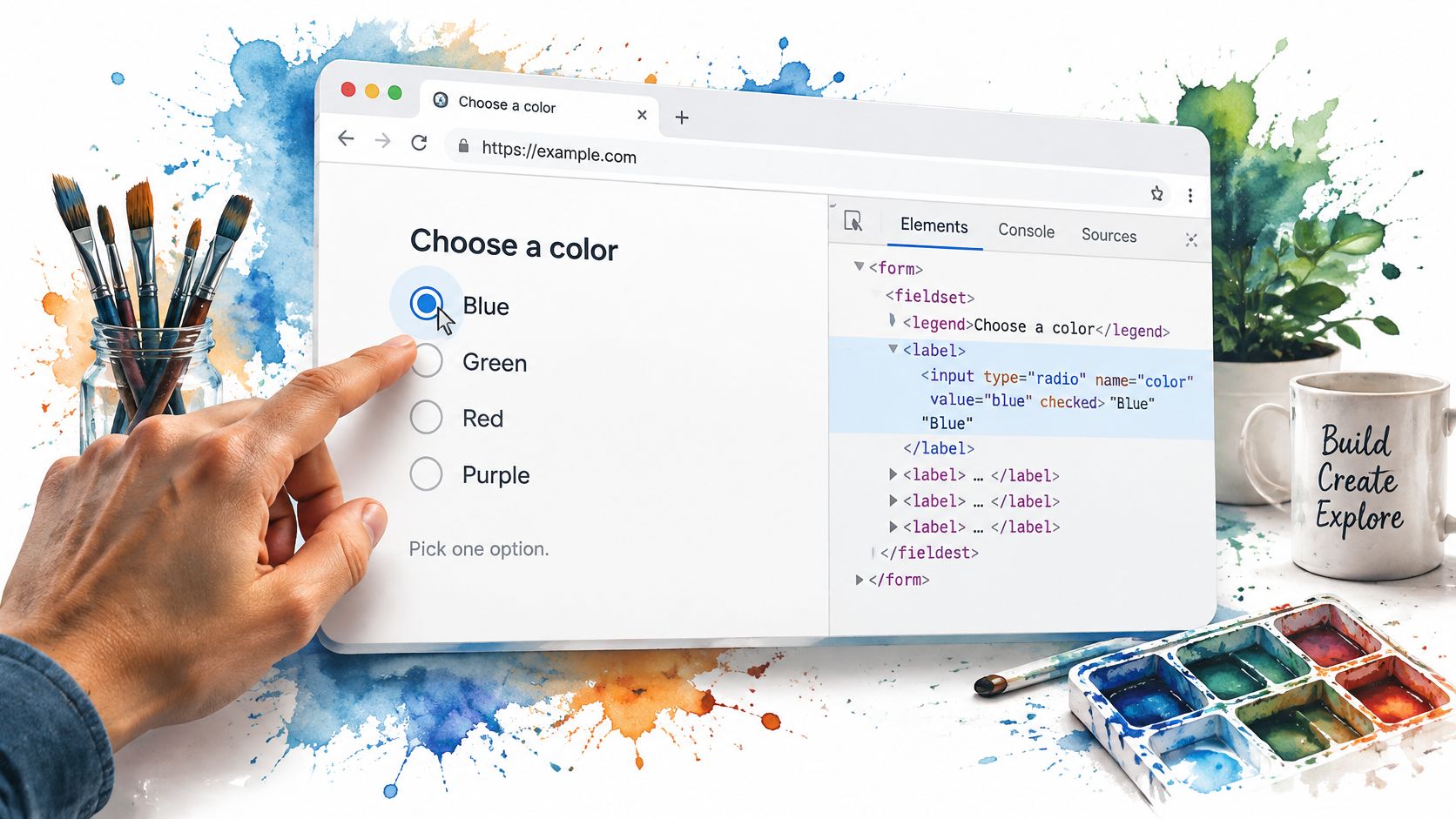
Once the structure is sound, selection should use the native form model. Don’t maintain a separate “selected” CSS class as the authoritative answer, because that can disagree with the form submission.
The visual selected state should reflect the input’s state, not replace it:
Read and update the native value
Place the contact-method fieldset inside a form identified as contact-form. You can read its named radio collection directly:
const form = document.querySelector('#contact-form');
const contactGroup = form.elements.namedItem('contact');
const selectedValue = contactGroup.value;
With this group, an unanswered question produces an empty value. Treat that as an unanswered state, not as permission to substitute your preferred option.
A checked-input query is useful when you need the actual element:
const selectedInput =
  form.querySelector('input[name="contact"]:checked');

const value = selectedInput?.value ?? '';
To select the phone option programmatically, update its live property:
const phone = form.querySelector('#contact-phone');
phone.checked = true;
The browser clears the other radio in the same native group. There’s no need to loop through the options and toggle classes or manually uncheck siblings.
Use the checked property for current selection. The HTML checked attribute describes the default state, which matters when the form resets. Confusing those responsibilities can produce a form that looks correct until someone resets or revisits it.
React without creating another source of truth
Listen for change when you need to respond to the selected answer:
form.addEventListener('change', (event) => {
  if (!event.target.matches('input[name="contact"]')) return;
  updateContactSummary(contactGroup.value);
});
Use input when your interaction calls for immediate feedback. Neither event should cause the form to close or submit unexpectedly.
Programmatically assigning .checked doesn’t itself fire these user-interaction events. If application logic must run after a scripted update, call the shared update function explicitly rather than assuming a listener ran.
In Vue, the equivalent native binding keeps the same answer in reactive state:
<input id="contact-email" type="radio" name="contact"
       value="email" v-model="contact">
<input id="contact-phone" type="radio" name="contact"
       value="phone" v-model="contact">
When adopting a headless wrapper, bind that same state through its documented v-model contract. Verify its form submission and reset behaviour instead of assuming that a reactive value automatically becomes native form data.
Keep one authoritative answer. Derive the summary, conditional fields and presentation from it.
For a visual companion, use the embedded walkthrough alongside your own form:
If you also test agent-operated interfaces, Clearcote Labs’ guide to understanding LLM-driven browser automation offers useful background. Keep automation assertions grounded in the actual input value, not just the visible dot.
Keep Selection from Changing Context
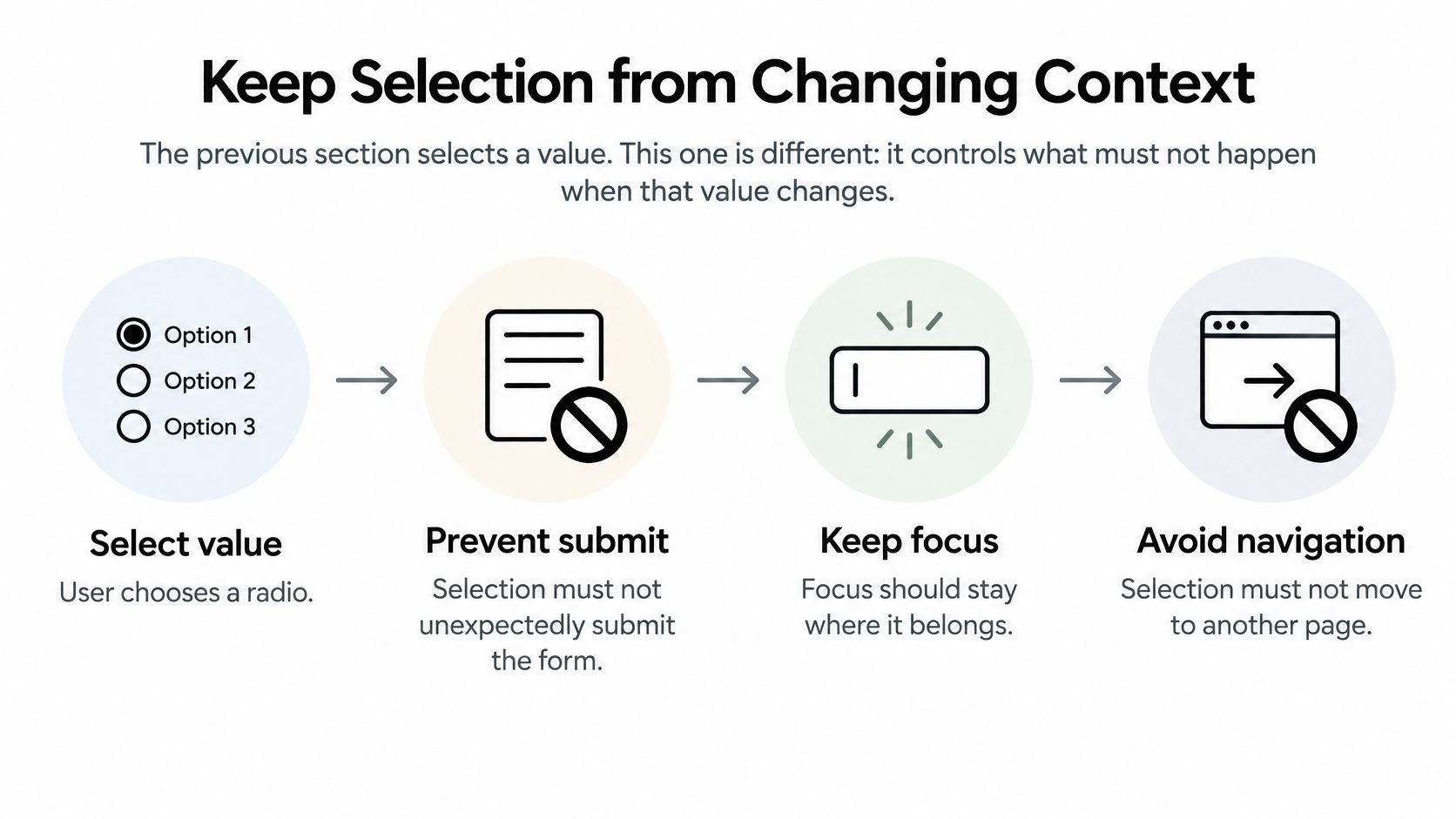
Selecting “Phone” may reveal a phone-number field. It shouldn’t unexpectedly submit the form, open another page or pull keyboard focus away from the selected answer.
The UK Home Office guidance on understandable interactions says radio-state changes shouldn’t automatically change context. Use an explicit submit or continuation action to move the user forward.
Separate choosing from continuing
Keep the selection handler narrow. It can update supporting content and the fields relevant to the answer, but the user should remain in control of when to continue.
For the contact example, use this sequence:
- Record the answer: Let the existing native group expose the selected value.
- Reveal the dependency: Show the phone-number field when “Phone” is selected.
- Preserve orientation: Keep focus on the radio unless the interaction has a clear, tested reason to move it.
- Continue explicitly: Submit through the form’s button, not the radio’s
changehandler.
A content reveal doesn’t automatically require focus movement. Moving focus into the new field can make it harder to compare answers or reverse a choice, particularly when arrow keys are being used to explore the group.
The interaction should preserve the distinction between choosing and progressing:
Test the path in both directions
Hidden follow-up fields need deliberate handling. Moving content off-screen without removing its availability can leave keyboard or screen-reader users encountering questions that supposedly don’t apply.
When a branch becomes inactive, ensure its fields don’t unexpectedly block validation. Whether you retain or clear previously entered data is a product decision, but it should be predictable and consistent with what the service submits.
Check these failure modes:
- Automatic submission: Choosing an answer starts a request before the person can review it.
- Stolen focus: A reveal moves focus without a clear user expectation.
- Click-only behaviour: A handler works with a pointer but ignores native keyboard selection.
- Invisible obligations: A newly required field appears without an understandable explanation.
- Trapped navigation: Custom keyboard code prevents users leaving the group normally.
Test with keyboard-only navigation and a screen reader, then inspect the page at 400% zoom and under reflow conditions as part of the accessibility checks described in the Home Office guidance. Look for a visible focus indicator, logical entry and exit, understandable selected states and errors, and a layout that doesn’t require horizontal scrolling to complete the question.
Don’t cancel arrow-key events to preserve an animation or prevent the layout moving. Fix the layout instead of replacing native radio behaviour with a pointer-oriented interaction.
Make Conditional Radio Content Announced
A follow-up field can be visible and keyboard-accessible yet still arrive without a useful announcement. That’s the subtle failure to investigate when “Phone” reveals “What’s your phone number?”
A GOV.UK investigation into conditional radio reveals found that screen-reader users weren’t always notified when additional content expanded or collapsed, creating a potential WCAG 4.1.2 failure. It also identified unclear relationships involving nested fieldsets.
Make the relationship perceivable
Start with meaningful content order. Place the follow-up close to the option it depends on, give the new field a complete label, and explain the dependency where necessary.
The accessible experience needs to communicate whether additional content is available. Don’t assume that adding aria-controls will announce a reveal, or that placing aria-expanded on a native radio is a universally supported fix.
Choose a pattern that’s valid for the actual elements and test its announcements. If the interaction requires a separate disclosure control, give that control the appropriate disclosure state rather than assigning unsupported semantics to the radio.
A short, targeted status message may help communicate that an additional question is available. Avoid making the whole fieldset a live region, which can cause repetitive announcements of the question and every answer.
For broader testing considerations, consult the guide to screen-reader compatibility. Test the rendered interaction, not merely the presence of ARIA attributes.
A person completing the task doesn’t prove that every state change was communicated accessibly.
That distinction comes directly from the investigation: tested users could complete the task despite the notification defect. Observed success and conformance risk aren’t interchangeable.
Use a conditional-content test script
Test announcements and recovery as a connected interaction:
- Enter the question: Confirm that the question, option label and selection state provide enough context.
- Choose the revealing answer: Listen for an understandable indication of the follow-up without having the whole form repeated.
- Reach the field: Check that its label and instructions explain what information is needed.
- Trigger an error: Leave the applicable field unanswered, continue, and verify that the error identifies the correction.
- Reverse the choice: Return to the radios and select the alternative. Confirm that the obsolete field and its errors no longer interfere.
- Remove enhancement: Disable JavaScript and check that there’s still a usable way to provide the relevant information.
For progressive enhancement, an acceptable baseline may show follow-up questions with explicit applicability instructions, then enhance them into conditional reveals. Don’t hide essential fields in the initial HTML and depend on a script successfully loading to make the form completable.
Avoid unnecessary nested fieldsets. Use another group only when the follow-up contains another grouped decision, not as a convenient styling container.
Choose DOM Studio for Production Radio Groups
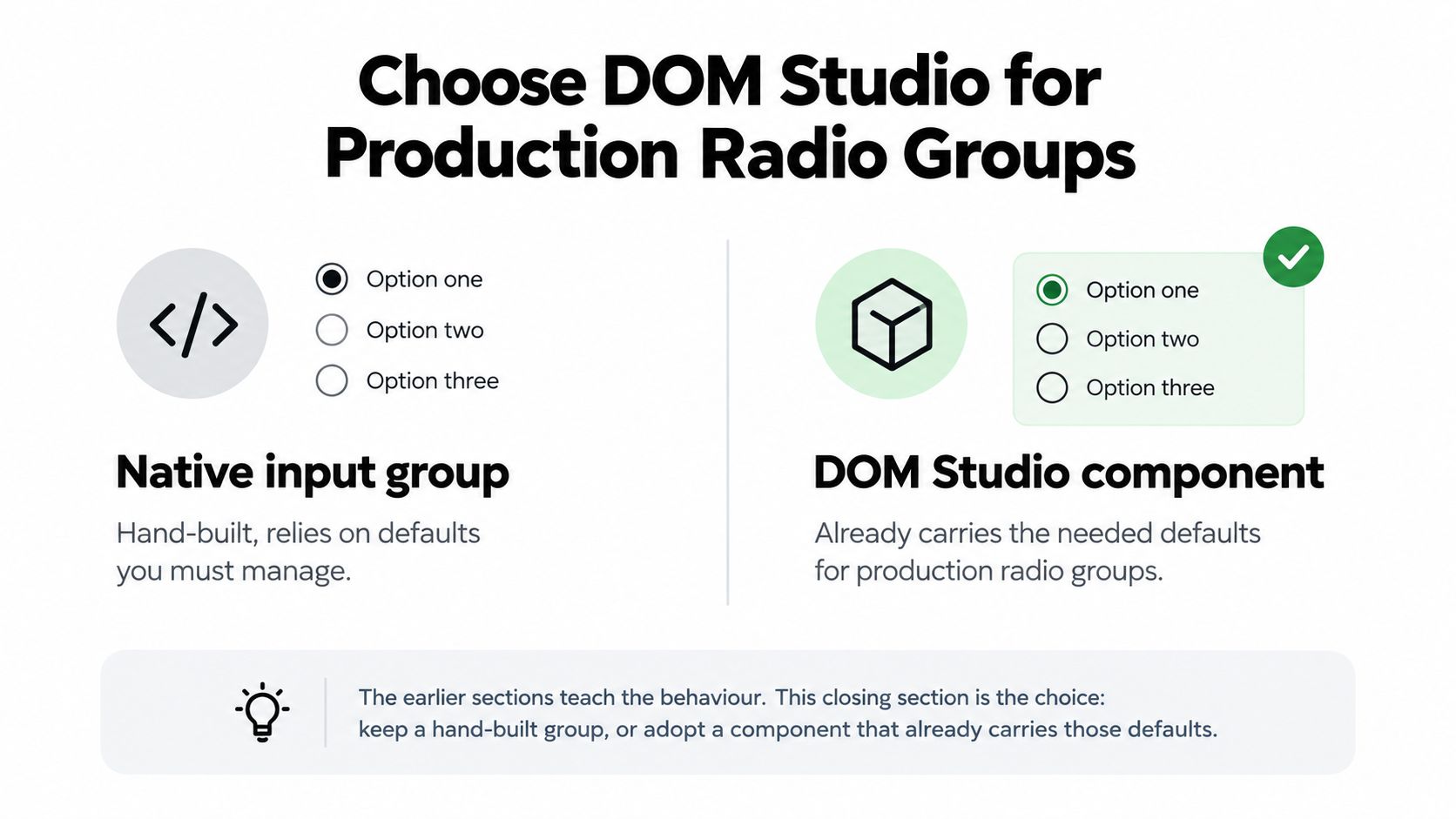
A native input group is a strong starting point when the question is straightforward and the team can maintain the surrounding validation and conditional behaviour. A shared headless component becomes useful when several teams need the same interaction contract without copying event handlers between forms.
The decision isn’t native accessibility versus component accessibility. It’s which responsibilities the browser handles, which the component handles, and which your application still owns.
Compare responsibilities rather than appearances
A hand-built group gives you direct control over the HTML and a straightforward progressive-enhancement path. You also own ID generation, error associations, styling states and regression tests when the design changes.
A headless primitive can centralise interaction behaviour while leaving presentation to your application. A Vue integration can connect reactive props, v-model and slots, but those conveniences don’t remove the need to verify the rendered form.
Use the following comparison as a starting point:
Native radio group or DOM Studio
| Approach | Best when | What you still verify |
|---|---|---|
| Native radio group | The interaction is straightforward and your team owns the HTML directly | Naming, submission, reset behaviour, errors and visual states |
| Headless radio primitive | Shared behaviour must work across different visual designs | Form integration, supported semantics and keyboard interaction |
| Vue wrapper | Application state already lives in Vue | Model synchronisation, conditional fields and server-rendered behaviour |
Inspect the radio-group component reference against your actual requirements before integrating it. Don’t infer guarantees about conditional announcements or JavaScript-free operation from a component’s appearance.
For the wider framework decision, Wonderment Apps’ discussion of UI tools for high-performance applications provides another comparison resource. Keep your acceptance criteria specific to the form you’re shipping.
Set an inclusive acceptance bar
The UK government’s inclusion-monitoring findings for 2025 reported that 60% of surveyed organisations met WCAG 2.0 AA or higher, compared with 54% in 2024, and reported 3.8 million people lacking essential digital skills for life.
Those findings are a reason to test beyond technical validity, not evidence that a particular library solves inclusion. Long labels, ambiguous answers, touch interaction and high-contrast states still require attention from the team implementing the question.
Before approving a component, verify:
- Readable choices: Long labels wrap without separating from their controls.
- Honest answers: “None of these” or “Prefer not to say” appears where appropriate.
- Distinct states: Focus and selection remain distinguishable in high-contrast settings.
- Understandable recovery: Users can correct an answer without losing their place.
Choose the smallest maintainable implementation that passes those checks. Styling should come after the decision, state and recovery paths work.
DOM Studio offers headless primitives and a Vue integration layer for building consistent form controls without recreating keyboard and accessibility patterns. Visit DOM Studio, add a radio group to an existing question, and verify its legend, selected value, arrow-key behaviour and conditional reveal before applying your visual design.