
Schema-Driven Forms: How to Build Validated, Adaptable Vue Forms
Schema-driven forms let us define fields, constraints, and repeatable data structures as a contract, then render the interface from that contract. Instead of letting a hand-built form become the only source of truth, we keep the data shape explicit and generate the UI around it.
In this guide, we will build a schema-driven team setup form in Vue with DOM Studio. The finished form will render common controls from JSON Schema, keep submitted values separate from the form definition, validate before saving, and support nested and repeatable data.
Table of contents
- Before you start
- 1. Define the data contract before choosing components
- 2. Add UI metadata without polluting the data contract
- 3. Compile the schema into DOM Studio form children
- 4. Validate through the form API before saving
- 5. Model nested objects and repeatable rows explicitly
- 6. Offer a raw JSON escape hatch for technical workflows
- 7. Test the contract, renderer, and submitted values together
- Build the form once, keep the contract useful everywhere
Before you start
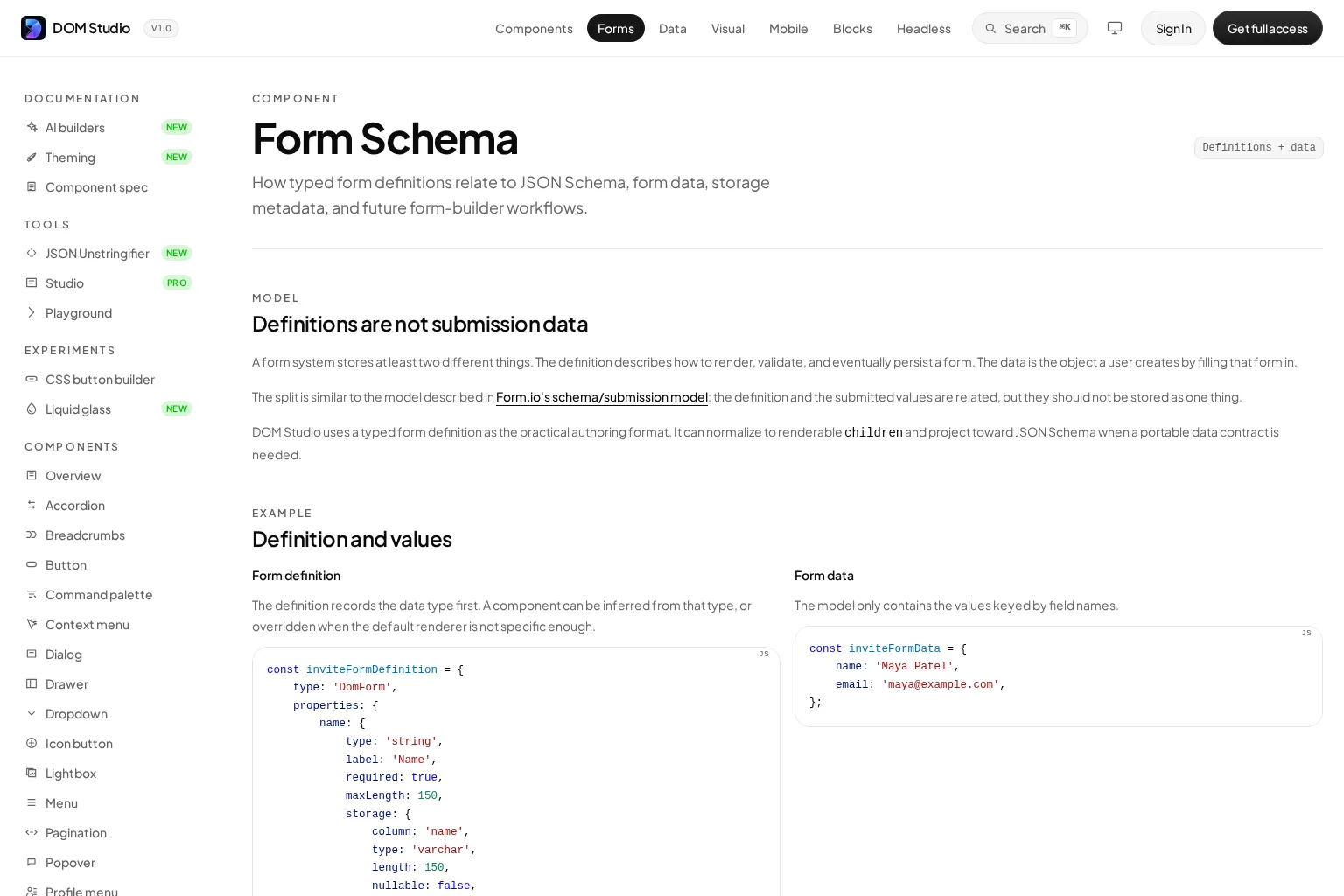
We need a Vue app using @getdom/studio/vue, a place to keep the form model such as a ref or Pinia store, and a clear data contract. We also need to make one architectural decision up front: submitted values are not the schema. The schema describes the shape, validation, and rendering intent. The model contains only the values entered by the user.
JSON Schema is a strong starting point when the contract may need to travel across tools or services. Its properties, required, primitive types, enums, and nested object rules describe the data without tying it to a particular visual component.
1. Define the data contract before choosing components
Start with the smallest portable description of the data your API or persistence layer expects. For this example, the team name, owner email, and plan are required. Active status is optional.
const teamSchema = {
  $schema: 'https://json-schema.org/draft/2020-12/schema',
  type: 'object',
  required: ['teamName', 'ownerEmail', 'plan'],
  properties: {
    teamName: {
      type: 'string',
      title: 'Team name',
      minLength: 2,
      maxLength: 80,
    },
    ownerEmail: {
      type: 'string',
      title: 'Owner email',
      format: 'email',
    },
    plan: {
      type: 'string',
      title: 'Plan',
      enum: ['starter', 'team', 'enterprise'],
    },
    active: {
      type: 'boolean',
      title: 'Active team',
      default: true,
    },
  },
};
Expected result: we can read this object and understand the submitted payload without seeing a Vue component.
Check: remove ownerEmail from a test payload. A validator should reject the payload because it is in required.
DOM Studio’s form schema reference uses this same separation: the definition describes rendering and validation, while the form data remains a small object keyed by field name.
2. Add UI metadata without polluting the data contract
Data contracts rarely carry every detail a useful interface needs. A dropdown needs display labels, a long text field needs a textarea, and a repeatable list may need an add button label. Keep those presentation choices in a separate adapter configuration or in a vendor extension.
In DOM Studio, x-el is the convention for UI-only decoration. JSON Schema validators can ignore this unknown extension while the DOM Studio adapter uses it to choose a component or provide component props.
const teamFormSchema = {
  ...teamSchema,
  properties: {
    ...teamSchema.properties,
    plan: {
      ...teamSchema.properties.plan,
      'x-el': {
        component: 'DomSelectInput',
        props: {
          options: [
            { label: 'Starter', value: 'starter' },
            { label: 'Team', value: 'team' },
            { label: 'Enterprise', value: 'enterprise' },
          ],
        },
      },
    },
    notes: {
      type: 'string',
      title: 'Implementation notes',
      maxLength: 280,
      'x-el': {
        component: 'DomTextareaInput',
        props: {
          rows: 4,
          placeholder: 'Optional notes for the team',
        },
      },
    },
  },
};
Expected result: the data shape stays portable, while the user sees controls that fit the job.
Troubleshooting: do not put DOM Studio component names into a contract shared with systems that do not understand them. Keep the pure schema clean and add the decoration at the UI boundary instead.

3. Compile the schema into DOM Studio form children
Next, convert the schema into renderable child records with jsonSchemaToChildren. DomForm receives those children and manages field registration, values, errors, nested paths, and programmatic validation.
<script setup>
import { ref } from 'vue';
import { DomForm, jsonSchemaToChildren } from '@getdom/studio/vue';

const values = ref({
  teamName: '',
  ownerEmail: '',
  plan: 'team',
  active: true,
  notes: '',
});

const children = jsonSchemaToChildren(teamFormSchema);
</script>

<template>
  <DomForm name="teamSetup" v-model="values" :children="children">
    <button type="submit">Save team</button>
  </DomForm>
</template>
Expected result: strings render as text-oriented fields, enum values render as a select when decorated, and booleans render as a boolean control. The values ref contains plain form data, not component configuration.
Troubleshooting: if the generated UI does not match a product requirement, override that field through x-el or adapter options. Do not fork the entire renderer for a single special field.
For the API, examples, and Zod-like adapter option, see the DOM Studio Form reference.
If our authoritative contract already lives in TypeScript, Zod is another practical option. DOM Studio can compile a Zod or Zod-like shape into the same children model, while Zod supplies runtime validation and inferred types.
4. Validate through the form API before saving
Schema-driven rendering does not replace submission checks. We still validate at the moment we intend to save, then return server errors to the corresponding field paths when necessary.
import { forms } from '@getdom/studio/vue';

async function saveTeam() {
  const valid = await forms.teamSetup?.validate();

  if (!valid) return;

  await api.teams.create(values.value);
}
Expected result: the form reports a single valid or invalid state, while individual fields retain their own error messages.
Check: enter an invalid email, call saveTeam(), and confirm that persistence is not attempted. Then correct the field and verify that the submitted object contains only teamName, ownerEmail, plan, active, and notes.
For server-side failures such as a duplicate team name, set runtime errors on the relevant path rather than writing them into the authored schema. That keeps durable form configuration separate from temporary application state.
5. Model nested objects and repeatable rows explicitly
As forms grow, avoid flattening related data into names such as billingStreet or member1Email. Model the actual object and array shape instead.
const membersField = {
  type: 'array',
  title: 'Members',
  items: {
    type: 'object',
    required: ['email', 'role'],
    properties: {
      email: {
        type: 'string',
        title: 'Member email',
        format: 'email',
      },
      role: {
        type: 'string',
        title: 'Role',
        enum: ['admin', 'member', 'viewer'],
      },
    },
  },
  'x-el': {
    props: {
      addLabel: '+ Add member',
    },
  },
};
Expected result: the value remains a predictable array of member objects. DOM Studio can retain nested data paths, so a field can be addressed as members.0.email without manual string parsing.
Troubleshooting: use a repeatable editor for structured rows, not a comma-separated text field. When power users need bulk editing, DOM Studio’s JSON list input can provide fields mode with a raw JSON toggle.
6. Offer a raw JSON escape hatch for technical workflows
Generated controls are ideal for normal editing, but technical users sometimes need to paste, inspect, or bulk change structured values. We recommend offering raw JSON only where that flexibility is appropriate, such as admin configuration, feature flags, or internal tools.
DomJsonInput can use the same standardized schema to render fields while preserving a JSON mode. It emits parsed data only when the JSON is valid, so malformed edits do not overwrite the last valid model.
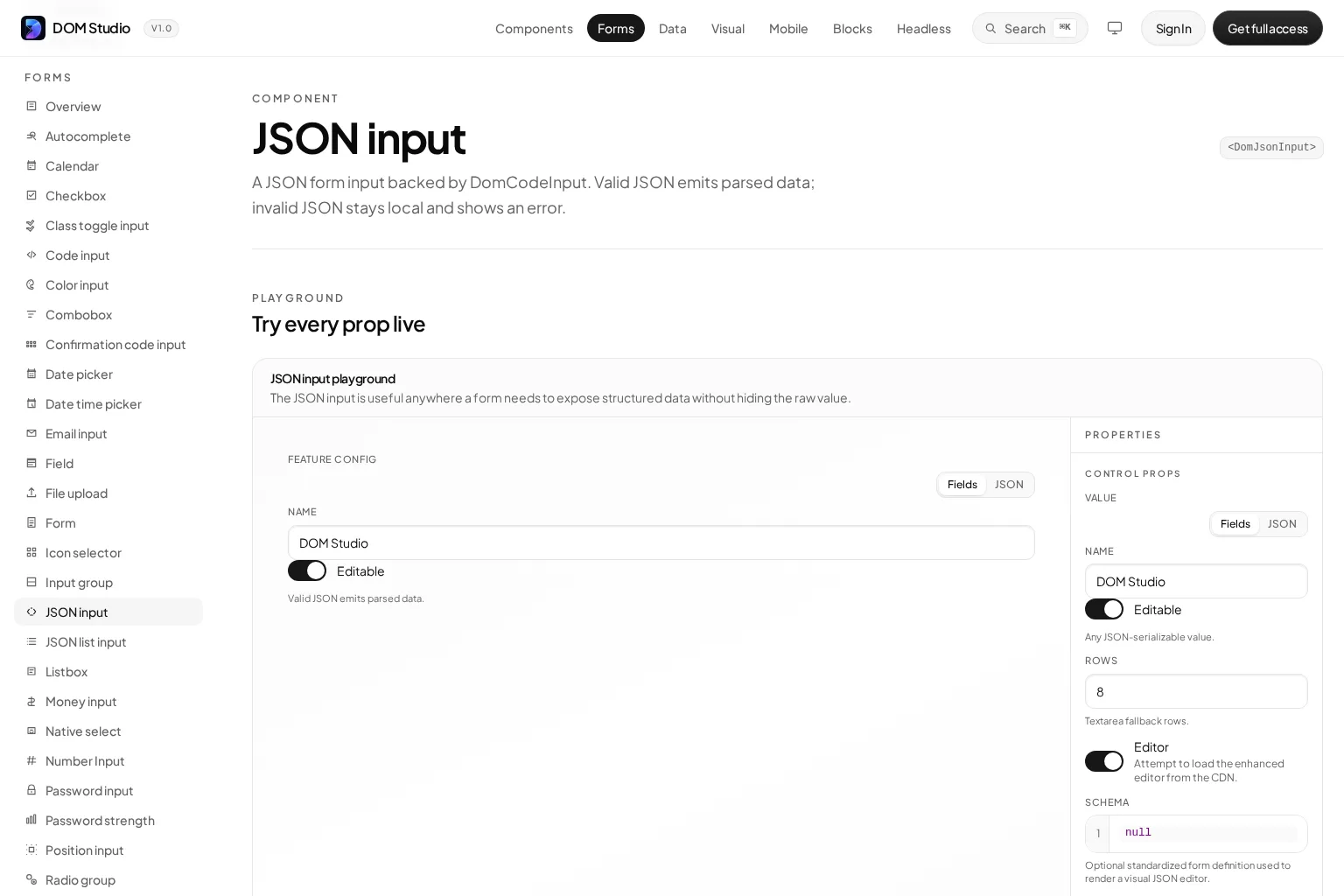
Use the JSON input component when an editor needs both a guided form and direct access to the underlying value. Keep the raw mode behind permissions when the configuration controls sensitive or production behavior.
7. Test the contract, renderer, and submitted values together
A schema-driven form is ready when all three layers agree: the contract, the generated interface, and the submitted payload. Test representative values, not only the happy path.
Use this release check:
- A missing required value blocks submission.
- Boundary lengths and numeric limits show actionable feedback.
- Enum values submitted from the UI match the API’s accepted values.
- Nested objects and arrays retain their intended shape after editing.
- Server validation errors appear on the matching field path.
- A raw JSON edit cannot replace valid model data until it parses successfully.
- Schema changes have an example payload and a migration plan when stored data already exists.
Build the form once, keep the contract useful everywhere
The practical benefit of schema-driven forms is not merely faster field generation. We gain a durable description of the data that can inform validation, documentation, test fixtures, admin tooling, and future storage adapters.
At DOM Studio, we recommend beginning with the data contract, decorating it only where the UI needs more context, and keeping runtime values and errors out of the schema. Start with the team form above, then expand the same pattern to onboarding flows, account settings, internal configuration, and repeatable application workflows.