
Most advice about building a datepicker with time starts with choosing a calendar popup. Start with the fields instead. A useful control lets someone type a date, type a time and understand whose clock applies, while the application resolves those choices into a canonical value.
A polished calendar can help people explore availability. It doesn’t, by itself, make a booking understandable, keyboard-operable or safe around a clock change.
Table of Contents
- Store One Instant and Show a UK Date and Time
- Native Inputs and a Minimal Markup Skeleton
- Build the Fields and Style Them with Tailwind
- Keyboard and Screen Reader Behaviour to Ship
- Daylight Saving and the Exact Instant
- Wire the Pattern into Your Next Form
Store One Instant and Show a UK Date and Time
Display and storage contract for a date and time
| Layer | Example | Rule |
|---|---|---|
| Display date | 16 May 2017 | Day, month in words, year |
| Display time, 12-hour | 10:30am | Explicit am or pm |
| Display time, 24-hour | 10:30 | Label the field as 24-hour |
| Spoken range | 10am to 11am | Use to, not a dash |
| Stored instant | 2017-05-16T10:30:56+01:00 | ISO 8601 with T and offset |
| Start of day | 00:00 | Midnight as the beginning |
| End of day | 24:00 | Midnight as the end; pick one in the spec |
| Booking precision | 10:30 | Minutes are enough |
| Audit precision | 10:30:56 | Seconds only when required |
The UK government date-times and time-stamps standard specifies ISO 8601:2004 for government data exchange, supports the offset-bearing example in this contract, distinguishes the midnight representations and advises recording only the precision needed.
The contract separates what people read from what systems exchange. Walk through its rows with the designer and API owner before implementing the component.
Make the displayed value easy to verify
The display-date row establishes an unambiguous reading order. Writing the month in words makes a confirmation easier to check than a compact numeric string, particularly when someone reads it aloud.
The time rows describe alternative presentations, not competing values. Choose the format that suits the service, then make it explicit. Someone shouldn’t have to infer whether an afternoon appointment needs an am/pm suffix.
The spoken-range row belongs in confirmation messages and availability lists too. Write a natural-language range rather than relying on punctuation to communicate its meaning.
Define what the stored value promises
The stored-instant row combines the calendar date, the T separator, clock time and UTC offset. That offset identifies how the local clock relates to UTC for the selected occurrence; a display string alone cannot do that.
Keep the named time zone separately when the application needs local scheduling rules. An offset identifies the relationship at an instant, while Europe/London identifies the rules used to resolve a local appointment.
The midnight rows require a product decision. Prefer accepting the beginning-of-day form in the input and expressing end-of-day deadlines clearly in the surrounding copy. If the product accepts an end-of-day representation, normalise it deliberately rather than trusting every parser to support it.
Finally, choose precision by task. A booking interface shouldn’t expose seconds merely because the database can store them, and an audit event shouldn’t lose detail because the booking field doesn’t display it.
Contract first: Freeze the display format, precision, zone policy and serialisation rules in props and tests before choosing colours or a calendar library.
“One canonical value” means one authoritative resolved appointment value. It doesn’t mean throwing away the zone or the editable text needed to correct an unfinished form.
Native Inputs and a Minimal Markup Skeleton
Choose the baseline before buying or styling a widget. Native inputs reduce custom interaction work; text fields give you predictable presentation but make parsing and validation your responsibility.
An input with type="datetime-local" returns a local date-time without a time zone. Use it when the application fixes and visibly names the zone, and the server resolves the submitted value using that policy.
Choose by browser behaviour
A native date input exposes a normalised date value, but the browser controls its visible presentation. Setting the document language doesn’t guarantee the same date layout across every supported browser and device.
If a fixed UK display is essential, use separately labelled text fields with visible hints. If native presentation is acceptable after testing, separate native date and time inputs can preserve the same overall form contract.
A minimal text-field skeleton looks like this:
<fieldset aria-describedby="appointment-zone">
  <legend>Appointment (required)</legend>

  <label for="appointment-date">Date</label>
  <p id="date-hint">Enter day month year.</p>
  <input id="appointment-date" name="dateText"
    type="text" required aria-describedby="date-hint">

  <label for="appointment-time">Time</label>
  <p id="time-hint">Use hours and minutes, 24-hour clock.</p>
  <input id="appointment-time" name="timeText"
    type="text" required aria-describedby="time-hint">

  <p id="appointment-zone">Clinic time zone: Europe/London.</p>
  <input type="hidden" name="appointmentInstant" value="">
</fieldset>
Keep the payload separate
Populate the hidden field only after successful parsing and zone resolution. Clear any stale resolved value when either visible field changes, and have the server validate the appointment independently. Hidden inputs aren’t a trust boundary.
For reservation-specific context, 10Seat’s restaurant booking widget UX tips are useful alongside the field-level implementation. Evaluate the time-selector interface against the same choice: can someone enter the value directly, or must they operate a visual aid?
Native controls don’t require custom JavaScript to render and accept input. Resolving a booking into an exact instant still requires application logic.
Build the Fields and Style Them with Tailwind
Build a working plain form first, then enhance it. Keep the typed path available even when the calendar fails to load or the user prefers not to open it.
The visual progression should follow the underlying form structure.
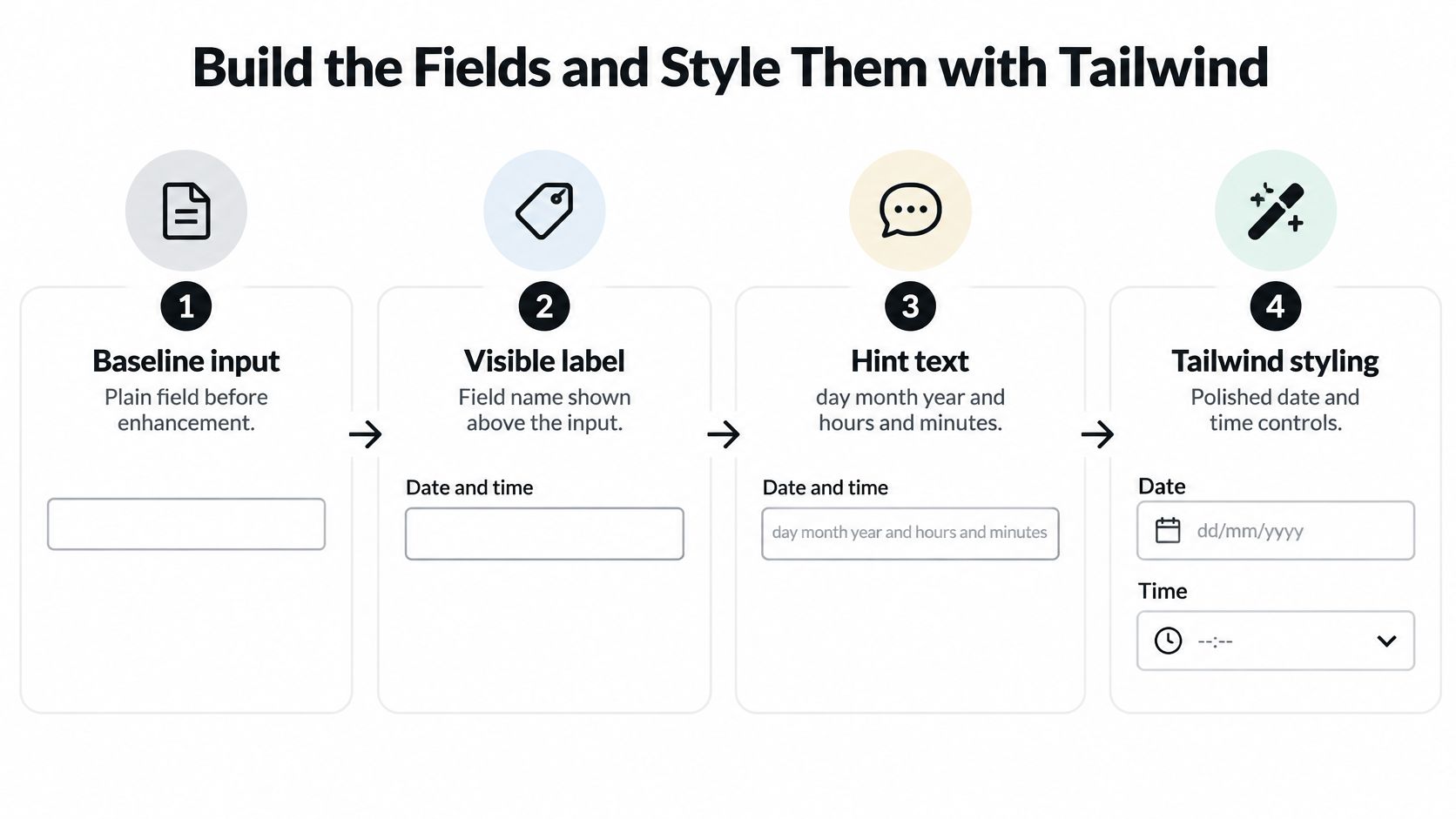
Build the editing path
-
Name both fields visibly. Put Date and Time above their respective inputs and associate each label using
forandid. Add a short format hint that remains visible after typing. The slip to avoid is using placeholder text as the only explanation, because it disappears precisely when someone needs to check their entry. -
Render date first, then time. Choose a documented input grammar: a date with the month in words and a clearly labelled clock format works well for a UK-facing text interface. If numeric date entry is also accepted, parse
DD/MM/YYYYexplicitly at the boundary. Don’t pass a UK-formatted string into a generic date parser and hope it interprets the order correctly. -
Group the appointment controls. Use a
fieldsetandlegend, put the required instruction in the legend and applyrequiredto each mandatory input. A fieldset doesn’t make its descendants required automatically. The common slip is adding an asterisk to the group without exposing the actual constraints on the inputs. -
Add optional selection aids. Provide a calendar opener and, where useful, a dismissible time list. Use real buttons with
type="button"so opening an aid doesn’t submit the form. Don’t make either aid the only route to a value. -
Separate drafts from resolved state. Bind the component with
v-modelto an object containing date, time and zone, while retaining raw text during editing. Resolve that object into an instant only when it is complete. Concatenating display strings produces neither a dependable instant nor a reliable chronological sort key. -
Validate completed edits. Check the group when focus leaves it, accounting for focus moving into its associated popup, and validate again on submit. Reject impossible dates, out-of-range clock values and missing required fields with a correction beside the relevant input. Validating and reformatting on every keystroke can destroy a half-typed value.
-
Make the targets usable. The NHS Scotland date-picker guidance calls for manual entry, visible and programmatic labels, descriptive errors, keyboard operation and minimum 24 × 24 CSS-pixel touch targets. Apply the target size to calendar cells and icon buttons too; a generous input doesn’t compensate for a tiny opener.
Style without replacing behaviour
Tailwind should control layout and appearance, not decide how the calendar operates. Use a relative container, an absolutely positioned popup, an appropriate stacking level and a maximum height with vertical overflow. Check for clipping by ancestor containers before increasing the z-index.
Give inputs and buttons a clearly visible focus-visible ring with sufficient contrast against adjacent colours. Minimum-size utilities such as min-w-[24px] and min-h-[24px] can express the target contract, but allow content and spacing to grow when text is enlarged.
Associate error text through aria-describedby and set aria-invalid when a field has failed validation. Keep the existing hint in that description list rather than replacing it with the error. Don’t add positive tabindex values to fix visual ordering; let the calendar primitive manage roving focus inside its grid.
Confirm in readable language
The GOV.UK spreadsheet accessibility guidance warns that a date such as 01/02/10 may be read as “01 slash 02 slash 10” and recommends dates with words. Keep the editable grammar and the confirmation presentation distinct where that improves readability.
For a hypothetical clinic slot, someone might enter 18 July 2019 and 5:30pm in an interface configured to accept am/pm. Confirm that appointment in words before submission, with the clinic’s time zone identified. If your field accepts only the labelled alternative clock format, don’t accept a different grammar without testing it.
Use this implementation video as a visual companion, while judging the finished control by its form behaviour.
Keyboard and Screen Reader Behaviour to Ship
A polished calendar popup does not make a date-and-time field accessible. The foundation is two clearly labelled fields, date and time, that retain their own values and produce one canonical ISO value. The calendar is an optional way to choose a date, not the source of truth.
The NHS Accessible Information Standard guidance addresses meeting people’s communication needs, while WCAG 2.2 AA and 200% text resizing remain the applicable accessibility benchmarks to include in your acceptance checks.
Keyboard and assistive technology checks
| Interaction | Expected result | Release failure |
|---|---|---|
| Tab through the group | Date, time, then optional opener, in order | Focus trapped in the popup |
| Arrow keys in the calendar | Move by day inside the grid | Grid only works with a pointer |
| Escape | Close popup and restore focus to the opener | Focus lost on the page |
| Select a date | Date updates and typed time stays | Form submits or time is cleared |
| Validation error | Names the field and how to fix it | Error only shown as colour |
| Screen reader | Hears labels, hint and value in words | Announces 01 slash 02 slash 10 |
| 200 percent zoom | Fields reflow and remain usable | Controls overlap or clip |
| Required state | Exposed on the group | Required only in placeholder text |
Inspect semantics before interaction
Start with the rendered DOM. Check that label references resolve, hint and error IDs are unique, and the legend explains how the date and time relate. Make the required instruction visible, and ensure each mandatory input exposes its required state.
Then use the keyboard. Tab through the closed form, open the calendar and follow its documented grid navigation. Home and End may move within a week; Page Up and Page Down may change months. Choose a consistent convention and make it discoverable, rather than leaving those keys accidental.
A modal dialog may contain focus while open, but it needs a reliable dismissal path. A non-modal popover needs a clear exit too. Either way, users must be able to return to the form without losing their place.
Selecting a date changes the date. It leaves the typed time alone and never submits the form.
Check that focus returns to the opener after cancellation and selection. Also test opening the calendar, changing your mind and continuing to type without choosing a date.
Test announcements and real tasks
Use a screen reader to check field names, descriptions, current values and errors. Spoken punctuation varies across software combinations, so don’t assume a raw text input will announce a reformatted value clearly. Test what people hear and provide a readable confirmation.
Use the screen-reader testing guide to organise repeatable checks. Record the browser, assistive technology, task and observed result so a teammate can reproduce a failure.
Enlarge text and narrow the viewport. Check that field order remains sensible, errors wrap, popup content stays reachable and focus indicators aren’t clipped.
Finish with practical tasks: enter an appointment, correct an invalid time, cancel the popup and recover from a server-side booking rejection. Record each result against the interaction contract, including the problem observed when a task fails.
Daylight Saving and the Exact Instant
Reject a local time that falls inside the spring-forward gap. Don’t move it to a later appointment, even if your date library offers that as its default disambiguation behaviour.
During the autumn repeat, a valid-looking local time can resolve to different instants. Ask the person to choose the occurrence, using explanatory wording and the resolved offsets rather than assuming they understand time-zone abbreviations.
The timeline makes the difference between a clock reading and an instant easier to see.
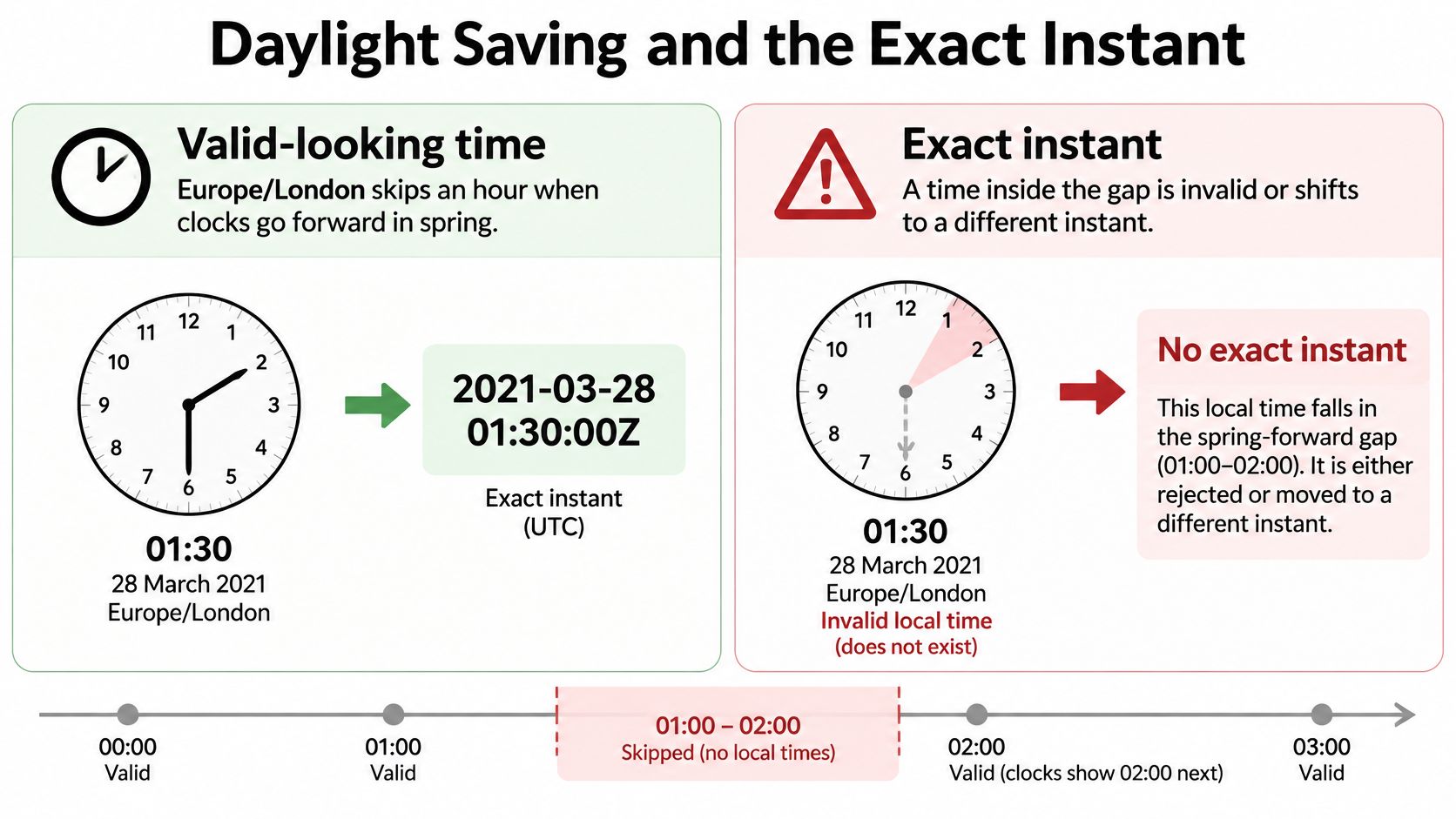
Write the disambiguation policy
Use a time-zone-aware library or API to resolve the local fields against Europe/London. Configure rejection of nonexistent values and explicit handling of ambiguous values. Avoid depending on the browser’s current zone, which might belong to a travelling user rather than the clinic.
Ambiguous date and time cases
| Case | What the clock does | Product rule |
|---|---|---|
| Spring forward in Europe/London | An hour does not exist | Reject and explain the gap |
| Autumn repeat in Europe/London | The same hour occurs twice | Ask which offset, or show both instants |
| User versus organisation time | Both clocks can be correct | Label whose time it is |
| Before submit | The instant is still implicit | Show the resolved words and offset |
| Midnight at a date boundary | 00:00 and 24:00 both exist | Use the meaning fixed in the contract |
| Recurring event after a zone change | Past and future instants diverge | Keep past offsets and recompute future ones |
Each row needs an application decision, not a CSS adjustment. GOV.UK’s public-sector accessibility requirements emphasise understandable, predictable interfaces and correctable errors; those principles apply to the messages used to resolve these cases.
Show whose appointment time it is
Say someone in London and someone abroad view the same clinic slot. Keep the clinic time clearly labelled, and offer a separately labelled local equivalent if it helps. Don’t replace the organisation’s clock based on device settings without notice.
Before submission, display the resolved appointment in words together with its offset. Generate that summary from the resolved model, not independently from the raw text, so the confirmation describes the value the server will receive.
Treat recurrence as a separate scheduling problem. If the appointment’s named zone changes, preserve past occurrences and their recorded instants; recompute future occurrences only under the product’s stated policy. Decide whether the recurring promise follows the organisation’s wall clock or a fixed interval.
Scheduling policy: Store enough information to explain why an occurrence landed at its instant, not merely enough to draw it on a calendar.
For midnight deadlines, test both the accepted input and the normalised result. The important outcome is that the date boundary means what the person confirmed.
Wire the Pattern into Your Next Form
Choose an existing appointment form and replace its date-time interaction this week. Start with a task people already perform, so you can test the whole journey rather than another isolated calendar demo.
Write the acceptance task before opening the component catalogue: enter a clinic appointment, correct the time, inspect the confirmation and submit it. Include a server rejection, such as the slot becoming unavailable, and verify that the form preserves the person’s work.
Make the first change small
- Choose the input baseline. Test native fields on supported devices, then use text fields if predictable UK presentation is necessary.
- Connect the resolved payload. Submit the canonical appointment value and retain the named zone wherever scheduling rules require it.
- Confirm before sending. Show a readable appointment summary generated from the resolved state.
- Run the release checks. Include typed entry, popup cancellation, error recovery and a clock-change case.
For services coordinating lessons, Tutorbase’s guide to how to schedule tutoring sessions efficiently provides useful operational context. The form still needs an explicit promise about whose schedule the selected time belongs to.
Use the form composition reference when connecting field descriptions, validation and submission state. Keep those responsibilities in the surrounding form rather than hiding them inside the calendar.
Borrow the calendar, not the policy
Our DOM Studio catalogue includes DomMonthCalendar, which offers date-led month views with events. It’s used in the Availability Pricing Calendar block alongside DomDialog, DomSelect, DomButton and related inputs; the headless primitives provide roles and focus behaviour, while Vue bindings provide reactive props and v-model.
That gives you a calendar primitive to place behind an optional opener without making the visual month view the primary entry path. It doesn’t decide which appointments exist, how ambiguous times should be resolved or whether the server can still reserve the slot.
Ship the labelled fields and a tested submission contract first. Add a clock face only if task testing shows that it helps people choose a time more easily than typing or selecting a labelled option.
DOM Studio offers headless interaction primitives, Vue bindings and Tailwind styling for composing the fields and optional calendar around your appointment model. Visit DOM Studio to inspect the calendar and form pieces, then keep parsing, availability and time-zone policy explicit in your application.