
A styled <select> is often presented as a combo box. It isn’t. Changing its colours and borders doesn’t give it editable search, and building a custom dropdown that looks native doesn’t make it work like one for a keyboard user or a screen reader. Before writing HTML or CSS, choose the control that matches the task.
The practical choice is between a native select, a non-editable pop-up list, and an editable combobox. They may look similar, but their interaction models differ. In combo box HTML, the hard part isn’t drawing the popup. It’s making focus, selection, and changing results understandable and predictable.
Table of Contents
- Why Most Combo Boxes Are Not What They Look Like
- The Minimum Markup That Actually Holds Up
- Keyboard and Screen-Reader Behaviour You Cannot Skip
- Filtering, Autocomplete Tokens, and Surviving JavaScript Failure
- Native HTML, ARIA Pattern, or Headless Primitive
- Using a DOM Studio Headless Primitive from Vue
- Release Checklist for a Production Combo Box
Why Most Combo Boxes Are Not What They Look Like
A styled native <select> is still a select: users choose from a fixed list using browser-controlled behaviour. A pop-up list can display choices after a click, but unless the text field accepts input and filters those choices, it isn’t an editable combobox. A true editable combobox keeps a text input, offers suggestions as the user types, and lets them choose a suggestion without losing the typed value.
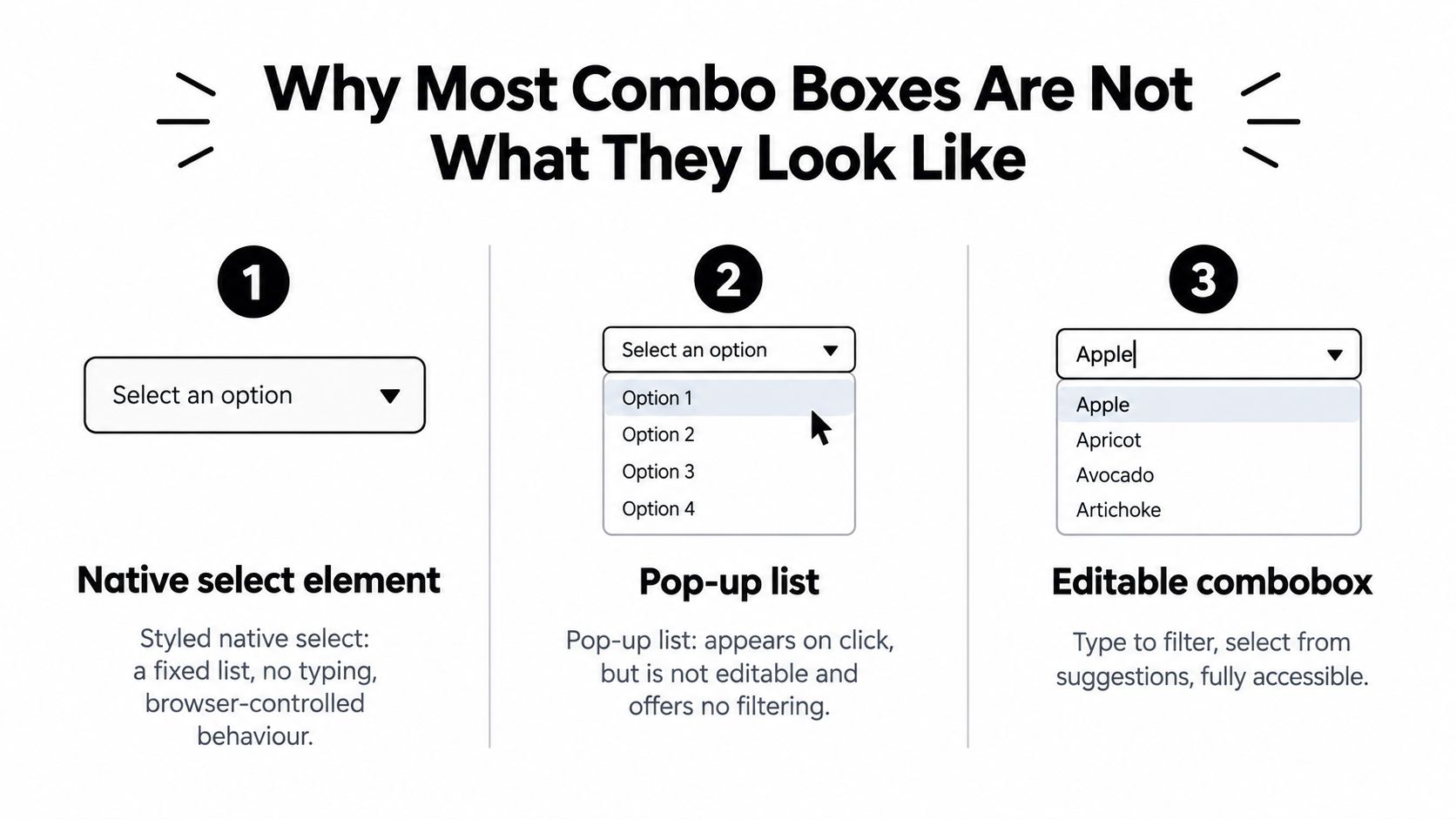
These patterns suit different jobs. Use a native select when the user must choose one item from a short, fixed list. A non-editable list can suit a simple choice interface where typing isn’t needed. An editable combobox makes sense when users need to narrow a large or changing set of suggestions, or when free-form text is a valid outcome. Don’t pick a custom control just because the design calls for a familiar arrow.
Visual similarity isn’t evidence of accessibility. UK monitoring of public-sector websites and mobile applications recorded 26,171 accessibility issues from January 2022 to September 2024. Focus Visible was the most frequent individual problem, at 13.3% of recorded issues; Keyboard accounted for 10.8%, and Name, Role, Value for 8.6%. Keyboard accessibility was identified on 63.6% of monitored sites, according to the UK public-sector accessibility monitoring report.
A custom dropdown can touch several of those failure areas at once. If a user can’t reach it, see focus, move through options, or hear what they’ve selected, a polished surface doesn’t make the interaction usable. Decide first whether users need a fixed choice, a popup without editing, or a searchable input. Then build only the behaviour that choice requires.
The Minimum Markup That Actually Holds Up
Start with a labelled text input that remains useful if JavaScript doesn’t run. The label needs to be programmatically associated with the input, and the input should accept and preserve the user’s text.
<label for="service-search">Search for a service</label>
<input id="service-search" name="service" type="text">
When JavaScript is active and the suggestion interface is ready, add the combobox semantics and connect the input to its popup:
<label for="service-search">Search for a service</label>
<input
  id="service-search"
  name="service"
  type="text"
  role="combobox"
  aria-expanded="false"
  aria-controls="service-options"
  aria-autocomplete="list"
>
<ul id="service-options" role="listbox" hidden></ul>
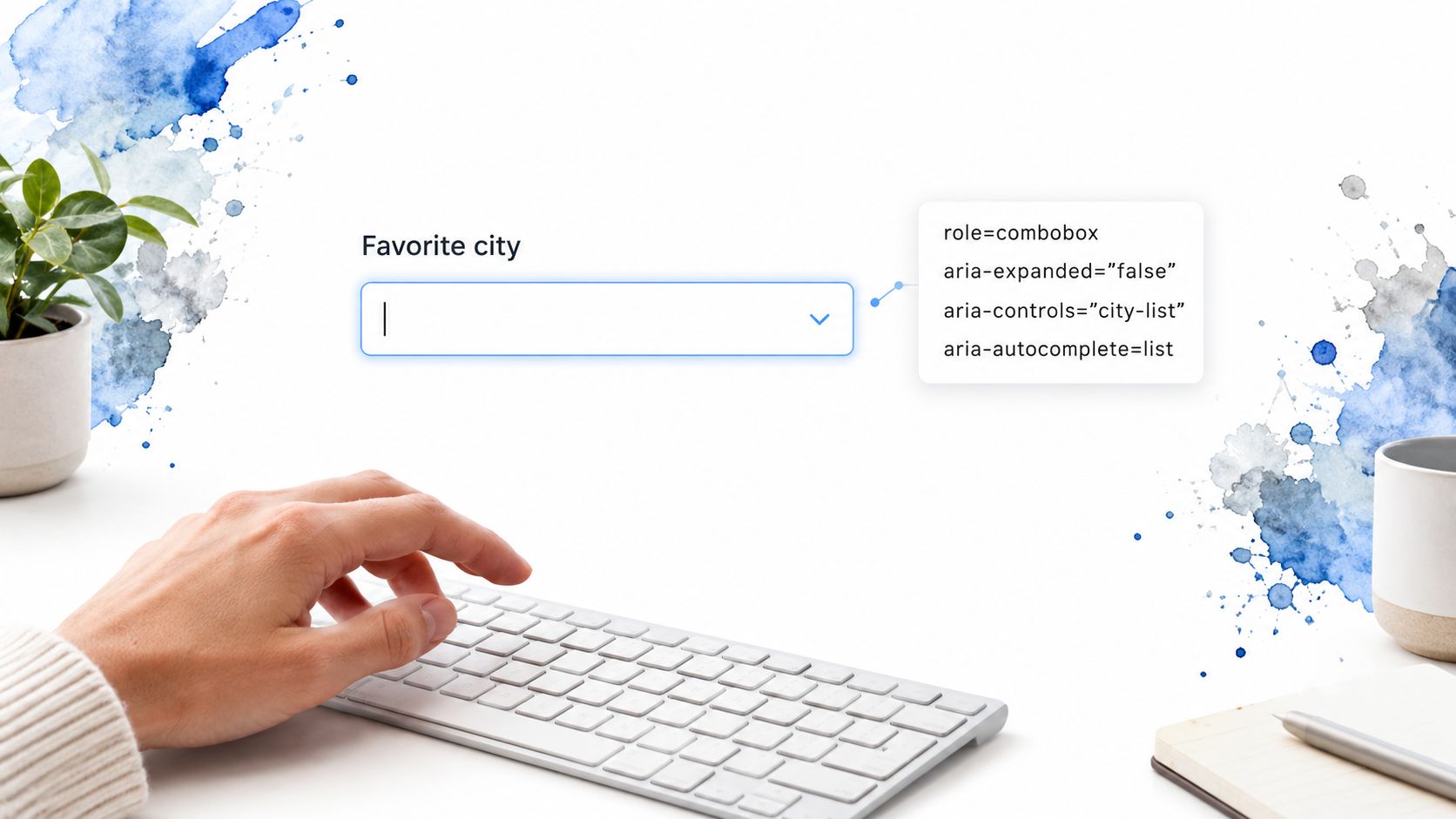
The attributes describe separate facts. role="combobox" identifies the control; aria-expanded communicates whether its popup is open; aria-controls points to that popup; and aria-autocomplete="list" tells assistive technology that suggestions are offered as the user types. Each suggestion needs role="option" and a stable, unique ID. Update the option set as filtering changes, and keep the input’s typed value intact when the user opens or moves through suggestions.
This is not an edge case for specialist tools. A 2016 GOV.UK survey found that respondents used screen readers, screen magnifiers, and speech-recognition software; within the screen-reader group, people reported using JAWS, VoiceOver, and NVDA. The figures are historical, but the design lesson remains useful: different assistive technologies depend on consistent labels, states, values, and focus behaviour. The GOV.UK assistive-technology survey evidence gives the reported breakdown.
Before adding interaction code, check the DOM:
- The input has a real label. Placeholder text alone isn’t a substitute.
- The popup has an ID.
aria-controlsmust refer to the element that contains the options. - Options have stable identities. Re-rendering shouldn’t leave
aria-activedescendantpointing to a removed node. - The initial state is truthful. A hidden popup starts with
aria-expanded="false". - The typed value stays in the input. Browsing suggestions shouldn’t replace it.
That foundation makes the control’s purpose and structure inspectable before you tackle keyboard behaviour.
Keyboard and Screen-Reader Behaviour You Cannot Skip
A combobox isn’t complete when its popup opens. Users need a repeatable way to move through suggestions, commit a choice, dismiss the popup, and leave the field. A key handler that works with a mouse nearby but loses focus during arrow navigation isn’t a finished interaction.
The focus model must be explicit. With aria-activedescendant, DOM focus stays on the input while the attribute identifies the active option. With managed DOM focus, focus moves to the option itself, usually through a roving-focus pattern. Don’t mix these casually: choose one model, keep its state consistent, and test what assistive technology announces as the active option changes.
| Key | Expected behaviour | Screen-reader announcement |
|---|---|---|
| Down Arrow | Open the popup or move to the next option. | Popup state and the newly active option. |
| Up Arrow | Move to the previous option. | The active option, without losing the input’s context. |
| Enter | Commit the active option and close the popup. | The selected value. |
| Escape | Close without committing a new option. | The collapsed state; the existing input value remains. |
| Tab | Leave the control in the normal page focus order. | The next focusable element. |
| Home and End | Move to the first or last option when the popup is open. | The option that becomes active. |
| Typing | Update the query and filter suggestions. | A polite result-count or no-results announcement. |
A visible list changing on screen doesn’t guarantee a screen reader will report the update. Use a polite live region for result counts and no-result states, and avoid moving focus just to force an announcement. That can interrupt virtual navigation or make the user lose their place.
Practical rule: A popup must never trap focus, and closing it must leave focus somewhere predictable.
UK public-sector developer guidance describes the combobox, listbox, option, focus, and live-region semantics and sets a practical acceptance gate of zero critical keyboard or screen-reader defects across NVDA with Chrome, JAWS with Edge, and VoiceOver with Safari. Check the GOV.UK accessibility guidance for developers against the behaviour you’ve built, then test those browser and assistive-technology combinations manually. For a wider review of interaction patterns, see these accessibility best practices for web interfaces.
Filtering, Autocomplete Tokens, and Surviving JavaScript Failure
Browser autofill and combobox suggestions solve different problems. The HTML autocomplete attribute helps a browser recognise a field’s purpose, such as name, email, address, or postcode. aria-autocomplete describes the suggestion behaviour of the widget to assistive technology. Don’t use one as a substitute for the other, and don’t switch off browser autofill just because the component has its own suggestion list.
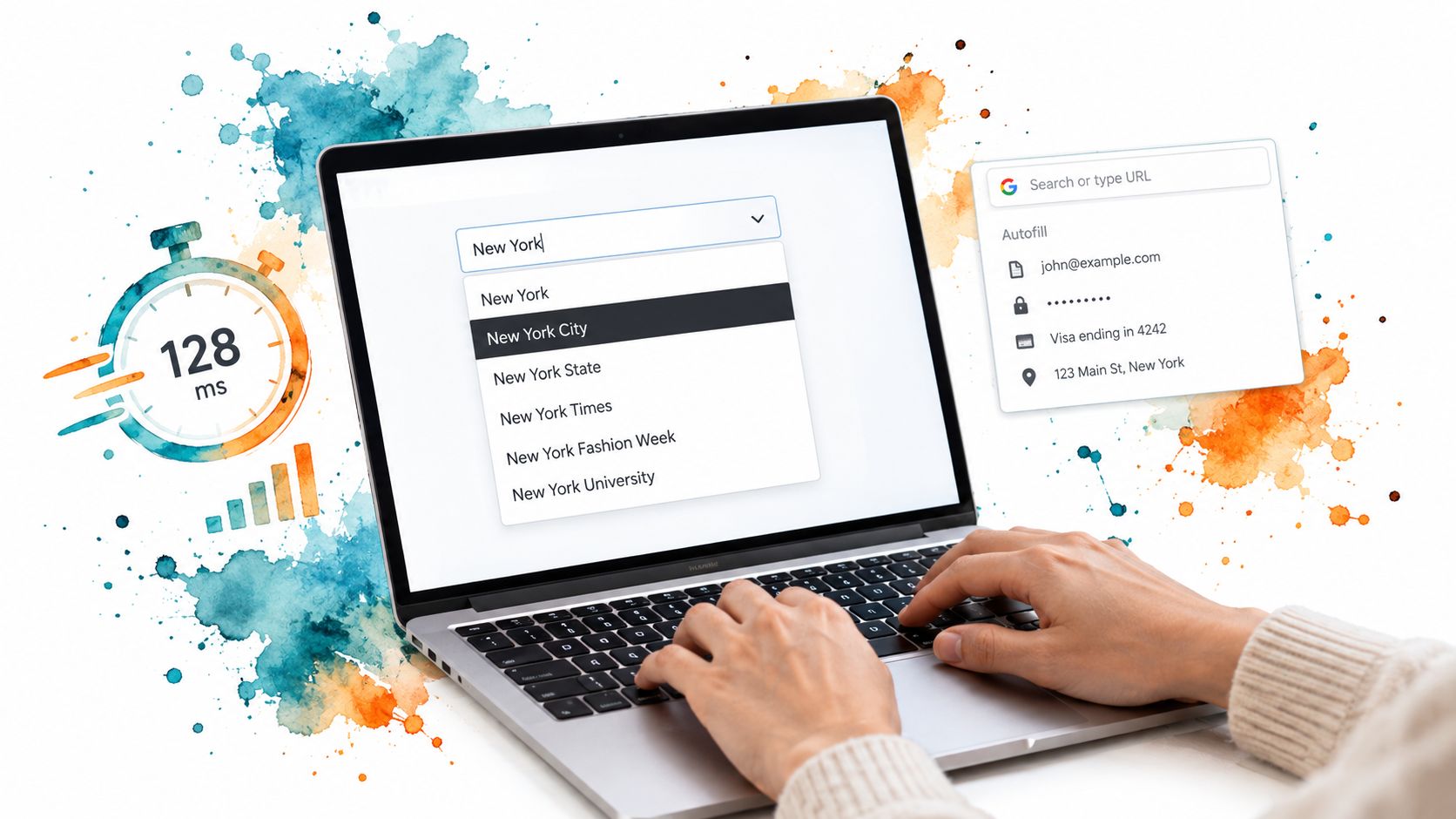
For fields that collect personal data, set the relevant autocomplete token. Bristol City Council notes that missing recognised tokens can make form inputs difficult to autofill, and the National Library of Scotland identified missing or invalid autocomplete attributes as a WCAG 2.2 Identify Input Purpose failure in its 2025 audit, as described in the Bristol City Council website accessibility information. Suggestions from your application shouldn’t prevent users from using browser-saved information.
Filtering can be local or remote. For remote results, debounce requests, cancel stale ones, and preserve the current input if a request fails. Measure keystroke-to-render latency using a repeatable dataset rather than assuming a particular rendering strategy will be fast enough. The useful comparison points are 10, 100, and 1,000 options. Keep the popup anchored to the input, and virtualise only when profiling shows that rendering all options is a problem.
Here’s the shape of a debounced remote filter. The rendering and state functions are intentionally left to your component because their DOM updates must match its chosen focus model.
let timer;
let controller;

function onInput(query) {
  clearTimeout(timer);
  controller?.abort();

  timer = setTimeout(async () => {
    controller = new AbortController();
    setState("loading");

    try {
      const response = await fetch(
        `/api/services?q=${encodeURIComponent(query)}`,
        { signal: controller.signal }
      );
      if (!response.ok) throw new Error("Search failed");

      const options = await response.json();
      renderOptions(options);
      setState(options.length ? "expanded" : "empty");
      announce(options.length
        ? `${options.length} results available`
        : "No results");
    } catch (error) {
      if (error.name === "AbortError") return;
      setState("error");
      announce("Search is unavailable. Your text has been kept.");
    }
  }, 200);
}
The delay shown is a configurable implementation example, not a performance target. A production component also needs to update aria-expanded and the active-option reference as it moves between collapsed, expanded, loading, empty, error, and selected states. If JavaScript fails, leave the labelled text input usable; if the network fails, retain the typed value and explain the failure without forcing a selection. For more detail on the distinction between suggestions and saved browser data, see this guide to autocomplete inputs.
The embedded video can help visualise a suggestion interface, but it doesn’t replace keyboard and screen-reader testing.
Native HTML, ARIA Pattern, or Headless Primitive
Choose the least complicated control that meets the user’s need. A native select usually brings browser-managed keyboard behaviour and clear selection semantics with little custom code. An editable ARIA combobox gives you control over filtering and presentation, but that control comes with the responsibility to implement focus, state, and announcements correctly. A headless primitive can provide reusable behaviour without prescribing the visual design, but it still needs to fit your framework and testing process.
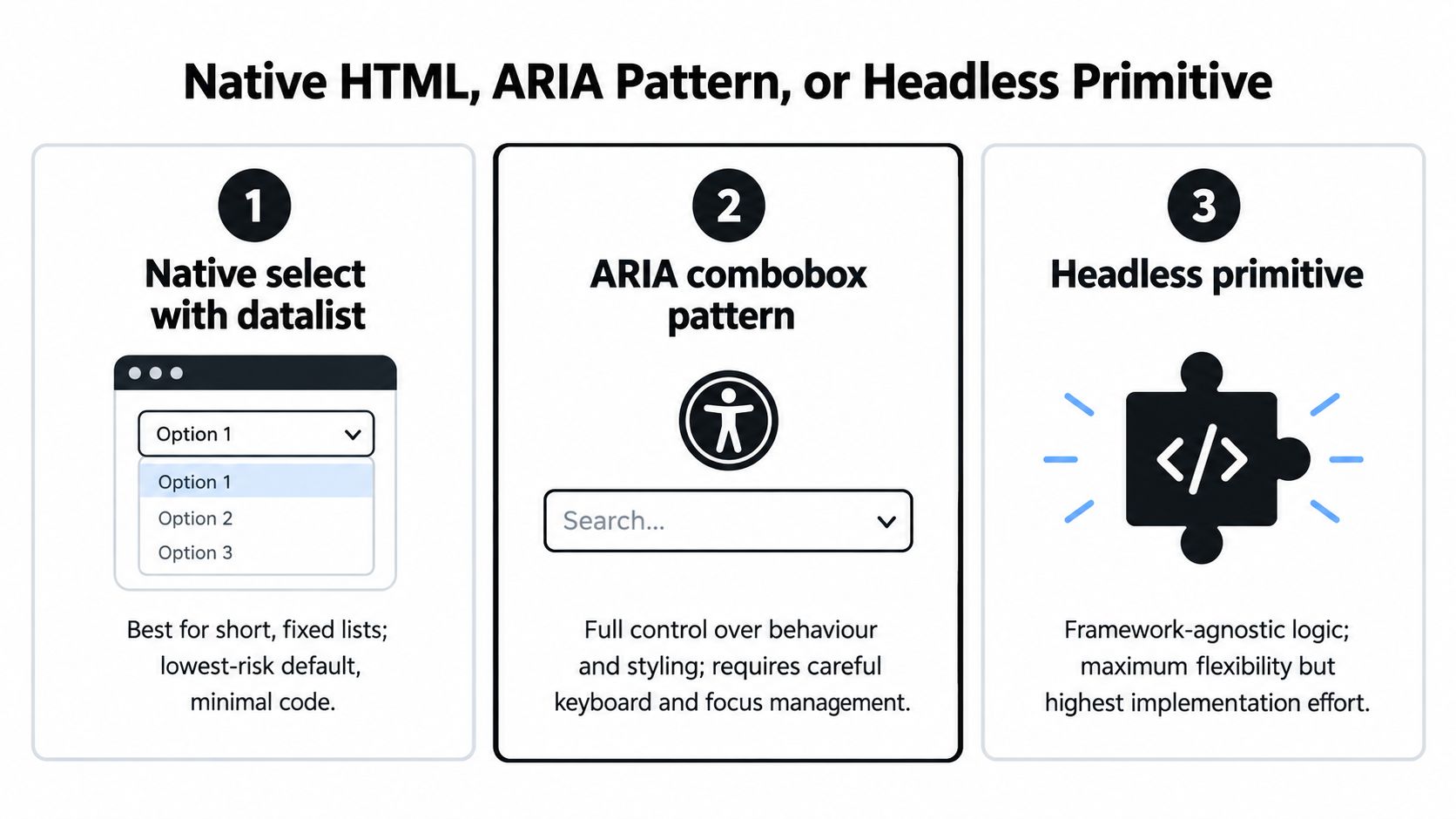
| Scenario | Best pattern | Watch out for |
|---|---|---|
| Short, fixed set of choices | Native <select> |
Don’t replace familiar browser behaviour only for visual consistency. |
| Suggestions must filter as the user types | Editable ARIA combobox | You own keyboard handling, focus, announcements, and state updates. |
| Shared component needed across a team or framework boundary | Headless primitive | Verify its focus model, customisation limits, and assistive-technology support. |
A native <datalist> may suit a straightforward text input with suggestions, but it won’t necessarily provide the same control over popup presentation and interaction as a purpose-built combobox. Test the actual browser and assistive-technology combinations your users rely on, rather than assuming that one pattern behaves identically everywhere.
ARIA doesn’t repair missing behaviour. UK accessibility statements describe combobox problems such as an option selection causing an unexpected page update for a screen-reader user, or arrow-key navigation unexpectedly leaving the control. Those reports, outlined in the Home Office guidance on keyboard interaction, are a reminder that adding roles can make a familiar native control harder to use if the focus model and announcements are wrong.
A custom dropdown is an interaction contract, not a styling exercise.
Use an ARIA combobox when filtering or editable input adds real value. Use a headless primitive when your team wants reusable interaction logic but still needs to own the final visual layer. DOM Studio offers a headless combobox primitive with a Vue integration layer, so a team can use its behaviour while styling the component separately. That can reduce repeated implementation work, but it doesn’t remove the need to verify the component against your form’s data, browser autofill needs, and assistive-technology test plan.
Using a DOM Studio Headless Primitive from Vue
A headless primitive is useful when it takes repetitive ARIA and keyboard work out of a component without locking the team into a finished visual design. In a Vue application, the wrapper can expose reactive options, v-model, and slots for custom option markup. That keeps the component connected to Vue’s state while leaving its appearance to your styles.
A simple implementation might look like this:
<script setup>
import { ref } from "vue";

const selected = ref("");
const options = ref(["Benefits", "Housing", "Planning"]);
</script>

<template>
  <DomCombobox
    v-model="selected"
    :options="options"
    autocomplete="off"
  >
    <template #option="{ option }">
      <span class="block px-3 py-2">{{ option }}</span>
    </template>
  </DomCombobox>
</template>
Treat this as an integration sketch, not a substitute for checking the component’s actual API and the data collected by your form. In particular, don’t set autocomplete="off" blindly. If the input collects a recognised personal-data type, use the matching HTML autocomplete token; application filtering and browser autofill remain separate concerns.
Tailwind CSS 4 can style the field, popup, active option, and focus ring without changing the underlying ARIA relationship. The wrapper can save time on reactive wiring and common keyboard behaviour, but your team still needs to check that filter counts are announced, remote requests are debounced when needed, failed requests don’t erase typed text, and the final focus behaviour works with real assistive technology. Those checks belong in the component’s tests and in manual review, not in an assumption that a headless control is accessible by default.
Release Checklist for a Production Combo Box
Paste this into the pull request and ask for evidence, not just a screenshot. For broader application coverage, use it alongside a testing checklist for web apps.
- Keyboard behaviour: Down Arrow, Up Arrow, Enter, Escape, Tab, Home, End, and typing all behave as expected.
- Focus and state: Focus remains visible and predictable; ARIA state reflects collapsed, expanded, loading, empty, error, and selected states.
- Announcements: A polite live region reports changing result counts and no-result states without stealing focus.
- Fallbacks: The labelled input still works without JavaScript; a network failure preserves the user’s text.
- Personal data: Fields that collect known information use the appropriate HTML
autocompletetoken. - Manual testing: No critical keyboard or screen-reader defects remain across NVDA with Chrome, JAWS with Edge, and VoiceOver with Safari.
- Release evidence: Relevant accessibility documentation, including an accessibility statement for a UK public-sector service, is complete.
Include component tests for state transitions and keyboard behaviour in your team’s component testing workflow. Then answer two questions before building a custom dropdown: Does filtering add real value over a native select? Can keyboard and screen-reader users operate the control from search through selection? If either answer is uncertain, simplify the pattern or test the interaction before release.
DOM Studio provides headless UI primitives and a Vue integration layer for teams building accessible components without tying behaviour to a finished visual style. Explore DOM Studio to see whether its combobox primitive fits your implementation and testing needs.